

This post shows students and new users steps to make DuckDuckGo the default search engine in Windows 11 when using Microsoft Edge, Google Chrome, Firefox, or other Chromium-based browsers.
DuckDuckGo is a private search engine. It protects searcher’s privacy and avoids the filter bubble found with other search engine companies, including Google, Bing, and others.
When you install or upgrade to Windows 11, the default browse becomes Microsoft Edge, and the default search engine with Microsoft Edge is Bing. Also, installing Google Chrome, Firefox, and most browsers will make the Google search engine the default for your browser.
If you want to take back your privacy, you can set DuckDuckGo as your default search engine with your browse, and the steps below show you how to do that.
Install your favorite browsers in Windows 11
If you haven’t done so, here are steps to install and make Google Chrome, Firefox, Brave, Vivaldi, and Opera the default web browser in Windows 11.
How to install and make Google Chrome the default in Windows 11
How to install and make Firefox the default in Windows 11
How to install and make Brave the default in Windows 11
How to install and make Vivaldi the default in Windows 11
How to install and make Opera the default in Windows 11
How to make DuckDuckGo the default search engine in Windows 11
Now that you have installed your favorite web browsers follow the steps below to configure DuckDuckGo as your default search engine.
Today’s most popular browsers are based on the Chromium engine, similar to Google Chrome and Microsoft Edge. They are all almost identical in settings and function.
The steps below should work on almost all of them except for Firefox.
First, click the ellipsis icon in the toolbar.

Click Settings in the dropdown menu. The menu options should be a bit different for other browsers, but locate the Settings.

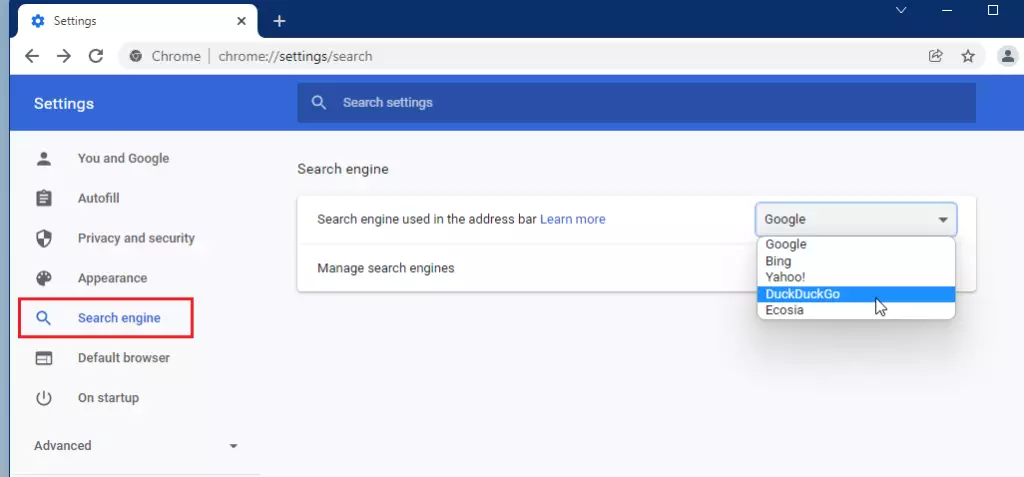
In Chrome, select the Search engine link on the left menu. Then, on the Search engine settings page, choose DuckDuckGo as the “Search engine to use in the address bar.”
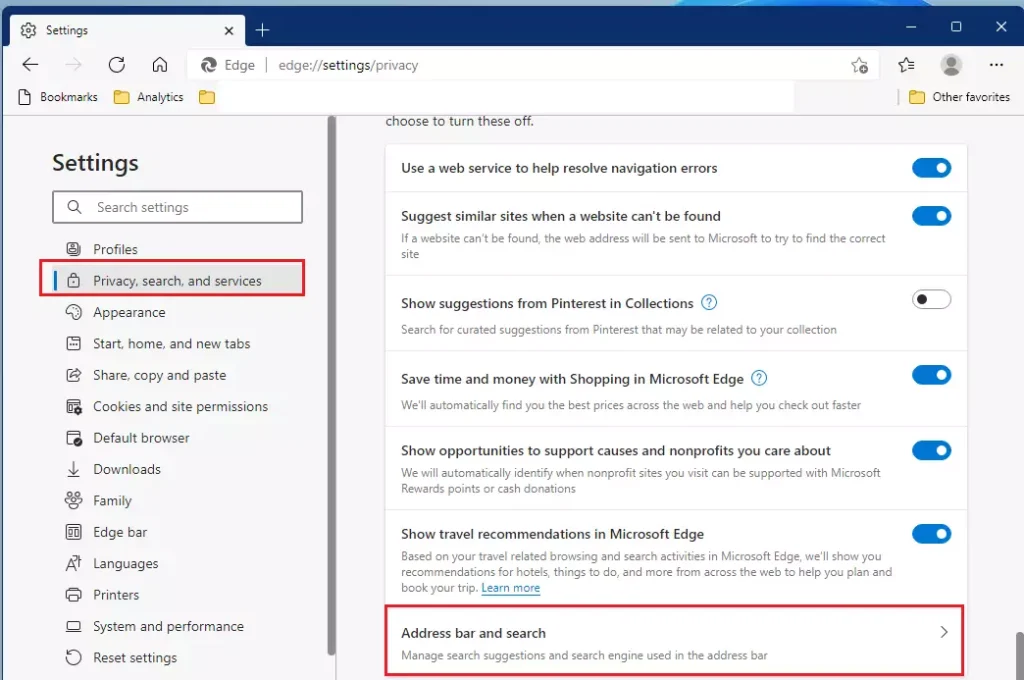
In Microsoft Edge, browse, select Privacy, search, and service, then select Address bar and search tile on the settings page.
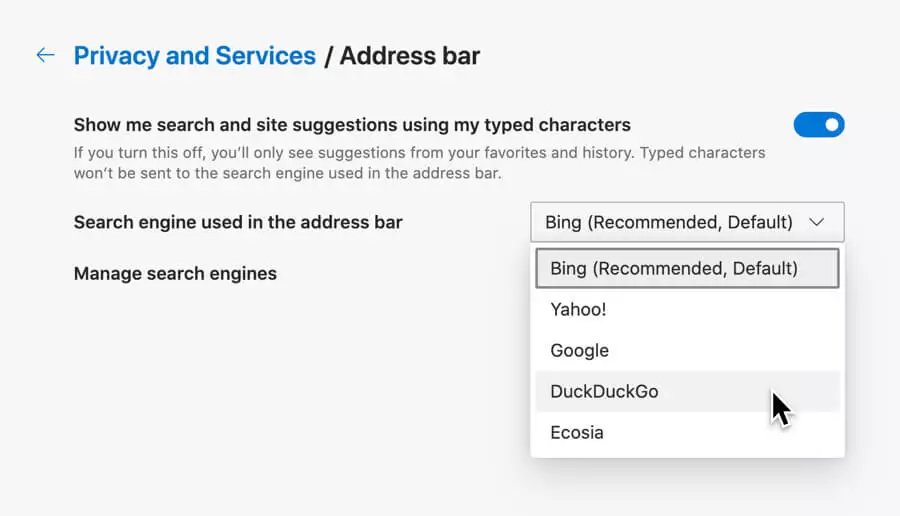
Other browsers may have similar settings but in different locations. Locate your browser’s search bar settings page, click the dropdown menu beside the Search engine used in the address bar, and select DuckDuckGo.
That should do it!
Conclusion:
- Changing your default search engine to DuckDuckGo enhances your privacy while browsing the web.
- The process is straightforward and similar across most browsers like Google Chrome and Microsoft Edge.
- Following the steps outlined ensures you can enjoy an ad-free and private search experience.
- Regularly check your browser settings to ensure DuckDuckGo remains your default choice.
- Experience the benefits of searching without tracking or filter bubbles by using DuckDuckGo as your go-to search engine.





Leave a Reply to Tony Bilbao Cancel reply