How to Turn “Processor Performance Boost Mode” on or off in Power Options on Windows 11

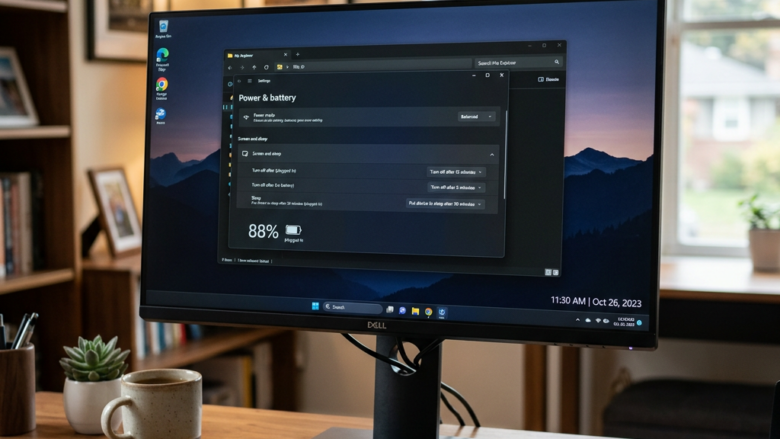
Processor performance boost mode is a hidden Windows 11 power setting that controls how your CPU (the main chip that runs your computer) uses its boost technology. On Intel chips this is Turbo Boost, and on AMD chips it is Turbo CORE (newer Ryzen chips call it Precision Boost). Boosting lets the CPU run faster than its base speed for short periods to handle heavy tasks.
Open Windows Terminal (Admin), paste the registry command reg add 🗝️HKLM\
You find this setting inside your power plan under “Processor power management”. It lets you choose whether your PC prioritizes top speed or cooler, quieter operation. By default Windows hides it from the Power Options window, so you have to add it first. The sections below show how.
Windows 11 lets you set different values for On battery and Plugged in. A common setup is a more aggressive mode when plugged in, so games and heavy apps run faster, and a more conservative mode on battery to stretch battery life and keep the fans quiet.
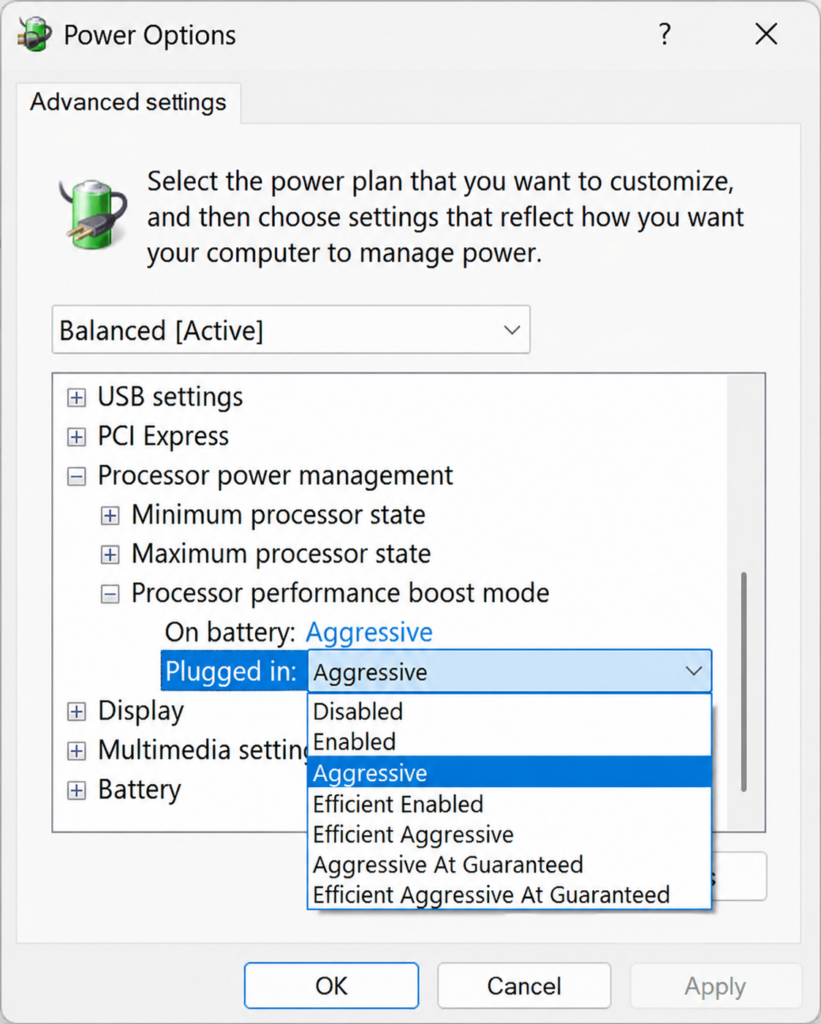
Here is what each option means:
- Disabled: Your CPU won’t boost its speed. It will run closer to its normal speed. This saves power and reduces heat but might make your computer feel less responsive for quick tasks.
- Enabled: This is the normal setting. Your CPU can boost its speed when needed. It balances speed with power and heat.
- Aggressive (Default): Your CPU will boost its speed more often and for longer periods. This can improve performance for demanding tasks but uses more power and generates more heat.
- Efficient Enabled: Your CPU can still boost, but it tries to do so only when it really helps performance. It avoids boosting for small gains to save energy.
- Efficient Aggressive: This is a mix. Your CPU boosts for performance, but it also focuses more on saving power than the “Aggressive” setting. It aims for good performance while reducing wasted energy.
- Aggressive At Guaranteed: Your CPU will always try to reach the highest possible speed above its guaranteed speed.
- Efficient Aggressive AT Guaranteed: Your CPU will try to reach the highest possible speed efficiently if the hardware allows it.
Some of these modes depend on your CPU, its firmware and its drivers. On some PCs, a few options may behave the same or have little visible effect.
Administrator rights are required to change this setting. This applies to both Windows 11 Home and Pro. If you are signed in with a standard account, you will be asked for an administrator password when Terminal opens.
Option 1Add “Processor performance boost mode” to Power Options
You can add processor performance boost mode to your Power Options by running a quick command in Windows Terminal. This lets you control how your computer speeds up its processor for heavy tasks, which helps you manage heat, fan noise, and battery life directly from your power plan settings.
- Open Windows Terminal (Admin). For example, right-click the Start button and choose Terminal (Admin). Click Yes if User Account Control asks for permission. You can use either Windows PowerShell or Command Prompt.
- Copy and paste one of the following commands into Terminal (Admin) and press Enter. Either command gives the same result, so use the one that matches your shell. The command runs silently, and you normally see no message when it succeeds.
OR
reg add HKLM\SYSTEM\CurrentControlSet\Control\Power\PowerSettings\54533251-82be-4824-96c1-47b60b740d00\be337238-0d82-4146-a960-4f3749d470c7 /v Attributes /t REG_DWORD /d 0 /fNo restart is needed. To check the result, open Control Panel Hardware and Sound Power Options, click Change plan settings next to your active plan, then click Change advanced power settings. Expand Processor power management. You should now see Processor performance boost mode, with separate drop-down lists for On battery and Plugged in. Pick the mode you want for each and click OK.
If the setting does not appear, close and reopen the Power Options window and check again. Also confirm that Terminal was really opened as administrator.
Option 2Remove “Processor performance boost mode” from Power Options
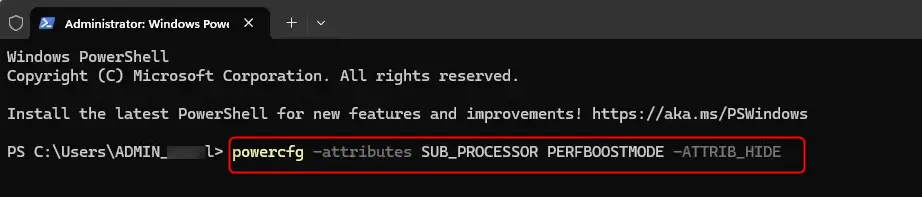
You can remove processor performance boost mode from your Power Options by running a quick command in Windows Terminal. This hides the setting from your power plans, which is useful if you want to clean up your settings menu or stop users from changing how your processor handles demanding tasks.
Whatever mode you last picked stays in effect. If you want a particular behavior, set it before you hide the option. To bring the setting back later, run the add command from the previous section.
- Open Windows Terminal (Admin). For example, right-click the Start button and choose Terminal (Admin). Click Yes if User Account Control asks for permission. You can use either Windows PowerShell or Command Prompt.
- Copy and paste one of the following commands into Terminal (Admin) and press Enter. Use the command that matches your shell.
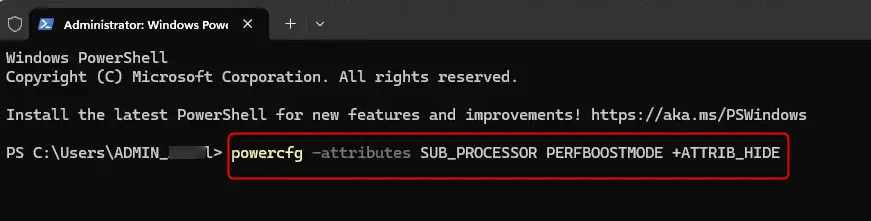
powercfg -attributes SUB_PROCESSOR PERFBOOSTMODE +ATTRIB_HIDE
OR
reg add HKLM\SYSTEM\CurrentControlSet\Control\Power\PowerSettings\54533251-82be-4824-96c1-47b60b740d00\be337238-0d82-4146-a960-4f3749d470c7 /v Attributes /t REG_DWORD /d 1 /f
No restart is needed. Open Change advanced power settings again and expand Processor power management. Processor performance boost mode should no longer be listed.
That's all there is to it!
Reference:
Summary
This guide explains how to enable or disable the "Processor performance boost mode" in Windows 11's Power Options, helping you balance your computer's speed against its energy use, heat and fan noise.
Frequently asked questions
How to active boost mode of CPU on sysdm.cpl with CMD?
Windows doesn't store boost mode in sysdm.cpl, so set it from Command Prompt. Open Command Prompt as administrator and run powercfg -attributes SUB_PROCESSOR be337238-0d82-4146-a960-4f3749d470c7 -ATTRIB_HIDE to show the setting. Then run powercfg /setacvalueindex SCHEME_CURRENT SUB_PROCESSOR PERFBOOSTMODE 2 for Aggressive, and powercfg /setactive SCHEME_CURRENT to apply it.
How to fimd CPU core preformance boost is on?
Open Command Prompt and run powercfg /query SCHEME_CURRENT SUB_PROCESSOR PERFBOOSTMODE. Look at the Current AC Power Setting Index line for plugged in, or the DC line for battery. 0x00000000 means off, 0x00000001 means enabled, and 0x00000002 means aggressive. You can also check Task Manager's Performance tab: a speed above the base speed means boost is active.
How to find CPU core performance boost is on?
Open Control Panel, go to Power Options, click Change plan settings, then Change advanced power settings. Expand Processor power management and read the Processor performance boost mode value. If the setting is missing, unhide it with the powercfg -attributes command first. Task Manager's Performance tab also shows a speed above base speed when boost is working.
How to turn off CPU boost?
Open Power Options, click Change plan settings, then Change advanced power settings. Expand Processor power management, open Processor performance boost mode, and set both On battery and Plugged in to Disabled. Click Apply, then OK. Heavy tasks will run slower, but fans stay quieter. To undo this, choose Enabled.
Doestis work on win 11 home?
Asked by a reader
Yes, it works on Windows 11 Home. The steps apply to both Home and Pro. Right-click the Start button, choose Terminal (Admin), and run the add command from the first section of the guide. You need an administrator account or password. Then open Control Panel > Hardware and Sound > Power Options, click Change plan settings, then Change advanced power settings, and expand Processor power management to find Processor performance boost mode. No restart is needed.
Still have a question?
Answered by AI from this guide. Good questions may be added to this page — please don't include personal details.
Did this guide fix your problem?

About the Author
Richard
Tech Writer, IT Professional
Richard is a writer at Geek Rewind who turns complex IT tasks into clear, step-by-step guides. He draws on years of hands-on experience in system administration and enterprise IT operations, focusing on Windows, Linux and WordPress: the problems people actually run into, and the fixes that work. His server and WordPress guides come from systems he runs himself. Richard builds and maintains the platform behind Geek Rewind, from its Ubuntu servers and Nginx configuration to its custom WordPress plugins. Many new tutorials start with readers' questions, and he's always glad to answer them in the comments.
No comments yet — be the first to share your thoughts!