Should You Use Windows 11 Ultimate Performance Power Plan

- 10 steps
- Needs administrator rights
The Ultimate Performance power plan in Windows 11 is a hidden setting that trades power savings for speed. Microsoft originally built it for high-end workstations running Windows 10 version 1803 and newer. You can switch it on in Windows 11 with one command.
In this mode the processor stays at top speed and the small delays that normally save power are removed. That can help heavy apps and games run more smoothly. It also has real costs, which this guide covers so you can decide whether it is worth it.
Yes, for a desktop or workstation that does heavy video editing, 3D rendering or demanding games and stays plugged in. Ultimate Performance keeps the processor at top speed and removes the micro-delays that Balanced and High Performance use to save power. It can be enabled with one command in Windows Terminal (Admin) and selected in Control Panel.
Understanding 🪟 Windows 11 Power Plans: The Basics
A power plan is a built-in set of rules. It controls how much electricity your PC uses and how hard the processor works. You use plans to balance speed against battery life and heat. Windows 11 usually shows you these standard plans:
- BalancedThis is the default on most computers. It gives you full performance when you need it and slows the processor down when you are only reading a web page or typing a document. That saves electricity and keeps a laptop battery from draining too fast.
- Power SaverThis plan limits your computer’s speed as much as it can. It is meant for laptops that are running low on battery and need to last until you find a wall outlet.
- High PerformanceThis plan keeps the computer at a higher speed more often. It ignores some power-saving features to give you a smoother experience in heavy apps and games.
Which plans you see depends on the PC. Some laptops show only Balanced, because the maker has limited the list. The Balanced plan is the right choice for most everyday work. It keeps the computer fast and responsive, keeps the electricity bill reasonable, and keeps a laptop cool. If you want to push the hardware harder, Windows has a stronger plan that is hidden until you run a command.
What Is the Ultimate Performance Power Plan?
Ultimate Performance is a hidden plan built into Windows 11. It is meant to get the most out of high-end hardware. Microsoft first made it for heavy workstation computers used for professional video editing and 3D design. Windows 11 Pro for Workstations may show it without any extra steps. On other editions, such as Home and Pro, you reveal it yourself.
The standard plans, and even High Performance, still use tiny micro-delays to save power. The hardware constantly speeds up and slows down in fractions of a second. You never notice these pauses in normal use. In demanding games or professional apps, though, they can occasionally cause small stutters.
Ultimate Performance removes the micro-delays. It keeps the processor and other key parts fully awake and ready at all times, and it cuts hardware latency to the minimum. That takes extra power and makes extra heat. For that reason Microsoft hides the plan by default, so nobody turns it on by accident on a laptop.
How to Unlock and Enable the Ultimate Performance Power Plan
The plan is hidden, so you reveal it with a short command in Windows Terminal or PowerShell. You do not need to download anything. After you run the command, you select the new plan in the classic Control Panel power settings.
- Click the Start button on your taskbar.
- Type Terminal or PowerShell in the search box. You should see the app in the results.
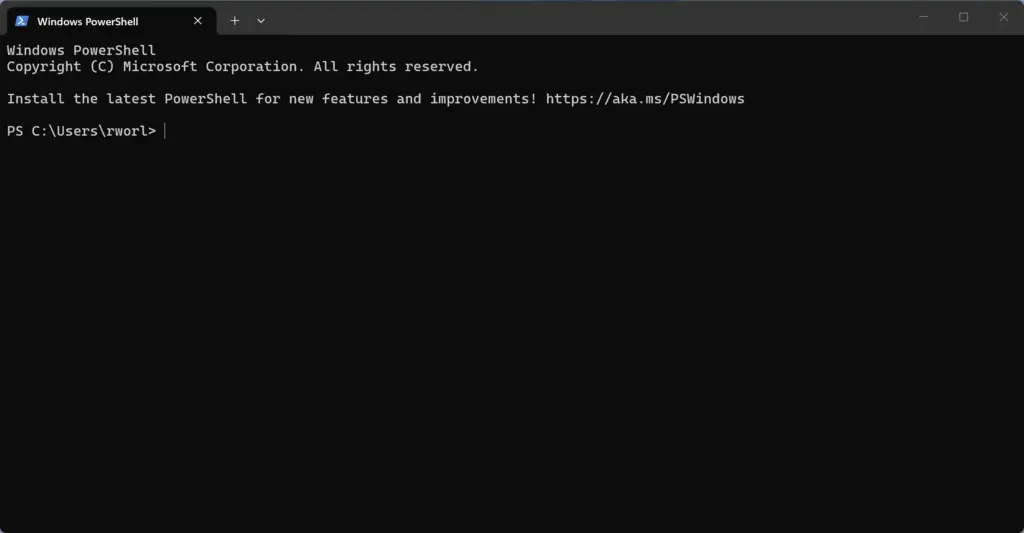
PowerShell - Right-click Windows Terminal or Windows PowerShell in the results and choose Run as administrator.
- Click Yes if a window asks whether you want to allow this app to make changes to your device. A terminal window then opens with administrator rights.
- Type or paste this exact command into the window and press Enter:
powercfg -duplicatescheme e9a42b02-d5df-448d-aa00-03f14749eb61 - Check the output. You should see a message with a long GUID, and the name of the new scheme should be Ultimate Performance. That means the plan was created.
If you get an error instead, check the command for typing mistakes and make sure the window is running as administrator. Some systems, mostly laptops with modern standby, may not accept the command. In that case the plan cannot be added and you should stay on Balanced.
Once that command has run, the hidden Ultimate Performance plan is on your Windows 11 PC. It is not active yet. You still have to select it, and you do that in the classic Control Panel rather than in the Settings app. The Settings app only shows a power mode drop-down and does not list your plans.
- Click the Start button and open the Settings app (the gear icon). This step is optional. You can look at System Power & battery to see your current power mode, but the plan list is not there.

Settings - Open the classic Control Panel. Type Control Panel in the Windows search bar and open it. Then go to Hardware and Sound Power Options.
- Look at the list of plans. You should see Balanced and High Performance, and now also Ultimate Performance. If you only see one plan, click Show additional plans to expand the list.
- Click the circle next to Ultimate Performance to select it. The circle should now be filled, which means the plan is active. You do not need to restart.
To undo this, go back to Power Options and select Balanced. To remove the plan completely, first select another plan. Then click Change plan settings next to Ultimate Performance and click Delete this plan.
Why Microsoft Keeps This Plan Hidden
Microsoft hides Ultimate Performance because it forces your computer’s parts to stay fully awake all the time. That constant high-speed state raises your electricity use, makes extra heat, and drains portable computers much faster. Most people would not notice any speed boost in everyday tasks, so Microsoft hides the plan to prevent accidental battery drain and overheating. The main drawbacks are:
- Higher Electricity BillsYour parts stay fully awake and ready, so they draw more power from the wall even when the computer is sitting idle on the desktop.
- Extra Heat and Fan NoiseMore power means more heat. The cooling fans spin faster and louder to keep the processor and graphics card cool, which gets annoying during quiet work.
- Battery Drain on LaptopsOn a laptop, battery life drops significantly. The battery drains much faster even when you are only browsing the web or writing an email.
- Unnecessary for Most AppsWeb browsers, word processors, and casual games do not benefit from this mode. They run fine on the standard Balanced plan.
Unique Consideration: The Desktop Versus Laptop Dilemma
Whether you can use Ultimate Performance safely depends on the kind of computer you have. On a desktop plugged into a wall outlet, it causes very few problems, because battery drain is not a concern. On a laptop it is a bad idea, because the high-power mode will drain the battery in no time.
A powerful desktop is the best fit. If you do not mind a slightly higher electric bill, the plan has few real drawbacks. The power supply can handle the load, and the larger cooling fans can manage the extra heat. It makes the most sense if you do video editing, 3D work, or other heavy jobs and want the lowest possible delays.
Laptops depend on strict thermal limits and battery care to work safely. Forcing the processor to stay at maximum power drains the battery quickly and can cause thermal throttling. Thermal throttling happens when the machine gets hot enough that it slows itself down to prevent permanent hardware damage. So on a laptop, chasing more speed with Ultimate Performance can make the computer slower over time if it overheats. If you do try it on a laptop, keep it plugged in and switch back to Balanced when you finish.
Summary
The Windows 11 Ultimate Performance power plan removes tiny system delays and gives a very small speed boost in heavy games and creative apps, but most people should avoid it. It works fine on plugged-in desktops. It also raises your electric bill, makes extra heat, and drains laptop batteries fast. Everyday users should stay on the Balanced plan for the best mix of speed, cool running, and efficiency.
Have a question about this guide?
Answered by AI from this guide. Good questions may be added to this page — please don't include personal details.
Did this guide fix your problem?

About the Author
Richard
Tech Writer, IT Professional
Richard is a writer at Geek Rewind who turns complex IT tasks into clear, step-by-step guides. He draws on years of hands-on experience in system administration and enterprise IT operations, focusing on Windows, Linux and WordPress: the problems people actually run into, and the fixes that work. His server and WordPress guides come from systems he runs himself. Richard builds and maintains the platform behind Geek Rewind, from its Ubuntu servers and Nginx configuration to its custom WordPress plugins. Many new tutorials start with readers' questions, and he's always glad to answer them in the comments.
No comments yet — be the first to share your thoughts!