Should You Enable Ultimate Performance Mode in Windows 11?

- 13 steps
- Needs administrator rights
Ultimate Performance mode in Windows 11 is a hidden power plan that removes most of the energy-saving limits so your hardware runs at maximum speed. The standard Balanced plan slows the processor down during light tasks. This plan keeps it at top speed almost all the time.
Microsoft built this plan for powerful workstations doing heavy work like video editing and 3D rendering. On an ordinary desktop or laptop it can add a small boost in demanding games. The cost is higher electricity use, more heat, and a laptop battery that drains much faster.
No, not for most people. Ultimate Performance is a hidden Windows 11 power plan that keeps the processor at top speed, which raises electricity use, heat and battery drain. It helps only heavy workloads such as video editing, 3D rendering or a few demanding games, where gains are often just 1% to 2%. For everyday use, keep the Balanced plan.
Understanding 🪟 Windows 11 Power Plans
Before looking at Ultimate Performance, it helps to know the standard options Windows 11 already gives you. Each one trades speed against power use and heat in a different way.
The Balanced Plan Does a Great Job Overall
Balanced is the right default for almost everyone. It lets the processor drop to a low speed when little is happening, so the system stays quiet and cool during web browsing, documents and video. When you start something heavy, it ramps the processor up quickly, and you don’t pay for that speed the rest of the time.
For most people, Balanced gives the best mix of speed, low heat and quiet fans. Most daily activities never need you to change it.
High Performance and Sleep Settings
The High performance plan tells the computer to stay at a faster speed more often. It also reduces the small delay when the processor wakes up from a lower speed. That sounds useful, but in practice it mostly keeps the machine warmer and uses more electricity, even when you are idle. On a laptop it also shortens battery life noticeably.
What Is Ultimate Performance Mode?
Ultimate Performance is a hidden plan aimed at advanced workstations that run heavy tasks for hours. It removes the tiny delays that happen when Windows adjusts power levels, so the hardware stays at top speed.
Those delays are called micro-latencies. They are fractions of a second where the computer pauses briefly while it changes power state. In normal use you never notice them. In extreme workloads, removing them can make a small difference.
When you turn the plan on, the computer stops trying to save power. Specifically:
- The processor stays at or near its maximum speed almost all the time.
- Hard drives never go to sleep.
- USB ports never enter low-power states.
Why Does Microsoft Keep It Hidden?
Microsoft hides this plan by default because of what it costs you. The main drawbacks are:
- It consumes much more electricity, which will raise your power bill over time.
- It generates more heat, which can make your computer fans run louder and more often.
- It is not available on battery-powered laptops by default because it would drain the battery in no time.
- It offers very little benefit for typical users, office workers, or casual web browsers.
Because of these downsides, Microsoft leaves the plan out of the normal Windows 11 settings. You have to add it yourself with a single command, which is covered in the steps below. Nothing is installed. The command just makes the built-in plan visible.
Does It Actually Improve Gaming Performance?
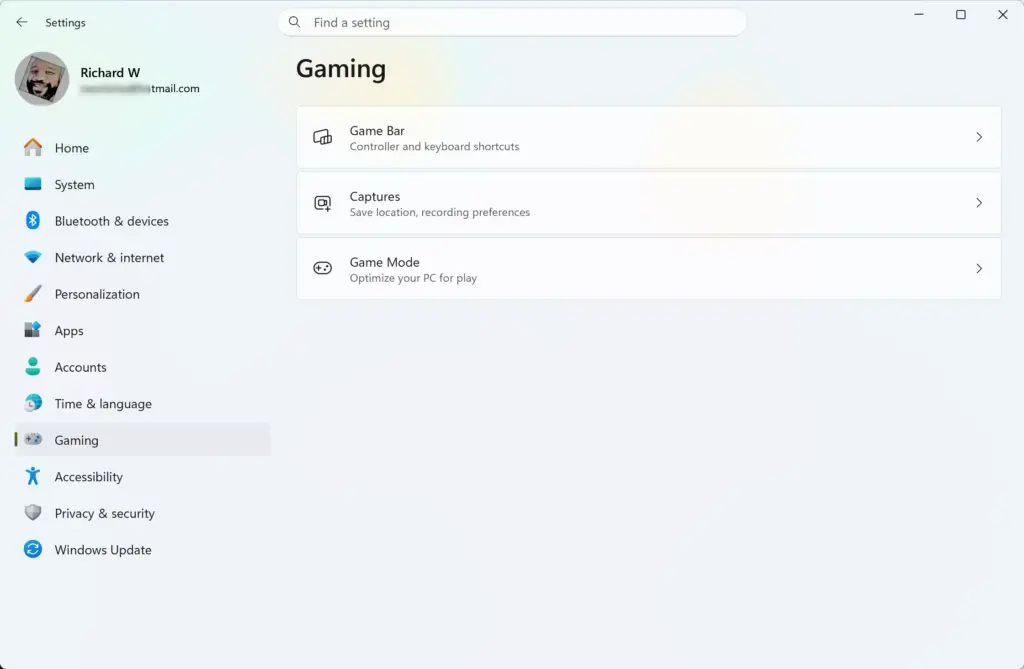
For most players, Ultimate Performance does not noticeably improve gaming. Average frame rates usually change by only 1% to 2%, which is within the margin of error between test runs. It can help prevent tiny stutters in a few specific games that push your hardware to the limit.
The reason is simple. The plan stops the processor from shifting speeds, so it never has to ramp up in the middle of a demanding scene. You will see the benefit only in specific situations, and it will be slight. If you play the kind of games that stress your hardware, the gameplay may feel a little smoother.
Do not expect a weak computer to turn into a high-end gaming machine just by switching this plan on. If your graphics card or processor is the bottleneck, a power plan cannot fix that.
How to Unlock and Enable Ultimate Performance Mode
Follow these steps to add the Ultimate Performance plan:
- Click the Start button on your taskbar.
- Type PowerShell into the search box.
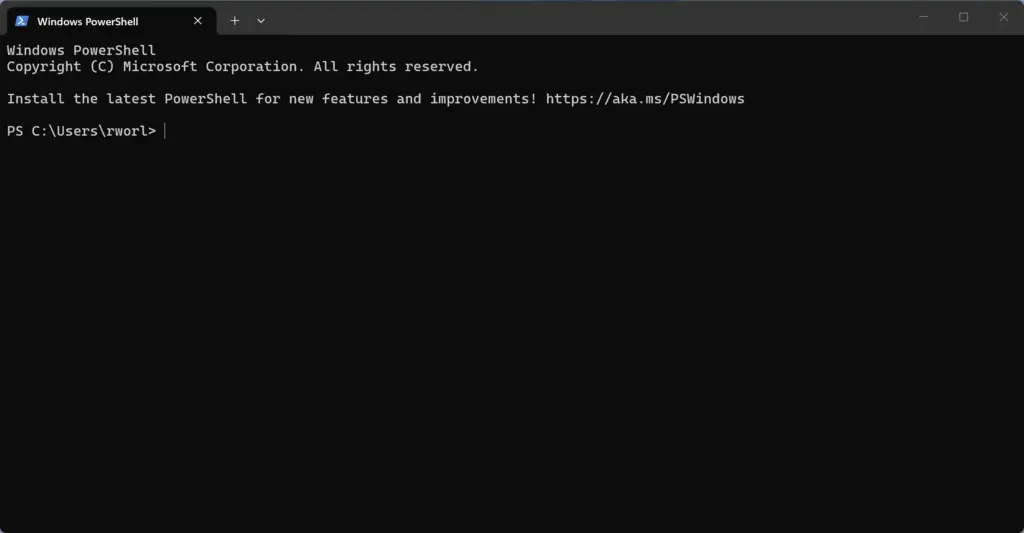
PowerShell - Look for Windows PowerShell in the search results.
- Right-click Windows PowerShell and choose Run as administrator. If a User Account Control prompt appears, click Yes. A window with a blinking cursor opens, and its title bar should say Administrator.
- Type or copy and paste the following exact command into the window:
powercfg -duplicatescheme e9a42b02-d5df-448d-aa00-03f14749eb61
- Press Enter.
- Check the result. If the command worked, a new line appears with a long string of numbers and letters, and it should end with the name Ultimate Performance. If you see an error instead, the window is probably not running as administrator, so repeat step 4.
- Close the PowerShell window.
Now that the plan is added, you need to switch to it:
- Press the Windows key, type Control Panel, then press Enter.
- Click Hardware and Sound.
- Click Power Options. You should see your current plan, usually Balanced, with a circle next to it.
- Look for Ultimate Performance. If you do not see it right away, click the arrow next to Show additional plans.
- Click the circle next to Ultimate Performance to select it.
The change takes effect immediately. To undo it, go back to Control Panel Hardware and Sound Power Options and select Balanced again. The Ultimate Performance plan stays in the list, which is harmless. If you want it gone, select another plan first, then click Change plan settings next to Ultimate Performance and choose Delete this plan. You can’t delete the plan that is currently active.
If the plan doesn’t show up on a laptop, that is normal. Many laptops, especially those that use Modern Standby, hide or limit this plan to protect battery life.
Unique Angles: What Competitors Miss About Ultimate Performance
Most articles stop at how to turn the plan on and whether it helps games. They skip three details worth knowing before you switch, including how much extra power a laptop battery or desktop processor actually draws.
Impact on Component Lifespan and Heat Management
Ultimate Performance keeps the processor at maximum speed for as long as the PC is on, so internal components run hotter. Even if your cooling keeps temperatures within safe limits, holding components at high heat for long periods can slowly shorten their lifespan over the years.
If you live in a warm climate, or your PC sits in a dusty room, the plan can push you closer to your thermal limits. Your fans may also wear out sooner because they spin at high speed far more often. Cleaning the dust filters and fans regularly helps if you decide to keep the plan on.
The Real-World Electricity Cost
The plan raises your electricity bill because the PC keeps drawing extra power even when you walk away from your desk. Over a full year of daily use on a desktop, that small but constant increase adds up to a noticeable cost.
Should You Switch on Ultimate Performance in 🪟 Windows 11?
Enable Ultimate Performance only if you own a high-end desktop and want every bit of speed for heavy work. Avoid it if you use a laptop, browse the web, write documents, watch streaming video, or want to keep your electricity bill and fan noise low.
You can try it if: You have a high-end desktop computer, you play demanding games that suffer from tiny stutters, or you do heavy video editing and 3D rendering where every millisecond of processing time matters to your workflow.
If you try it and see no difference in your own work, switch back to Balanced. You lose nothing, and you save power and heat.
Summary
Ultimate Performance is a hidden Windows 11 power plan that removes energy limits to get the most speed out of high-end desktop computers. It can be worth trying for enthusiasts, but it offers little benefit for everyday users while increasing electricity use, heat and fan noise.
Have a question about this guide?
Answered by AI from this guide. Good questions may be added to this page — please don't include personal details.
Did this guide fix your problem?

About the Author
Richard
Tech Writer, IT Professional
Richard is a writer at Geek Rewind who turns complex IT tasks into clear, step-by-step guides. He draws on years of hands-on experience in system administration and enterprise IT operations, focusing on Windows, Linux and WordPress: the problems people actually run into, and the fixes that work. His server and WordPress guides come from systems he runs himself. Richard builds and maintains the platform behind Geek Rewind, from its Ubuntu servers and Nginx configuration to its custom WordPress plugins. Many new tutorials start with readers' questions, and he's always glad to answer them in the comments.
No comments yet — be the first to share your thoughts!