How to Configure Lid Closed Settings in Windows 11 Power Options

Lid close settings in Windows 11 sit in Power Options in Control Panel , under the Choose what closing the lid does link. The Settings app has the same choices at System Power & battery > Lid, power & sleep button controls.
The setting decides whether your laptop sleeps, hibernates, shuts down, or stays awake when you shut the lid. Choosing the right action stops the battery draining in your bag. It also lets you keep the PC running with the screen closed while an external monitor is attached.
Windows stores one action for battery power and another for when the laptop is plugged in. A common setup is Sleep on battery and Do nothing when plugged in with an external display attached.
Open Control Panel , go to Hardware and Sound Power Options, and click Choose what closing the lid does. Set the When I close the lid row to Do nothing, Sleep, Hibernate, or Shut down for both On battery and Plugged in, then click Save changes. The change applies immediately, with no restart needed.
Change Lid Closed Settings in Control Panel
The classic Control Panel power options page works the same on Windows 11 Home and Pro. It lets you pick one action for battery power and another for the wall charger. Windows 11 also has a Settings app version, covered at the end of this section.
On these laptops, Sleep can drain the battery noticeably over a few hours. The laptop can also wake up inside a bag.
If you plan to use Sleep and want a safer option for travel, choose Hibernate instead. If Hibernate is missing from the list, open an administrator terminal and run powercfg /hibernate on. Then reopen the lid settings page and check the list again.
- Open the Start menu, type
Control Panel, and press Enter. The Control Panel window opens.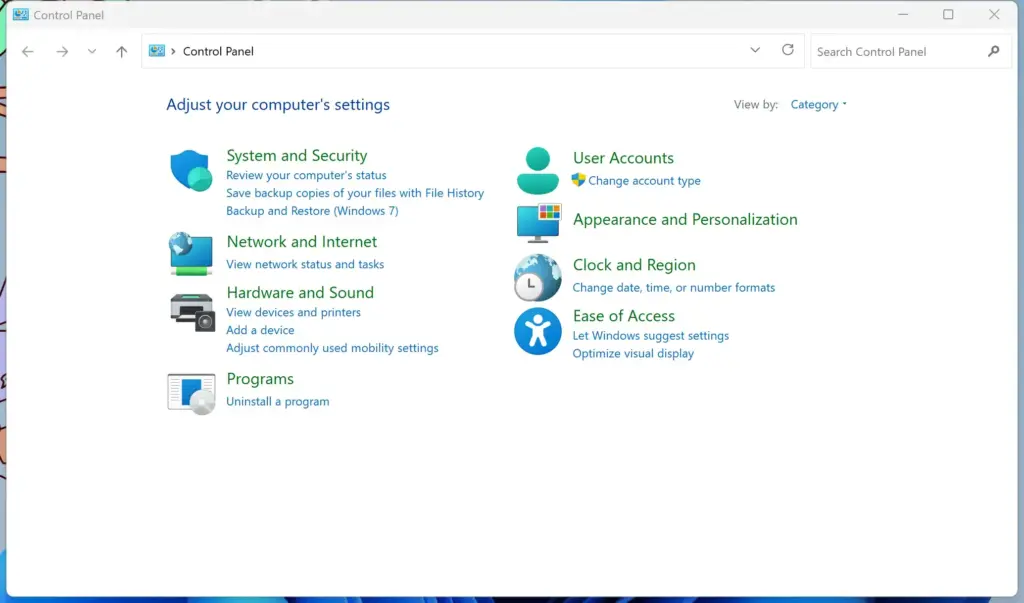
Control Panel - Select Hardware and Sound, then click Power Options. The list of power plans appears.
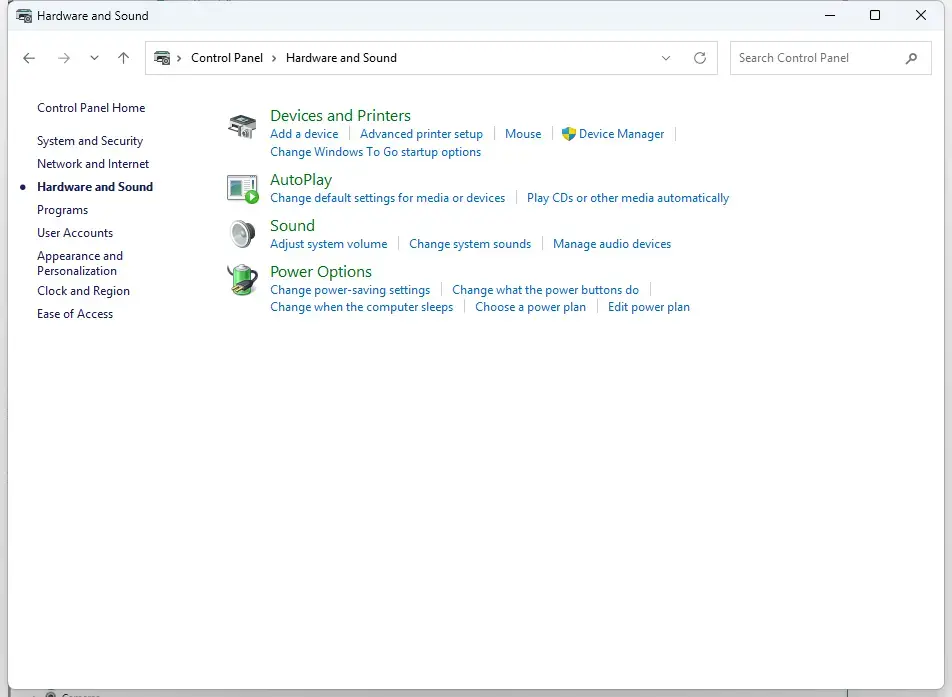
Control Panel › Hardware and Sound - Click the Choose what closing the lid does link on the left side of the window. The System Settings page opens.
- Find the When I close the lid: row. It has two columns: On battery and Plugged in.
- Click the drop-down menu next to each state and choose your preferred action: Do nothing, Sleep, Hibernate, or Shut down. Pick Do nothing if you want the laptop to keep running when you close the lid, for example with an external monitor.
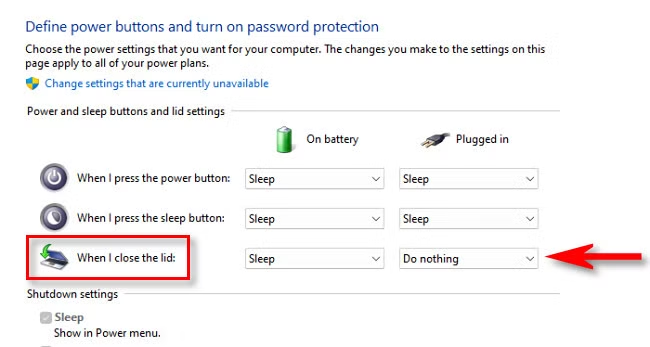
Control Panel showing 'When I close the lid' settings. - Click the Save changes button at the bottom of the window. The new settings apply right away and you do not need to restart.
If the When I close the lid: row is missing, your PC does not report a lid to Windows. This is normal on desktop PCs and some all-in-one machines. If Hibernate is not in the list, hibernation is turned off on your system, and the powercfg /hibernate on command mentioned above turns it back on. Some laptops also hide options their firmware does not support.
To undo a change, open the same page and pick the previous action. The Windows default for most laptops is Sleep for both states.
The Settings app offers the same choices with fewer clicks and no save button. It shows the lid controls on laptops only, so a desktop PC will not list them.
- Open Settings System Power & battery.
- Scroll down and expand Lid, power & sleep button controls. A set of drop-down menus appears.
- Find the lid row and choose an action for On battery and for Plugged in. The options are Do nothing, Sleep, Hibernate, and Shut down.
- Close Settings. The choice applies as soon as you select it.
Modify Lid Close Behavior Using Command Prompt
You can also change the lid close behavior from Command Prompt or Windows Terminal. The commands update your active power scheme straight away. This is handy if you want to apply the same lid closed setting to several laptops without clicking through menus.
These steps require administrator privileges.
- Right-click the Start button and select Terminal (Admin) or Command Prompt (Admin). Click Yes if User Account Control asks for permission. A console window opens.
- Type the following command to change the behavior when running on battery power, then press Enter:
powercfg -setdcvalueindex SCHEME_CURRENT SUB_BUTTONS LIDACTION 0
(Note: Replace0with1for Sleep,2for Hibernate, or3for Shut down.) The console usually returns to the prompt without printing a message. - Type the following command to change the behavior when plugged into a charger, then press Enter:
powercfg -setacvalueindex SCHEME_CURRENT SUB_BUTTONS LIDACTION 1 - Apply the updated configuration by typing this command and pressing Enter:
powercfg -setactive SCHEME_CURRENT
The commands change the power plan that is currently active. If you switch to a different power plan later, that plan keeps its own lid setting. To undo the change, run the same commands again with the value you used before.
To confirm the result, open the Choose what closing the lid does page in Control Panel . The drop-down menus should show the actions you set.
Prevent Battery Drain and Overheating While Closed
A laptop set to Do nothing and packed into a backpack keeps running with nothing to cool it. Heat builds up inside the chassis, which wears out the battery faster and can cause thermal throttling, where the processor slows itself down to stay cool.
For travel, set the lid action to Sleep or Hibernate before you put the computer away. If you will not use the laptop for a while, shut it down completely.
- Hibernate saves your open documents to the drive and powers the machine off. It uses no battery at all.
- Sleep keeps a small amount of power flowing to system memory so the laptop wakes quickly. On many newer laptops, especially those with Modern Standby, sleep still uses some battery and can drain it noticeably over a long period.
If you only need the laptop awake with the lid closed at a desk, change the Plugged in column and leave On battery on Sleep. That way, unplugging the laptop and walking away does not leave it running in your bag.
On a Modern Standby laptop that wakes in your bag, switch the On battery column to Hibernate. If that option is missing, turn hibernation on first with powercfg /hibernate on from an administrator terminal.
Troubleshooting Laptops That Stay Awake or Waken Up
If your laptop stays awake or wakes up on its own after the lid closes, a connected device is usually the cause. A USB mouse, a keyboard, or a network adapter can send a signal that wakes the machine. You can stop this by changing the wake permissions in Device Manager.
These steps require administrator privileges.
- Right-click the Start button and select Device Manager. The list of hardware categories opens.
- Expand the Keyboards or Mice and other pointing devices category.
- Right-click your device and select Properties. The device properties window opens.
- Click the Power Management tab. Not every device has this tab. If it is missing, the driver does not support wake settings, so try another device.
- Uncheck the box labeled Allow this device to wake the computer, then click OK.
- Repeat this process for your network adapter under the Network adapters category if your system continues to wake up on its own.
Once you disable wake for a keyboard or mouse, you will need to press the power button to wake the laptop. To undo the change, tick the same box again.
Change one device at a time and test after each one. That way you know which device was the cause.
If this didn't work
If the lid closed setting still does not behave after the steps above, start with the built-in Power troubleshooter. It checks for broken power management settings and repairs them where it can.
- Open Settings System Troubleshoot Other troubleshooters
- Find Power in the list and click Run. Follow any prompts the troubleshooter shows, then test the lid again.
If that does not help, try these in order:
- Open your power plan in Control Panel and restore the plan to its default settings. This clears out settings that may be corrupted or changed by third-party software. You will need to set your lid action again afterward.
- Install the latest BIOS or firmware update and chipset drivers from your laptop manufacturer. Many sleep and wake problems come from firmware bugs that the maker has already fixed.
- Restart the PC and test the lid again. Some changes only settle after a full restart.
Frequently asked questions
How to set what closing the lid does?
Open Control Panel, select Hardware and Sound, then click Power Options. Choose what closing the lid does on the left side. Select your preferred action—Do nothing, Sleep, Hibernate, or Shut down—from the drop-down menus for battery and plugged-in modes, then save changes.
How do I adjust the lid close setting in 🪟 Windows 11?
Open Control Panel and go to Hardware and Sound Power Options. Click Choose what closing the lid does. Use the drop-down menus next to On battery and Plugged in to select your preferred behavior, then click Save changes.
How do I turn off the lid open action?
Windows doesn't have a built-in lid open action to disable. Lid settings only control what happens when you close the lid. If you want to prevent automatic wake-on-lid-open, check your laptop manufacturer's firmware or power settings for hardware-specific options.
How do I set my laptop to lock when I close the lid?
Windows doesn't lock your laptop when you close the lid. You can set it to sleep or hibernate instead. If you want automatic locking, set the lid to Sleep, then configure Windows to require sign-in after waking in Settings Accounts Sign-in options ("If you've been away, when should Windows require you to sign in again?").
Still have a question?
Answered by AI from this guide. Good questions may be added to this page — please don't include personal details.
Did this guide fix your problem?

About the Author
Richard
Tech Writer, IT Professional
Richard is a writer at Geek Rewind who turns complex IT tasks into clear, step-by-step guides. He draws on years of hands-on experience in system administration and enterprise IT operations, focusing on Windows, Linux and WordPress: the problems people actually run into, and the fixes that work. His server and WordPress guides come from systems he runs himself. Richard builds and maintains the platform behind Geek Rewind, from its Ubuntu servers and Nginx configuration to its custom WordPress plugins. Many new tutorials start with readers' questions, and he's always glad to answer them in the comments.
No comments yet — be the first to share your thoughts!