How to Create Custom Power Plans in Windows 11

A custom power plan is a saved group of hardware settings that controls how your PC uses energy and how hard it runs. Windows 11 moved the everyday power options into Settings System Power & battery, but the classic Power Options page in Control Panel still works. That is where you build your own plan. Use it to get more speed from a desktop, or to stretch the battery on a laptop.
Open Control Panel , go to Hardware and Sound, select Power Options, and click Create a power plan on the left. Choose a base plan like Balanced, name it, set display and sleep timeouts, and click Create. The plan appears in Power Options and becomes active immediately.
Prerequisites and Warnings
Some laptop makers lock or hide plans to protect the hardware or to keep battery behavior predictable. Many newer laptops use Modern Standby, which limits the sleep options and the plans you see. Vendor utilities such as a manufacturer’s power or battery manager can also override whatever plan you pick. If an option is missing or greyed out, look at the maker’s own software and the BIOS/UEFI settings before you assume something is broken.
How to Create a Custom Power Plan
A custom plan lets you set your own rules for sleep times, screen brightness and hardware performance. To build one, open Control Panel , go to Hardware and Sound, and choose Power Options. From there you can start from an existing plan and change it, or build a new plan around your daily habits. The steps below work on both Windows 11 Home and Pro. On a desktop you will only see “Plugged in” settings, because there is no battery.
- Click the Start button and search for Control Panel . Open the app. The Control Panel window should now be open.
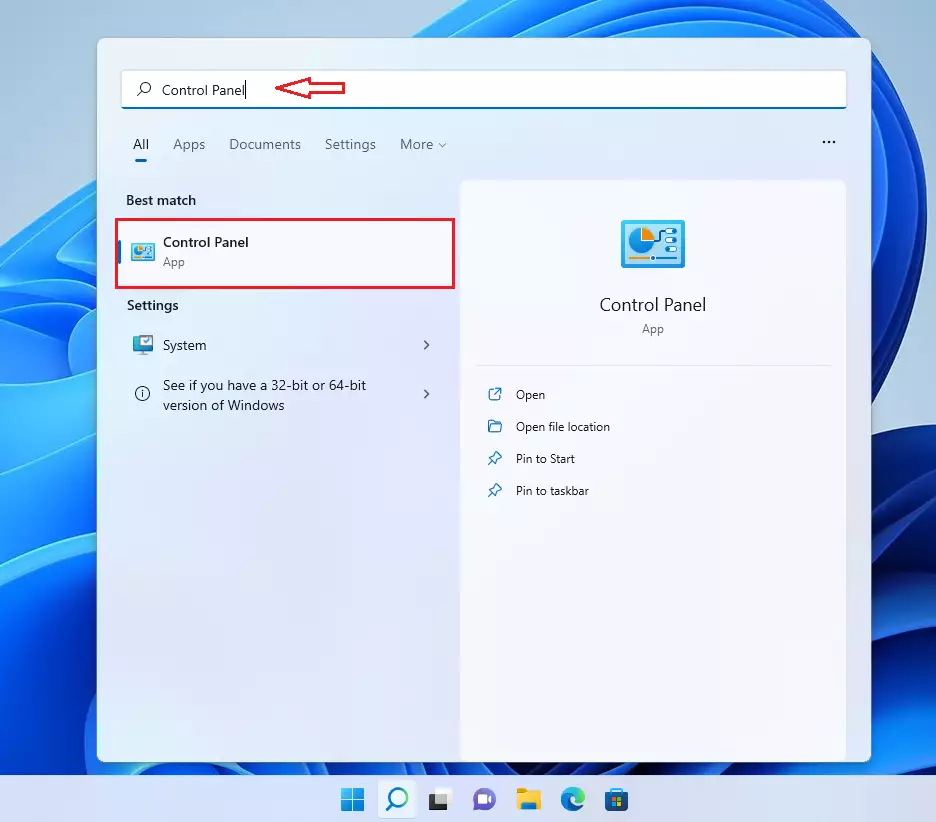
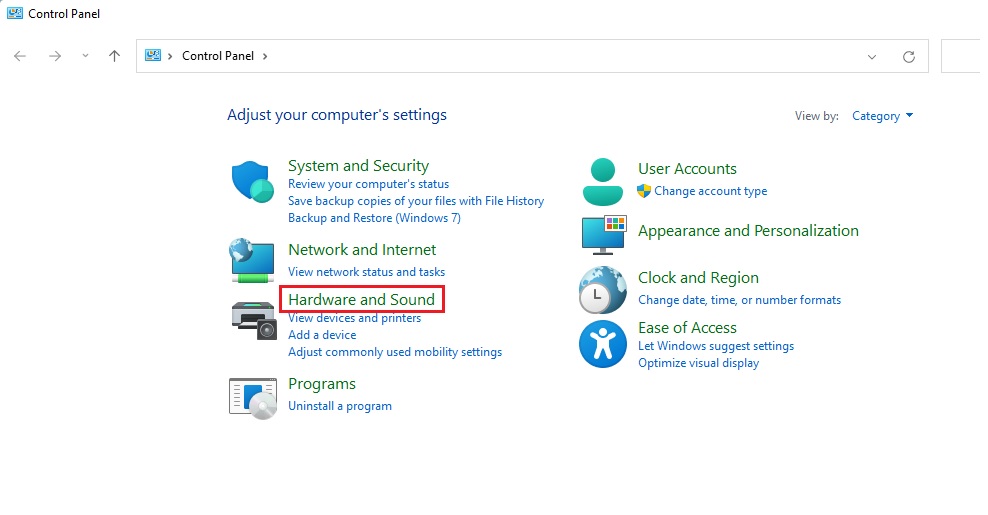
control panel in windows 11 search - Click on Hardware and Sound, then select Power Options. If Control Panel is set to show large or small icons instead of categories, click Power Options directly. You should see your current plans, with the active one selected.
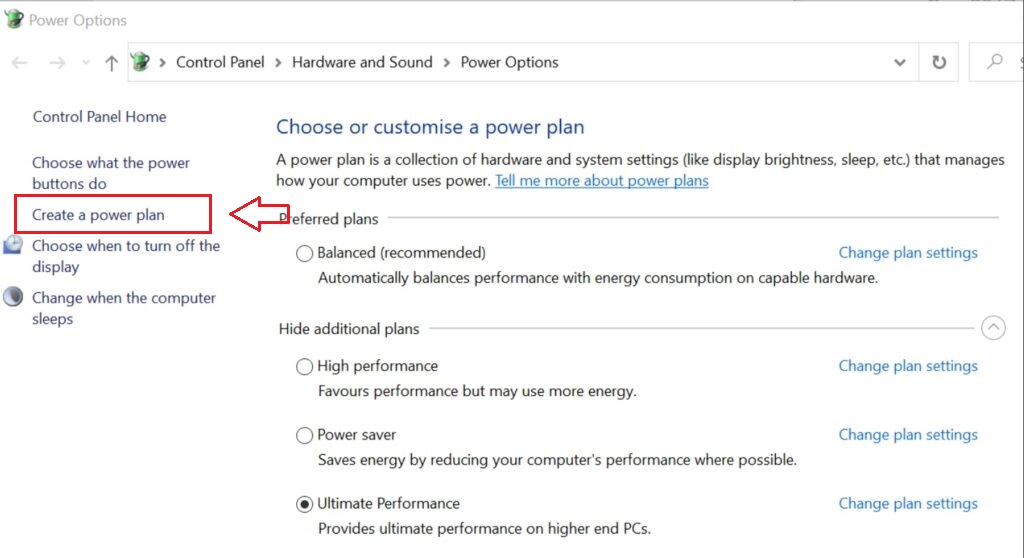
windows 11 hardware and sound control panel - Click Create a power plan on the left. (Requires Admin Privileges) If you are signed in as a standard user, Windows asks for an administrator password. A page titled “Create a power plan” should open.
create custom power plans windows 11 - Select a base plan. Balanced is best for most. Your new plan starts with that plan’s settings, so pick the one closest to what you want. Then type a name in the Plan name box, such as “Gaming” or “Battery saver”.
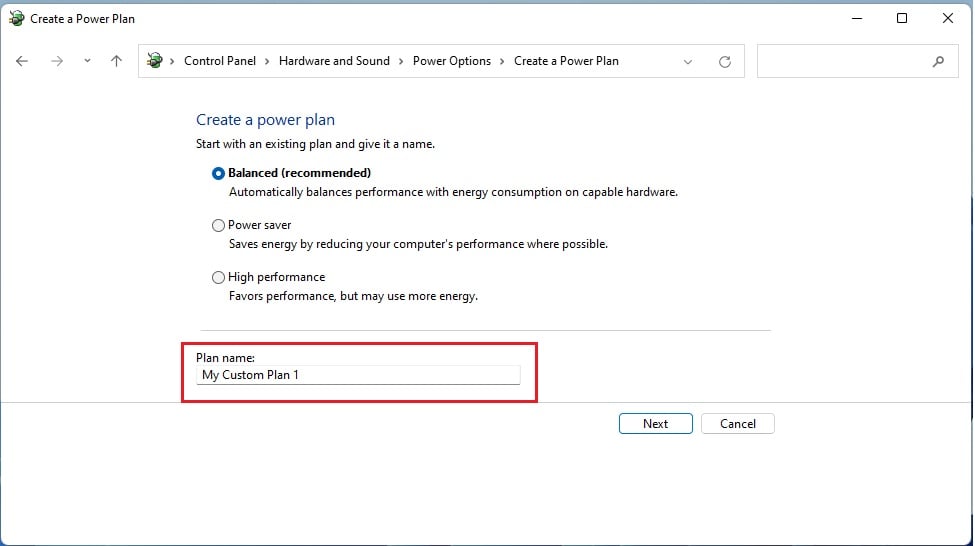
windows 11 my custom power plan - Click Next. Adjust your screen and sleep settings. Use the drop-down lists to set when the display turns off and when the PC goes to sleep. On a laptop you get separate values for “On battery” and “Plugged in”. You can also set screen brightness here.
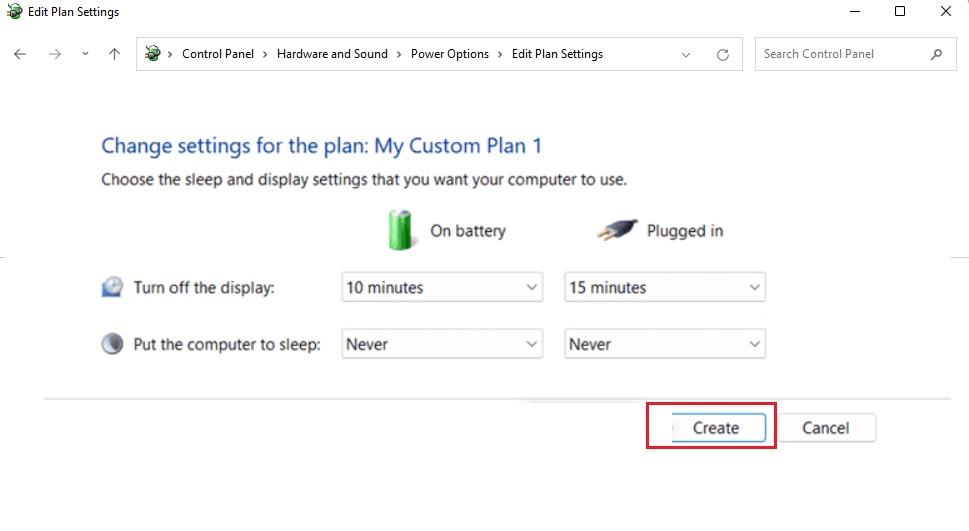
create custom power plan complete windows 11 - Click Create. Windows saves the plan and makes it the active one. It now appears in the Power Options list.
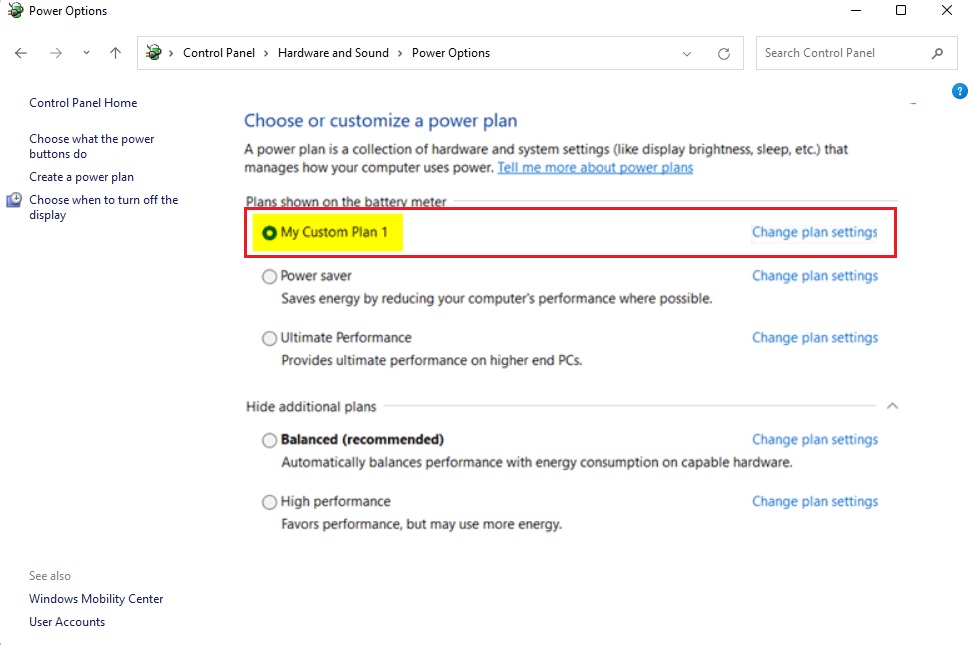
my custom power plan windows 11
When you are done, your computer follows your rules for energy use. You can switch between performance and efficiency plans at any time by selecting a different plan in Power Options. The change takes effect at once, and no restart is needed. To go deeper, click Change plan settings next to your plan, then Change advanced power settings. That is where you adjust things like the hard disk timeout and processor power management. To undo everything, select another plan such as Balanced. To remove your custom plan, switch to a different plan first, then open Change plan settings for the custom one and click Delete this plan. Windows will not let you delete the plan that is currently active.
Advanced Management with powercfg.exe
This built-in tool lets you list every power plan on your PC, duplicate hidden power schemes, and export your preferred settings to a file with short text commands. Run these commands in Terminal, Windows PowerShell or Command Prompt. Open Terminal as administrator (right-click Start and choose Terminal (Admin)) if a command reports that access is denied.
To see all plans, type the command below. The output lists each plan with its name and a GUID, a long string of letters and numbers. The plan marked with an asterisk is the active one. Write down the GUID of any plan you want to work with, because the other commands refer to plans by GUID.
powercfg /list
To duplicate an existing plan (like High Performance) to create a new one, use the command below. Replace the example GUID with the one from your own list. Windows prints the GUID of the new copy, and the copy then shows up in your plan list and in Control Panel Hardware and Sound Power Options This is the usual way to get a plan such as High Performance back on a PC where it is hidden. Some laptops will not accept it, depending on the maker's restrictions.
powercfg -duplicatescheme [GUID]
You can find more technical details at the official Microsoft powercfg documentation.
Summary
Custom power plans help you tune a Windows 11 device for specific tasks. With the Control Panel or the powercfg command-line tool, you can trade performance against battery life as you need. Start with small changes, such as the sleep and display timers, and test how the PC behaves before you touch advanced settings. Always monitor your system temperatures when you use high-performance settings, so the hardware does not run hot for long periods. If something feels wrong, switch back to Balanced and you are back to the default behavior.
Have a question about this guide?
Answered by AI from this guide. Good questions may be added to this page — please don't include personal details.
Did this guide fix your problem?

About the Author
Richard
Tech Writer, IT Professional
Richard is a writer at Geek Rewind who turns complex IT tasks into clear, step-by-step guides. He draws on years of hands-on experience in system administration and enterprise IT operations, focusing on Windows, Linux and WordPress: the problems people actually run into, and the fixes that work. His server and WordPress guides come from systems he runs himself. Richard builds and maintains the platform behind Geek Rewind, from its Ubuntu servers and Nginx configuration to its custom WordPress plugins. Many new tutorials start with readers' questions, and he's always glad to answer them in the comments.
No comments yet — be the first to share your thoughts!