How to Check Active Power Plans in Windows 11

A power plan in Windows 11 is a saved set of hardware and system settings. It controls how your PC balances speed against energy use. Windows 11 normally offers three default plans: Balanced, Power saver and High performance. Which ones you see depends on your hardware and manufacturer.
Checking the active plan takes less than 10 seconds, either in Control Panel or in Windows Terminal (a tool for running text commands). Both methods are covered below.
Open Control Panel , click Hardware and Sound, then select Power Options. The active power plan has a filled radio button next to its name. Alternatively, run powercfg -getactivescheme in Terminal (Admin) to see the active plan and its unique ID.
Understanding Power Modes vs. Power Plans
- Power Modes are quick, general settings such as Balanced or Best power efficiency. You change them in Settings System Power & battery Which options you get depends on your device and Windows 11 version.
- Power Plans are the older, more detailed profiles. They include settings such as processor power management, display timeouts and sleep behavior. You manage them in Control Panel , not in Settings.
If you want to know which plan is active, use Control Panel or the command line below. The Power Mode slider in Settings does not show it.
How to Check Your Power Plan via Control Panel
The classic Control Panel is the easiest way to see your active plan. It shows the current profile and lets you switch to another one if you want to.
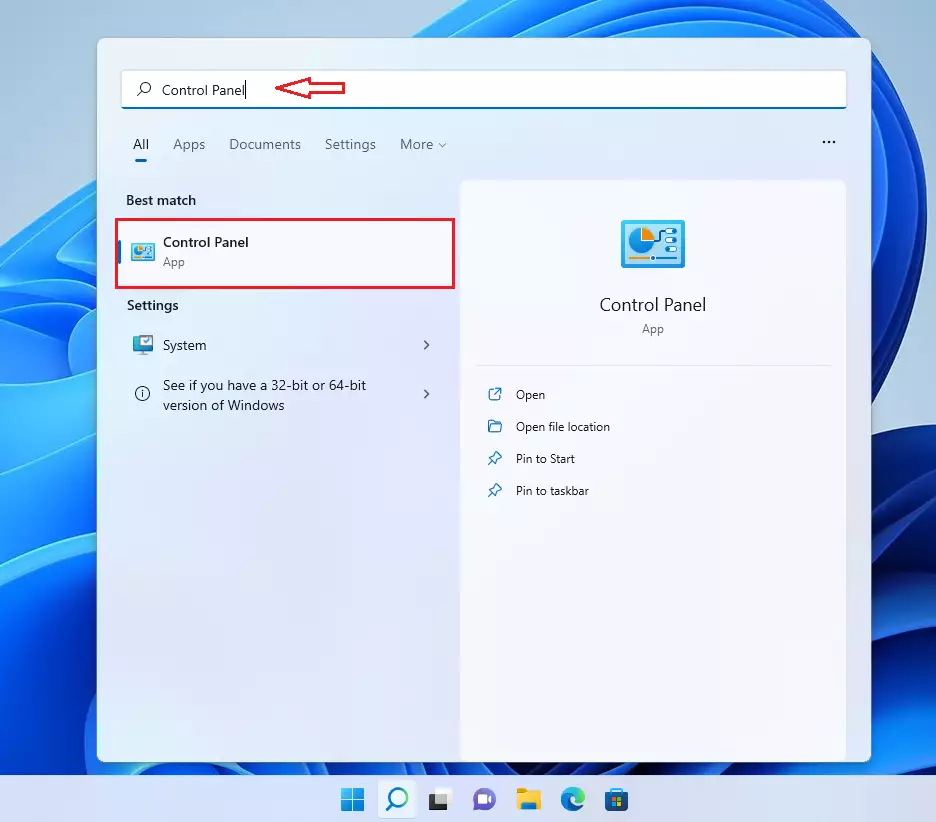
- Click the Start button and type Control Panel . Select the app from the results. The Control Panel window opens.
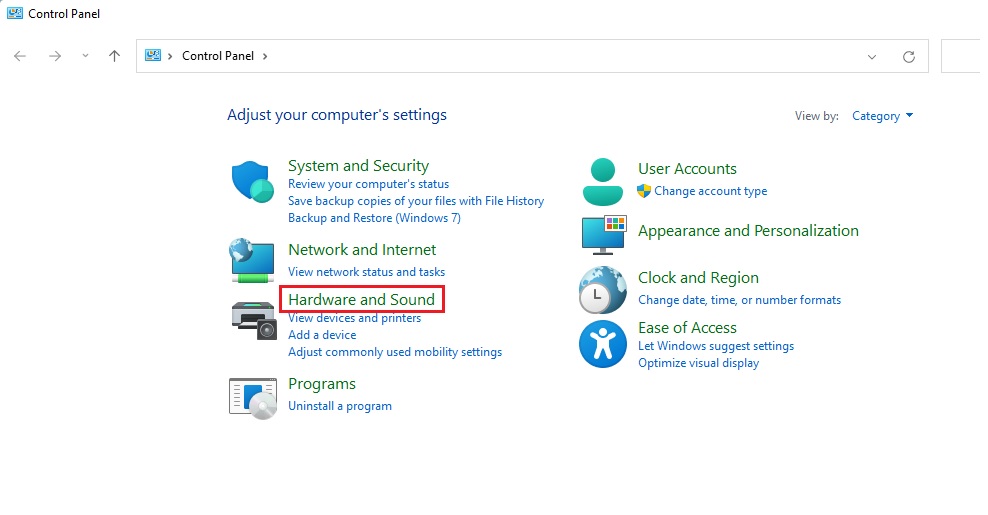
- Click Hardware and Sound, then select Power Options. If Control Panel is set to icon view, you will not see the Hardware and Sound category. In that case, just click Power Options directly. You can also skip the menus by typing
control.exe /name Microsoft.PowerOptionsin the Run dialog (press Win+R to open it).
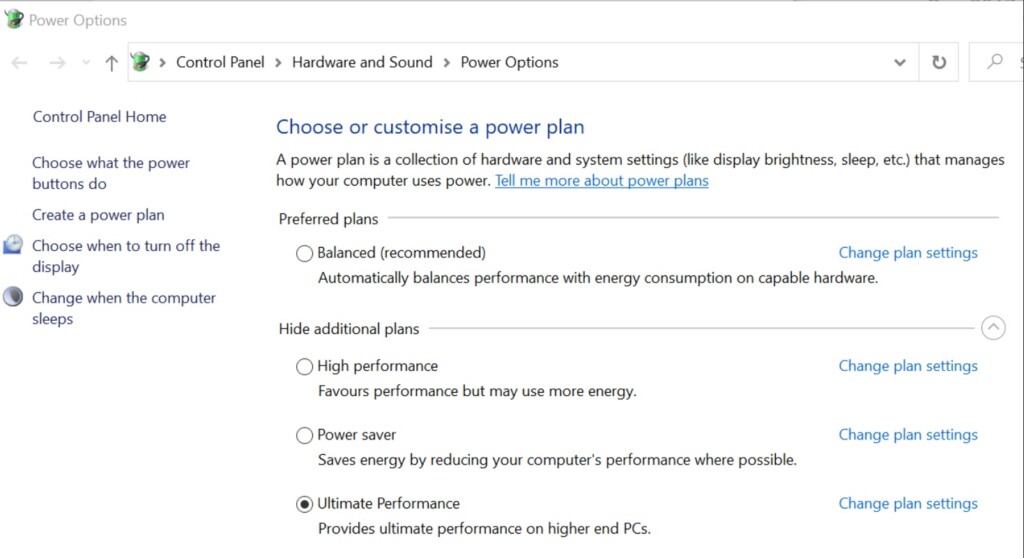
The Power Options window now shows the available power plans. The active plan has its radio button filled in (a dot). Some systems mark it with an asterisk instead.
If you only see Balanced, or the other plans are hidden, click Show additional plans to expand the list. Many newer laptops with Modern Standby offer only Balanced. That is normal and not a fault.
Using the Command Line to Check Power Plans
The command line shows your active power scheme in one step. It also shows the scheme's unique ID string (a GUID), which you need if you want to automate power settings with a script.
- Right-click the Start button and select Terminal (Admin) or Command Prompt (Admin). Approve the User Account Control prompt if it appears. A command window opens. Listing the plans usually works without admin rights, but running as admin avoids permission problems later if you change a plan.
- Type the following command and press Enter:
powercfg -getactivescheme
- Read the output. It lists every power scheme on the system, each with its name and GUID. The active plan is marked with an asterisk at the end of its line.
Copy the GUID of the plan you need if you plan to use it in a script.
Summary
Reviewing your power plans helps you balance hardware performance against battery life. A quick check also confirms that a plan was not changed by a driver update, an OEM utility or another user.
Why does 🪟 Windows 11 only show the Balanced power plan?
How do I restore missing power plans in 🪟 Windows 11?
Run Terminal or Command Prompt as administrator first. Some laptops with Modern Standby do not support all plans, so a plan may stay unavailable even after you try to restore it. Afterward, reopen Power Options or run the list command again to confirm the plan is back.
How do I restore missing power plans in 🪟 Windows 11?
If a specific plan like High Performance is needed, restoration occurs through the command prompt. Run the terminal as an administrator and type: powercfg -duplicatescheme 8c5e7fda-e8bf-4a96-9a85-a6e23a8c635c. This command adds the High Performance plan back to the Control Panel.
Have a question about this guide?
Answered by AI from this guide. Good questions may be added to this page — please don't include personal details.
Did this guide fix your problem?

About the Author
Richard
Tech Writer, IT Professional
Richard is a writer at Geek Rewind who turns complex IT tasks into clear, step-by-step guides. He draws on years of hands-on experience in system administration and enterprise IT operations, focusing on Windows, Linux and WordPress: the problems people actually run into, and the fixes that work. His server and WordPress guides come from systems he runs himself. Richard builds and maintains the platform behind Geek Rewind, from its Ubuntu servers and Nginx configuration to its custom WordPress plugins. Many new tutorials start with readers' questions, and he's always glad to answer them in the comments.
No comments yet — be the first to share your thoughts!