What Breaks When You Disable Windows 11 Advanced Sharing Settings

- 12 steps
- Needs administrator rights
- Includes a restart or sign-out
Advanced sharing settings in Windows 11 control how your PC connects, shares files, and talks to other devices on your home network over Wi-Fi or Ethernet. If you turn these controls off, local file sharing stops. You can no longer open shared folders on other PCs, and other devices can no longer use a printer attached to your PC. Streaming media from your PC to a TV or media player may stop too.
Your internet connection keeps working normally, but communication with local devices stops. This article walks through what breaks, how to change the settings, and how to fix things if you turned off more than you meant to. That way you can decide whether you really need to switch these settings off.
When you disable Windows advanced sharing settings, your computer stops talking to other devices on your local network. This immediately blocks access to shared folders, makes network printers unavailable, hides your computer from other devices in File Explorer, and stops media streaming, while leaving your internet connection working.
Understanding Windows Advanced Sharing Settings
Advanced sharing settings control how your computer shares files, printers, and media with other devices on your local home or office network. They decide how visible your PC is on that network. They also decide which nearby computers can use your shared folders and printers.
Your local network is not the same thing as the public internet. The internet connects your computer to websites and online services worldwide. Your local network connects your PC to other PCs, network-attached storage (NAS) drives, smart TVs, and wireless printers in your home or office.
The advanced sharing page controls a few main features:
- Network DiscoveryThis lets your computer see other devices on the network and lets those devices see your computer.
- File and Printer SharingThis lets other people on your network open files stored on your computer or send documents to a printer plugged into your computer.
- Public Folder SharingThis lets anyone on your network read and drop files into your Public folders without needing a user account on your PC.
- Password Protected SharingThis means anyone who tries to reach your shared files must sign in with a valid user account and password on your computer.
Windows keeps a separate set of these options for each network profile (Private, Guest or Public, and All Networks). A change you make under one profile does not automatically apply to the others. Keep that in mind when you test.
When these features are on, your computer shares data with your local network. When you turn them off, your computer stops talking to local devices.
What Breaks Immediately When You Turn Off Network Discovery
Turning off Network Discovery hides your computer from other devices on your local network. It also stops your PC from listing nearby computers in File Explorer. You can no longer browse the network, and other people on your network will not find your PC in their lists either.
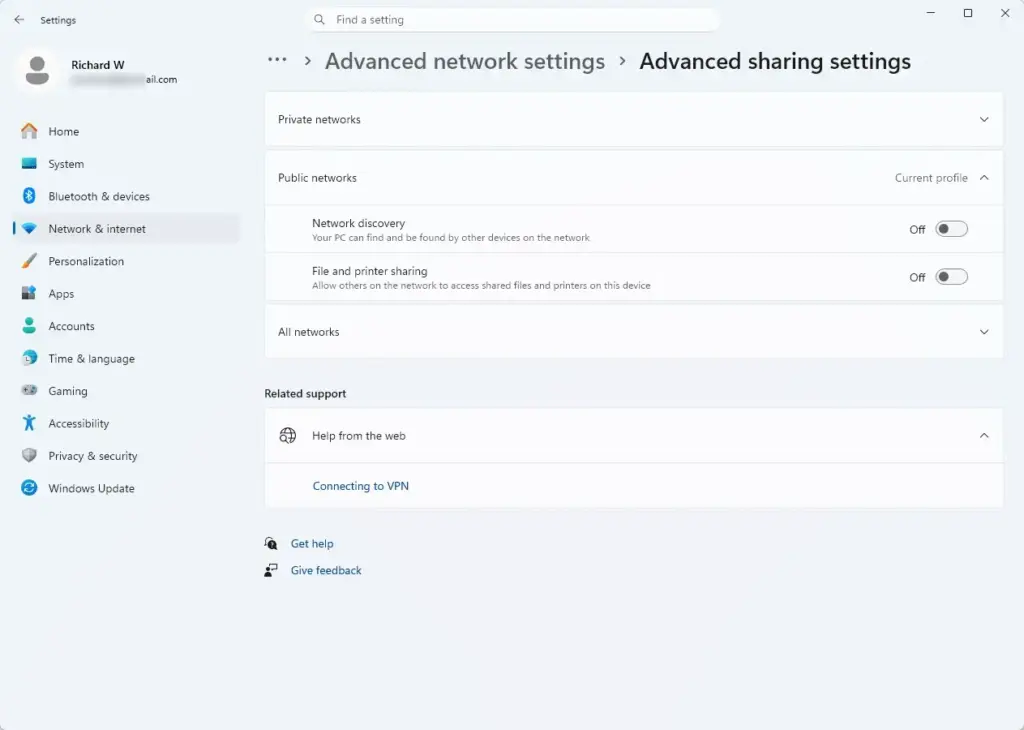
If you turn off Network Discovery, here is what you will notice:
- You can no longer see other computers: When you open File Explorer and click Network, you will likely see an empty list or a message that network discovery is turned off.
- Other computers cannot see you: Your PC disappears from the network lists of other devices in your home or office. Nobody can browse to it from across the room.
- Network shortcuts may fail: If you pinned a folder from another computer to Quick access, clicking it can produce a connection error. Your PC may no longer be able to find the host by its computer name.
Typing the other computer’s IP address into the File Explorer address bar can still work in some cases. Treat that as a workaround, not a fix. It depends on file sharing still being enabled on the other machine.
Think of Network Discovery like the directory in a large building. If you remove the directory, nobody can find your office, and you cannot look up anyone else. Your computer still has power and an internet connection, but it is invisible to its local neighbors.
The Impact on Shared Files and Folders
Disabling file and printer sharing cuts off remote access to any folders you previously shared with family members, roommates, or other devices. Anyone who tries to open your shared files from another computer will get a connection error. They cannot view or edit your stored data.
Here is what happens to your shared data:
- Remote access stops working: If you use another computer or a media device to reach movies, music, or documents stored on your main PC, those streams and file transfers drop.
- Cloud sync and internet apps keep working: Turning off local file sharing does not break cloud storage services such as OneDrive, Dropbox, or Google Drive. They upload your files to the internet and download them again. They do not use local Windows sharing.
- Mapped network drives disconnect: If you mapped a network folder as a drive letter (such as Z:), Windows will fail to reconnect to it the next time you restart or try to open it. The drive may show a red X in File Explorer. Once sharing is back on at the host PC, it should reconnect.
This affects the PC that hosts the shares. If you turn the setting off on a PC that only connects to other machines, that PC can still be affected by discovery changes, but the shares on the other machines stay intact.
If several people in your household pull photos or tax documents from your main hard drive over Wi-Fi, they will lose that access until you turn file sharing back on.
Printer Sharing and Hardware Failures
Disabling advanced sharing settings stops network printing from other computers. Every other laptop and desktop that prints through a printer plugged into your PC will lose its connection to it. The result is print errors until you turn sharing back on.
When you disable advanced sharing settings:
- Network printing stopsOther computers can no longer send print jobs to the printer attached to your PC.
- Error messages appearTrying to print produces a Windows message that the printer is offline or unreachable. Jobs already in the queue may sit there until the connection returns.
- Directly connected printers still workIf you plug the printer directly into the computer that is printing, it works as before. The problem only affects printing across the local network.
Most modern printers connect straight to your Wi-Fi router instead of to one PC. If yours does, turning off advanced sharing settings on one PC will not stop other computers from printing. If your printer depends on a Windows PC to share it, printing stops until you turn the settings back on.
How to Access and Change Advanced Sharing Settings in Windows
You can change advanced sharing settings from the Control Panel, through the Network and Sharing Center. From there you can turn network discovery, file sharing, and printer access on or off. Changing these system-wide settings needs administrator rights, so sign in to an administrator account first. If you are on a standard account, Windows asks for administrator credentials when you save.
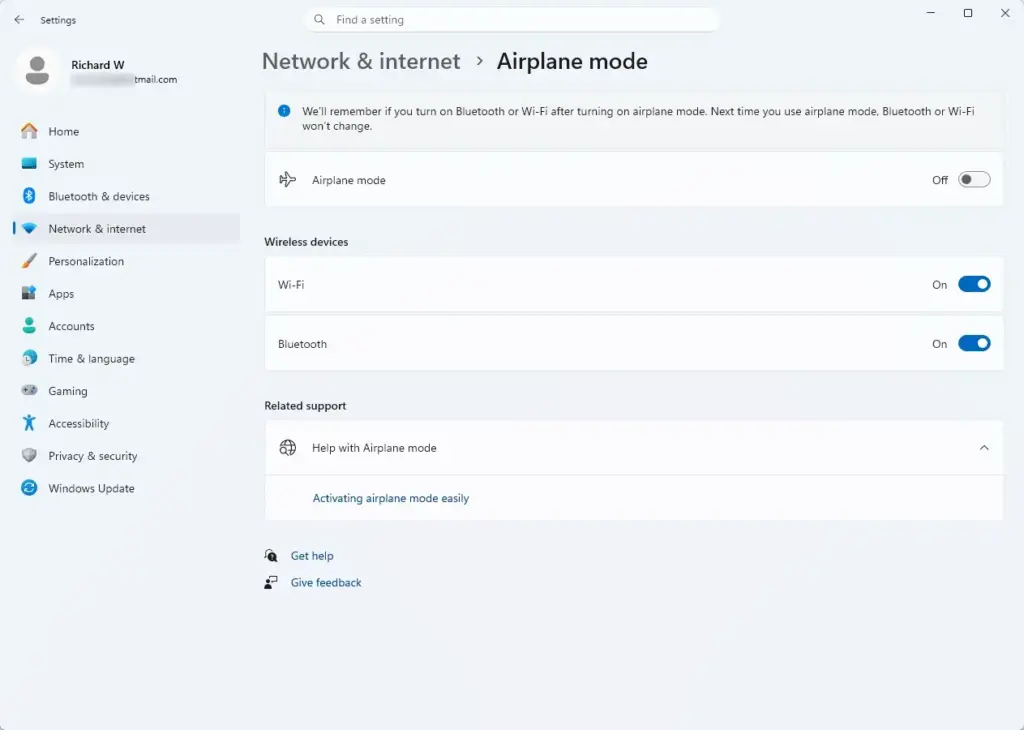
On current builds of Windows 11, the same page is also available in Settings, under Settings Network & internet > Advanced network settings Advanced sharing settings. The steps below use the Control Panel route.
Follow these steps to find the controls:
- Click the Start button, type Control Panel, and press Enter. The Control Panel window opens.
- In the top right corner of the window, set View by to Large icons or Small icons so every option is visible.
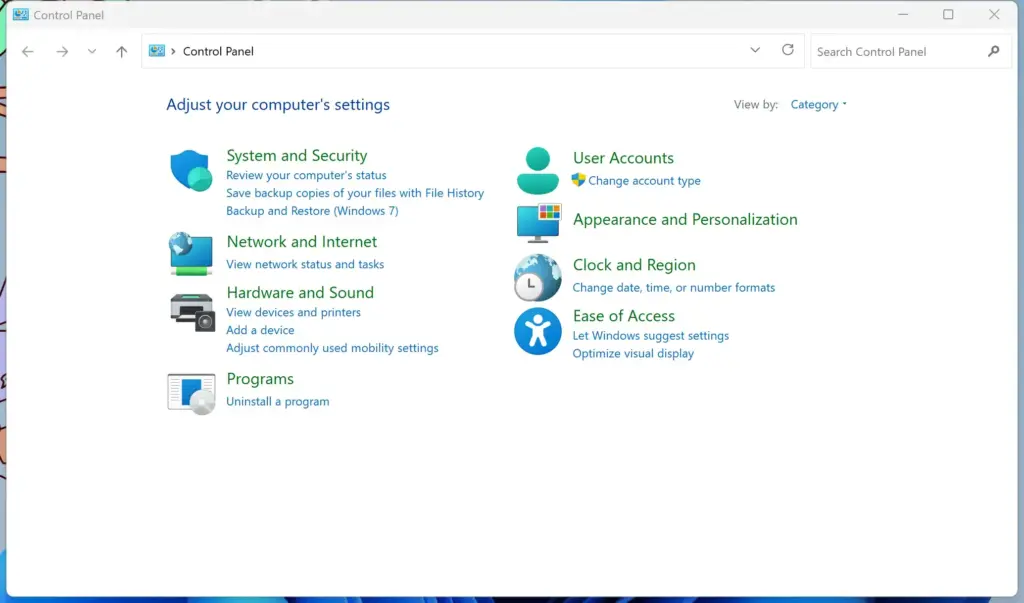
Control Panel - Click Network and Sharing Center. The window shows your active network and connection type.
- In the left-hand column, click Change advanced sharing settings. A page with several collapsible profile sections opens.
- Find your current profile, usually labeled Private or Guest or Public, and click the arrow next to it to expand it. The All Networks section holds the Public folder sharing and password protected sharing options.
- Review the options for Network discovery and File and printer sharing. Choose Turn on or Turn off for each one.
- Click Save changes at the bottom of the window to apply the new settings. If you skip this, nothing changes.
You normally do not need to restart. The new settings take effect once you save them. If a firewall prompt appears when you turn on discovery, allow it.
If your computers cannot talk to each other on your home network, this page is the first place to check. Make sure the options are turned on for the profile your network actually uses.
Unique Angle: What Security Risks Remain When Sharing Is Off?
Turning off advanced sharing settings does not protect your computer against internet threats, malware, malicious websites, or attacks from outside your network. These settings only manage connections from devices on your own local network, meaning devices on the same router or switch as your PC.
Turning them off does help in cases like these:
- An infected laptop connects to your home Wi-Fi and tries to scan your computer for open folders.
- A guest on your Wi-Fi network tries to browse your hard drive.
They do nothing against threats from the public internet. Your computer still relies on Windows Firewall and security software such as Windows Security to block malicious traffic from outside your network. If you visit a dangerous website or open a harmful email attachment, these settings have no effect on that threat.
Turning these settings off can give you a false sense of security. On public Wi-Fi, such as a coffee shop or airport, Windows should treat the connection as a Public network. That profile turns off network discovery and file sharing by default. This helps protect your PC, but you should still use a virtual private network (VPN) on public Wi-Fi to keep your web traffic private. When you join a new network, Windows may ask whether to allow your PC to be discoverable. Choosing No sets the network as Public.
Unique Angle: Troubleshooting Post-Disabling Issues
Most problems after disabling these settings come down to discovery being off, the wrong network profile, or a blocked firewall rule. Work through the checklist below in order. Test file and printer access after each step, so you know which one fixed it.
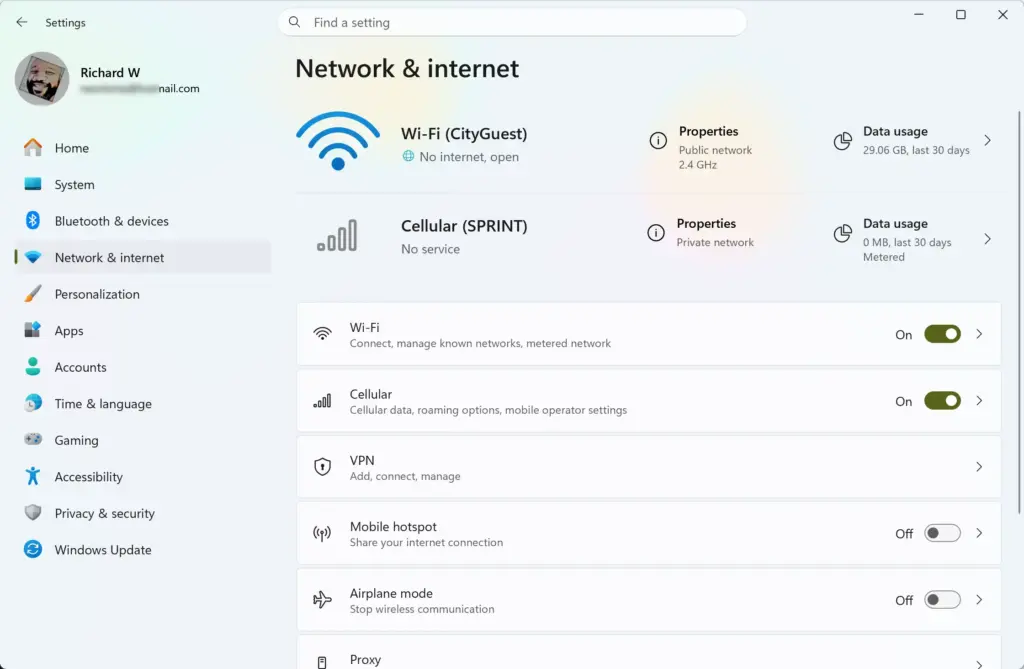
- Verify the network profile. Windows treats home and office networks differently from public hotspots. Open Settings Network & internet, click Wi-Fi (or Ethernet), then click your network’s properties. Under Network profile type, select Private network. If Windows thinks your home network is public, it blocks sharing even when you turn the options on.
- Turn the sharing options back on. Return to Control Panel Network and Sharing Center Change advanced sharing settings, expand your Private profile, and turn on Network discovery and File and printer sharing. Then click Save changes.
- Check Windows Firewall. Strict firewall rules can block local traffic even when sharing is on. Open Control Panel System and Security Windows Defender Firewall Allow an app or feature through Windows Defender Firewall. Click Change settings, then confirm that File and Printer Sharing is ticked for the Private column.
- Restart your computer. Network services run in the background. A restart is not always needed, but it clears stuck connections and makes sure all networking components load the new settings.
- Power cycle your router. Routers cache IP addresses and device names. If your computers still cannot see each other, unplug the router for 30 seconds, plug it back in, and let all your devices reconnect to Wi-Fi.
If an option keeps turning itself off or looks greyed out, the cause is often a managed work or school PC where administrators control these settings. It can also be a required Windows networking service that is stopped. In that case, ask your IT administrator.
Summary
Disabling Windows advanced sharing settings hides your computer from nearby devices on your local network. Your internet connection and cloud apps keep working. You lose the ability to browse other computers, open shared folders, or use network printers that depend on a PC. You can reverse all of it at any time in the Network and Sharing Center, usually without a restart.
Have a question about this guide?
Answered by AI from this guide. Good questions may be added to this page — please don't include personal details.
Did this guide fix your problem?

About the Author
Richard
Tech Writer, IT Professional
Richard is a writer at Geek Rewind who turns complex IT tasks into clear, step-by-step guides. He draws on years of hands-on experience in system administration and enterprise IT operations, focusing on Windows, Linux and WordPress: the problems people actually run into, and the fixes that work. His server and WordPress guides come from systems he runs himself. Richard builds and maintains the platform behind Geek Rewind, from its Ubuntu servers and Nginx configuration to its custom WordPress plugins. Many new tutorials start with readers' questions, and he's always glad to answer them in the comments.
No comments yet — be the first to share your thoughts!