What to Do When Windows 11 File Explorer Crashes Instantly Upon Right-Clicking

- 28 steps
- Needs administrator rights
- Includes a restart or sign-out
File Explorer crashes upon right-clicking in Windows 11 when a broken app shortcut or faulty shell extension overloads the context menu. The taskbar flashes, and the File Explorer window closes the moment you press the right mouse button. Sometimes the desktop goes blank for a second and then comes back.
Most of the time, third-party software adds extra items to that menu, and an outdated or badly written add-on breaks the main process. You can usually fix it by restarting the Windows Explorer process from Task Manager, then updating or removing the program that caused it. This guide goes through the fixes from quickest to most thorough, so stop as soon as the crash goes away.
Windows 11 File Explorer crashes on right-click usually because a third-party app or shell extension adds a broken item to the context menu. Fix it fast by opening Task Manager with Ctrl+Shift+Esc, selecting Windows Explorer under Processes, and clicking Restart task. If the crash returns, turn off that app’s context menu or Explorer integration setting, or uninstall it from Settings Apps Installed apps.
Understanding the Right-Click Crash in 🪟 Windows 11
The crash usually happens because a third-party app or shell extension fails to load its menu items properly. When you right-click, Windows asks every installed program that has hooked into the menu to supply its entries. If one of those add-ons is broken, the request fails and takes the whole Explorer process down with it.
Explorer runs your desktop, taskbar and open folder windows in one process. When it fails, everything it draws disappears and restarts, rather than Windows skipping the one bad entry. Recently installed software is the most common cause. Typical culprits are zip tools, cloud storage clients, file-sharing utilities and image or video tools. Leftover entries from apps you already uninstalled can cause the same thing.
Most older third-party entries live in the classic menu. If the crash only happens when you open that menu, a third-party extension is almost certainly the cause. Fixing the issue means finding the misbehaving app or extension and turning it off.
Step 1Restart Windows Explorer Through Task Manager
Restarting Windows Explorer from Task Manager is the quickest fix, and you don’t have to reboot. It stops and restarts the desktop and file management process, which clears temporary glitches that make the menu freeze or crash. It won’t remove a broken extension, so if the crash comes back, carry on with the later methods.
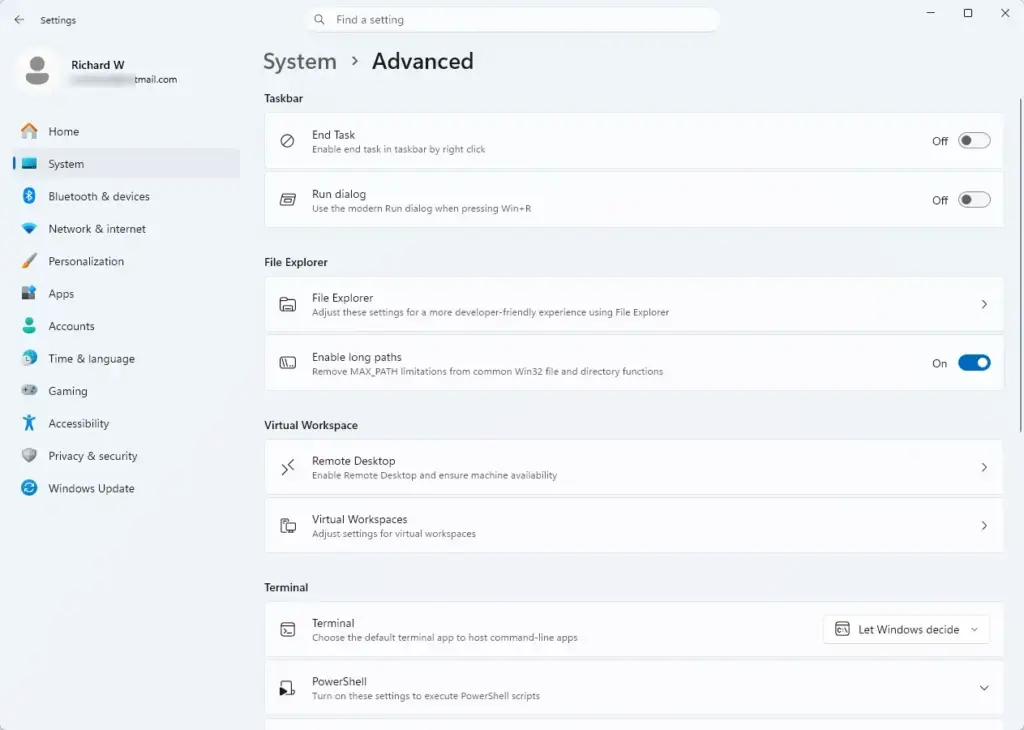
- Press Ctrl+Shift+Esc on your keyboard at the same time.
Task Manager opens. This shortcut works even when the taskbar or Start menu is not responding.
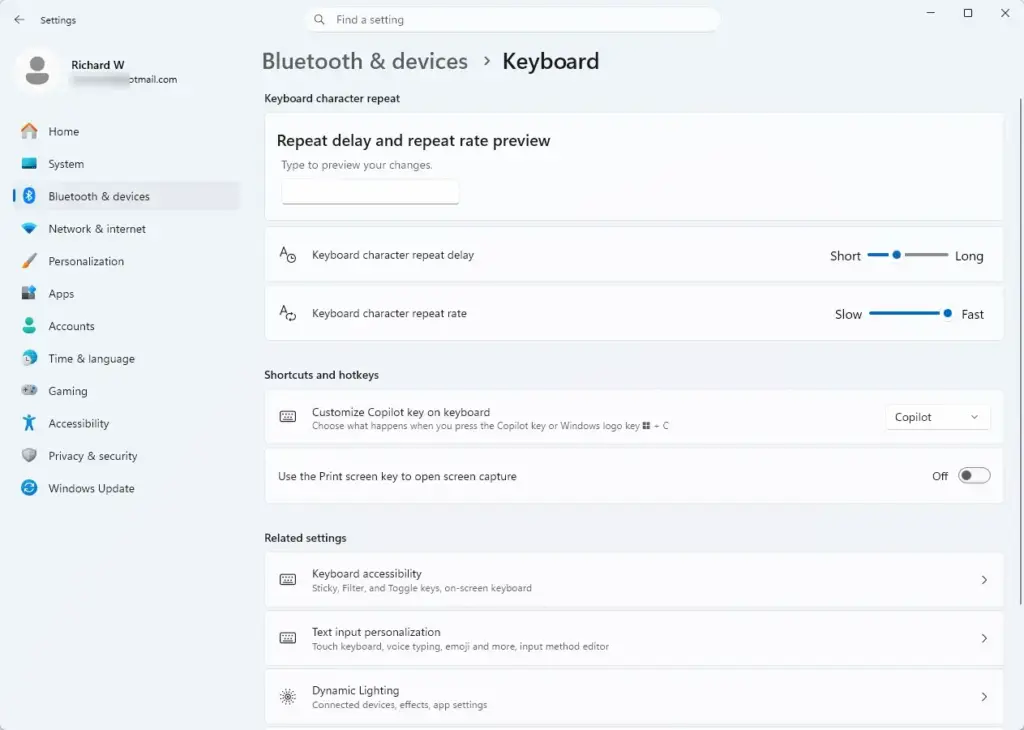
- If Task Manager opens as a small window with only a list of apps, click More details at the bottom.
You should now see the full view with the tabs on the left.

- Open the Processes tab and scroll down until you find Windows Explorer. It is listed under Windows processes.
- Click Windows Explorer to select it.
- Click Restart task in the top-right corner of the Task Manager window. You can also right-click Windows Explorer and select Restart.
Your taskbar and open folders will vanish for a moment. This is normal, so don’t worry. The desktop should come back after about 2 seconds. Right-click a file, a folder and the desktop to see whether the crash is gone. If the folders you had open don’t reappear, open them again.

Step 2Check for Problematic Apps and Shell Extensions
Finding the app or shell extension that adds items to your context menu is the real fix for right-click crashes. Most cases trace back to a recent installation, such as an archive utility, a cloud storage tool or a file-sharing app that adds its own shortcuts to the menu.
Think about what you installed or updated just before the crashes began. Then try these steps:
- Open that app’s own settings and look for an option named something like context menu, shell integration or Explorer integration.
- Turn that option off.
- Restart Windows Explorer as described above, then right-click again to test.
If the app has no such setting, or the crash continues, uninstall the app entirely. Go to Settings Apps Installed apps, open the three-dot menu next to the app and select Uninstall. Removing a recently added app often restores a stable right-click menu right away. If you need the app, reinstall it afterwards from the latest installer on the vendor’s website, since a newer version may have fixed the bug.
Step 3Disable Startup Items to Find the Culprit
Disabling startup items in Task Manager stops background apps from launching with Windows. This helps you test whether a background program is behind the crash. Some tools that add right-click entries also run a helper in the background, so this check can catch them. Keep in mind that it does not switch off shell extensions themselves. If this method makes no difference, move on to the extension tools further down.
- Press Ctrl+Shift+Esc to open Task Manager.
- Click Startup apps in the left sidebar. It has a speedometer-style icon.
Managing these programs matters because fewer background programs means less software that can interfere with Explorer, and it also frees some memory.
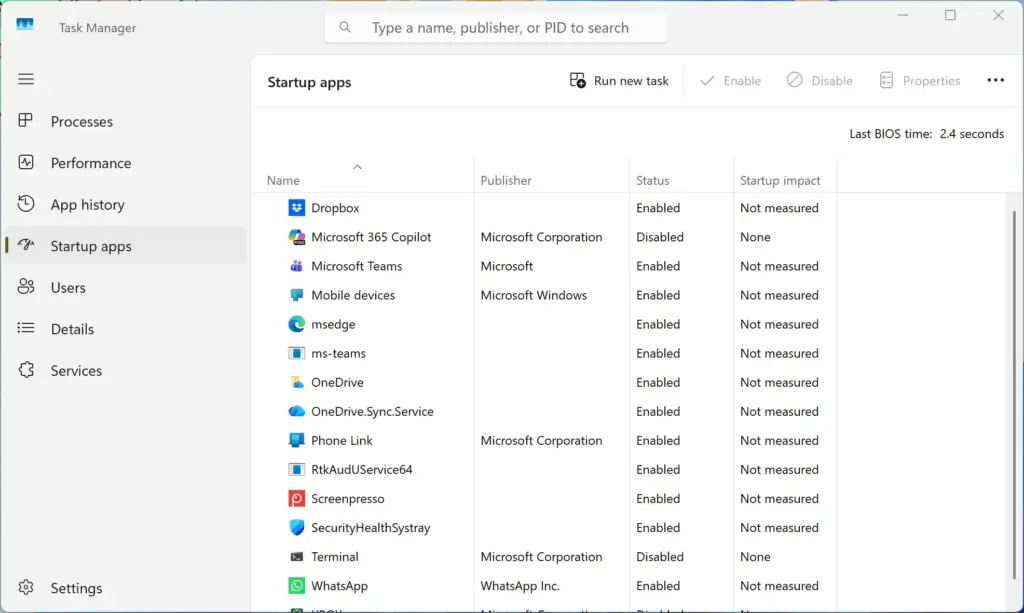
- Look through the list of programs that start automatically with Windows. The Startup impact column and the Publisher column help you spot third-party items.
- Click a suspicious third-party app, then click Disable in the top-right corner. The status changes to Disabled.
- Repeat this for other non-essential startup apps. Leave your antivirus, drivers and anything from Microsoft alone.
- Restart your computer and check whether the right-click crash still happens.
If the crashing stops, turn your startup apps back on one at a time. To do that, select an app and click Enable. Restart after each one. This process of elimination shows you which app breaks your right-click menu. To undo everything, just enable the items again. Nothing is deleted.
Step 4Update 🪟 Windows 11 and Your Drivers
Updating Windows 11 and your drivers fixes known bugs that make File Explorer crash on a right-click. Microsoft regularly releases patches that resolve compatibility problems between the operating system and installed software. It takes only a few minutes to check, so do it before you go deeper.
- Click the Start button and open the Settings app (the gear icon).

- Click Windows Update on the left menu.

- Click the Check for updates button.
If updates are available, let Windows download and install them. Then restart your PC. A restart is often needed to finish the install, and pending updates can be the reason the bug is still there.
Outdated graphics card drivers can also cause display glitches that look like File Explorer crashes. To check, go to Settings Windows Update Advanced options Optional updates and install any driver updates listed there. You can also download the latest driver from your PC manufacturer’s website or from the graphics card maker. Restart afterwards.
Step 5Run System File Checker Scans
System File Checker (SFC) scans Windows system files and repairs damaged or missing ones. Damaged system files are less common than bad extensions as a cause of this crash, but the scan is built in, safe to run and easy to rule out.
- Click the Start button and type cmd in the search box.
- Right-click Command Prompt in the search results and choose Run as administrator. Administrator privileges are required. If a User Account Control prompt appears, click Yes.
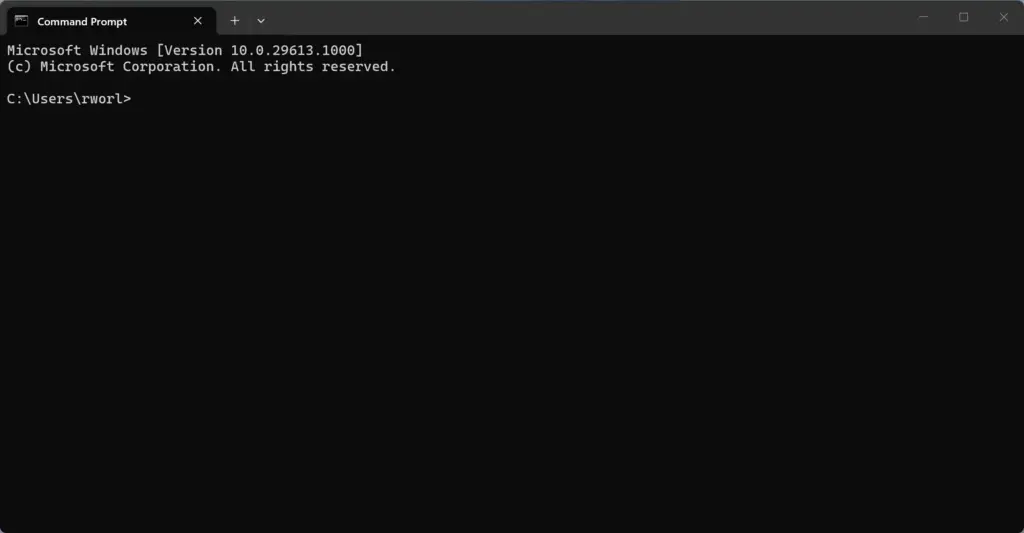
- Type the following command into the black window exactly as shown:
DISM.exe /Online /Cleanup-image /Restorehealth - Press Enter and wait for the process to finish completely. It can take 10 to 20 minutes, and the percentage may sit still for a while. Don’t close the window.
- Next, type this command and press Enter:
sfc /scannow - Wait for the scan to reach 100%. This command repairs the Windows component store from Microsoft’s servers, so you need an internet connection.
If either tool finds damaged files, it repairs them automatically and you don’t need to do anything extra. If SFC says it found corrupt files but could not fix them, run the second command first and then run the first command again. When both scans finish, close the Command Prompt window and restart your computer. Then test the right-click menu.
Unique Expert Tip: Clean Up Context Menu Handlers Using Free Tools
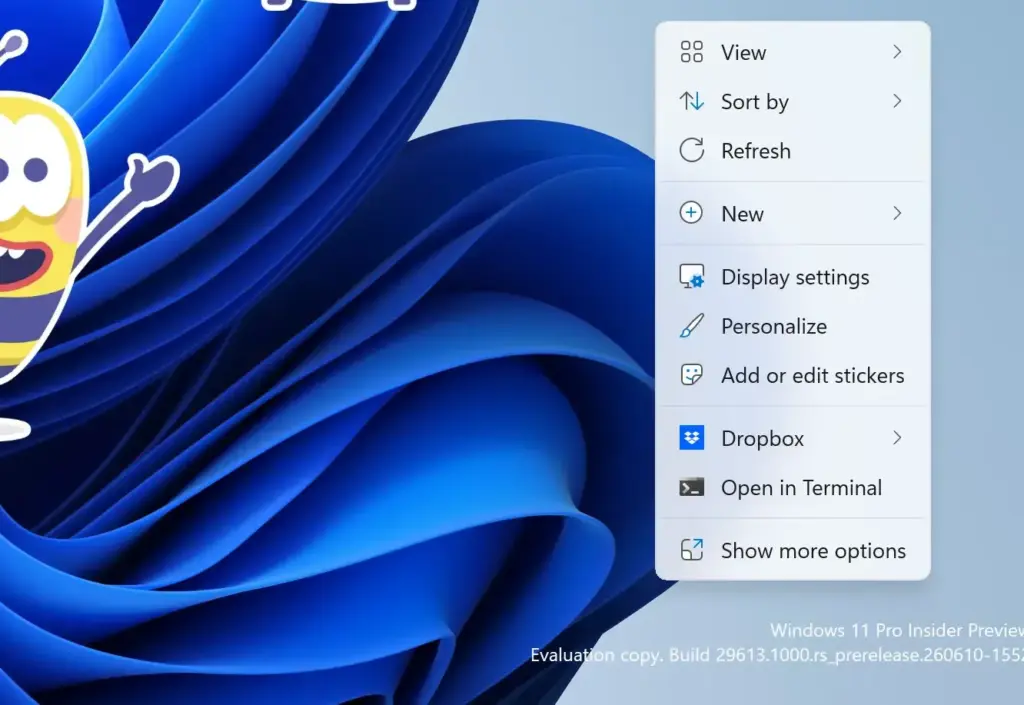
Free third-party utilities let you see and switch off the extensions hooked into your right-click menu. This is also how you find leftover entries from uninstalled apps. These tools help you avoid editing the registry by hand, which is easy to get wrong.
The usual approach in ShellExView looks like this:
- Run ShellExView as administrator.
- Hide Microsoft’s own entries using the Options menu, so only third-party extensions are left.
- Sort the list by the Type column and focus on Context Menu items.
- Select a few third-party extensions and disable them. Disable only a few at a time and write down what you turned off.
- Restart Windows Explorer from Task Manager and try right-clicking.
If the crash is gone, re-enable the extensions one by one until it returns. The last one you turned back on is the culprit. Then update or uninstall the app that owns it. To undo any change, re-enable the item in the same tool. Disabling an extension does not delete it.
Summary
When File Explorer crashes instantly upon right-clicking in Windows 11, the fix is nearly always the same. Restart the Explorer process, find the broken shell extension or the app that added it, and update, disable or remove that app. Updating Windows and running the system file scans cover the less common causes.
Work through the methods in order and test the right-click menu after each one. If you changed several things, undo them one at a time so you know which change fixed it.
Have a question about this guide?
Answered by AI from this guide. Good questions may be added to this page — please don't include personal details.
Did this guide fix your problem?

About the Author
Richard
Tech Writer, IT Professional
Richard is a writer at Geek Rewind who turns complex IT tasks into clear, step-by-step guides. He draws on years of hands-on experience in system administration and enterprise IT operations, focusing on Windows, Linux and WordPress: the problems people actually run into, and the fixes that work. His server and WordPress guides come from systems he runs himself. Richard builds and maintains the platform behind Geek Rewind, from its Ubuntu servers and Nginx configuration to its custom WordPress plugins. Many new tutorials start with readers' questions, and he's always glad to answer them in the comments.
No comments yet — be the first to share your thoughts!