How to Restart Network Services in Ubuntu 24.04

Restarting network services in Ubuntu 24.04 fixes dropped connections and applies new network settings in a few seconds without a full system reboot. Network services are the background tools that manage your Wi-Fi and Ethernet connections to keep you online.
You need to restart these services whenever you change network setup files like Netplan. Ubuntu 24.04 uses NetworkManager (a tool that manages your system’s network devices and connections) to handle your traffic, and running a quick terminal command brings your internet back to life instantly.
Restart Ubuntu 24.04 network services using `sudo systemctl restart NetworkManager` in the terminal. Alternatively, use `nmcli networking off && nmcli networking on` or the `nmtui` interface. These commands reset network connections to apply changes or fix issues.
Restart network services using Systemd
Using Systemd: For most Ubuntu systems, the go-to method relies on the Systemd command. Run the following command with administrator privileges:
sudo systemctl restart NetworkManager
sudo systemctl restart NetworkManager.service
Restart network services using the NetworkManager CLI
You can restart network services in Ubuntu using the nmcli command (NetworkManager Command Line Interface) to quickly fix internet drops. First, run nmcli connection show to find your connection name. Then, turn it off and back on using the tool to reset the connection without rebooting your computer.
Listing the network interfaces first requires running the command below.
nmcli connection show
Disabling or enabling the network interface then uses the command format below.
sudo nmcli connection down <interface_name>
Replacing <interface_name> with the name of the network interface targets the correct connection for disabling or enabling.
Turning the network on or off entirely happens with the command below, which restarts the network services.
sudo nmcli networking off
sudo nmcli networking on
Restart network services using the NetworkManager Text User Interface (nmtui)
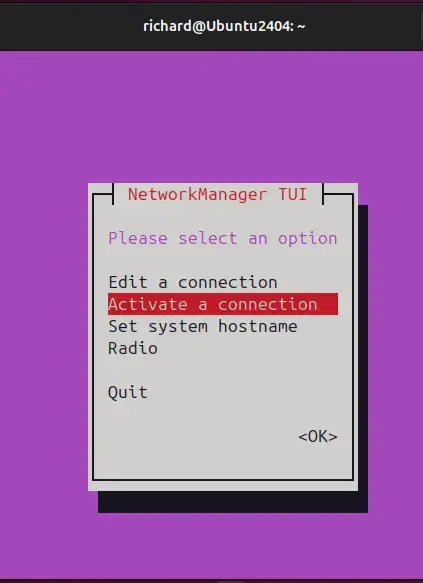
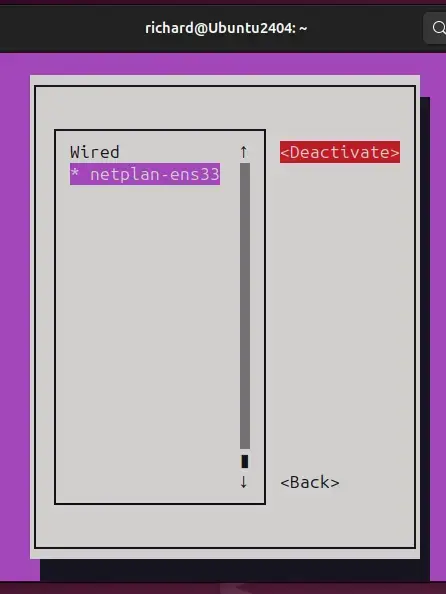
You can restart network services in Ubuntu using the nmtui tool (NetworkManager Text User Interface) if you prefer a visual menu instead of typing long commands. Type nmtui in your terminal to open the interactive screen, select the option to turn your connection off, and then turn it back on.
An interactive approach to managing network configurations comes directly from the nmtui command.
Executing the command below opens the menu where deactivating and then reactivating the network services takes place.
nmtui
Deactivating and reactivating the interface happens on the screen.
Restart network services using ifup / ifdown
You can restart network services in Ubuntu using the older ifup and ifdown commands for traditional interface control. Run ip a to find your network name, type sudo ifdown followed by your interface name to stop it, and then run sudo ifup to start it again.
Listing all the interfaces requires running the command below.
ip a
Turning the network interface off or on follows the command format below.
sudo ifdown <interface_name>
sudo ifup <interface_name>
Putting the name of the network interface on your system in place of <interface_name> is necessary.
Shutting down the enp0s3 interface happens by running the command below, for example.
sudo ifdown enp0s3
Bringing up the same interface requires running the command below.
sudo ifup enp0s3
Completing the process happens here.
Reviewing the key points helps solidify the process:
- Restarting network services can resolve connectivity issues by resetting network interfaces.
- Various methods are available to restart network services, including:
- Using Systemd commands (
sudo systemctl restart NetworkManager). - Utilizing the NetworkManager CLI (
nmcli). - Employing the NetworkManager Text User Interface (nmtui).
- Executing ifup and ifdown commands for specific interfaces.
- Using Systemd commands (
- Verifying your network configurations after making changes ensures continuous connectivity.
- Building comfort with managing network services on Ubuntu comes from regularly using these commands.
Was this guide helpful?

About the Author
Richard
Tech Writer, IT Professional
Richard is a writer at Geek Rewind who turns complex IT tasks into clear, step-by-step guides. He draws on years of hands-on experience in system administration and enterprise IT operations, focusing on Windows, Linux and WordPress: the problems people actually run into, and the fixes that work. His server and WordPress guides come from systems he runs himself. Richard builds and maintains the platform behind Geek Rewind, from its Ubuntu servers and Nginx configuration to its custom WordPress plugins. Many new tutorials start with readers' questions, and he's always glad to answer them in the comments.

No comments yet — be the first to share your thoughts!