How to Turn On or off Public Folder Sharing in Windows 11

- 14 steps
- Needs administrator rights
Public folder sharing lets other people on your home network, and other users of the same PC, open files you put in the Public folders. It is off by default in Windows 11. Turning it on or off takes less than a minute, doesn’t need a restart, and you can switch it back at any time. This guide covers the Settings app and the older Control Panel route.
Open Settings Network & internet Advanced network settings Advanced sharing settings, expand All networks, then toggle Public folder sharing On or Off. The change applies immediately without restarting your PC.
What Are Public Folders?
Public folders are set-aside folders for sharing files with other users on the same PC or on your local network. They start empty. Nothing is shared until you copy or move files into them yourself.
Windows sorts the Public folders by type, so documents, pictures, music and videos each have their own location. That keeps a shared space tidy when several people use it. The Public folders on your PC are:
C:\Users\Public\DocumentsC:\Users\Public\DownloadsC:\Users\Public\MusicC:\Users\Public\PicturesC:\Users\Public\Videos
What Does Turning On Public Folder Sharing Do?
With sharing turned on, anyone on your local network, as well as anyone using the PC, can reach what is in the Public folders. That is handy for passing around documents and photos. But if you allow people to edit, they can also change or delete the files you put there.
With sharing turned off, only people who sign in to the PC locally can use the Public folders. Other devices on the network can’t reach them. That is the safer setting, and it is why Windows ships with it.
The Password protected sharing option sits in the same section of Advanced sharing settings. It controls whether network users need an account on this PC to get in. Check it if you turn Public folder sharing on.
How to Turn On or Off Public Folder Sharing in Settings (🪟 Windows 11 22H2 or later)
- Press Win+I to open Settings. The Settings window opens.
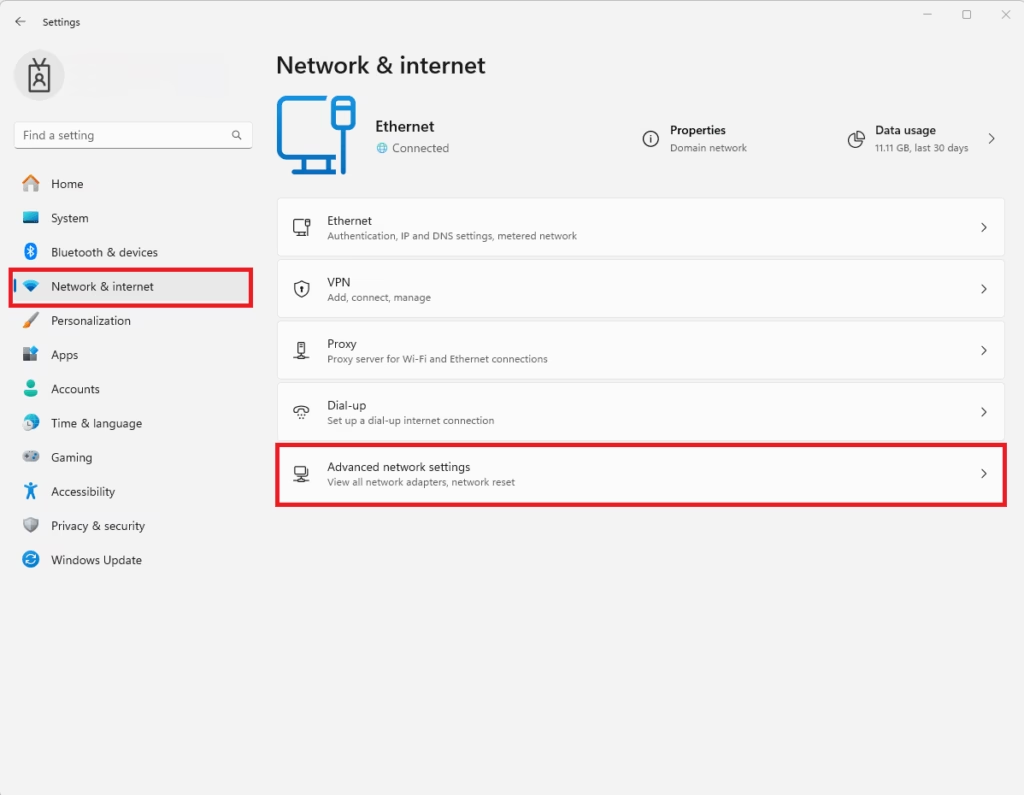
- Click Network & internet in the left menu. Your connection options appear on the right.
- On the right side, click Advanced network settings.
- Click Advanced sharing settings. You will see sharing options grouped by network profile.
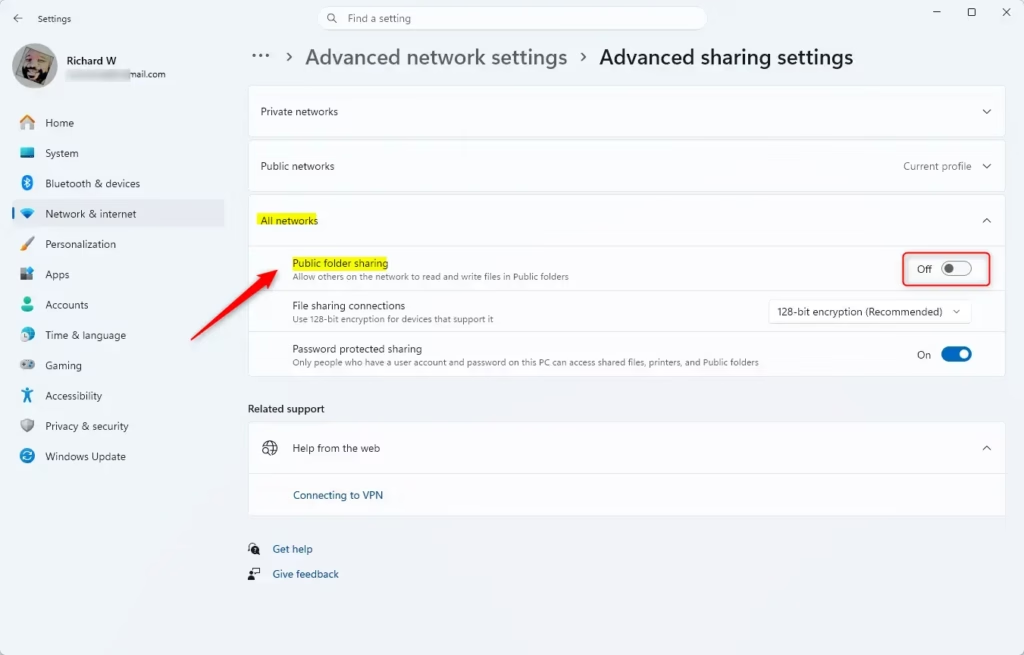
- Find the section called All networks and click it to expand it.
- Under Public folder sharing, switch it On or Off. Off is the default. The switch changes to the state you picked.
- Close the Settings window. The change applies right away, with no restart.
The short version of the path is Settings Network & internet Advanced network settings Advanced sharing settings. Expand All networks, then set Public folder sharing to On or Off. To undo the change, repeat the steps and pick the other option.
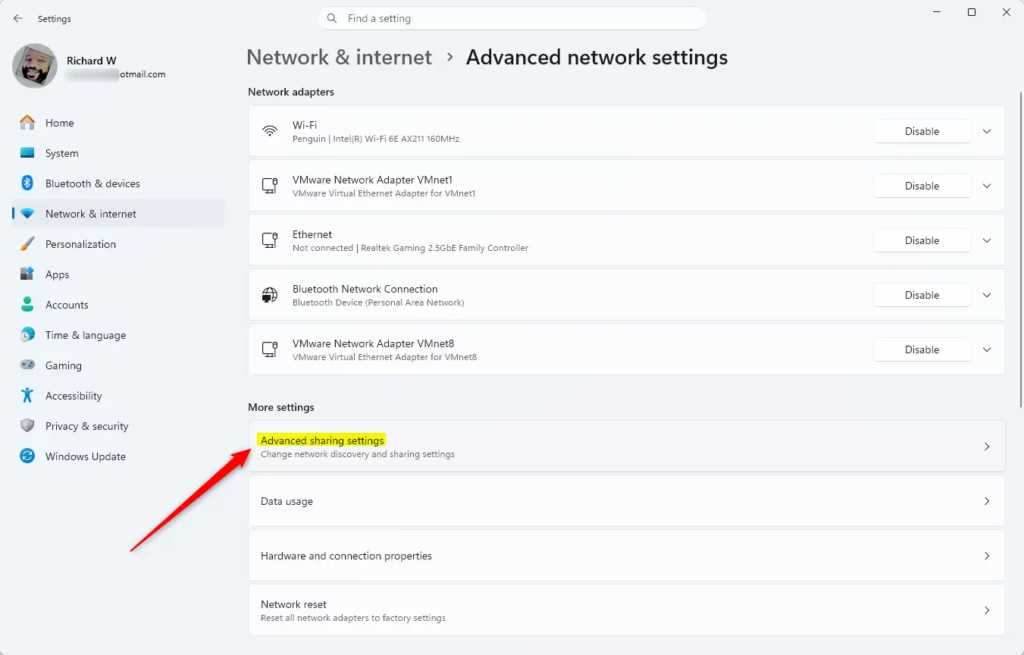
You can also open Advanced sharing settings directly here.
How to Turn On or Off Public Folder Sharing in Control Panel (Older 🪟 Windows 11 Builds)
Older Windows 11 builds manage public folder sharing through the traditional Control Panel. Use these steps if the option isn’t where the Settings steps say it should be. The setting works the same way in both places.
- Open the Control Panel. Set View by in the top-right corner to Large icons or Small icons so every item is listed.
- Click Network and Sharing Center.
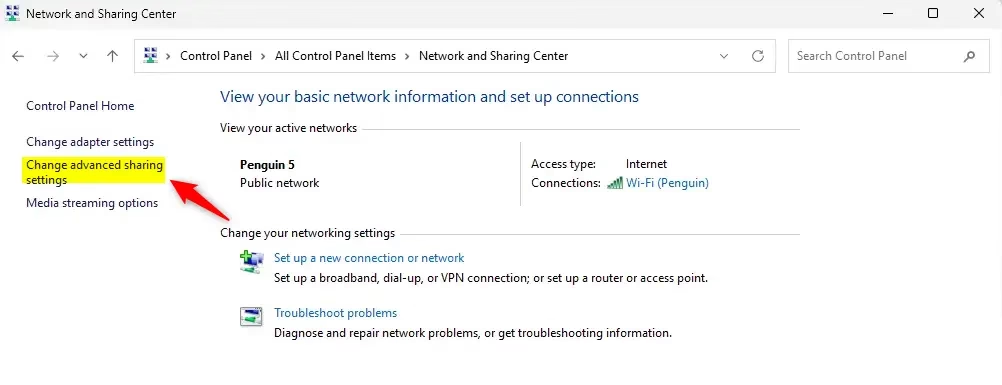
- On the left side, click Change advanced sharing settings. The sharing options for each network profile open.
- Expand the All networks section.
- Under Public folder sharing, choose Turn on sharing… to share, or Turn off Public folder sharing to stop sharing. The second one is the default.
- Click Save changes. If you skip this, the setting isn’t applied.
- Close the Control Panel when finished. No restart is needed.
Summary
- Public folders make sharing files easy between users on the same PC and network.
- Public folder sharing is off by default to keep your files private and safe.
- You must be an administrator to change sharing settings.
- In newer Windows 11 versions, use Settings to manage sharing; older versions may use Control Panel.
- Be careful when turning sharing on. People with permission can change or delete your files.
Public folders let several users exchange files on one PC without extra software. Windows keeps the feature off by default to protect your data, and you need an administrator account to change it. Newer Windows 11 builds use the Settings app, and older ones use the Control Panel. Be careful when you turn network sharing on, because people with access can change or delete what is stored there. If you only need to share something once, turn the setting off again afterwards.
Have a question about this guide?
Answered by AI from this guide. Good questions may be added to this page — please don't include personal details.
Did this guide fix your problem?

About the Author
Richard
Tech Writer, IT Professional
Richard is a writer at Geek Rewind who turns complex IT tasks into clear, step-by-step guides. He draws on years of hands-on experience in system administration and enterprise IT operations, focusing on Windows, Linux and WordPress: the problems people actually run into, and the fixes that work. His server and WordPress guides come from systems he runs himself. Richard builds and maintains the platform behind Geek Rewind, from its Ubuntu servers and Nginx configuration to its custom WordPress plugins. Many new tutorials start with readers' questions, and he's always glad to answer them in the comments.
No comments yet — be the first to share your thoughts!