Open the Public Folder on Your PC in Windows 11

- 34 steps
- Needs administrator rights
The Public folder in Windows 11 is a shared location at C:\Users\Public that every account on the PC can open and change. The quickest way to open it is to press Win+R, type C:\Users\Public, and press Enter.
Below you will find the quickest shortcut, the File Explorer click route, and faster ways to reopen the folder later. It also explains how to open the Public folder from another PC on your network and what to do when it will not open.
The Public folder in Windows 11 is at 📁C:\
What the Public folder is and what it contains
The Public folder is a drop box for files you want to share with other accounts on the same PC. A file you place there can be opened by any local user, so you do not have to copy it into each person’s own folders. It sits inside the Users folder next to the folder for each account.
By default, File Explorer shows five subfolders inside it: Documents, Downloads, Music, Pictures, and Videos. These are separate from the folders of the same names in your own profile. If you want your personal versions instead, see how to find the Documents folder, the Pictures folder, the Music folder, and the Videos folder.
Opening the folder on the PC itself needs no special setup and no administrator rights. Sharing it with other computers is a separate setting, covered later in this post.
Open the Public folder in File Explorer
This route works on every Windows 11 PC and shows you where the folder lives. The steps below open the Public folder on your PC from a clean start.
- Open File Explorer. Press Win+E, or select the folder icon on the taskbar. A File Explorer window opens, usually on Home.

File Explorer - Select This PC. Find it in the left pane. The right pane lists your drives and standard folders.
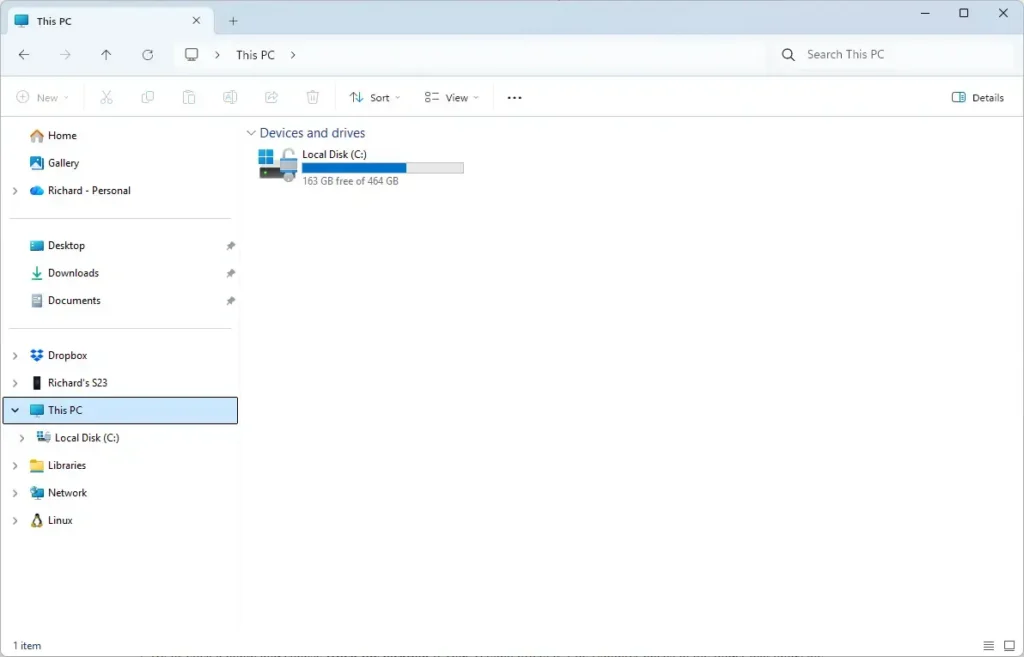
File Explorer - Open Local Disk (C:). Double-click the drive that holds Windows. On your PC the drive may have a different label, but it is usually C:.
- Open the Users folder. Double-click Users. You see one folder per account on the PC, plus Public.
- Open the Public folder. Double-click Public. The address bar now shows
C:\Users\Public. - Open a subfolder. Double-click Public Documents, Public Downloads, or whichever one you need. Depending on your settings, File Explorer may label them without the word “Public”.
If you do not see Users in step 4, Windows is not installed on the drive you opened. Go back to This PC and check the other drives.
Open the Public folder faster
Clicking through four levels gets old quickly. The methods below skip straight to the folder.
Type the path in the File Explorer address bar
This method works when File Explorer is already open.
- Open File Explorer. Press Win+E.
File Explorer - Select the address bar. Click the empty space to the right of the current path, or press Alt+D. The path turns into editable text.
- Type the path. Enter
C:\Users\Public. - Press Enter. The Public folder opens in the same window.
Use the Run dialog
The Run dialog opens the folder from anywhere, without first opening File Explorer.
- Press Win+R. The Run dialog appears in the lower-left corner of the screen.

Run dialog - Type the path. Enter
C:\Users\Publicin the Open box. - Press Enter. A File Explorer window opens on the Public folder.
You can type %PUBLIC% instead. That is an environment variable (a named shortcut that Windows replaces with a real path) which points to the Public folder. It is useful if Windows is installed on a drive other than C:, because it follows the real location.
Open it from Command Prompt or PowerShell
If you already have a command window open, one command opens the folder in File Explorer.
- Open Command Prompt or PowerShell. Search for either one in the Start menu and select it. No administrator rights are needed.
- Type the command. Enter
explorer C:\Users\Public. - Press Enter. File Explorer opens on the Public folder.
Pin the Public folder to Quick access
Pinning adds the folder to the left pane of File Explorer, so it is one click away every time. Quick access is the list of pinned and recent folders at the top of that pane.
- Open the Public folder. Use any method above.
- Go up one level. Select the up arrow next to the address bar, or press Alt+↑ Arrow. You are now in the Users folder.
- Right-click Public. A context menu opens.
- Select Pin to Quick access. Public now appears under Quick access in the left pane.
To remove it later, right-click the pinned entry and choose Unpin from Quick access. Unpinning removes only the shortcut. The folder and its files stay where they are.
If you would rather have File Explorer open somewhere other than Home, see how to change the File Explorer default folder.
Show hidden subfolders in the Public folder
Some folders inside Public are hidden by default, so a fresh look at the folder may show fewer items than you expect. Showing them changes only how File Explorer displays files.
- Open the Public folder. Use any method above.
- Select View. It is in the command bar at the top of the window.
- Point to Show. A submenu opens at the bottom of the list.
- Select Hidden items. A check mark appears next to it. Hidden folders now appear slightly faded.
To hide them again, turn off Hidden items in the View menu. The same display options also live in the Folder Options window, which you can read about in how to open File Folder Options in Windows 11.
Leave the hidden folders alone unless you know why you are changing them. Windows uses some of them for its own purposes.
Open the Public folder from another PC on your network
By default, only people who sign in to this PC can open the Public folder. Turning on Public folder sharing lets other computers on the same network reach it. This is a different setting from the folder’s presence on the PC, and it is off unless you or an administrator turned it on.
Turn on Public folder sharing
- Open Settings. Press Win+I.

Start Menu - Select Network & internet. It is in the left pane.
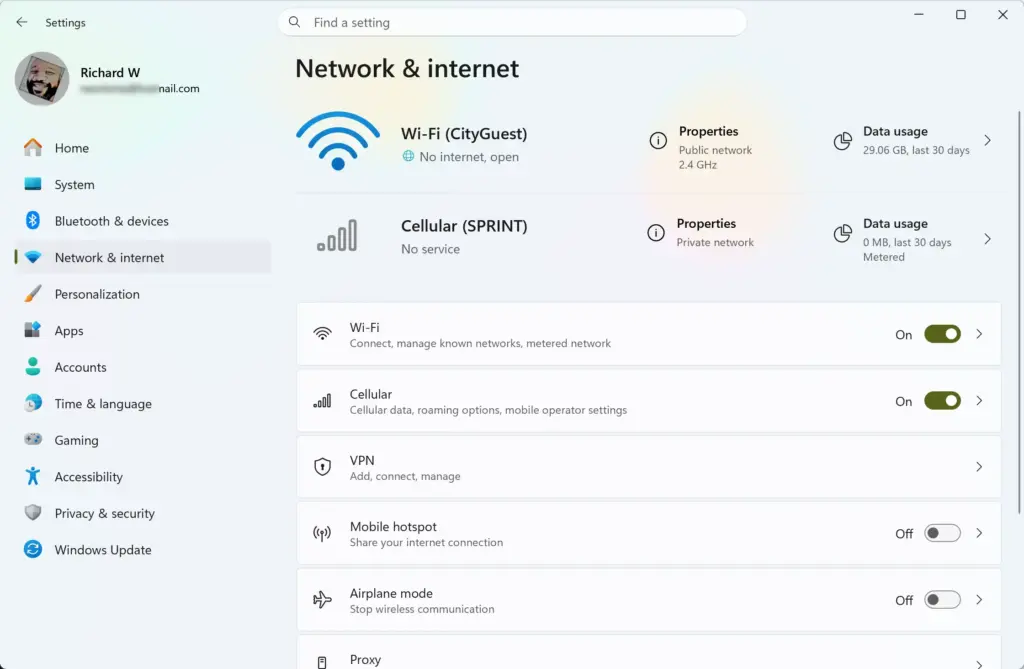
Settings › Network & internet - Select Advanced network settings. Scroll down on the right if you do not see it.
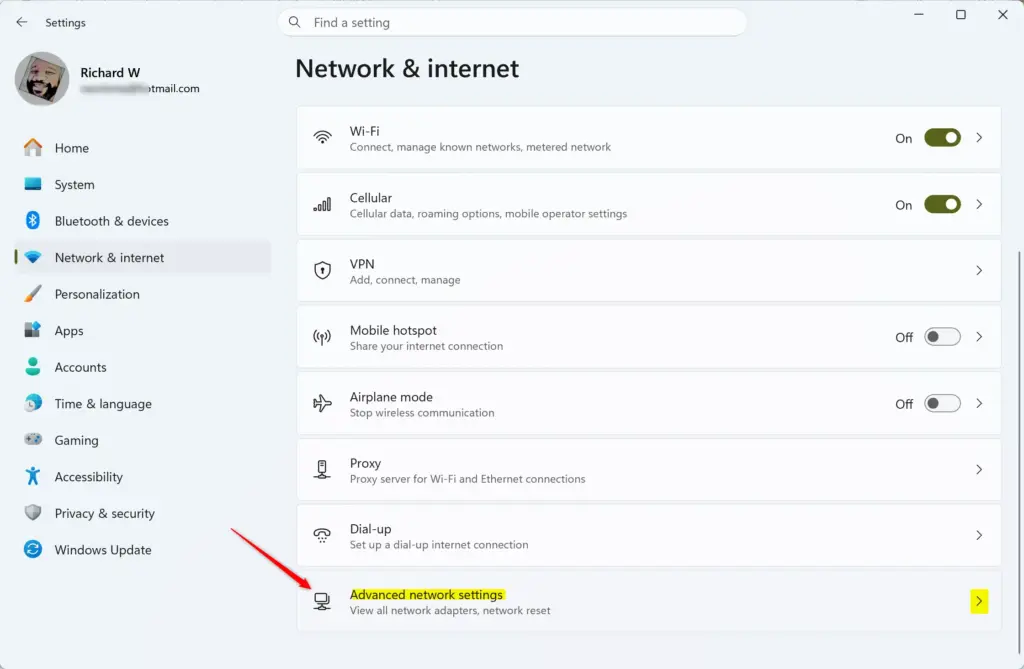
Windows 11 advanced network settings tile for Wake on LAN. - Select Advanced sharing settings. A page opens with sections for your network profiles.
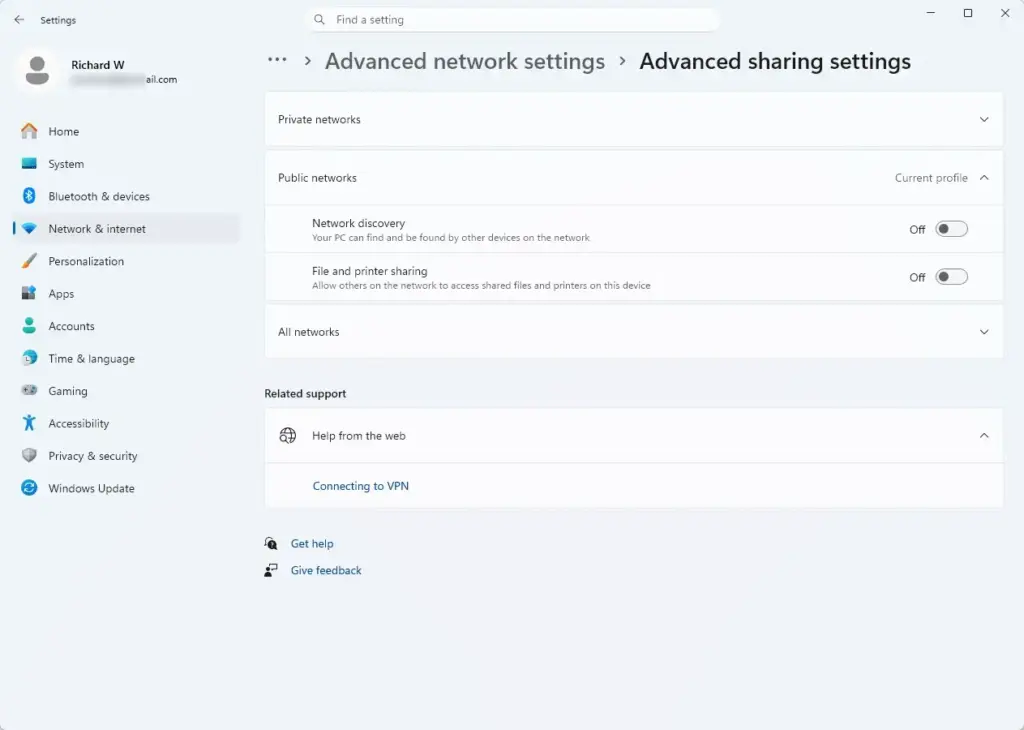
Settings › Network & internet › Advanced network settings › Advanced sharing settings - Expand All networks. Select the section heading to open it.
- Turn on Public folder sharing. Switch the toggle to On. If a prompt asks for administrator approval, approve it.
The same page has a Password protected sharing setting. It controls whether people on the network need a user account and password on this PC to open the shared files. Check it before you leave sharing on. For a full walkthrough of the toggle, see how to turn Public folder sharing on or off in Windows 11.
Open the shared folder from the other PC
- Open File Explorer. Do this on the second PC.
- Select Network. It is near the bottom of the left pane. The computers File Explorer can find appear in the right pane.
- Open the sharing PC. Double-click its name. If Windows asks for credentials, enter the user name and password of an account on that PC.
- Open the Users folder, then Public. The Public folder opens, and you can reach its subfolders.
If the PC does not appear under Network, type its name in the address bar instead, in the form \\COMPUTER-NAME\Users. Replace COMPUTER-NAME with the real name of the sharing PC. The second PC must be on the same network, and network discovery (the setting that lets PCs see each other) must be on for both.
If the Public folder will not open or looks wrong
A few problems come up repeatedly. Each has a short fix.
- “Windows cannot find” message. Check for a typo in the path. Use
%PUBLIC%in the Run dialog if you are unsure of the drive letter. - Access denied. Sign in with an administrator account and try again. A restricted or work-managed account may not be allowed into the folder. In that case, ask your IT staff.
- Subfolders missing. Turn on Hidden items as described above. If the folders you expect are still absent, someone may have removed or renamed them.
- Other PCs cannot see the folder. Confirm that Public folder sharing is on and that both PCs are on the same network. Check that the network profile on the sharing PC, the Private or Public setting that controls how Windows treats the network, is not blocking discovery.
- Toggle will not change. If the Public folder sharing switch will not change, close Settings, reopen it as an administrator, and try again.
How to undo these changes
Opening the Public folder changes nothing, so there is nothing to reverse. The other steps in this post each have a simple undo:
- Pinned to Quick accessright-click the pinned entry and choose Unpin from Quick access.
- Hidden items showingselect View Show Hidden items again to clear the check mark.
- Network sharing ongo back to Settings Network & internet Advanced network settings Advanced sharing settings, expand All networks, and switch Public folder sharing to Off. Approve the administrator prompt if it appears.
Turning sharing off does not delete files. Local users can still open the folder, and anything you stored there stays put.
What to do next
If you plan to use the Public folder regularly, pin it to Quick access and decide whether network sharing should stay on. To make a folder on another drive show up as a drive in File Explorer, read how to mount a folder as a drive in Windows 11. To make the left pane easier to browse, look at the Expand to open folder setting in File Explorer’s navigation pane.
Have a question about this guide?
Answered by AI from this guide. Good questions may be added to this page — please don't include personal details.
Did this guide fix your problem?

About the Author
Richard
Tech Writer, IT Professional
Richard is a writer at Geek Rewind who turns complex IT tasks into clear, step-by-step guides. He draws on years of hands-on experience in system administration and enterprise IT operations, focusing on Windows, Linux and WordPress: the problems people actually run into, and the fixes that work. His server and WordPress guides come from systems he runs himself. Richard builds and maintains the platform behind Geek Rewind, from its Ubuntu servers and Nginx configuration to its custom WordPress plugins. Many new tutorials start with readers' questions, and he's always glad to answer them in the comments.
No comments yet — be the first to share your thoughts!