How to Show Hidden Files, Folders, and Drives in Windows 11

- 6 ways to do it
- Includes a restart or sign-out
Windows 11 hides some files, folders, and drives by default, such as parts of 📁C:\
Hidden items appear with faded (dimmed) icons, so you can tell them apart from your normal files. Every method below works on both Windows 11 Home and Pro. They all change the same underlying setting, so a change made one way shows up in the others. Pick whichever method suits you.
Open File Explorer, select View Show Hidden items, and a check mark appears beside it, revealing hidden files and folders with dimmed icons. No restart is needed. To show protected operating system files too, open Folder Options from the Win+S search, go to the View tab, and clear Hide protected operating system files (Recommended).
Option 1Show Hidden Files Using File Explorer
This is the fastest method and the one most people need. It shows hidden files and folders, but not protected operating system files, which are covered further down.
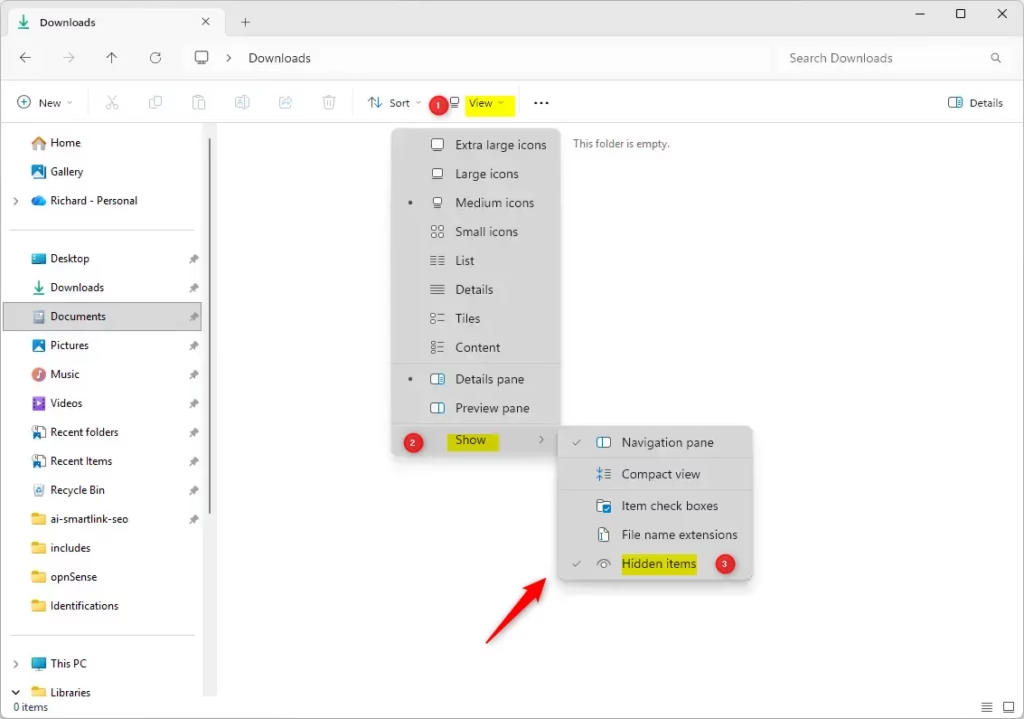
These steps show hidden folders and files in File Explorer using the View menu.
- Open File Explorer. Press
Windows + Eto open it quickly. A File Explorer window should open. - Click the View menu in the toolbar. A drop-down list of view options should appear.
- Point to or click Show. A submenu with more options should open.
- Click Hidden items so a check mark appears next to it. Hidden files and folders now show up with dimmed icons. Click it again to remove the check mark and hide them.
That’s it. You should now see hidden files and folders in File Explorer, and the change applies right away with no restart.
If nothing new appears, you may be in a folder with no hidden items. Try your user folder or the root of the C: drive.
Option 2Show Hidden Files Using Folder Options
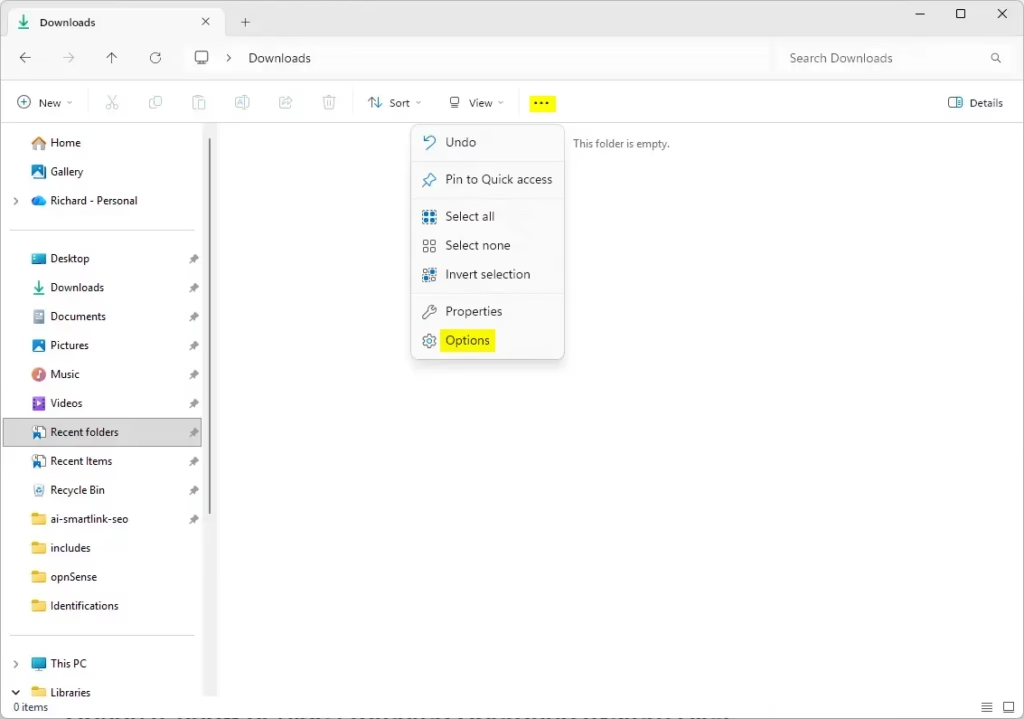
This is the classic dialog that has been in Windows for years. It lists every view setting in one place. It also helps when the View menu in File Explorer isn’t handy.
These steps turn on the setting that shows hidden files, folders, and drives from the Folder Options dialog.
- Press
Windows + S. Use it to start a search for the dialog in the next step. - Type Folder Options or File Explorer Options, then select the result. A window titled Folder Options (or File Explorer Options) should open. Windows 11 uses both names for the same dialog.
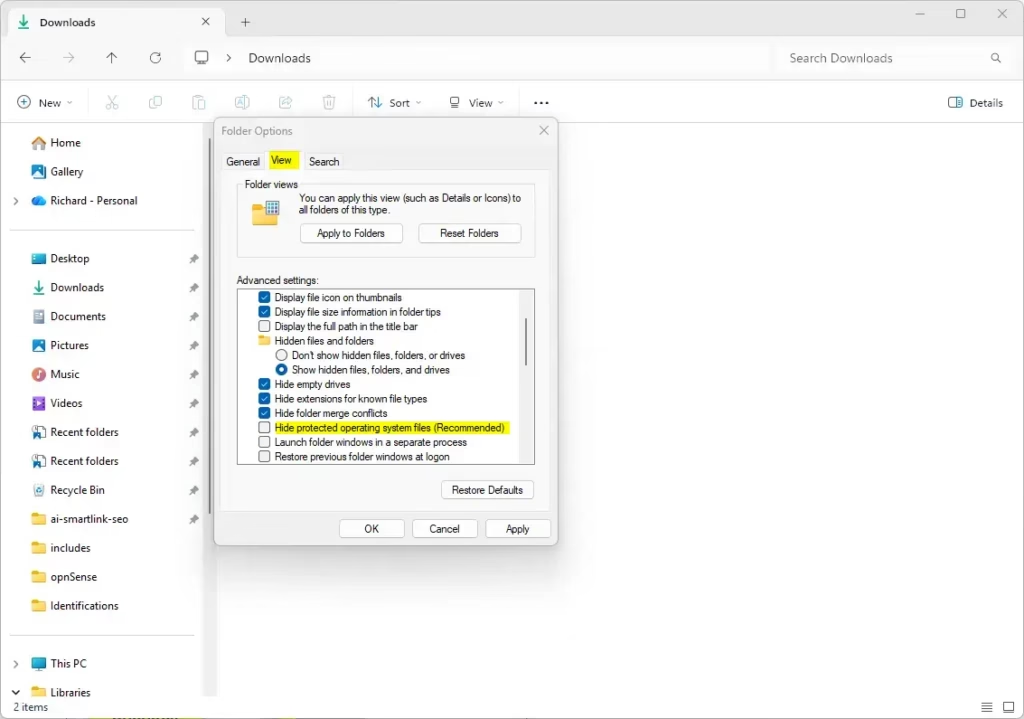
- Click the View tab. You should see a list of advanced settings.
- Select Show hidden files, folders, and drives under “Hidden files and folders.” To hide items again later, choose Don’t show instead.
- Click OK to save the change. File Explorer now shows hidden items, or hides them if you chose to hide them.
That’s it. You should now see hidden files, folders, and drives in File Explorer, and no restart is needed.
Option 3Show or Hide Protected Operating System Files
Protected operating system files stay hidden even after you turn on hidden items. Windows hides them to stop you from deleting or changing them by accident. If you need to fix a system problem, you can turn this protection off in Folder Options.
These steps make protected operating system files visible in File Explorer.
- Open Folder Options. Use the steps from the previous option to find and open the dialog.
- Click the View tab. The list of advanced settings should appear.
- Uncheck Hide protected operating system files (Recommended). A warning dialog should appear.
- Read the warning, then click Yes to continue. The dialog closes and the checkbox stays cleared.
- Click OK to apply the change. Protected system files now appear in File Explorer with dimmed icons.
That’s it. You should now see protected system files alongside your hidden items.
To undo this, go back to the same place, check Hide protected operating system files (Recommended) again, and click OK. I suggest turning it back on once you finish your repair.
Option 4Use a Registry Editor to Show or Hide Hidden Files
Registry Editor is a tool for viewing and changing the registry, the database where Windows stores its settings. This method changes the hidden files setting there directly. It is useful when you prefer to work outside the File Explorer menus.
Use the steps below to show hidden files.
- Open Registry Editor: press Win+R, type regedit, and press Enter. Select Yes if User Account Control asks.
- Go to
HKEY_CURRENT_USER\Software\Microsoft\Windows\CurrentVersion\Explorer\Advanced— paste the path into the address bar at the top of Registry Editor and press Enter. - If there is no Advanced key, right-click Explorer in the left pane, select New Key, name it Advanced, and select it. Create any other missing key in the path the same way.
- Right-click an empty area of the right pane, select New DWORD (32-bit) Value, and name it Hidden. If Hidden is already there, skip this step.
- Double-click Hidden, set Base to Decimal, type 1 in Value data, and select OK.
Use the steps below to hide hidden files again.
- Open Registry Editor: press Win+R, type regedit, and press Enter. Select Yes if User Account Control asks.
- Go to
HKEY_CURRENT_USER\Software\Microsoft\Windows\CurrentVersion\Explorer\Advanced— paste the path into the address bar at the top of Registry Editor and press Enter. - If there is no Advanced key, right-click Explorer in the left pane, select New Key, name it Advanced, and select it. Create any other missing key in the path the same way.
- Right-click an empty area of the right pane, select New DWORD (32-bit) Value, and name it Hidden. If Hidden is already there, skip this step.
- Double-click Hidden, set Base to Decimal, type 0 in Value data, and select OK.
That’s it. You should now be able to turn the hidden files setting on and off from Registry Editor.
If File Explorer doesn’t reflect the change straight away, press F5 in the window or close and reopen it. If that doesn’t help, sign out of Windows and sign back in.
Option 5Use a Registry Editor to Show or Hide Protected Operating System Files
This is an advanced method. It changes the registry so that Windows shows protected operating system files along with hidden files. Use it only if you are comfortable with the risks described above.
Use the steps below to show protected system files.
- Open Registry Editor: press Win+R, type regedit, and press Enter. Select Yes if User Account Control asks.
- Go to
HKEY_CURRENT_USER\Software\Microsoft\Windows\CurrentVersion\Explorer\Advanced— paste the path into the address bar at the top of Registry Editor and press Enter. - If there is no Advanced key, right-click Explorer in the left pane, select New Key, name it Advanced, and select it. Create any other missing key in the path the same way.
- Right-click an empty area of the right pane, select New DWORD (32-bit) Value, and name it Hidden. If Hidden is already there, skip this step.
- Double-click Hidden, set Base to Decimal, type 1 in Value data, and select OK.
- Right-click an empty area of the right pane, select New DWORD (32-bit) Value, and name it ShowSuperHidden. If ShowSuperHidden is already there, skip this step.
- Double-click ShowSuperHidden, set Base to Decimal, type 1 in Value data, and select OK.
Use the steps below to hide the protected system files again.
- Open Registry Editor: press Win+R, type regedit, and press Enter. Select Yes if User Account Control asks.
- Go to
HKEY_CURRENT_USER\Software\Microsoft\Windows\CurrentVersion\Explorer\Advanced— paste the path into the address bar at the top of Registry Editor and press Enter. - If there is no Advanced key, right-click Explorer in the left pane, select New Key, name it Advanced, and select it. Create any other missing key in the path the same way.
- Right-click an empty area of the right pane, select New DWORD (32-bit) Value, and name it ShowSuperHidden. If ShowSuperHidden is already there, skip this step.
- Double-click ShowSuperHidden, set Base to Decimal, type 0 in Value data, and select OK.
That’s it. You should now have a way to show or hide protected system files from Registry Editor. To make File Explorer pick up the change, refresh it, reopen it, or sign out and back in, as described in Option 4.
Option 6Turn On or Off Hidden and System Files in Windows Settings
These steps turn on the Settings switch that shows hidden files and system files without opening File Explorer.
- Open Settings. Press
Windows + Ito do it quickly. The Settings app should open. - Click System on the left side. The System pages should appear on the right.
- Click Advanced on the right. You can also open it by clicking this link. On older Windows 11 versions (such as 23H2), this page may be named For developers instead.
- Click File Explorer to expand its options. A list of File Explorer switches should appear.
- Set the Show hidden and system files toggle to On. Set it to Off when you want to hide them again. The change takes effect right away.
That’s it. You should now see hidden items in File Explorer, with no restart needed.
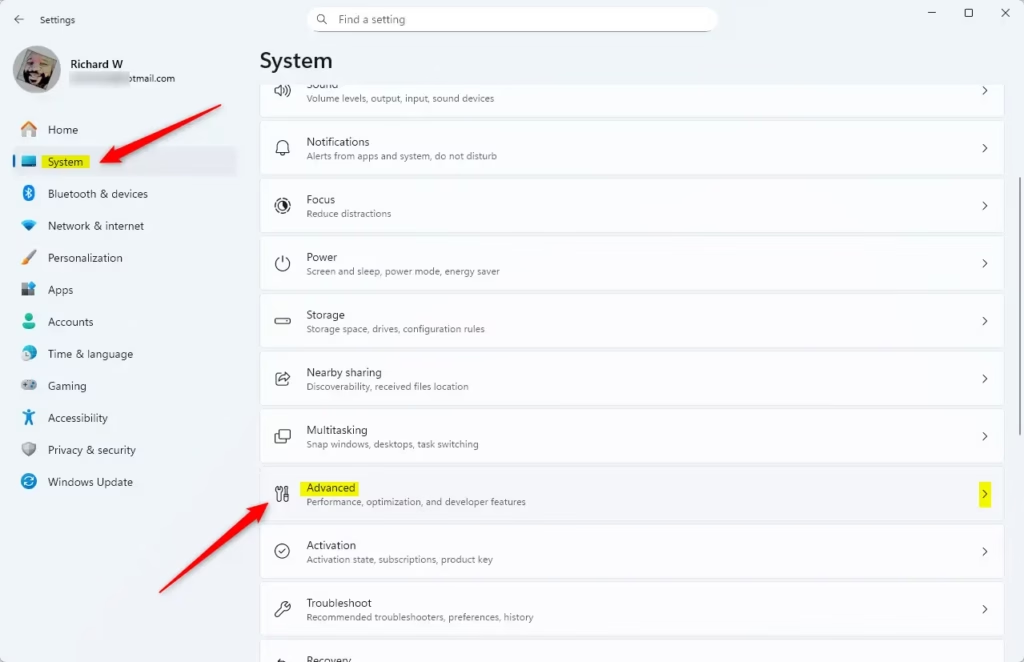
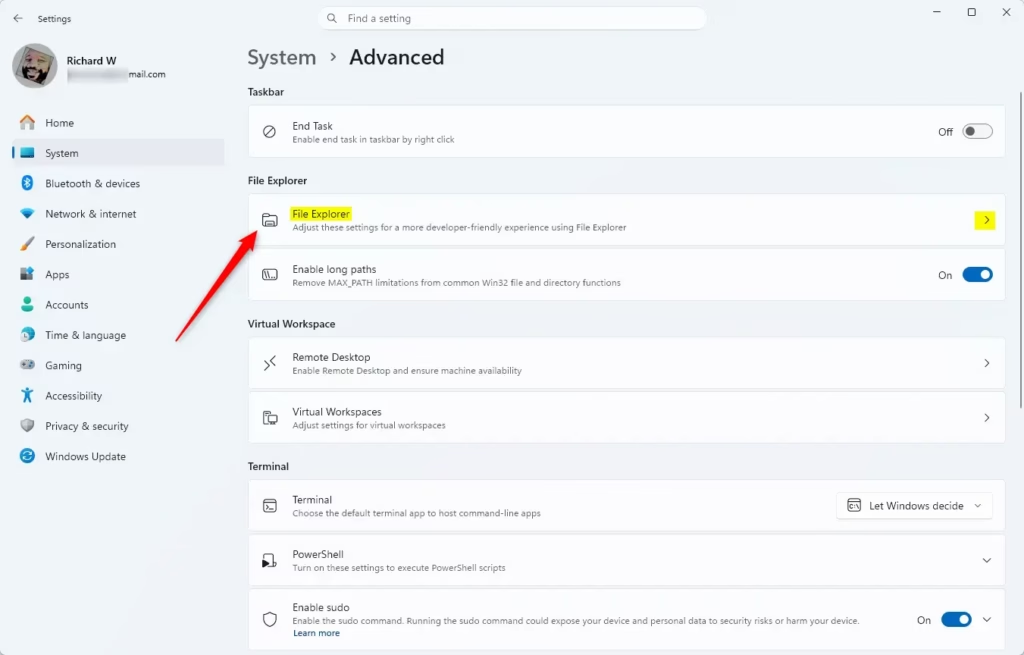
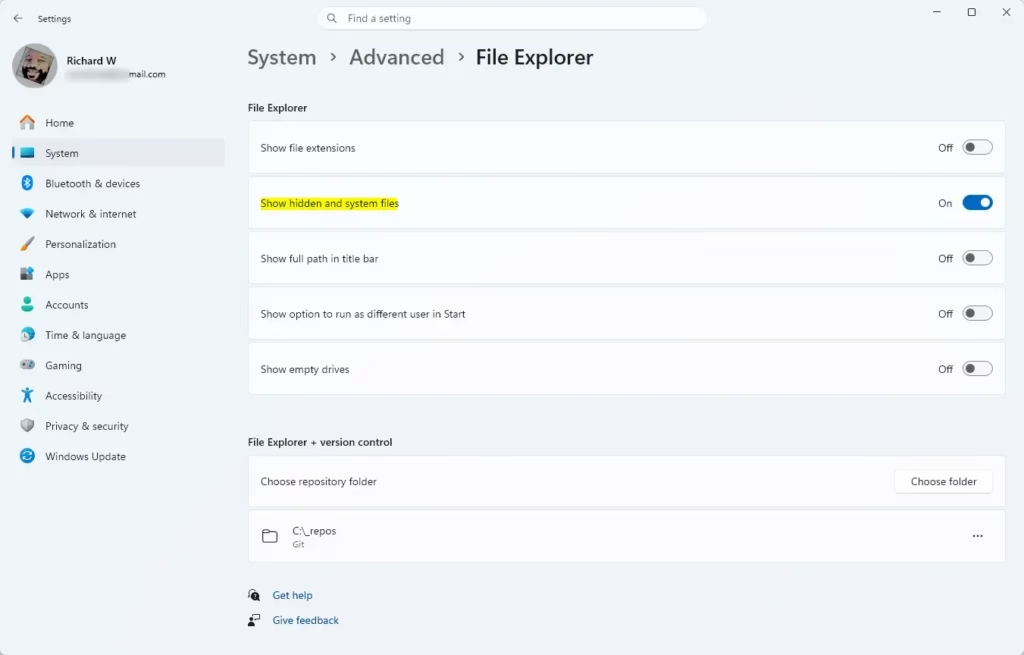
The Settings app has a single switch that shows hidden files without opening File Explorer or the advanced folder options. A few clicks turn it on or off. If you can’t find the Advanced page, check that Windows is up to date, or look under For developers as noted above.
Summary
You can make hidden files visible in Windows 11 in several ways: File Explorer, Folder Options, Registry Editor, or the Settings app. For most people the View menu in File Explorer is the quickest. Whichever you choose, be careful with system files.
- You can show or hide files that Windows normally hides, and you can reverse the change at any time.
- There are several ways to do it: File Explorer, Folder Options, Registry Editor, or Settings.
- Hidden files look dimmed so you know they are normally hidden.
- Hidden items and protected operating system files are separate settings. Turning on one does not turn on the other.
- Be extra careful with protected system files, because Windows relies on them to run.
- Choose the method that feels safest and most comfortable for you.
For more information, consult the official Microsoft guide here: View Hidden Files and Folders in Windows.
Frequently asked questions
How can I hide hidden files in 🪟 Windows 11?
Open File Explorer, click View, then Show, and clear the check mark next to Hidden items. Hidden files and folders disappear from view again right away. Your files are not deleted or changed, so you can switch this on and off at any time. The setting applies to all File Explorer windows.
How to see Hidden programs in 🪟 Windows 11?
Windows has no separate list of hidden programs. Hidden items means hidden files, folders, and drives, which you can show in File Explorer. To see every installed app, open Settings, go to Apps, then Installed apps. Programs that are running appear under Processes in Task Manager.
How can I show hidden files and folders in 🪟 Windows 10?
Open File Explorer, select the View tab, and tick Hidden items in the Show group. Hidden files, folders, and drives appear with faded icons. The setting is the same one Windows 11 uses, so you can turn it off the same way. Protected system files stay hidden until you change Folder Options.
How to unhide Hidden items?
Open File Explorer, click View, then Show, and tick Hidden items to unhide them. Hidden items are files, folders, and drives marked with the hidden attribute, and they show faded icons when visible. Untick the box to hide them again. This changes only what you see, not the items themselves.
Still have a question?
Answered by AI from this guide. Good questions may be added to this page — please don't include personal details.
Did this guide fix your problem?

About the Author
Richard
Tech Writer, IT Professional
Richard is a writer at Geek Rewind who turns complex IT tasks into clear, step-by-step guides. He draws on years of hands-on experience in system administration and enterprise IT operations, focusing on Windows, Linux and WordPress: the problems people actually run into, and the fixes that work. His server and WordPress guides come from systems he runs himself. Richard builds and maintains the platform behind Geek Rewind, from its Ubuntu servers and Nginx configuration to its custom WordPress plugins. Many new tutorials start with readers' questions, and he's always glad to answer them in the comments.
No comments yet — be the first to share your thoughts!