How to Add or Remove Recycle Bin to Windows 11 File Explorer

The Recycle Bin in Windows 11 holds deleted files in a temporary location until you empty it or restore them to their original folder. Adding it to the left sidebar of File Explorer saves you a few clicks every time. It also lets you remove the icon from your desktop if you want a cleaner screen.
The shortcut is controlled by one setting in the Registry Editor, the built-in Windows tool for viewing and changing system settings. The steps below work the same on Windows 11 Home and Pro. You need to be able to approve an administrator prompt on your PC. The change is stored under your own user account (🗝️HKEY_CURRENT_USER), so it affects only you, not other people who use the same PC.
Open Registry Editor by pressing Win+R, typing regedit, and pressing Enter. Navigate to Computer\🗝️HKEY_CURRENT_USER\
What is File Explorer?
File Explorer is the built-in Windows app for finding and managing files and folders. Press Win+E to open it. The navigation pane is the column on the left side of the window. That is where the Recycle Bin shortcut will appear.
What is the Recycle Bin?
The Recycle Bin temporarily stores deleted files instead of wiping them right away. This means you can bring back a file you deleted by mistake. Until you empty the Recycle Bin , the files still take up disk space. The desktop usually shows the Recycle Bin icon by default, but File Explorer does not.
Why add Recycle Bin to File Explorer’s side menu?
- Quickly open the Recycle Bin without minimizing windows or searching for the desktop icon.
- Easily restore deleted files right from File Explorer , while you are already browsing your folders.
- Keep your desktop clean by removing the Recycle Bin icon from there.
How to add the Recycle Bin to File Explorer’s navigation pane
The whole job takes only a few minutes, but the Registry Editor does not check your work. A typo in a key name or value name will simply not work, or it may create a stray entry. Go through each step carefully and compare what you typed with what is written here.
In Registry Editor, click File then Export, choose All as the export range, and save the file somewhere safe. If anything goes wrong, you can double-click that file to restore the settings .
Step 1Open the Windows Registry Editor
The Windows Registry Editor is a database of low-level operating system settings. You can open it from the Run box. This is the tool you will use to add the Recycle Bin shortcut to your sidebar. If a User Account Control prompt appears asking for permission to make changes, click Yes to continue. If you only see a No button, or you are asked for an administrator password, you are signed in with a standard account and need an administrator to approve it.
- Press Windows key + R on your keyboard. The Run box opens in the bottom-left corner of the screen.
- Type
regeditand press Enter. - ⚠️ Admin privileges required: If a message pops up asking for permission, click Yes. The Registry Editor window should now open, with a folder tree on the left and values on the right.
Registry guides for Windows 11 provide extra background if you want it. They explain how to browse and change system settings that affect the look of File Explorer. You do not need them for this tutorial.
Step 2Find the right folder in the Registry
You need to find one specific key in the registry to control the Recycle Bin's visibility in File Explorer. The fastest way is to use the address bar.
- Click the address bar at the top of the Registry Editor window.
- Copy and paste Computer\HKEY_CURRENT_USER\Software\Classes\CLSID\{645FF040-5081-101B-9F08-00AA002F954E} into it.
- Press Enter. If the key exists, the left panel jumps to it and highlights it.
If that exact key does not exist in your list, you must create it manually before moving on to the next step. On many PCs it is missing, so do not worry if Registry Editor shows an error or stays on a different key.
Computer\HKEY_CURRENT_USER\Software\Classes\CLSID\{645FF040-5081-101B-9F08-00AA002F954E}
Create the key manually if {645FF040-5081-101B-9F08-00AA002F954E} remains hidden. Make sure you are inside HKEY_CURRENT_USER\Software\Classes\CLSID first, not the similarly named branch under HKEY_LOCAL_MACHINE.
- Right-click the CLSID folder in the left panel.
- Select New Key. A new folder appears under CLSID with its name highlighted for editing.
- Name the new key exactly:
{645FF040-5081-101B-9F08-00AA002F954E}. Include the curly braces, and press Enter to confirm the name.
Step 3Add or change a value to show Recycle Bin
You control the sidebar entry with a DWORD value (a small number setting) inside the key you just opened or created. Select that key in the left panel, then look at the right-hand panel for an entry named System.IsPinnedToNameSpaceTree. If the entry is already there, double-click it to change its settings. If it is missing, you create it yourself so Windows knows to display the icon.
Locate the entry named System.IsPinnedToNameSpaceTree, which controls showing the Recycle Bin.
- If it's there, double-click it. The Edit DWORD (32-bit) Value window opens.
- If it's NOT there, right-click on a blank space in the right-hand panel, then choose New DWORD (32-bit) Value, and name it exactly
System.IsPinnedToNameSpaceTree. Then double-click the new value to open it. - Set the value data to 1 to turn this feature ON:
- Value data:
1
- Value data:
- Then click OK. The value now shows 0x00000001 (1) in the Data column.
Step 4Close Registry Editor and restart your PC
Save all open work, close active programs, and restart the PC to apply the change. You can close the Registry Editor first, because it does not need to stay open. If you would rather not restart, signing out and back in, or restarting Windows Explorer from Task Manager, will often make the sidebar refresh too. A full restart is the most reliable option.
Step 5Check File Explorer
Open File Explorer (press Windows key + E) and inspect the left navigation pane. The Recycle Bin should appear there now. Click it to see your deleted files. To restore one, right-click it and choose Restore.
If the Recycle Bin is not there, go back to the key and check three things. First, make sure the key name matches exactly, including the braces. Second, make sure the value is named exactly System.IsPinnedToNameSpaceTree. Third, make sure it is a DWORD (32-bit) value set to 1. Then restart again.
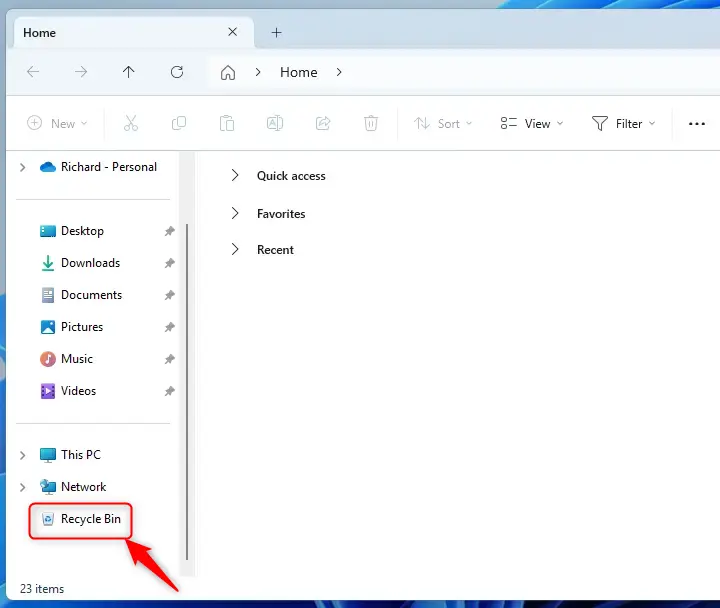
To take the Recycle Bin out of the sidebar later, open the same value in Registry Editor, set the value data to 0, click OK, and restart your PC. Nothing else needs to change, and your deleted files are not affected.
Summary
Placing the Recycle Bin shortcut in your sidebar keeps deleted items within reach and lets you hide the icon from your desktop. This quick adjustment gives you faster access to deleted files without needing to minimize open windows. After you finish the registry edit and restart your computer, the new icon will sit in the left sidebar of File Explorer.
- Adding Recycle Bin to File Explorer helps you open deleted files quickly.
- You need to carefully edit the Windows Registry and restart your PC.
- This keeps your desktop neat by removing the Recycle Bin icon from there.
- After this, the Recycle Bin icon is always ready in File Explorer's side menu.
- If you want to put the Recycle Bin back on your desktop later, you can do that easily from Personalization Themes Desktop icon settings.
Was this guide helpful?

About the Author
Richard
Tech Writer, IT Professional
Richard is a writer at Geek Rewind who turns complex IT tasks into clear, step-by-step guides. He draws on years of hands-on experience in system administration and enterprise IT operations, focusing on Windows, Linux and WordPress: the problems people actually run into, and the fixes that work. His server and WordPress guides come from systems he runs himself. Richard builds and maintains the platform behind Geek Rewind, from its Ubuntu servers and Nginx configuration to its custom WordPress plugins. Many new tutorials start with readers' questions, and he's always glad to answer them in the comments.




No comments yet — be the first to share your thoughts!