How to Turn On or off Password Protected Sharing in Windows 11

Password protected sharing in Windows 11 is a switch in Settings Network & internet Advanced network settings Advanced sharing settings, in the All networks section. To turn it on or off, open that page, set Password protected sharing to On or Off, and approve the User Account Control prompt. The setting controls who can open the files, folders, and printers you share on your local network. When it is on, anyone connecting from another computer must type a valid username and password for an account on your PC before they can see your shared items.
When it is off, other people on your home or office network can open your shared items without an account on your computer. That only applies to items you have shared with the Everyone group. Items shared with named users still need those users to sign in. You need administrator access to change this setting, so expect a User Account Control prompt if you are signed in as a standard user.
The setting is available in both Windows 11 Home and Pro, and you do not need to restart your PC after changing it. This guide covers two ways to change it: the Settings app and the classic Control Panel .
Press Win+I to open Settings , click Network & internet, then Advanced network settings, then Advanced sharing settings under More settings. Expand All networks and set Password protected sharing to On or Off. Approve the User Account Control prompt if it appears. The change takes effect immediately.
Option 1Using Settings
The Settings app is the quickest way to change password protected sharing on current versions of Windows 11. The switch is under Network & internet, in Advanced sharing settings. It controls whether network users need a user account and password to view the files you share from your computer. These steps turn password protected sharing on or off from Settings.
- Press
Win+Ito open Settings . The Settings app opens with a list of categories on the left. - Click Network & internet on the left side. The network options for your PC appear on the right.
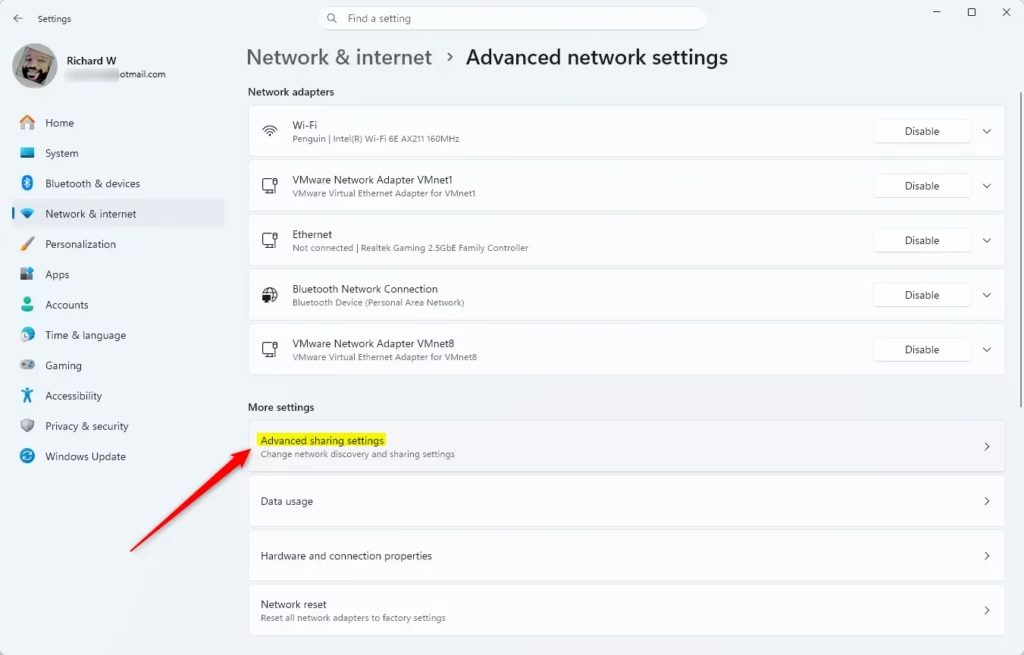
- Click Advanced network settings on the right side. You should see a list of your network adapters and related options.
- Click Advanced sharing settings under More settings. Open Advanced sharing settings You should see sections for Private networks, Public networks, and All networks.
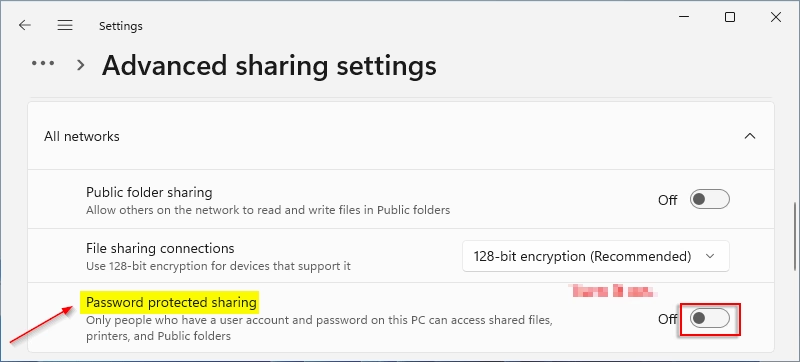
- Click All networks to expand it. The password protected sharing switch is in this section.
- Set Password protected sharing to On or Off. On is the default. The switch changes right away, and there is no Save button.
- Approve the User Account Control prompt if one appears. Standard users will be asked for an administrator password. If you are already an administrator, you may only need to click Yes.
- Close Settings. No restart is needed.
If you are not sure which to pick, leave it on. It is the safer choice, especially on a laptop that joins networks outside your home.
Option 2Using Control Panel
You can also manage password protected sharing in the classic Control Panel . This works in current Windows 11 as well as older builds. The setting is in the Network and Sharing Center, under advanced sharing settings and the All networks section. It is useful if you prefer the older layout or the Settings page will not open. These steps turn password protected sharing on or off from Control Panel.
- Open Control Panel. One way is to search for it in the Start menu.
- Set View by to Large icons or Small icons. The full list of Control Panel items appears.
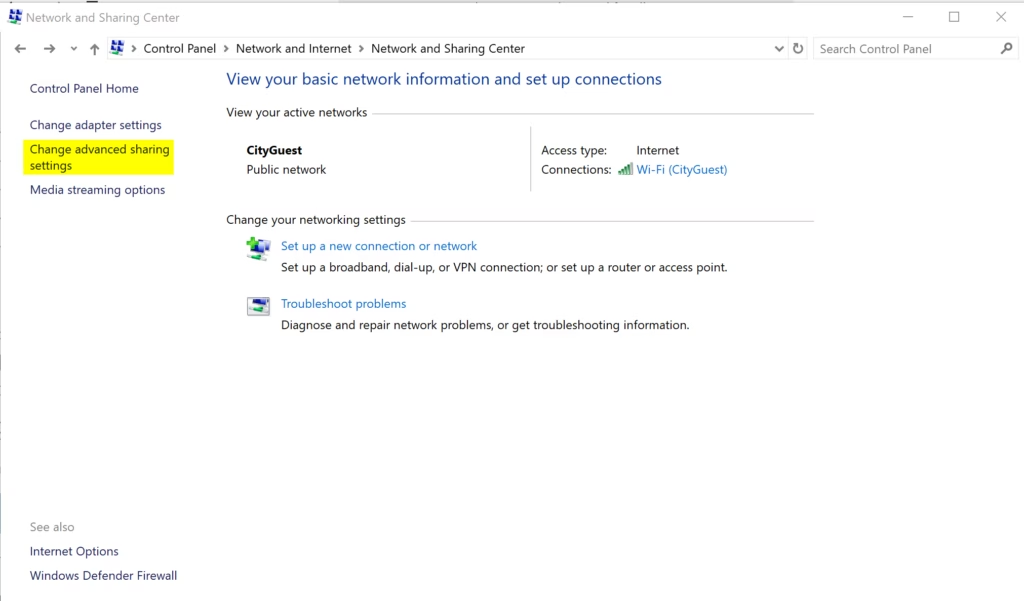
- Click the Network and Sharing Center icon. You should see your active networks and connection details.
- Click the Change advanced sharing settings link on the left side. You should see the sharing profiles for your network types.
- Click All networks to expand it. The section opens below the other profiles.
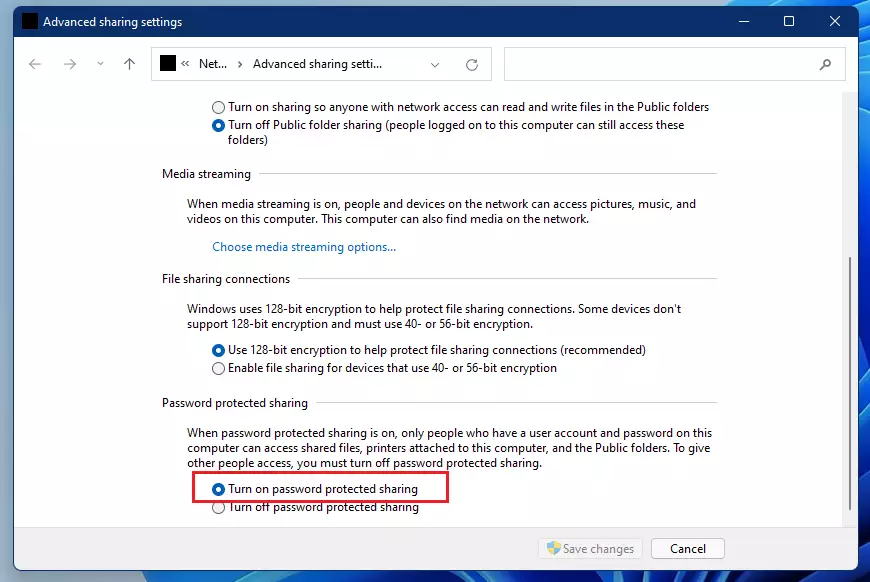
- Scroll down inside the section to Password protected sharing. It sits below Public folder sharing, Media streaming, and File sharing connections.
- Select Turn on password protected sharing or Turn off password protected sharing. Turning it on is the default.
- Click Save changes. If you leave without saving, the old setting stays in place.
- Approve the User Account Control prompt if one appears. If the change does not stick, check that you are signed in with an administrator account or have an administrator password ready.
- Close Control Panel. No restart is needed.
To undo the change, open the same page, pick the other option, and click Save changes again.
Summary
When it is active, anyone who tries to open your shared folders must type a valid username and password for an account on your computer. Only turn it off on a network you fully trust, such as a private home network, and think about turning it back on afterward.
You can switch it on or off at any time, using either the Settings app or the Control Panel. The change takes effect straight away, and you do not need to restart your PC. Both methods change the same setting, so whichever you use last is the one that applies.
Frequently asked questions
How do I turn off password sharing?
To turn off password sharing, open Settings, go to Network & internet, and select Advanced sharing settings. Expand All networks, then switch off Password protected sharing and select Save changes. You need administrator access. Afterward, anyone on your network can open items shared with Everyone without a password.
Can I put a password lock on a folder?
Windows 11 has no built-in way to password-lock a single folder. Your options are BitLocker, which locks an entire drive and needs Windows 11 Pro, or a password-protected ZIP file made with a free tool such as 7-Zip. Store the password somewhere safe, because a lost password cannot be recovered.
How do I remove the security password in 🪟 Windows 11?
To remove your sign-in password, open Settings, select Accounts, then Sign-in options, and choose Password. Select Change, enter your current password, and leave the new password boxes empty. Anyone who can reach your PC can then sign in without a password, so do this only on a computer that no one else can access.
Why is my shared folder asking for username and password in 🪟 Windows 11?
Your shared folder asks for a username and password because Password protected sharing is turned on. The person connecting needs a user account on the PC that hosts the folder, and the password must match that account. Check that the account exists and that its password has not changed recently.
Still have a question?
Answered by AI from this guide. Good questions may be added to this page — please don't include personal details.
Did this guide fix your problem?

About the Author
Richard
Tech Writer, IT Professional
Richard is a writer at Geek Rewind who turns complex IT tasks into clear, step-by-step guides. He draws on years of hands-on experience in system administration and enterprise IT operations, focusing on Windows, Linux and WordPress: the problems people actually run into, and the fixes that work. His server and WordPress guides come from systems he runs himself. Richard builds and maintains the platform behind Geek Rewind, from its Ubuntu servers and Nginx configuration to its custom WordPress plugins. Many new tutorials start with readers' questions, and he's always glad to answer them in the comments.
No comments yet — be the first to share your thoughts!