How to Middle-Click to Open a Folder in a New Tab in File Explorer

- 13 steps
- Needs administrator rights
- Includes a restart or sign-out
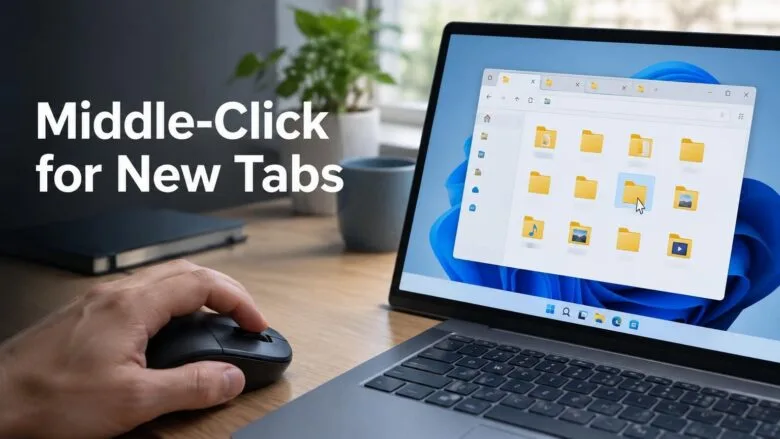
Middle-click to open a folder in a new tab in File Explorer works from the Address Bar and from the Home page. Middle-clicking means pressing the mouse scroll wheel like a button. File Explorer opens the folder in a new tab and leaves your current tab where it is.
Microsoft added this behavior in the Windows 11 update KB5101684 (the number Microsoft uses to label the update). None of the steps need administrator rights.
Middle-click a folder on the Home page or in the Address Bar to open it in a new File Explorer tab. Press the scroll wheel like a button over the folder, and the new tab appears in the tab row while your current tab stays where it is. This needs the Windows 11 update KB5101684, and no administrator rights.
What middle-click does in File Explorer
File Explorer in Windows 11 supports tabs. A tab is a separate page inside one File Explorer window, much like a browser tab. Each tab shows its own folder, so you can keep Documents open in one tab and Downloads in another without cluttering the screen with windows.
Before this change, opening a folder in a new tab took a right-click menu or a keyboard shortcut. Now a middle-click on a folder does it in one action. According to Microsoft’s release notes, the behavior applies to folders in two places:
- The Address Bar, the path box at the top of the File Explorer window.
- The Home page, the first page File Explorer shows by default, with your pinned and recent folders.
The notes name only these two places. They do not cover other spots, such as the navigation pane (the list of folders on the left) or the file list. Use the right-click method covered below if the middle-click does nothing there.
Before you start
How to middle-click a folder to open it in a new tab
These steps cover the full process for both locations: first the Home page, then the Address Bar. Use whichever one fits how you work. Each middle-click opens the folder in a new tab so you can compare or move between folders without losing your place.
- Open File Explorer. Press Win+E, or select the folder icon on the taskbar. A File Explorer window appears.

File Explorer - Select Home in the navigation pane. The navigation pane is the left-hand list of locations. The Home page shows your pinned and recent folders. If File Explorer already opened to Home, move on to the next step.
- Point at a folder on the Home page. Move the pointer over any folder, such as Documents or Downloads. Do not click yet.
- Press the middle mouse button. Press down on the scroll wheel until it clicks. A new tab appears in the tab row at the top of the window, named after that folder. Your Home tab stays open.
- Select the new tab. The tab shows the contents of the folder you middle-clicked. Select the Home tab at any time to return to where you started.
- Open any folder in the current tab. Double-click a folder so its path appears in the Address Bar. For example, a path such as Documents Projects Reports shows each folder name as a clickable section.
- Point at a folder name in the Address Bar. Pick a folder in the path other than the one you are viewing, for example Documents in the path above.
- Press the middle mouse button. A new tab opens showing that folder. The tab you were in keeps its current location, so you can switch between the two.
- Repeat as needed. Each middle-click adds another tab to the row. Tabs sit side by side, and File Explorer shrinks them as you add more.
If a new tab does not appear after you middle-click on the Home page or in the Address Bar, go to the troubleshooting section below.
Other ways to open a folder in a new tab
The middle-click covers the Address Bar and the Home page. For everywhere else, File Explorer has other options. The post How to Open Folders in New Tabs in Windows 11 File Explorer covers them in more depth.
Use the right-click menu
Right-click a folder and choose Open in new tab. This works in the file list and the navigation pane, and it gives the same result as a middle-click. It is the fallback when the middle-click does nothing in a particular location.
Use the keyboard to add a tab
Press Ctrl+T to open a new tab, then browse to the folder you want. Press Ctrl+W to close the current tab. These shortcuts work with any mouse or touchpad, which helps if your device has no middle button.
Do not confuse tabs with the window setting
File Explorer has a separate option for whether folders open in the same window or in their own windows. That option lives in Folder Options, and it does not control tabs. If you want to look at it, see Open File Folder Options in Windows 11.
If middle-click does nothing
Check these causes in order. The first one is the most likely.
Check that the update is installed
The middle-click behavior comes from the update described in KB5101684. Look for it in your update history, and install updates if it is missing.
- Open Settings. Press Win+I.
- Select Windows Update. It sits at the bottom of the left-hand list.
- Select Update history. The page lists recent updates with their KB numbers. Look for KB5101684.
- Go back and select Check for updates. Windows downloads anything missing. Restart the PC when it asks, then try the middle-click again.
Microsoft sometimes turns on new features in stages, so a PC with the update can still take a little time to show the change. The release notes do not say whether this feature rolls out in stages.
Check that you are clicking in a supported spot
The release notes name the Address Bar and the Home page. In the Address Bar, point at a folder name in the path. On the Home page, point at a folder tile or list entry. If you middle-click somewhere else, such as a blank area, nothing opens.
If you removed the Home page from File Explorer, that route is gone. The Address Bar route still works. To bring Home back, or to see how it was removed, read How to Remove the Home Folder from Windows 11 File Explorer.
Test the middle button itself
Open a web browser and middle-click any link on a page. Most browsers open the link in a new tab. If nothing happens, the problem is the mouse, not File Explorer. Some mouse utilities let you reassign the wheel click to another action, so check the mouse software installed on your PC.
On a laptop touchpad, you usually need a specific gesture to middle-click, and the touchpad settings or the manufacturer’s software control it. I cannot confirm the exact gesture for every device, so check the touchpad settings for your model. Until then, use the right-click menu or Ctrl+T.
Switch between tabs and close them
The middle-click does not change any setting, so there is nothing to undo. You only need to close any tabs you no longer want.
- Select the X on a tab to close it.
- Press Ctrl+W to close the tab you are viewing.
- Select a tab in the row to switch to it.
Closing the last tab closes the File Explorer window. If you want new windows to start in a specific folder instead of Home, change the File Explorer default folder in Windows 11.
What to do next
With tabs working from the Address Bar and Home page, set File Explorer to open where you work most. Start with How to Change File Explorer Default Folder to Open in Windows 11, so your first tab is the one you need. If you go there often, the guide to accessing your Downloads folder in Windows 11 File Explorer pairs well with a middle-click from the Home page.
Have a question about this guide?
Answered by AI from this guide. Good questions may be added to this page — please don't include personal details.
Did this guide fix your problem?

About the Author
Richard
Tech Writer, IT Professional
Richard is a writer at Geek Rewind who turns complex IT tasks into clear, step-by-step guides. He draws on years of hands-on experience in system administration and enterprise IT operations, focusing on Windows, Linux and WordPress: the problems people actually run into, and the fixes that work. His server and WordPress guides come from systems he runs himself. Richard builds and maintains the platform behind Geek Rewind, from its Ubuntu servers and Nginx configuration to its custom WordPress plugins. Many new tutorials start with readers' questions, and he's always glad to answer them in the comments.
No comments yet — be the first to share your thoughts!