How to Open Folders in New Tabs in Windows 11 File Explorer

Tabs in Windows 11 File Explorer let you open several folders inside one window instead of filling your screen with separate windows. Microsoft added the feature in Windows 11 version 22H2, so you no longer need a new window every time you look at another folder.
The tabs work much like the ones in a web browser. You can drag a tab to reorder it, close it with a middle mouse click, or right-click a folder and choose the option to open it in a new tab. The keyboard shortcuts Ctrl+T (new tab) and Ctrl+W (close tab) also work. Moving files between folders gets much faster, because both locations stay in the same window.
To turn on File Explorer tabs in Windows 11, first check the top of the File Explorer window for a + button next to the tab. If it is there, tabs are already on and you can open a folder in a new tab with Ctrl+T. If it is missing, run vivetool /enable /id:39145991,36354489 in an administrator Command Prompt, then restart the PC.
What is File Explorer?
File Explorer is the built-in program Windows uses to find, view and manage your files and folders. Think of it as a digital filing cabinet for everything saved on your drive. Windows 11 adds tabs to File Explorer , so you can view several folders in one window instead of opening a new window each time.
If you see it, you can skip the ViVeTool and registry sections. They matter mainly if you run an older 22H2 build or a preview (Insider) build where the feature is not switched on yet. The easiest check is to open File Explorer and look at the top of the window.
Normally, clicking a folder opens it in the current window, and some shortcuts still launch a separate window. Preview builds add an option to show folders and directory shortcuts as tabs inside a single main window.
This is a different thing from the tab bar itself. The tab bar lets you open tabs by hand. The setting covered later in this guide decides whether folders opened from outside the window, such as desktop folders and external folder links, appear as tabs or as new windows.
How to Turn On the New Tabs Feature
To test features that Microsoft has built but not yet released, you need a small command-line utility called ViVeTool. It turns on hidden features in Windows by feature ID. You only need it if tabs are missing from your build. If you can already see the tab bar in File Explorer, skip it.
Use it with care. Hidden features in preview builds can be unfinished, and the tool works the same on Windows 11 Home and Pro.
Steps to enable new tabs:
To enable File Explorer tabs in Windows 11, download the free ViVeTool utility and run one command in Command Prompt. Because the command changes hidden features in the operating system, you must run Command Prompt as an administrator. Without admin rights the command will fail or have no effect. You also need to restart the PC afterwards.
These steps turn on the File Explorer tab bar so you can open folders in tabs.
- Download and install ViVeTool. Follow this guide: How to use ViVeTool. Note the folder where you extract the tool, because you will run the command from there.
- Open Command Prompt as an administrator. 🔒 Requires admin privileges. Click the Start menu and type
cmd. Right-click Command Prompt and select Run as administrator. If a User Account Control prompt appears, click Yes. You should now see a Command Prompt window whose title bar says Administrator. - Type
vivetool /enable /id:39145991,36354489and press Enter. Run it from the folder that contains ViVeTool. A message saying the feature configuration was set means it worked. If you get an error instead, check that the window is elevated and that you are in the right folder. - Restart your computer. This applies the change. After you sign back in, open File Explorer and look for the tab bar at the top of the window. If you want to undo the change later, ViVeTool also has a disable option; the guide linked above covers it.
Change Folder Settings to Open in New Tabs
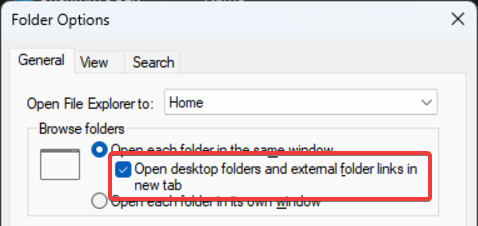
You can make File Explorer open folders and external folder links in new tabs instead of separate windows by changing a folder option. The setting is in the Options dialog, which you reach from the three-dot menu in the upper-right corner of File Explorer.
If you cannot find the option, your build may not have it yet. It appeared in later updates of Windows 11, so install the latest updates first (Settings Windows Update). The same dialog is called Folder Options in some menus. It is the same on Home and Pro.
These steps make File Explorer open folders in a new tab, so you can check a new file location without opening another window.
- Open File Explorer. Press Windows + E or click the folder icon on the taskbar. A File Explorer window appears.
- Click the three dots at the top right. The button is labeled See more (or More options), and a menu opens.
- Select Options. The Folder Options dialog opens.
- Open the General tab. Find the Browse folders section on that tab.
- Select Open desktop folders and external folder links in new tab. If your build shows this as a choice between a new tab and a new window, pick the new tab.💡If Browse folders only shows the same-window and new-window options
If the Browse folders section shows only "Open each folder in the same window" and "Open each folder in a new window," the tab option isn't active on your PC yet. It is turned on by the ViVeTool step, and it usually appears only after a restart.
- Check that you ran
vivetool /enable /id:39145991,36354489in an administrator Command Prompt and saw the success message. - Restart your PC and sign back in.
- Confirm a tab bar appears in File Explorer.
- Reopen Options and check Browse folders again.
If there is still no tab bar, install any pending Windows Update and repeat the steps. On a work or school PC, if the options are greyed out, ask IT.
- Check that you ran
- Click OK. This saves your settings, and no restart is needed. From now on, folders opened from the desktop or from outside links appear as tabs in your existing File Explorer window. To go back, reopen the dialog and choose the new window option.
Alternative: Use Windows Registry to Change Folder Behavior
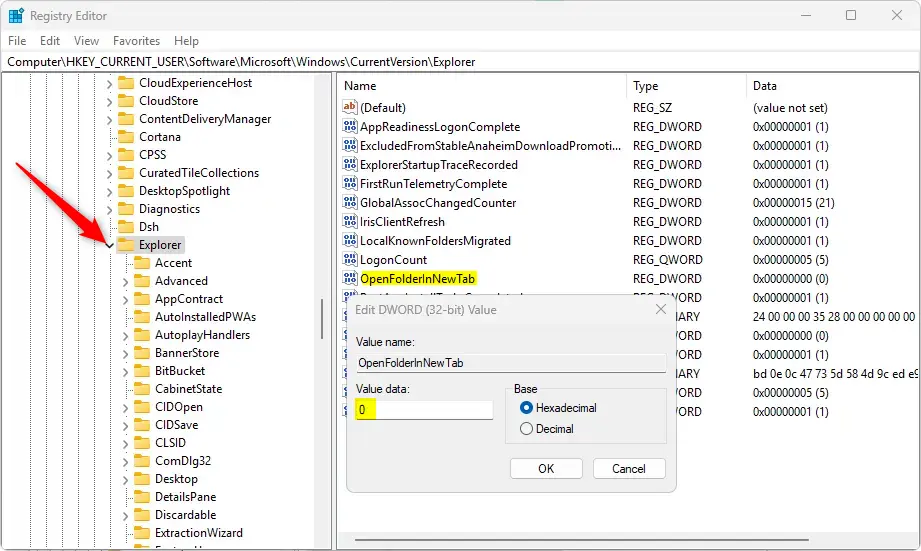
You can use the Registry Editor as an alternative to ViVeTool. The registry is a hierarchical database that stores low-level operating system settings. Press the Windows key + R, type regedit and press Enter to open it. Then go to Computer\HKEY_CURRENT_USER\Software\Microsoft\Windows\CurrentVersion\Explorer to make your changes.
Before you start, create a restore point or export the key through File Export so you can restore it if something goes wrong. Registry Editor is available on both Home and Pro editions.
These steps add a registry value that switches the File Explorer tabs feature on.
- Open Registry Editor. 🔒 Requires admin privileges. Press Windows + R, type
regedit, and press Enter. Click Yes if User Account Control asks for permission. - Go to the Explorer key. The path is
Computer\HKEY_CURRENT_USER\Software\Microsoft\Windows\CurrentVersion\Explorer. You can paste it into the address bar at the top of Registry Editor. The Explorer key should now be selected in the left pane. - Right-click Explorer. Choose New DWORD (32-bit) Value, and name it
OpenFolderInNewTab. The new value appears in the right pane. - Double-click the new
OpenFolderInNewTabvalue. A dialog opens. Set Value data to 1 to turn on the new tabs feature, then click OK. - Set the value to 0 to turn tabs off later. Open the same value again and change Value data to 0. Skip this step if you want to keep tabs on.
- Close Registry Editor and restart your PC. The restart makes the change take effect. Then open File Explorer and check for the tab bar.
Summary
- New feature: Open folders and links in tabs inside File Explorer. Current Windows 11 releases already include tabs.
- Requires ViVeTool: You need this tool to turn the feature on in Windows 11 beta or preview builds that do not show tabs yet. Run it from an elevated Command Prompt and restart afterwards.
- Easy to configure: Use Folder Options or the Registry to enable or disable it. Folder Options takes effect immediately, while the registry change needs a restart.
- Better file management: Keep your folders organized and switch between them faster, with fewer windows cluttering the taskbar.
- Helpful links: Check the guides above for detailed instructions.
File Explorer tabs in Windows 11 let you open folders and links in tabs inside a single window, which makes file management easier. On a fully updated PC the tab bar is already there. If your build does not show tabs yet, you can turn them on with ViVeTool or the registry. You can then adjust the Folder Options setting to control how folders opened from outside the window appear, and switch between your directories much faster than with separate windows.
Frequently asked questions
How to create a new tab in 🪟 Windows 11?
Open File Explorer by pressing Windows key + E, then press Ctrl + T to open a new tab. You can also click the + button next to the last tab at the top of the window. The new tab opens to Home. Tabs need Windows 11 version 22H2 or later.
How do I open folders in one drive in different tabs?
Open File Explorer and click OneDrive in the left pane. Right-click a folder inside it and select Open in new tab. Repeat for each folder you want. Each one opens as a tab in the same window, so you can move files between them without switching windows.
How to add new tab in file explorer?
Click the + button at the top of the File Explorer window to add a tab. If you don't see it, press Ctrl + T instead. The new tab opens to Home, and you can navigate to any folder from there. Tabs are available in Windows 11 version 22H2 and later.
How to open new tab on file epxlroewre shroctu?
Press Ctrl + T while File Explorer is in focus to open a new tab in the same window. This works on Windows 11 version 22H2 and later. If you want a separate window instead, press Ctrl + N. To close the tab you are on, press Ctrl + W.
How to open a new folder window in 🪟 Windows 11?
Press Windows key + E to open a File Explorer window. If one is already open, press Ctrl + N to open a second, separate window. Each window can show a different folder, so you can view two locations side by side. Right-click a folder and choose Open in new window to open it directly.
How to open new Windows tab?
If you mean a File Explorer tab, press Ctrl + T while File Explorer is open. If you mean a tab in Windows Terminal, press Ctrl + Shift + T. In Microsoft Edge, Ctrl + T also opens a new browser tab.
Why does Browse folders only show two options, and not the new tab option?
Asked by a reader
The new tab option is hidden until the tab feature is switched on. Run the ViVeTool command from an administrator Command Prompt, look for the success message, and restart your PC. After you sign in, check that a tab bar appears at the top of File Explorer, then reopen Options and look at Browse folders again. If the tab bar still doesn't appear, install any pending Windows updates and repeat the steps. On a work or school PC, greyed-out options may be managed by your organization, so ask IT.
Still have a question?
Answered by AI from this guide. Good questions may be added to this page — please don't include personal details.
Did this guide fix your problem?

About the Author
Richard
Tech Writer, IT Professional
Richard is a writer at Geek Rewind who turns complex IT tasks into clear, step-by-step guides. He draws on years of hands-on experience in system administration and enterprise IT operations, focusing on Windows, Linux and WordPress: the problems people actually run into, and the fixes that work. His server and WordPress guides come from systems he runs himself. Richard builds and maintains the platform behind Geek Rewind, from its Ubuntu servers and Nginx configuration to its custom WordPress plugins. Many new tutorials start with readers' questions, and he's always glad to answer them in the comments.
No comments yet — be the first to share your thoughts!