How to Change Dynamic Lighting Effects on Your Windows 11 LED Devices

Open Settings by pressing Win+I, go to Personalization, click Dynamic Lighting, toggle it On, then select your preferred effect from the Effects dropdown menu. Your connected LED devices change with no restart required.
What is Dynamic Lighting?
Windows 11 includes a built-in feature called Dynamic Lighting (a tool that controls LEDs on your keyboard, mouse, and PC case). You change colors, brightness levels, and animations inside the Settings app , so you don’t need a separate vendor program for basic effects.
It works the same on Home and Pro. It also only controls devices that support the standard Windows lighting protocol. If your hardware is older, it may still need the maker’s own software.
Why Change Your Device’s Lighting?
- Make your computer setup look cool and match your personal style.
- Create a fun or relaxing atmosphere while you work or play games.
- Use different colors to help you focus or unwind.
- Replace several separate vendor lighting apps with one set of controls, so all your devices follow the same effect.
How to Change Color Themes and Effects
Before you start, plug in or pair your lighting-capable keyboard, mouse, or other device. Windows can only show devices that are connected.
- Open Settings . Press Win+I, or click the Start menu and select Settings. The Settings window opens.
- Go to Personalization. Click Personalization in the left-hand menu. The personalization options appear on the right.
- Find Dynamic Lighting. Click the Dynamic Lighting tile. You should now see a toggle for using Dynamic Lighting on your devices, plus a list of connected lighting devices.
If there is no Dynamic Lighting tile, run Windows Update and install any pending updates, then restart. If the tile is there but your device list is empty, your hardware probably doesn’t support the Windows lighting standard. Check that the device is connected and that its firmware is current.

If it is off, none of the effect settings will change your hardware.
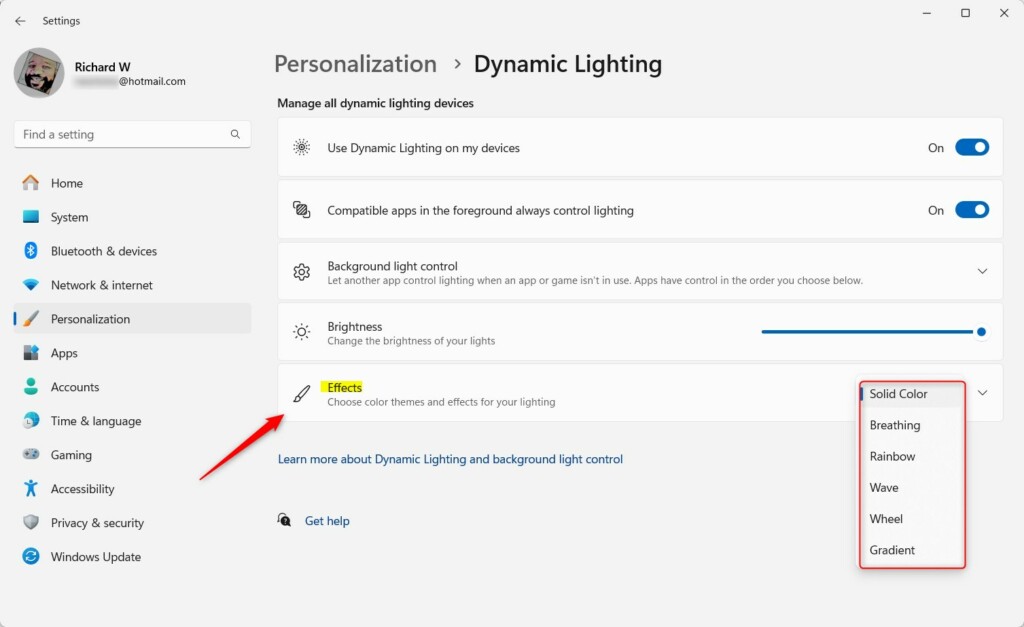
- Choose the Effects tile. It expands to show the effect options.
- Pick the color theme or effect you want from the dropdown menu. Your devices should change to the new effect right away.
Some devices appear to ignore the change. This usually happens when the maker’s own lighting app is running and controlling the LEDs. Close that app, or look in its settings for an option that lets Windows control the lighting.
Popular Effects You Can Try
These are the effects in the dropdown menu:
- Solid Color: One steady color.
- Breathing: Lights gently fade in and out.
- Rainbow: Colors shift through the rainbow.
- Wave: Colors move across your device like waves.
- Wheel: Colors circle around in a wheel pattern.
- Gradient: Smooth color transitions.
Not every device can show every effect in the same way. A single-zone mouse, for example, can't show a wave moving across it, so it may just cycle colors.
Solid Color is the plainest choice and works well if you want a steady look. Breathing is a good low-distraction option, and Rainbow is the most vibrant. Wave, Wheel, and Gradient are good alternatives if you want something that moves but isn't as busy.
After picking an effect, you can make more adjustments:
- Adjust the speed of the effect.
- Pick a main color if the effect allows it. Rainbow, for instance, runs through its own colors, so a color picker may not apply.
- Turn on Match my Windows accent color to sync your device lighting with your Windows theme color.
You can also lower the brightness if the lighting is too bright in a dark room. If an option is greyed out, it usually means the selected effect doesn't use it.
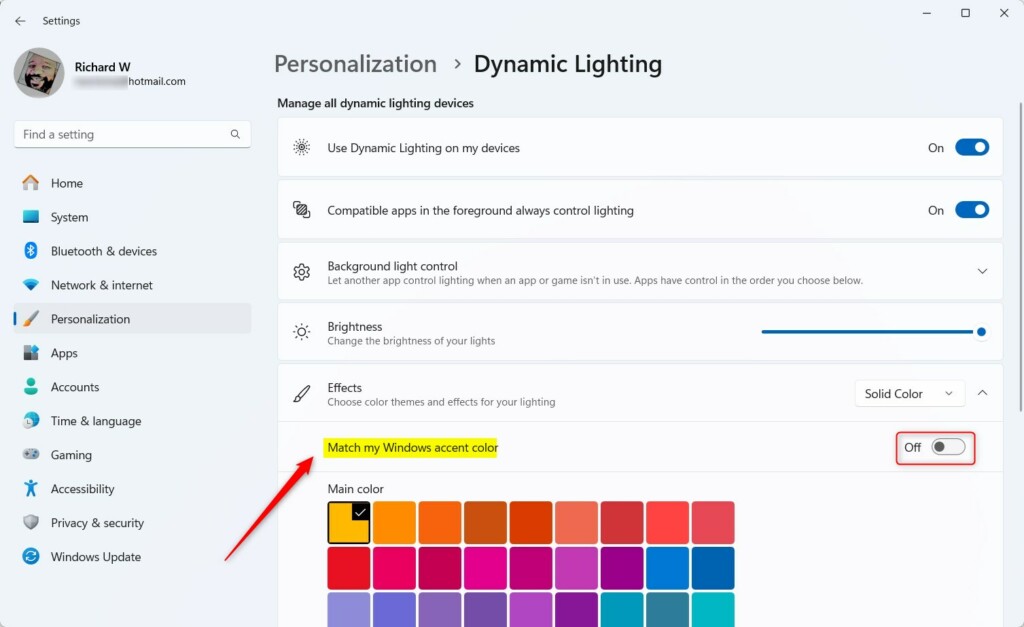
There is no Save or Apply button. Changes take effect as soon as you make them. Closing the Settings app keeps them, and your connected peripherals maintain the applied configuration. You don't need to restart Windows.
To undo your changes, go back to Settings Personalization Dynamic Lighting and pick a different effect. To turn the lighting control off completely, switch the Dynamic Lighting toggle to Off. Your devices then go back to their own default behavior.
Summary
Windows 11 makes personalizing LED hardware efficient. Pick effects like Solid Color, Breathing, or Rainbow to match the lighting to your current mood or activity. This feature gives your PC a unique look that stands out.- Dynamic Lighting lets you personalize your LED devices easily in Windows 11.
- Choose from many cool lighting effects like Solid Color, Breathing, Rainbow, and more.
- You can match your device colors with your Windows theme color.
- Customize lighting to fit your mood, work, or game setup.
- Try it out and make your computer setup uniquely yours! If you have questions or want to share your favorite lighting style, leave a comment below.
Was this guide helpful?

About the Author
Richard
Tech Writer, IT Professional
Richard is a writer at Geek Rewind who turns complex IT tasks into clear, step-by-step guides. He draws on years of hands-on experience in system administration and enterprise IT operations, focusing on Windows, Linux and WordPress: the problems people actually run into, and the fixes that work. His server and WordPress guides come from systems he runs himself. Richard builds and maintains the platform behind Geek Rewind, from its Ubuntu servers and Nginx configuration to its custom WordPress plugins. Many new tutorials start with readers' questions, and he's always glad to answer them in the comments.


No comments yet — be the first to share your thoughts!