Adjust Keyboard LED Lighting with Dynamic Lighting in Windows 11

- 26 steps
- Needs administrator rights
- Includes a restart or sign-out
Dynamic Lighting is a Windows 11 feature that controls the LED backlight on a compatible keyboard. It works from one page in Settings, so you don’t need the manufacturer’s app.
To start, open Settings Personalization Dynamic Lighting, then turn on Use Dynamic Lighting on my devices. Next, set the brightness, effect and color. Those three settings cover the main LED options Windows manages for you.
Dynamic Lighting only works with keyboards and other accessories that support the HID LampArray standard. This standard is a set of rules that lets Windows send lighting commands to a device. If your keyboard doesn’t support it, the page opens but shows no device to control.
To change keyboard LED settings in Windows 11, open Settings, select Personalization, then select Dynamic Lighting. Turn on Use Dynamic Lighting on my devices, then set the brightness, effect and color for your keyboard. This works only if the keyboard supports the HID LampArray standard, and no manufacturer app is needed.
What Dynamic Lighting Does and What You Need
Dynamic Lighting is a Windows 11 feature that gives your lit accessories one shared set of controls. You pick a brightness, an effect and a color once, and Windows applies them to every supported device you have connected. Compatible apps can also take over the lighting while you use them, for example to flash a key color during a game.
Before you start, check these requirements:
- A recent build of Windows 11. The Dynamic Lighting page arrived with Windows 11 version 23H2 updates and is included in later versions. If you don’t have the page, update Windows first (see the troubleshooting section below).
- A keyboard that supports HID LampArray. This is a hardware and firmware feature. Windows can’t add it to a keyboard that lacks it. Check the keyboard’s product page or manual for “Dynamic Lighting” or “HID LampArray” support.
- A direct connection. Connect the keyboard by USB cable, USB wireless receiver or Bluetooth. Some KVM switches (devices that share one keyboard between several computers) and USB hubs can stop Windows from detecting the keyboard, so try a port on the PC itself if the keyboard doesn’t show up.
The changes in this article don’t need administrator rights. You can make them from a standard user account. Dynamic Lighting appears on both Windows 11 Home and Windows 11 Pro.
Open the Dynamic Lighting Settings Page
The Dynamic Lighting page is where all LED keyboard settings live. This step opens the page and checks that Windows detects your keyboard.
- Press Win+I to open Settings.

Windows 11 Start menu with Settings gear icon highlighted. - Select Personalization in the left pane.
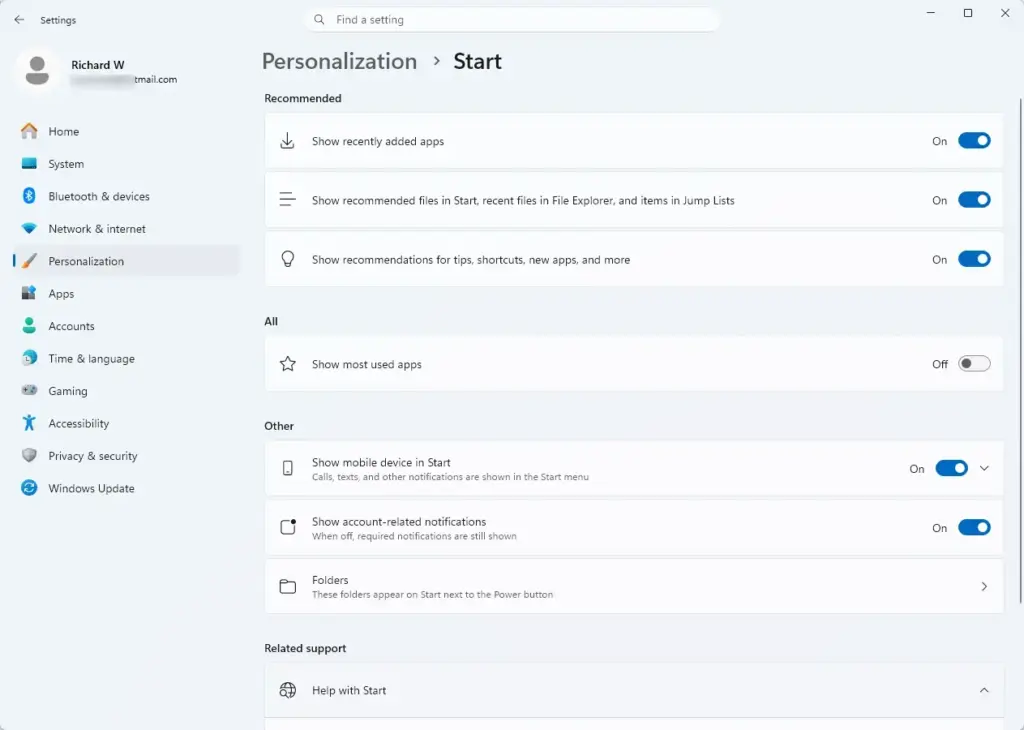
Windows 11 Settings Personalization Start menu options for recent files - Select Dynamic Lighting.
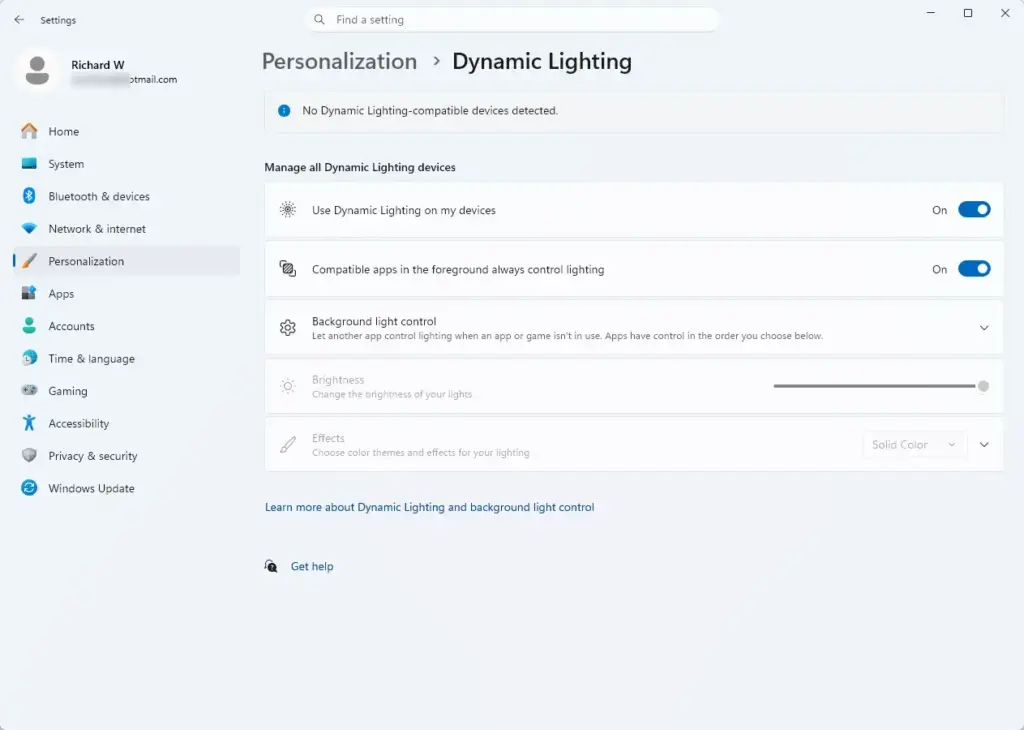
Settings › Personalization › Dynamic Lighting
You should now see the Dynamic Lighting page with a master toggle at the top and a list of connected lighting devices below it. If your keyboard is in the list, it is supported and you can continue.
If Dynamic Lighting is missing from the Personalization page, your Windows build is too old. Go to the troubleshooting section further down.
If the page opens but shows a message that no devices were found, connect a supported device. Wait a few seconds for Windows to detect it, then check the page again.
Turn On Dynamic Lighting for Your Keyboard
The master toggle decides whether Windows controls the lighting at all. When it is off, your keyboard uses its own saved lighting or the manufacturer’s software.
- On the Dynamic Lighting page, find the toggle named Use Dynamic Lighting on my devices.
- Switch it to On.
The controls for brightness and effects should now be available, and your keyboard’s lighting may change as Windows takes control. No restart is needed. Changes on this page apply right away.
If the toggle is on but the keyboard’s lighting doesn’t change, see “Fix a Keyboard That Doesn’t Respond” below.
Adjust Brightness, Effect and Color
These settings control how the keyboard looks. The page applies them to your supported devices as a group. The exact options depend on your Windows build and on what your keyboard can display, so you may see slightly different controls from those described here.
Change the Brightness
Brightness sets how strong the LEDs are. Lower values reduce glare in a dark room, and on a laptop or wireless keyboard they also extend battery life.
- On the Dynamic Lighting page, find the Brightness slider.
- Drag the slider left to dim the lighting or right to brighten it.
The keyboard should change brightness as you move the slider. If the lights turn off at the lowest setting, that is normal for some keyboards.
Choose a Lighting Effect
An effect is the animation pattern the keys follow. Windows offers several, including static and animated patterns.
- Find the Effects drop-down list on the Dynamic Lighting page.
- Open the list and select an effect.
The keyboard should switch to the new pattern at once. Some effects add extra options, such as Speed for animated patterns or a direction for movement. Adjust them in the same area of the page.
Set the Color
Color options appear for effects that use a chosen color. Rainbow-style effects set their own colors, so the color control may be hidden for them.
- Select the color control under the effect you chose.
- Pick a color from the palette, or choose a custom color if the option is offered.
The keys should now light in the color you picked. If you can’t find a color control, the selected effect doesn’t use one. Choose a solid or single-color effect instead.
Match the Windows Accent Color
- On the Dynamic Lighting page, find the Match my Windows accent color option.
- Turn it on.
The keyboard color should now change to your accent color. To pick a different accent color, go to Settings Personalization Colors. If you turn this option off, the keyboard keeps the color you set on the Dynamic Lighting page.
Control Which Apps Can Change Your Lighting
Apps that support Dynamic Lighting can override your settings while they run. This is useful for games and some utilities. It also explains why your keyboard might change color without you touching the settings.
Foreground Apps
A foreground app is the app you are using right now. By default, a compatible foreground app can take over the lighting.
- On the Dynamic Lighting page, find Compatible apps in the foreground control lighting.
- Switch it Off if you want your own settings to stay in place no matter what app is active.
With the toggle off, your chosen effect and color stay on the keyboard even when a compatible app is open. Turn it back on if you want that app’s lighting effects.
Background Apps
Some apps want to control lighting while they run behind your active window. Windows lets you choose which of them wins when several want control.
- On the Dynamic Lighting page, select Background light control.
- Review the apps listed. Arrange them in the order you prefer, or turn off ones you don’t want to control the lighting.
The app at the top of the list takes priority. If the page shows no apps, none of your installed apps support background lighting control yet.
Fix a Keyboard That Doesn’t Respond
Most problems come from missing support, an older build or a conflict with the manufacturer’s software. Work through these in order. The first two are the most common causes.
The Dynamic Lighting Page Is Missing
An older Windows 11 build doesn’t have the page. Installing updates adds it.
- Open Settings Windows Update.
- Select Check for updates and install anything offered.
- If Windows offers optional updates, open Advanced options and check Optional updates as well.
- Restart the PC when Windows asks.
Your Keyboard Isn’t Listed
If the page opens but the keyboard doesn’t show up, the cause is usually one of these:
- The keyboard doesn’t support HID LampArray. Many older RGB keyboards rely only on the manufacturer’s app. Dynamic Lighting can’t control them. Use the maker’s software instead.
- The keyboard needs a firmware update. Some manufacturers added Dynamic Lighting support later through a firmware update (the built-in software that controls the keyboard’s hardware). Check the manufacturer’s support page for your exact model.
- The connection is the problem. Unplug the keyboard and plug it into a different USB port directly on the PC. For Bluetooth, remove the keyboard in Settings Bluetooth & devices and pair it again.
The Toggle Is On but the Lighting Doesn’t Change
The manufacturer’s lighting software can fight with Windows over who controls the keyboard. Programs such as the ones that ship with gaming keyboards often send their own lighting commands.
- Open the manufacturer’s lighting app for your keyboard.
- Look for a setting that mentions Dynamic Lighting. Some apps offer one that hands control over to Windows. Enable it.
- If the app has no such option, close the app completely, including its icon in the notification area (the small icons beside the clock on the taskbar), then check the keyboard again.
If you prefer the manufacturer’s app, turn off Use Dynamic Lighting on my devices in Windows and use that app alone. Running both at once can produce flickering or settings that revert.
Your Laptop’s Built-In Keyboard Doesn’t Appear
Laptop backlights are often controlled by the hardware and a keyboard key rather than by Windows. Dynamic Lighting only lists the built-in keyboard if the laptop maker supports it.
- Look for a key with a small keyboard-light icon. It is usually a function key or sits on the spacebar. Press it, or press it together with Fn, to cycle the backlight levels.
- If the backlight is off or won’t turn on, check the manufacturer’s support page for your model. Some laptops need an app or driver from the maker before the keys work.
Each laptop maker sets how the Fn key behaves, not Windows. Check your model’s support page if the key doesn’t work as described.
Settings Seem to Reset
Your lighting can change back on its own. Common causes are a compatible app taking over (see “Control Which Apps Can Change Your Lighting”), a manufacturer’s app starting with Windows, or a keyboard that restores its own saved profile when you reconnect it. If a setting keeps reverting, turn off the foreground and background app control, then close the vendor’s app and apply your settings again.
Turn Dynamic Lighting Off
You can undo everything on this page by turning the feature off. You can undo every change here at any time. Turning the feature off doesn’t change anything permanently on the keyboard.
- Open Settings Personalization Dynamic Lighting.
- Switch Use Dynamic Lighting on my devices to Off.
Windows stops controlling the keyboard. The keyboard then follows its own lighting profile or the manufacturer’s app. If the lights stay on a color you don’t want, unplug the keyboard and reconnect it, or open the manufacturer’s app and reset the lighting there.
What to do next
If your keyboard doesn’t support Dynamic Lighting, install the manufacturer’s lighting app and set the colors there. To match the keyboard to the rest of your desktop, change your accent color in Settings Personalization Colors. Then turn on Match my Windows accent color on the Dynamic Lighting page. After a Windows feature update, open the Dynamic Lighting page again to confirm the toggle is still on.
Frequently asked questions
How to turn on LED lights on keyboard 🪟 windows 11?
Open Settings, then go to Personalization Dynamic Lighting. Turn on Use Dynamic Lighting on my devices. Your keyboard's LEDs will then respond to the brightness, effect and color settings on that page. This works only if your keyboard supports the HID LampArray standard. If the page shows no device, your keyboard is not compatible.
Is dynamic lighting good for gaming?
Dynamic Lighting does not make games run faster. It helps only if a game supports it. Supported games can change your keyboard's colors during play, such as flashing a key color when your health drops. Without a supporting game, Dynamic Lighting only sets a steady color and effect for your keyboard.
Which devices are compatible with Dynamic lighting in 🪟 Windows 11?
Dynamic Lighting works with devices that support the HID LampArray standard. This standard lets Windows send lighting commands to a device. Keyboards, mice, headsets and other accessories with built-in LEDs can work if they support it. To check, open Settings Personalization Dynamic Lighting and see whether your device appears in the list.
What is a Gigabyte dynamic lighting library?
A Gigabyte dynamic lighting library is a collection of lighting effects and profiles used by Gigabyte's own software. It controls the RGB lights on Gigabyte motherboards, graphics cards and some accessories. It is not part of Windows, so you cannot find it in Settings. Open Gigabyte's control app to browse or apply its lighting effects.
Still have a question?
Answered by AI from this guide. Good questions may be added to this page — please don't include personal details.
Did this guide fix your problem?

About the Author
Richard
Tech Writer, IT Professional
Richard is a writer at Geek Rewind who turns complex IT tasks into clear, step-by-step guides. He draws on years of hands-on experience in system administration and enterprise IT operations, focusing on Windows, Linux and WordPress: the problems people actually run into, and the fixes that work. His server and WordPress guides come from systems he runs himself. Richard builds and maintains the platform behind Geek Rewind, from its Ubuntu servers and Nginx configuration to its custom WordPress plugins. Many new tutorials start with readers' questions, and he's always glad to answer them in the comments.
No comments yet — be the first to share your thoughts!