How to Change LED Brightness in Windows 11 Dynamic Lighting

You change LED brightness in Windows 11 Dynamic Lighting from the Settings app , under Personalization Dynamic Lighting. The page has a brightness control, and you can adjust each supported device from the same place.
Dynamic Lighting lets you control the RGB lighting on compatible accessories, such as keyboards and mice, directly from Windows. It relies on the Human Interface Device (HID) standard for lighting, so any device that follows the standard shows up in Settings without extra drivers.
From Settings you can adjust brightness, colors and effects for supported hardware. In most cases this removes the need for each manufacturer’s own lighting software. A Razer keyboard or Philips Hue smart lights, for example, can integrate with Dynamic Lighting.
The controls are in Personalization Dynamic Lighting. Pick your device there and make your changes. The page needs a reasonably current build of Windows 11 (23H2 or later, fully updated), and the same options appear on Home and Pro.
Open Settings Personalization Dynamic Lighting, ensure Use Dynamic Lighting on my devices is toggled On, then drag the Brightness slider left to dim or right to brighten your LED devices.
What is Windows Dynamic Lighting?
Windows Dynamic Lighting lets you control the lights on your compatible devices right from your PC. Your keyboard, mouse and other supported accessories are managed in one place, so you don’t need a separate app for each brand.
Why Adjust LED Brightness?
- Make your lights softer to reduce eye strain, especially in dark rooms. A bright keyboard glow next to a dim monitor gets tiring after a few hours.
- Make your lights brighter if you prefer more glow or want to see the keys better in a dim room.
- Customize the look of your computer setup to match your style. Lower brightness also helps if the lights distract you while you work or watch something.
How to Change LED Brightness Step-by-Step
The Settings app is the supported way to change LED brightness, and it needs no restart. Follow these steps:
- Open Settings. Pressing the Windows key + I is the quickest way.
- Click Personalization in the left sidebar.
- Click Dynamic Lighting. You should see a list of your lighting devices.
- Make sure the Use Dynamic Lighting on my devices toggle is switched On. If it is off, the brightness controls won't do anything.
- Find the Brightness slider in the Brightness and effects area and drag it left to dim your lights or right to brighten them. The lights on your devices should change as you move it.
- To adjust one device on its own, click it under Devices and use the settings on its page. Labels can differ slightly between Windows 11 builds.
To undo a change, drag the slider back to where it was. If the Dynamic Lighting page is missing, run Windows Update and install any pending updates, then reopen Settings. If your device isn't listed, it probably doesn't support the Windows lighting standard. Lighting software from the manufacturer that is still running can also override what you set in Windows, so close or exit it if the lights don't respond.
Bonus: Change Brightness Using Windows Registry (Advanced Users)
Open the Registry Editor by searching for 'regedit' in the Start menu, go to the key listed in step 2 below, and look for the Brightness value. Use the Settings method above first. The registry value may not exist on every PC or build, and Windows may ignore it or overwrite it when you use the Settings page.
- Open the Registry Editor by searching
regeditin the Start menu and clicking it. Click Yes if User Account Control asks for permission. %%FLAG_ADMIN%% - Go to this folder/key:
HKEY_CURRENT_USER\Software\Microsoft\LightingYou can paste the path into the address bar at the top of the Registry Editor. - Double-click the Brightness value on the right. A dialog box opens showing the current value. Write that number down so you can restore it later.
- Type a number between 0 and 100 in the Value data box to set your brightness level.
- Click OK to save. If the lights don't change, sign out and back in, or restart the PC.
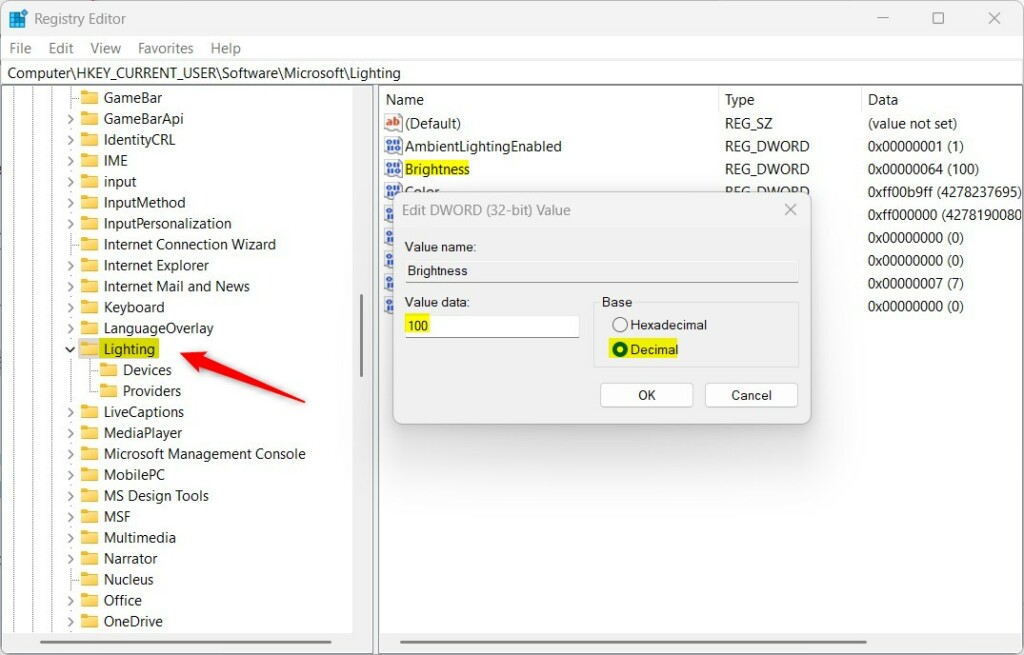
Editing brightness in Windows Registry
Changing the wrong setting can affect your PC. Before you edit anything, right-click the key in the left pane, choose Export, and save a backup file. To undo your change, double-click that backup file to restore the key, or re-enter the value you wrote down.
Summary
You can change the brightness of your LED lights on any device that supports Windows Dynamic Lighting. Start with the slider in Settings, and only use the registry method if you have to.
Was this guide helpful?

About the Author
Richard
Tech Writer, IT Professional
Richard is a writer at Geek Rewind who turns complex IT tasks into clear, step-by-step guides. He draws on years of hands-on experience in system administration and enterprise IT operations, focusing on Windows, Linux and WordPress: the problems people actually run into, and the fixes that work. His server and WordPress guides come from systems he runs himself. Richard builds and maintains the platform behind Geek Rewind, from its Ubuntu servers and Nginx configuration to its custom WordPress plugins. Many new tutorials start with readers' questions, and he's always glad to answer them in the comments.


No comments yet — be the first to share your thoughts!