How to See Apps That Used Your Camera in Windows 11

- 5 steps
- Needs administrator rights
App camera history in Windows 11 shows you a log of every program that has accessed your camera over the past 7 days. This built-in privacy feature displays the exact date and time of each app’s most recent camera activity, so you can spot unexpected software using your hardware.
Checking this list helps you manage your device permissions and block unwanted apps from recording you. It only takes a minute, and it is worth doing now and then, especially after you install new software or if your camera indicator light comes on when you are not in a call. You do not need administrator rights to view the list.
Go to Settings Privacy & security Camera and click Recent activity. You will see a list of apps that have used your camera in the last 7 days, along with the date and time of access.
How to Check Camera Activity
You do all of this in the Settings app. The Camera page lists the apps that recently used your webcam and shows a timestamp for each one, so you can see when each app last touched your hardware.
Open Settings. The quickest way is to press the Win+I. You can also right-click the Start button and choose Settings. The Settings window opens with a list of categories on the left.

Windows 11 Start menu with Settings gear icon highlighted. Select Privacy & security from the left-hand menu. Then, on the right side, scroll to the “App permissions” section and click Camera. The Camera page opens and shows the camera access switches and a list of apps.
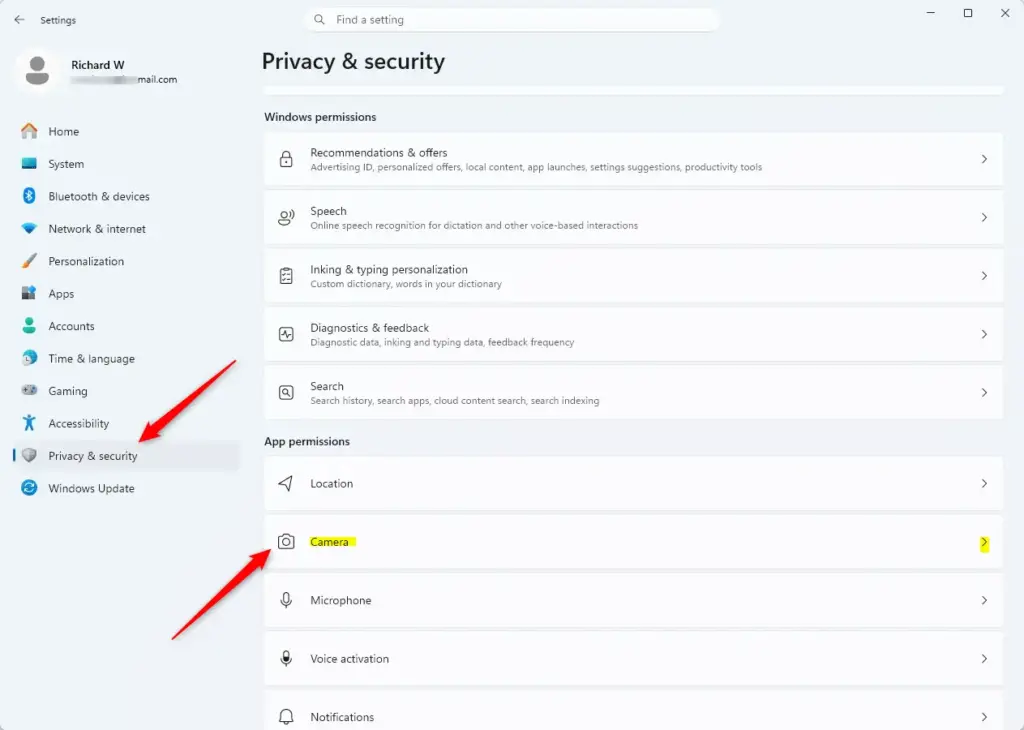
Settings > Privacy & security
If the camera options look greyed out or you cannot change them, your PC may be managed by an organization. In that case an administrator may control these settings through policy. Viewing the history works the same way on Windows 11 Home and Pro.
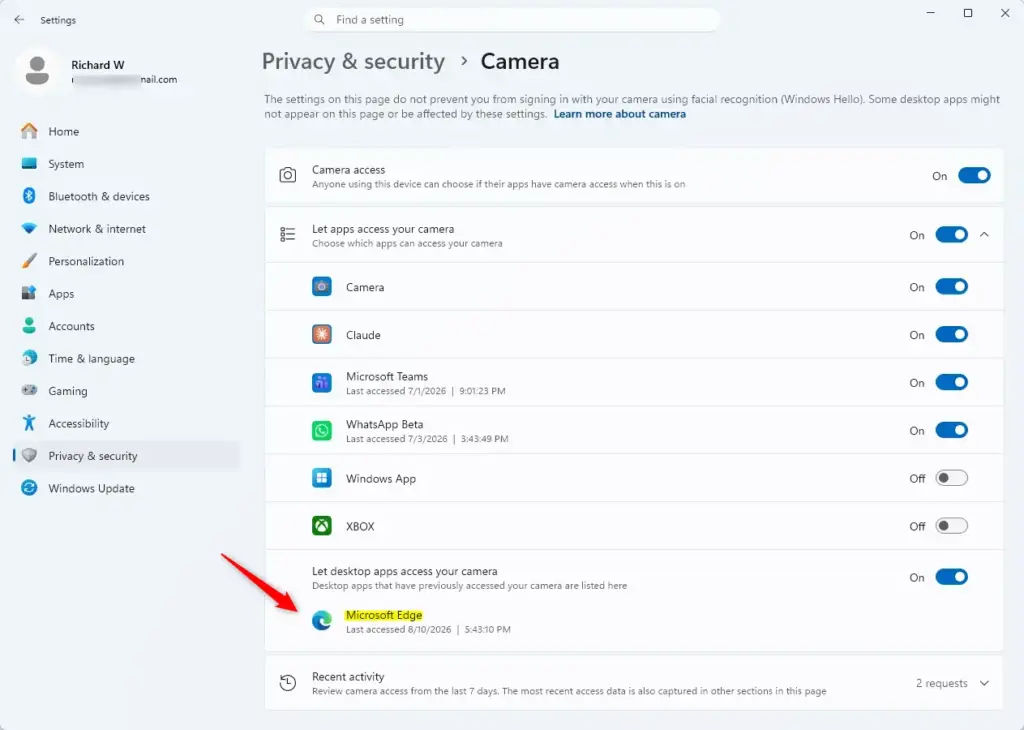
Look for the section related to desktop apps accessing your camera. Here you will find the date and time when desktop apps last used your camera. Desktop apps are the classic programs you install yourself, as opposed to Microsoft Store apps. Windows reports them together as one group rather than listing each one separately.
Click Recent activity to expand this section. The section opens and lists the apps with their activity times. Some Windows 11 builds show a “Last accessed” line under each app in the main list instead. If you see that, read the times there.
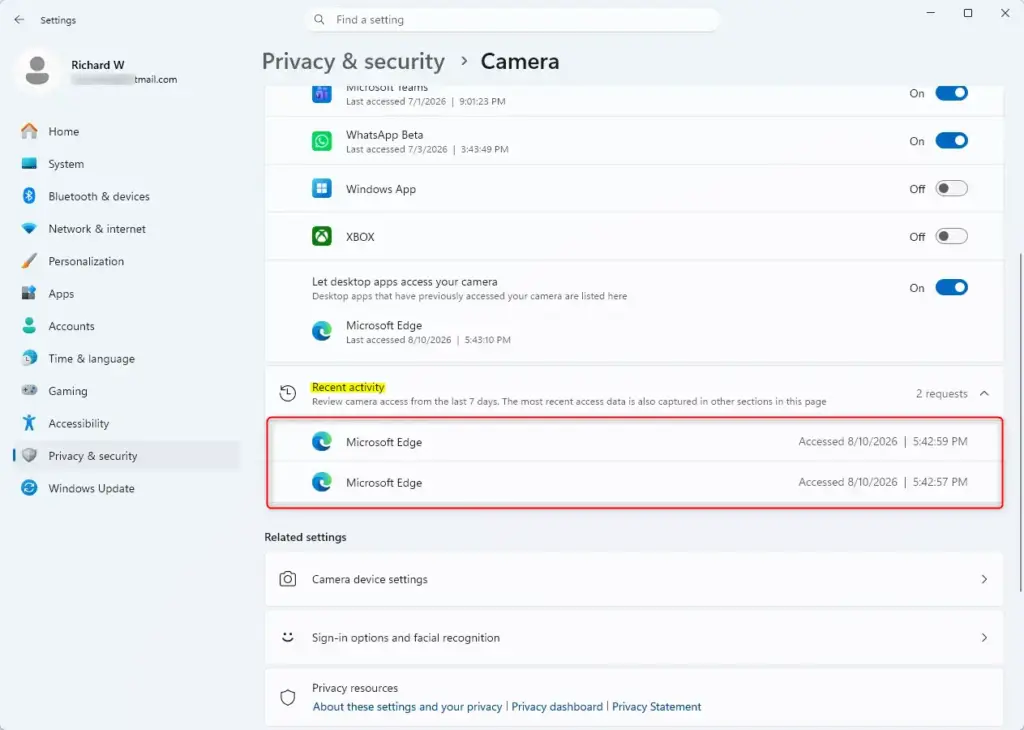
Read through the list. You will see the date and time for every app that accessed and used your camera in the last 7 days. Anything older than that does not appear, so a blank list means no app has used the camera in that window.
If an app is on the list and you do not recognize it, or it has no reason to use a camera, turn off its access using the switch next to its name on the same Camera page. The change takes effect straight away, with no restart. To undo it, turn the switch back on. If you want to block every app at once, use the main Camera access switch at the top of the page. Keep in mind that video-call apps will then be unable to use your webcam until you switch it back on.
Summary
To see which apps have used your camera in Windows 11, go to Settings, then Privacy & security, and select Camera. Click Recent activity to view a list of apps and the times they accessed your camera within the past 7 days. If you find an app you do not trust, switch off its camera access on the same page.
Have a question about this guide?
Answered by AI from this guide. Good questions may be added to this page — please don't include personal details.
Did this guide fix your problem?

About the Author
Richard
Tech Writer, IT Professional
Richard is a writer at Geek Rewind who turns complex IT tasks into clear, step-by-step guides. He draws on years of hands-on experience in system administration and enterprise IT operations, focusing on Windows, Linux and WordPress: the problems people actually run into, and the fixes that work. His server and WordPress guides come from systems he runs himself. Richard builds and maintains the platform behind Geek Rewind, from its Ubuntu servers and Nginx configuration to its custom WordPress plugins. Many new tutorials start with readers' questions, and he's always glad to answer them in the comments.
No comments yet — be the first to share your thoughts!