Windows 11 Date and Time: Settings, Time Zone and Sync

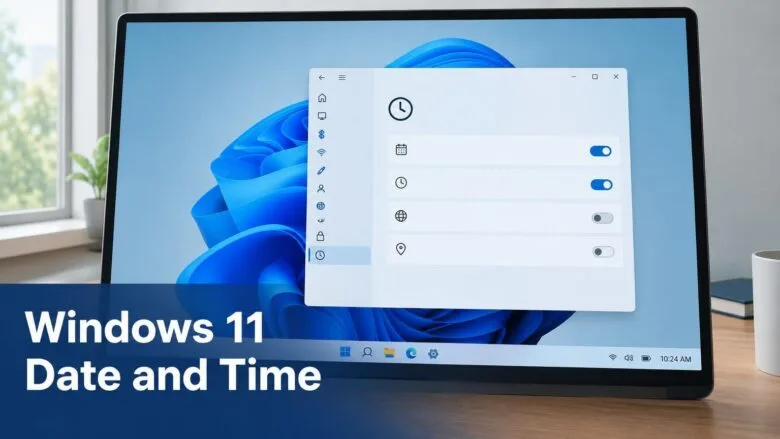
Date and time in Windows 11 controls the clock in the taskbar, the time zone it follows, and whether Windows fetches the correct time from the internet. These settings sit in Settings Time & language Date & time, and the automatic options affect each other. Turning off one can break another, so the order matters. This page starts with the choice between automatic and manual settings. It then covers how to set the date, time and time zone by hand, how to change what the taskbar clock shows, and how to fix a clock that is wrong or will not sync.
Decide whether Windows sets your clock automatically
Windows has two automatic options: one syncs the clock from an internet time server, and the other picks the time zone from your location. Most PCs that stay online should keep both on. These guides explain what each option does, what breaks when you turn it off, and how to change it.
 Should You Change Your Active Time Zone Manually or Let Windows Detect It Should you change your active time zone manually or let Windows detect it? Compare both settings, fix wrong clock locations, and keep time accurate.
 What Breaks When You Disable Automatic Time Zone Detection in Windows 11 Date and Time Settings Websites won't load, games fail to connect, and security certificates break when you disable automatic time zone detection in Windows 11.
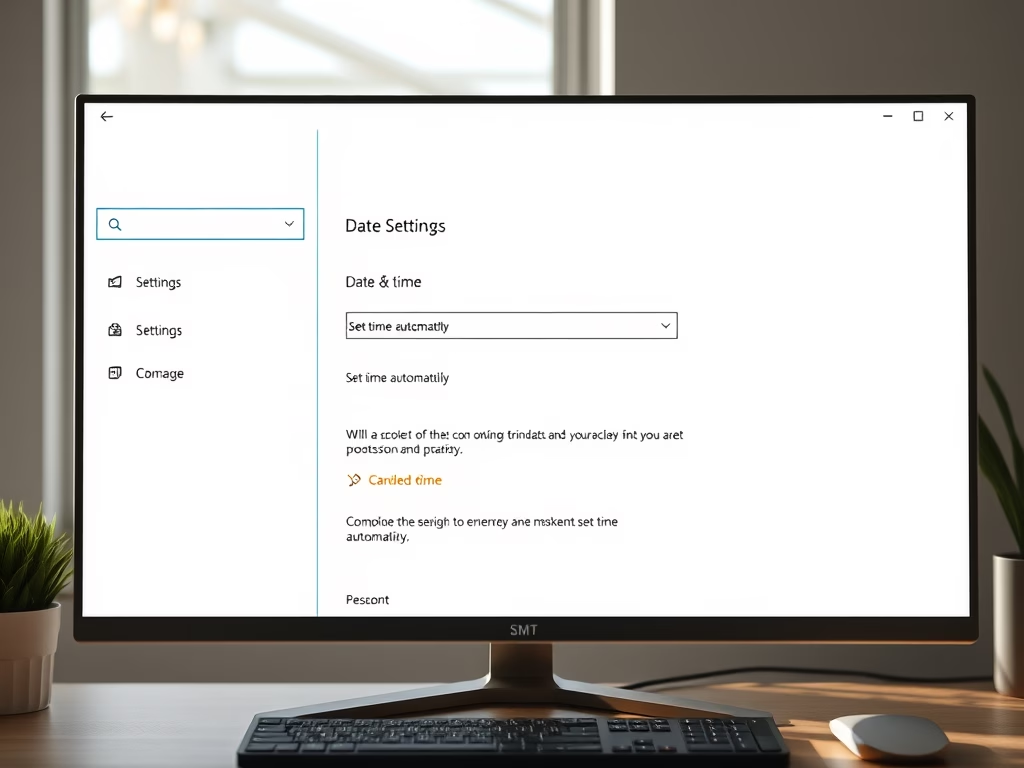 How to Turn On or off Set Time Automatically in Windows 11 Enable or disable automatic time Windows 11 with simple settings adjustments. Control your system clock manually or automatically in just a few clicks.
 How to Enable or Disable Set Time Automatically in Windows 11 Enable or disable the 'Set time automatically' feature in Windows 11 to keep your PC's clock accurate and synchronized with internet time servers.
 How to Enable or Disable Time Zone Automatic Setting In Windows 11 Manage your Windows 11 time zone settings. Enable or disable automatic time zone adjustments to keep your clock accurate and schedules on track.
Set the date, time and time zone yourself
Use these steps when the automatic options are off, when the PC is offline, or when Windows picks the wrong zone. They also cover the daylight saving setting, which decides whether the clock moves forward and back each year.
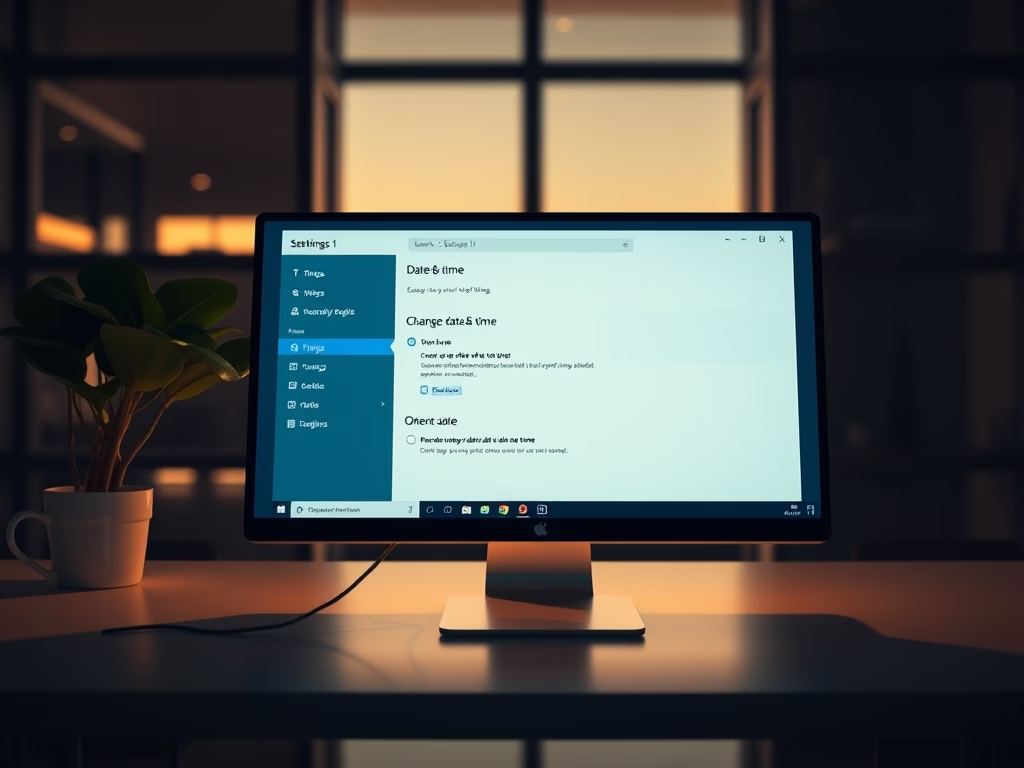 How to Change Date in Windows 11 Change date Windows 11 with 4 easy methods: Settings, Control Panel, Command Prompt, or PowerShell. Step-by-step guide for quick adjustments.
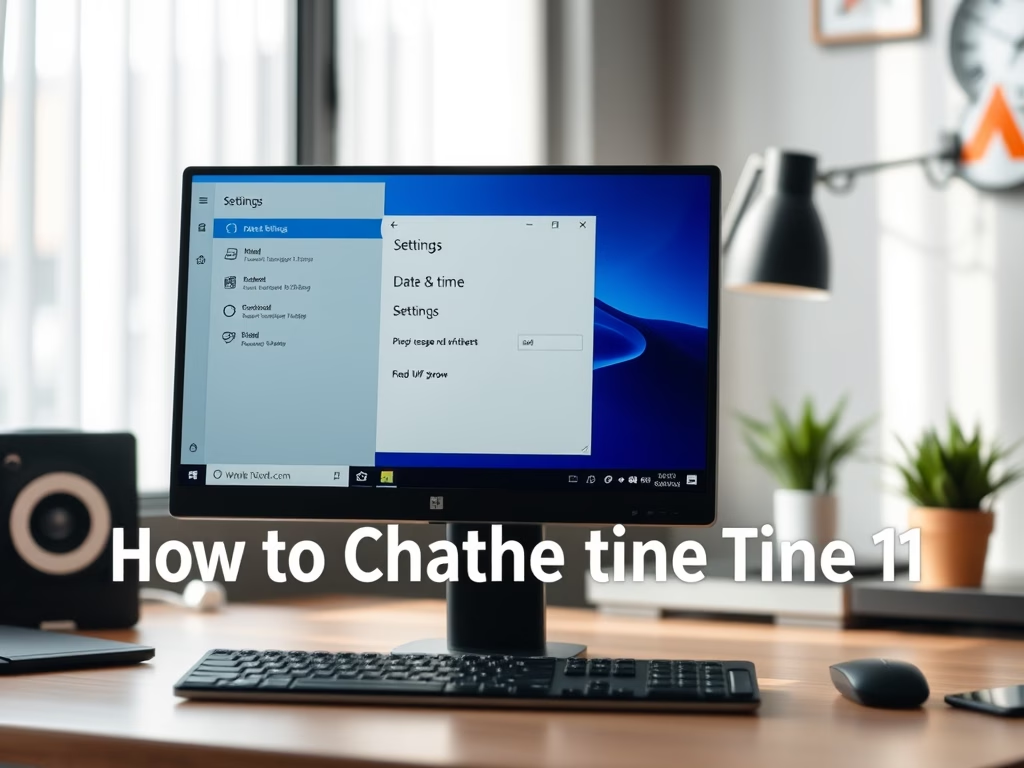 How to Change the Time on Your Windows 11 PC Change time Windows 11 with 4 simple methods: Settings, Control Panel, Command Prompt, or PowerShell. Follow our step-by-step guide today.
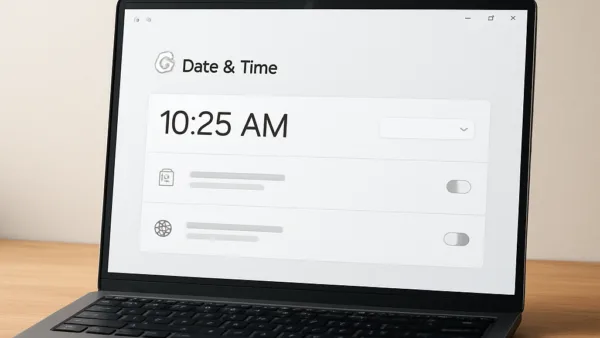 How to Configure Manual Time Zone Overrides in Windows 11 Date and Time Settings Computer clock showing the wrong time? Stop automatic location tracking and configure manual time zone overrides in Windows 11 Date & time settings.
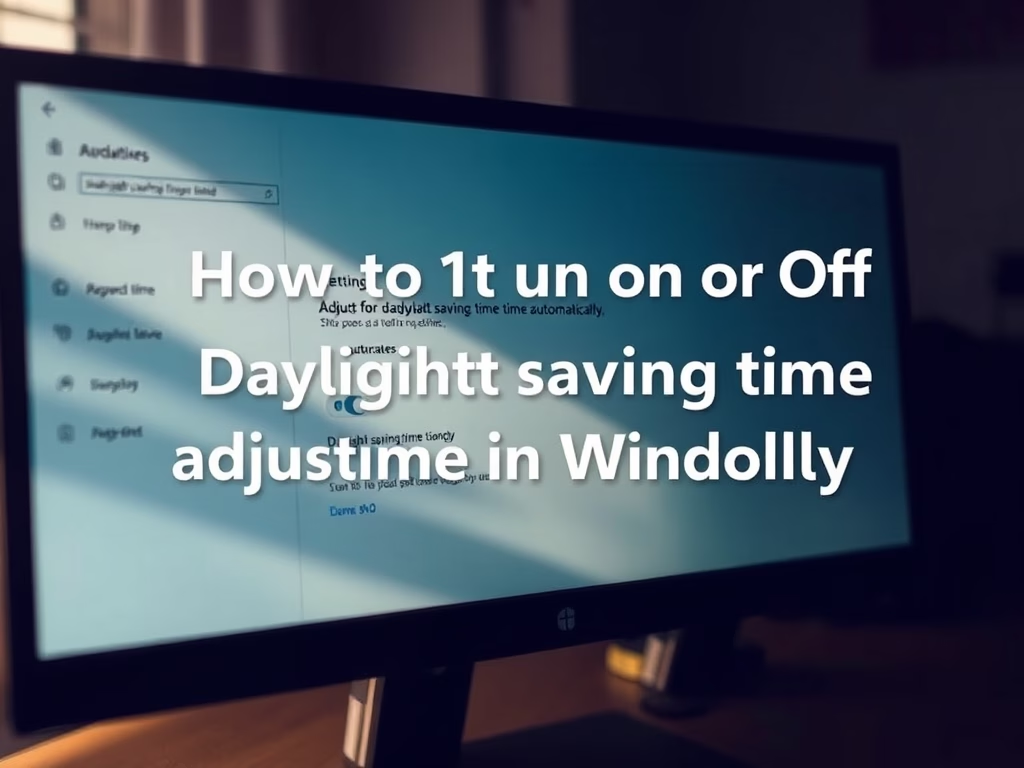 How to Turn On or off Adjust for Daylight Saving Time Automatically in Windows 11 Master Windows 11 daylight saving time settings with our step-by-step guide. Turn automatic clock adjustments on or off using Settings, Control Panel, or…
Show the clock the way you want it
The taskbar clock can show seconds, which some people use for timing tasks. This is a display setting only and does not change the time Windows keeps.

Fix a clock that is wrong or will not sync
A clock that drifts, resets, or shows the wrong time usually comes from a blocked sync, a locked setting, or a service that has stopped. Start with the greyed-out setting if you cannot change anything, then check the sync options. These guides cover each of those cases.
 Why Does Settings Time and Language Date and Time Show Set Time Zone Automatically Greyed Out Why does Settings Time and Language Date and Time show set time zone automatically greyed out? Unlock it by checking your location privacy permissions.
 Why Does Settings Time and Language Date and Time Keep Losing Sync Why does Settings Time and language Date and time keep losing sync? Fix your Windows clock by restarting the time service or replacing the CMOS battery.
 How to Reset Network Time Synchronization in Windows 11 Date and Time Settings Fix an inaccurate taskbar clock and broken web pages by resetting network time synchronization in Windows 11 Date and Time settings.
Have a question about this guide?
Answered by AI from this guide. Good questions may be added to this page — please don't include personal details.

About the Author
Richard
Tech Writer, IT Professional
Richard is a writer at Geek Rewind who turns complex IT tasks into clear, step-by-step guides. He draws on years of hands-on experience in system administration and enterprise IT operations, focusing on Windows, Linux and WordPress: the problems people actually run into, and the fixes that work. His server and WordPress guides come from systems he runs himself. Richard builds and maintains the platform behind Geek Rewind, from its Ubuntu servers and Nginx configuration to its custom WordPress plugins. Many new tutorials start with readers' questions, and he's always glad to answer them in the comments.
No comments yet — be the first to share your thoughts!