How to Turn On or off Adjust for Daylight Saving Time Automatically in Windows 11

Adjust for Daylight Saving Time automatically in Windows 11 keeps your computer clock correct when the time shifts forward or back each year. Around 70 percent of countries worldwide skip this seasonal time change, so Windows lets you turn the feature on or off inside the Date & Time settings menu.
If your region does not observe DST, you can leave the setting off and the clock stays put all year. If it does, leave it on and you will never need to change the clock by hand.
Open Settings , go to Time & language Date & time, and toggle Adjust for daylight saving time automatically on or off. The change takes effect immediately without restarting your PC.
Why Change This Setting?
Some examples are a region that has dropped DST, a PC that must stay on a fixed local time for a specific application, or a machine you are preparing for use in another place.
There are three ways to change the setting: the Settings app, the classic Control Panel , and the Registry Editor. Start with Settings unless you have a reason not to.
How to Turn On or Off Daylight Saving Time Adjustment
Option 1Using Settings
The Settings app is the fastest way to manage Windows 11 daylight saving time preferences. You open Settings, go to your time and language options, and flip one switch. The change takes effect straight away and does not need a restart.
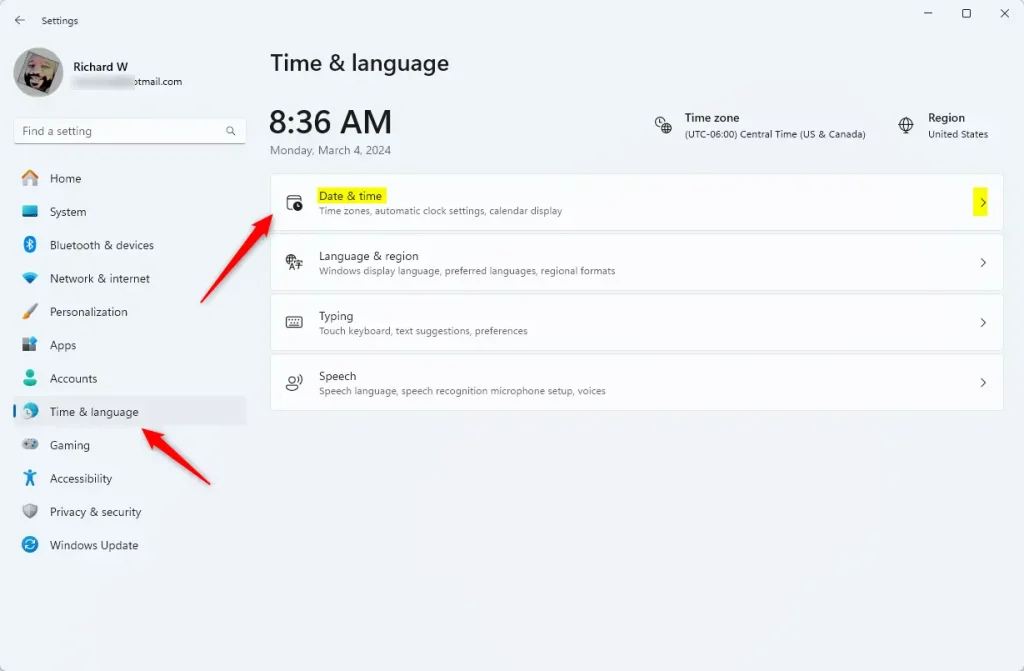
- Press Win+I on your keyboard to open Settings. The Settings window opens with the list of categories on the left.
- Click Time & language on the left side.
- Click Date & time on the right side. You will see the current time, the time zone and a list of switches.
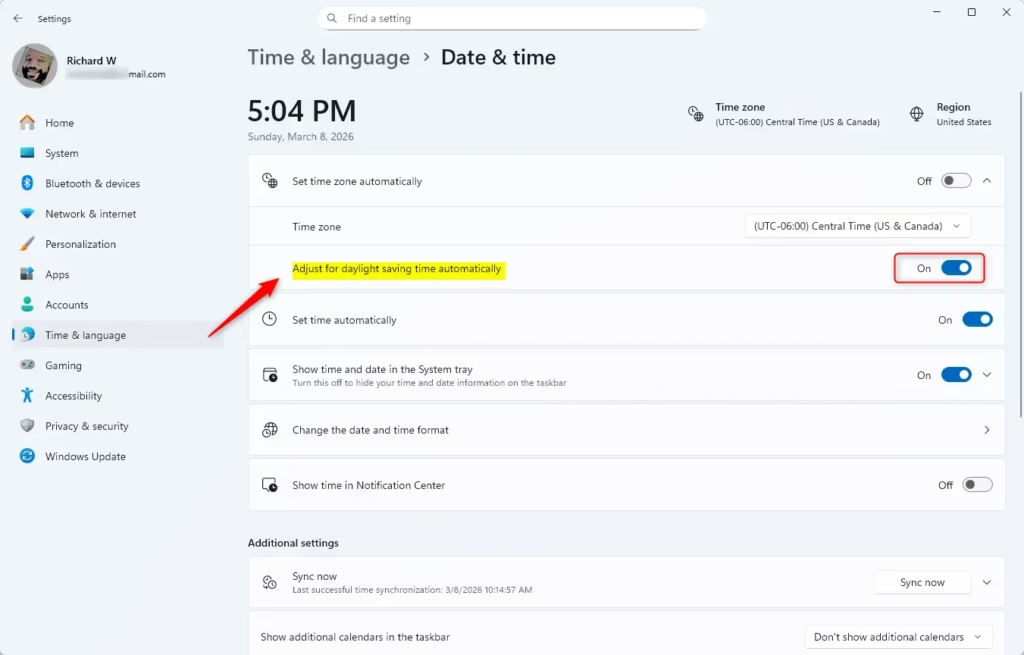
- Find the switch called Adjust for daylight saving time automatically.
- Turn it On to have Windows change the clock automatically, or Off to stop it. The switch moves right when it is on and left when it is off.
- Tip: If Set time zone automatically is turned on, this option might be greyed out. You can turn off automatic time zone before changing DST settings. It can also be greyed out if the selected time zone does not use DST at all, so check that the time zone is correct.
To undo the change, come back to the same page and flip the switch the other way.
Option 2Using Control Panel
These steps work the same on Windows 11 Home and Pro. Changing the time zone settings here may ask for administrator approval.
- Open the Control Panel. You can search for it in the Start menu.
- Make sure the view is set to Icons (not categories), then click on Date and Time. A small Date and Time window opens.
- Click the Change time zone... button. The Time Zone Settings window appears.
- Check or uncheck the box for Automatically adjust clock for Daylight Saving Time depending on your preference. If the box is missing or greyed out, the selected time zone does not use DST. Pick the correct time zone from the list first.
- Click OK to save your changes. If you opened the main window as well, click OK there too.
- Close Control Panel when done.
To reverse the change, repeat the steps and tick or untick the box again.
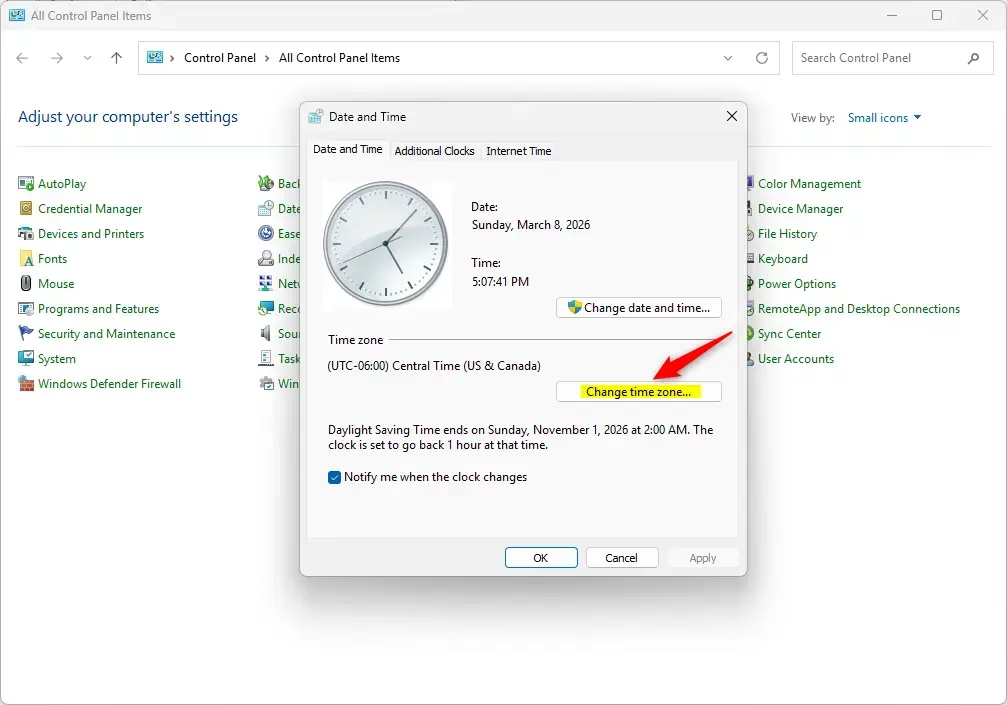
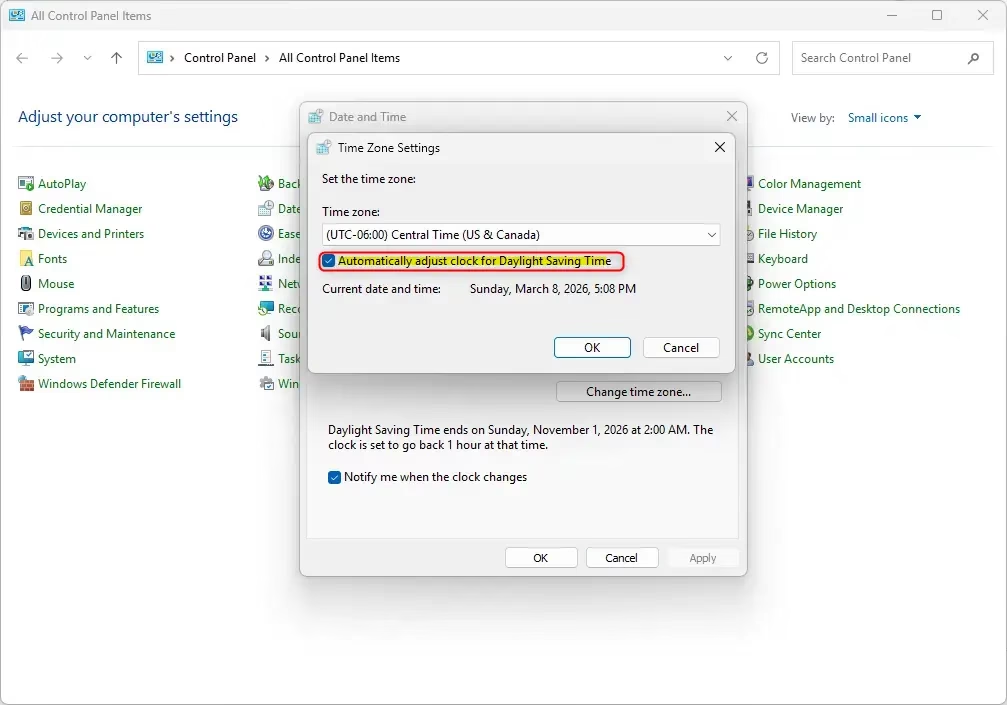
The classic Control Panel offers an alternative method to manage Windows 11 daylight saving time if you prefer traditional system menus. You can access the date and time settings directly through the icon view, open the time zone properties, and check or uncheck the box to control automatic seasonal clock shifts. The result is the same as the switch in the Settings app, because both change the same underlying setting.
Option 3Using Registry Editor (Advanced)
Registry Editor lets advanced users control Windows 11 daylight saving time settings by modifying system configuration keys directly. This method requires administrator permissions and is useful when standard menu options are unavailable or when managing system images across multiple computers.
A wrong change can cause problems that are hard to trace. After you apply either change, restart the PC, or at least sign out and back in, so Windows reads the new value. The two options below undo each other. If you turn DST adjustment off and later want it back, apply the first one again.
To Turn On DST Adjustment (default setting):
reg add "HKLM\SYSTEM\CurrentControlSet\Control\TimeZoneInformation" /v ActiveTimeBias /t REG_DWORD /d 300 /f

reg add "HKLM\SYSTEM\CurrentControlSet\Control\TimeZoneInformation" /v Bias /t REG_DWORD /d 360 /f

reg add "HKLM\SYSTEM\CurrentControlSet\Control\TimeZoneInformation" /v DaylightBias /t REG_DWORD /d 4294967236 /f

reg add "HKLM\SYSTEM\CurrentControlSet\Control\TimeZoneInformation" /v DaylightStart /t REG_BINARY /d 00000300020002000000000000000000 /f

reg add "HKLM\SYSTEM\CurrentControlSet\Control\TimeZoneInformation" /v DynamicDaylightTimeDisabled /t REG_DWORD /d 0 /f

reg add "HKLM\SYSTEM\CurrentControlSet\Control\TimeZoneInformation" /v StandardStart /t REG_BINARY /d 00000b00010002000000000000000000 /f
To Turn Off DST Adjustment:
reg add "HKLM\SYSTEM\CurrentControlSet\Control\TimeZoneInformation" /v ActiveTimeBias /t REG_DWORD /d 360 /f

reg add "HKLM\SYSTEM\CurrentControlSet\Control\TimeZoneInformation" /v Bias /t REG_DWORD /d 360 /f

reg add "HKLM\SYSTEM\CurrentControlSet\Control\TimeZoneInformation" /v DaylightBias /t REG_DWORD /d 0 /f

reg add "HKLM\SYSTEM\CurrentControlSet\Control\TimeZoneInformation" /v DaylightStart /t REG_BINARY /d 00000000000000000000000000000000 /f

reg add "HKLM\SYSTEM\CurrentControlSet\Control\TimeZoneInformation" /v DynamicDaylightTimeDisabled /t REG_DWORD /d 1 /f

reg add "HKLM\SYSTEM\CurrentControlSet\Control\TimeZoneInformation" /v StandardStart /t REG_BINARY /d 00000000000000000000000000000000 /f
Summary
- Windows 11 usually adjusts clocks for DST automatically by default.
- You can turn this on or off using either Settings, Control Panel, or Registry Editor (for advanced users).
- Administrator rights are needed to change these settings.
- Make sure your time zone is set correctly for DST to work properly. If the option is greyed out, check the time zone first.
Windows 11 daylight saving time features keep your computer clock accurate during seasonal time changes automatically. You can turn this setting on or off using the Settings app, Control Panel, or Registry Editor depending on your preference, provided you have administrator rights and a correct time zone selected. For most people the Settings app is all you need, and the other two methods are there for when it is not available or you are working across several machines.
Helpful Links:
Learn more about Daylight Saving Time (Wikipedia)
Microsoft’s Daylight Saving Time Help & Support
Frequently asked questions
Why can't I turn on set time zone automatically?
Your region might not support automatic time zone adjustment, or Windows can't detect your location. Check that location services are on in Settings Privacy & Security Location If your time zone isn't recognized, manually select it in Date & Time settings instead.
How to fix automatically adjust clock for daylight saving time?
Open Settings Time & Language Date & Time. Toggle on 'Adjust for daylight saving time automatically'. If it's already on but not working, turn it off and back on. If the problem persists, manually set your time zone in the same menu.
My 🪟 Windows 11 automatic time zone is wrong. How can I fix it?
Go to Settings Time & Language Date & Time and check that your time zone is correct. Toggle 'Adjust for daylight saving time automatically' off, then back on to refresh it. If still wrong, manually select the right time zone from the dropdown menu.
How do I disable automatic time setting in 🪟 Windows 11?
Open Settings Time & Language Date & Time. Turn off 'Set time automatically' to stop Windows from updating your clock. You can still manually adjust the time, and daylight saving changes won't apply unless you also toggle off that separate setting.
Still have a question?
Answered by AI from this guide. Good questions may be added to this page — please don't include personal details.
Did this guide fix your problem?

About the Author
Richard
Tech Writer, IT Professional
Richard is a writer at Geek Rewind who turns complex IT tasks into clear, step-by-step guides. He draws on years of hands-on experience in system administration and enterprise IT operations, focusing on Windows, Linux and WordPress: the problems people actually run into, and the fixes that work. His server and WordPress guides come from systems he runs himself. Richard builds and maintains the platform behind Geek Rewind, from its Ubuntu servers and Nginx configuration to its custom WordPress plugins. Many new tutorials start with readers' questions, and he's always glad to answer them in the comments.
No comments yet — be the first to share your thoughts!