How to Turn On or off Set Time Automatically in Windows 11

Accurate clocks keep file timestamps and system logs aligned. A drifting system clock can break secure web connections, because certificates are only valid within a date range and a wrong clock makes valid ones look expired or not yet valid. It can also mess up file history, backups, sync tools and sign-in to some online accounts.
In Windows 11, the Set time automatically setting decides whether the PC corrects its own clock from an internet time server or leaves the time entirely up to you. It is on by default. Most people should leave it on. Turn it off only when you need a fixed time, for example when testing software that depends on a specific date, or when the PC is on a network with no internet access.
Open Settings, go to Time & language Date & time, and toggle Set time automatically On or Off. The change takes effect immediately without requiring a restart.
Why Does Time Matter on Your Computer?
Computers rely on precise time tracking to record file saves and system modifications accurately. The hardware clock on the motherboard is not perfect. It slowly drifts from actual atomic time, and synchronization errors creep in. With automatic time on, Windows periodically checks a time server and corrects that drift. With it off, the clock keeps whatever time it has until you change it yourself, and the error grows.
Keep these points in mind before you change the setting:
- The setting is the same in Windows 11 Home and Pro.
- No restart is needed. The change takes effect immediately.
- The change is easy to undo. Switch the setting back and Windows will correct the clock on its own.
- If you turn it off, the option to set the date and time by hand becomes available. If you turn it on, that manual option is greyed out because Windows is in control.
- Setting the time automatically and setting the time zone automatically are separate options. You can use one without the other.
If the options are greyed out or refuse to change, a standard account is the most likely reason. On a work or school PC, a policy set by your organization can also lock them. Location services must also remain active for automatic time zone detection to function correctly. If location is switched off, Windows cannot work out your time zone, and you will need to pick it yourself.
How to Turn On or Off Automatic Time Using Settings
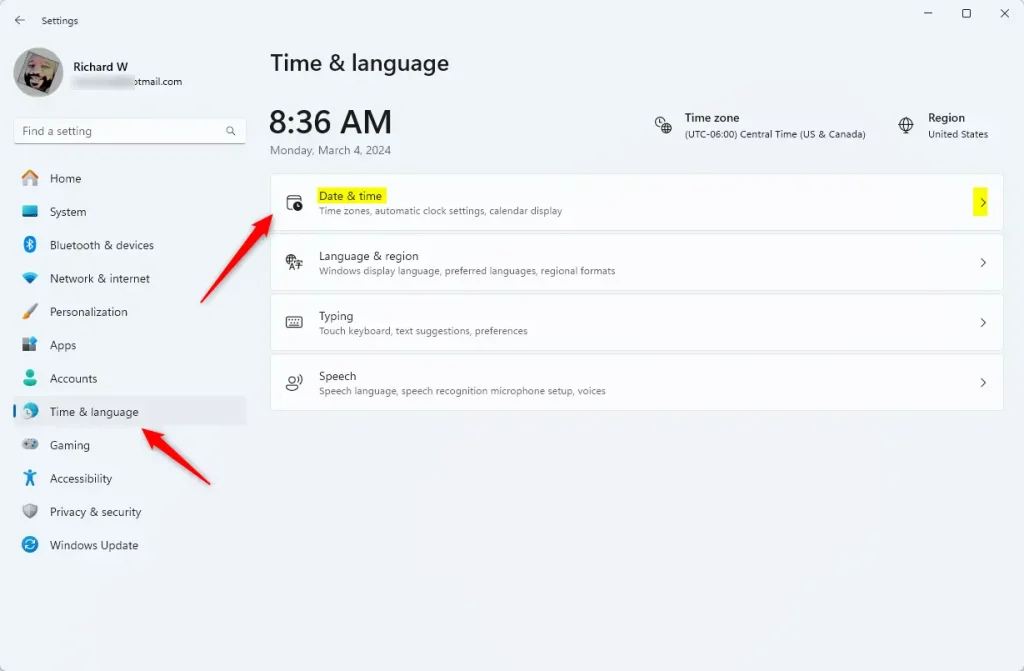
Turning automatic time on or off in Windows 11 takes only a few clicks inside the main configuration menu. Press Win+I on your keyboard to open Settings. On the left menu, click Time & language, then select Date & time on the right.- Press
Win + Ion your keyboard to open the Settings window. - On the left side, click Time & language. Then on the right side, click Date & time.
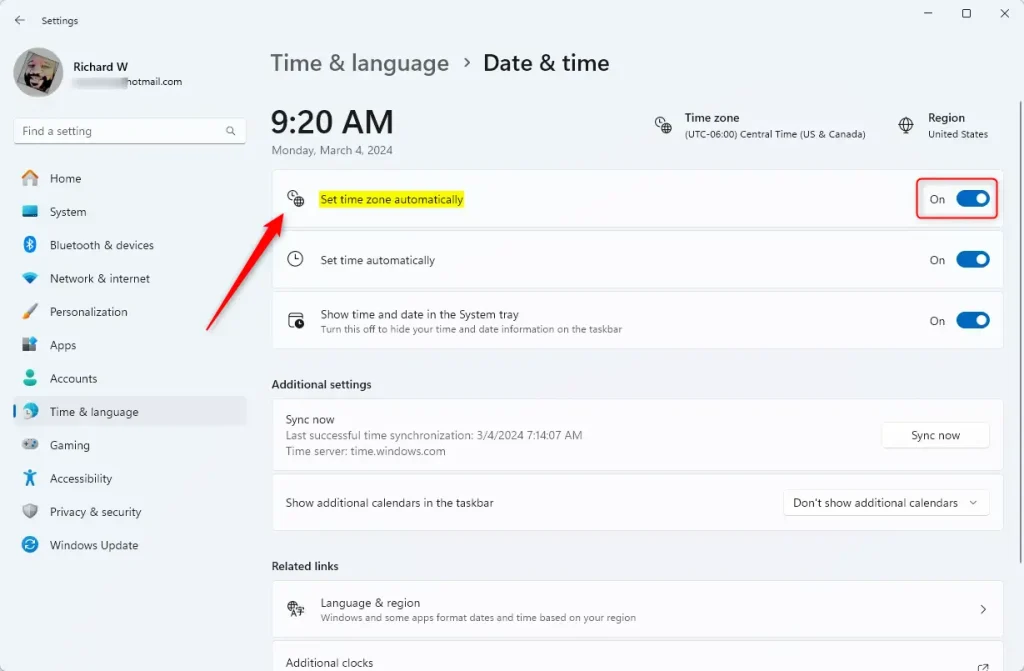
- Look for the option called Set time automatically.
- Switch it On if you want Windows to update your time automatically. Switch it Off if you want to set the time manually.
- Once done, you can close the Settings window.
How to Turn On or Off Automatic Time Using the Registry (Advanced)
Registry edits carry inherent risks that can destabilize the operating system if performed incorrectly. Backing up the registry database beforehand prevents catastrophic data loss.
Turn On Automatic Time Setting (Default)
Command-line tools offer another method for managing time synchronization services directly. Administrative privileges are required to execute these network commands successfully.
To turn off automatic time setting in Windows 11, launch the Command Prompt with elevated privileges. Type `net stop w32time` to halt the Windows Time service, stopping the operating system from syncing time automatically.
reg add "HKLM\SYSTEM\CurrentControlSet\Services\W32Time\Parameters" /v Type /t REG_SZ /d NoSync /fSummary
Controlling time synchronization keeps your system clock reliable for scheduling tasks and browsing the web. Manual adjustments remain available whenever network time servers are unreachable.
Frequently asked questions
How to manually change time zone in 🪟 Windows 11?
Open Settings and go to Time & language Date & time Under Time zone, select your zone from the dropdown menu. Windows will automatically detect your location, but you can override it by choosing a different zone manually.
How do I change the Date and time settings?
Open Settings and select Time & language Date & time You can toggle Set time automatically on or off, change the time zone, or click Change under Date to manually set the date and time yourself.
How do I set the time automatically in Windows?
Open Settings, go to Time & language Date & time, and turn on the Set time automatically toggle. Windows will then sync your clock with an internet time server to keep it accurate.
Where is the time zone change?
Open Settings and go to Time & language Date & time The Time zone dropdown is on this page. Select your zone from the list, or let Windows auto-detect your location by enabling that option.
Still have a question?
Answered by AI from this guide. Good questions may be added to this page — please don't include personal details.
Did this guide fix your problem?

About the Author
Richard
Tech Writer, IT Professional
Richard is a writer at Geek Rewind who turns complex IT tasks into clear, step-by-step guides. He draws on years of hands-on experience in system administration and enterprise IT operations, focusing on Windows, Linux and WordPress: the problems people actually run into, and the fixes that work. His server and WordPress guides come from systems he runs himself. Richard builds and maintains the platform behind Geek Rewind, from its Ubuntu servers and Nginx configuration to its custom WordPress plugins. Many new tutorials start with readers' questions, and he's always glad to answer them in the comments.
No comments yet — be the first to share your thoughts!