Change the Clock to 24-Hour Format in Windows 11

- 27 steps
- Needs administrator rights
- Includes a restart or sign-out
The 24-hour clock in Windows 11 shows 13:30 instead of 1:30 PM, and the quickest way to switch is the Short time setting in Settings Time & language Language & region. Windows 11 has no 12/24-hour toggle on the Date & time page, so the setting sits under the regional format options instead.
The change applies to your user account only and takes effect immediately. It needs no administrator rights, and it works the same on Windows 11 Home and Pro.
This post covers the Settings method, a Control Panel alternative, what to do when the option is missing, and how to switch back to 12-hour time.
To change the clock to 24-hour format in Windows 11, open Settings, go to Time & language Language & region, expand Regional format, and click Change formats. Set Short time and Long time to options without AM or PM, such as 13:30 and 13:30:45. The change applies to your user account only and needs no administrator rights.
What changes when you switch to 24-hour time
Windows stores two time patterns for your account: Short time and Long time. Short time is what the taskbar clock shows, such as 13:30. Long time adds seconds, such as 13:30:45, and appears in some apps and system dialogs.
Both patterns are part of the Regional format setting (the setting that controls how Windows displays dates, times, numbers and currency). Change both so the clock looks the same everywhere.
Switching to 24-hour time does not change your time zone, your date format, or the actual time. It only changes how the time is written.
Change the clock to 24-hour format in Settings
These steps change the clock to 24-hour format in Windows 11 using the built-in Settings app. None of them needs administrator rights.
- Open Settings . Press Win+I, or right-click the Start button and choose Settings. The Settings window opens.

- Select Time & language. It is in the left pane. The right side now shows Date & time, Language & region, Typing and Speech.

Settings › Time & language - Click Language & region. The page lists your display language, preferred languages, and region settings.
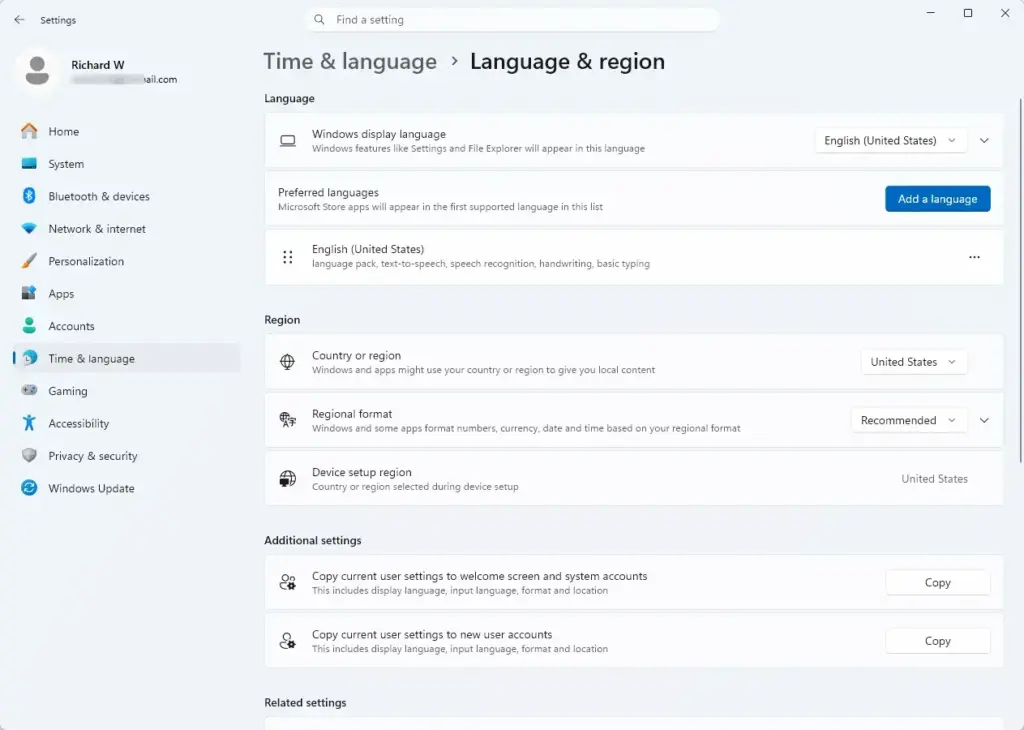
Settings › Time & language › Language & region - Scroll down to Regional format. The row shows a country or language name, often with the word Recommended beside it. The label may read “English (United States)” or something similar.
- Click Regional format to expand it. Clicking the row or its arrow opens extra options below it.
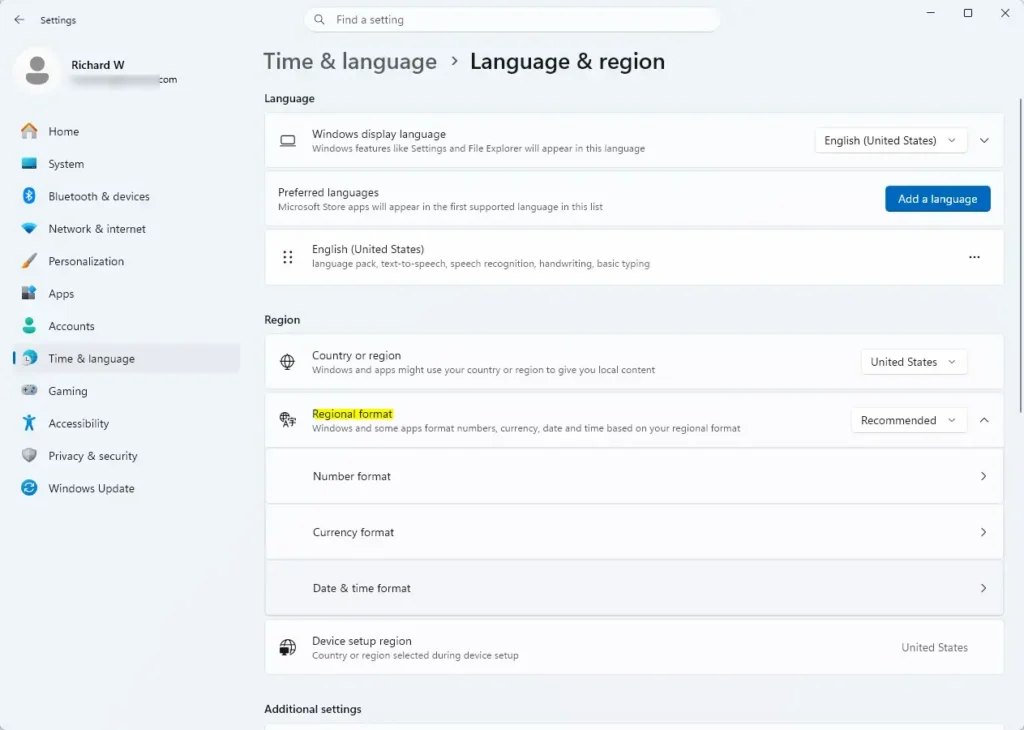
- Click Change formats. A page opens with dropdown menus for Calendar, First day of week, Short date, Long date, Short time and Long time. Each menu shows today’s date or the current time as an example.
- Open the Short time dropdown. The list shows the current time in several styles. Some include AM or PM, and some do not.
- Choose the option without AM or PM. For example, pick 13:30 instead of 1:30 PM. If the list offers both 09:40 and 9:40, the only difference is a leading zero, so choose whichever you prefer. The taskbar clock in the lower-right corner updates right away.
- Open the Long time dropdown. This pattern includes seconds.
- Choose the option without AM or PM. For example, pick 13:30:45. This keeps seconds-based displays consistent with the taskbar .
- Close Settings. Check the taskbar clock. It now reads in 24-hour format, and 3:00 PM appears as 15:00.
If the taskbar clock still shows AM or PM, you changed Long time but not Short time. Go back to step 7 and change the Short time dropdown to the 24-hour option.
Change the clock format in Control Panel
The older Region dialog in Control Panel sets the same two patterns. This route helps if the Settings page will not open or you prefer the classic window. It also lets you reset every format to its default from one window.
- Open the Run dialog. Press Win+R.
- Type intl.cpl and press Enter. The Region dialog opens on the Formats tab.
- Open the Short time dropdown. The list uses format codes rather than example times.
- Choose HH:mm. The capital HH means a 24-hour clock with a leading zero. Choose H:mm if you want no leading zero. The codes hh:mm and h:mm are 12-hour patterns, so avoid them.
- Open the Long time dropdown. This list works the same way.
- Choose HH:mm:ss. The Examples area near the bottom of the dialog shows how the result will look. Check that no AM or PM appears.
- Click Apply, then click OK. The dialog closes and the taskbar clock switches to 24-hour time.
In a time code, the letters tt stand for the AM/PM marker. If a code contains tt, the clock is still in 12-hour mode.
Apply the format to the sign-in screen and new accounts (administrator required)
The sign-in screen and any account you create later keep the old format. To copy your formats to both, you need an administrator account, because this step changes settings for the whole PC.
- Open the Region dialog. Press Win+R, type
intl.cpl, and press Enter. - Click the Administrative tab. This tab is at the top of the dialog.
- Click Copy settings. Approve the User Account Control prompt (the pop-up that asks you to confirm a change that affects the whole PC) if one appears. A window opens with your current settings listed.
- Select the check box next to Welcome screen and system accounts. Select the check box next to New user accounts as well if you want future accounts to use 24-hour time.
- Click OK. The dialog closes. The new format appears on the sign-in screen the next time you lock or restart the PC.
Switch the whole regional format instead
Another route is to change the Regional format dropdown itself to a country that uses 24-hour time by default, such as English (United Kingdom). Windows then updates the time, date, number and currency patterns together.
Your dates may flip to day-month-year, and your decimal and currency symbols may change. If you only need the clock, stay with the Short time and Long time dropdowns above.
If you do want the wider change, these related posts cover the other formats in detail:
- How to change the regional format in Windows 11
- How to change the number format in Windows 11
- How to change the currency format in Windows 11
Changing the Regional format later can reset your Short time and Long time choices to that region’s defaults, so check them again after any region change. If your clock reverts to 12-hour time after you change the region, repeat the steps above.
If the time format option is missing or will not change
A few situations stop the dropdowns from working as described. Check these in order.
The dropdowns are greyed out or the change reverts
A work or school PC may be managed by an organization that sets regional formats through a policy (a rule set by IT that you cannot change). In that case Windows can ignore your choice or put the old format back at sign-in. Contact your IT department, because a standard account (one without administrator rights) cannot override it.
The taskbar clock looks right but an app still shows AM or PM
Most Windows apps follow the system pattern, but some keep their own time setting. Outlook, Teams, Excel and web apps in a browser are common examples. Look in that app’s own settings for a 24-hour or “time format” option. Signing out of Windows and back in also helps apps that read the format only when they start.
The Change formats link is not there
On Windows 11 the Change formats link appears only after you expand the Regional format row. If you see only a country name and no extra options, click the row itself or the arrow on its right side. If the Settings page looks different from this post, you may be on an older or preview version of Windows 11, so run Windows Update or use the Control Panel method above.
You changed the time but the time itself is wrong
The format setting does not affect the actual time. If the hour is off, open Settings Time & language Date & time and check that Set time automatically and Set time zone automatically are on. Otherwise pick the correct time zone from the Time zone dropdown.
Switch back to 12-hour time
The change is fully reversible and does not touch your files. Undo it in whichever place you used.
- Open Settings . Press Win+I.
- Go to Time & language Language & region Expand Regional format and click Change formats.
- Open the Short time dropdown. Choose an option that includes AM or PM, such as 1:30 PM.
- Open the Long time dropdown. Choose an option with AM or PM, such as 1:30:45 PM. The taskbar clock returns to 12-hour time.
To restore every format at once, press Windows + R, type intl.cpl, and press Enter. On the Formats tab, click Additional settings, then click Reset at the bottom of the window. Click OK twice to close both dialogs. This also resets your date, number and currency patterns to the defaults for your region, so use it only if you want all of them back.
What to do next
If you work with colleagues in other regions, the 24-hour format pairs well with extra clocks. Read how to add a clock for another time zone in Windows 11 to see two or three times at once from the taskbar clock. If dates still look wrong after this change, open the Short date and Long date dropdowns on the same Change formats page and adjust them there.
Have a question about this guide?
Answered by AI from this guide. Good questions may be added to this page — please don't include personal details.
Did this guide fix your problem?

About the Author
Richard
Tech Writer, IT Professional
Richard is a writer at Geek Rewind who turns complex IT tasks into clear, step-by-step guides. He draws on years of hands-on experience in system administration and enterprise IT operations, focusing on Windows, Linux and WordPress: the problems people actually run into, and the fixes that work. His server and WordPress guides come from systems he runs himself. Richard builds and maintains the platform behind Geek Rewind, from its Ubuntu servers and Nginx configuration to its custom WordPress plugins. Many new tutorials start with readers' questions, and he's always glad to answer them in the comments.
No comments yet — be the first to share your thoughts!