How to Show Seconds on Ubuntu’s Clock & Calendar


Showing seconds on the top panel clock lets you track time to the exact second for syncing machines, gaming, timing a task, or checking a log entry. Ubuntu 22.04 and later put this clock option in the Settings app, so you don’t need the terminal.
Open Settings from the system menu in the top-right corner, select Date & Time, and move the Seconds switch to On. The top panel clock shows seconds straight away, with no restart or extra apps needed. On versions without the Seconds option, update Ubuntu first.
Display seconds on the clock and calendar in Ubuntu Linux
You can show seconds on the Ubuntu clock by changing a system preference, either from the terminal or from the desktop settings tool. This guide uses the settings tool. The change updates the top panel straight away, and you don’t need to install extra apps or GNOME extensions. It applies to your user account only, and it doesn’t change the system time or time zone.
The whole job takes about half a minute. Follow these steps in order. Where an option looks different on your version, the note under that step says what to check.
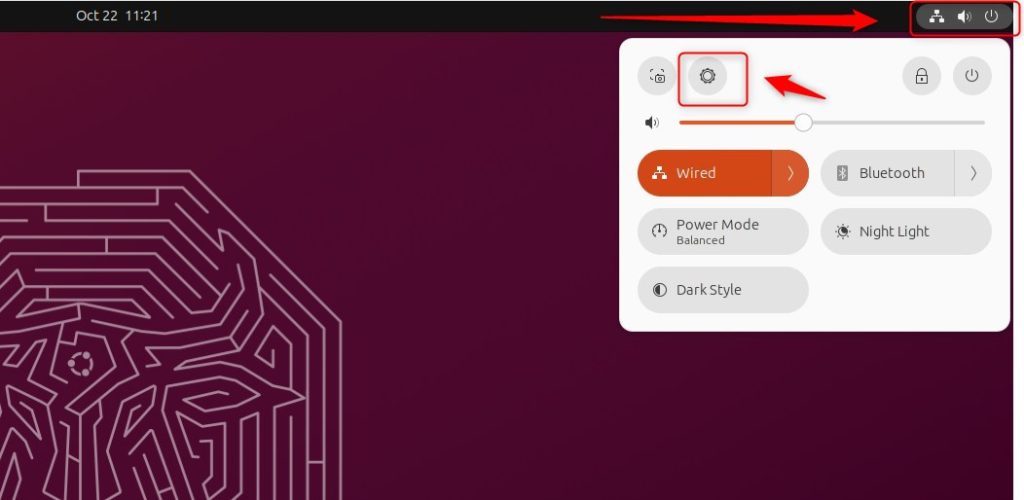
- Click the system menu in the top-right corner of the screen, where the network, volume and battery icons sit. A small panel drops down.
- Select Settings (the gear icon). The Settings window opens.
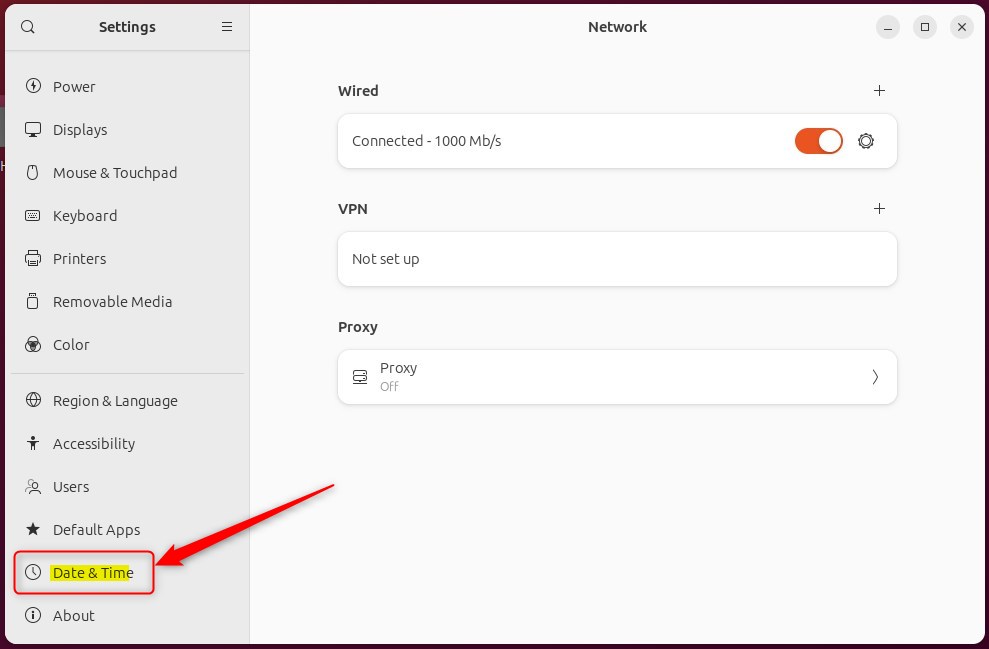
- Select Date & Time in the left-hand menu. The right-hand pane now shows the date, time and time zone settings.
On some versions it sits under the System group. You can also use the search icon at the top of the Settings window and type “date”.
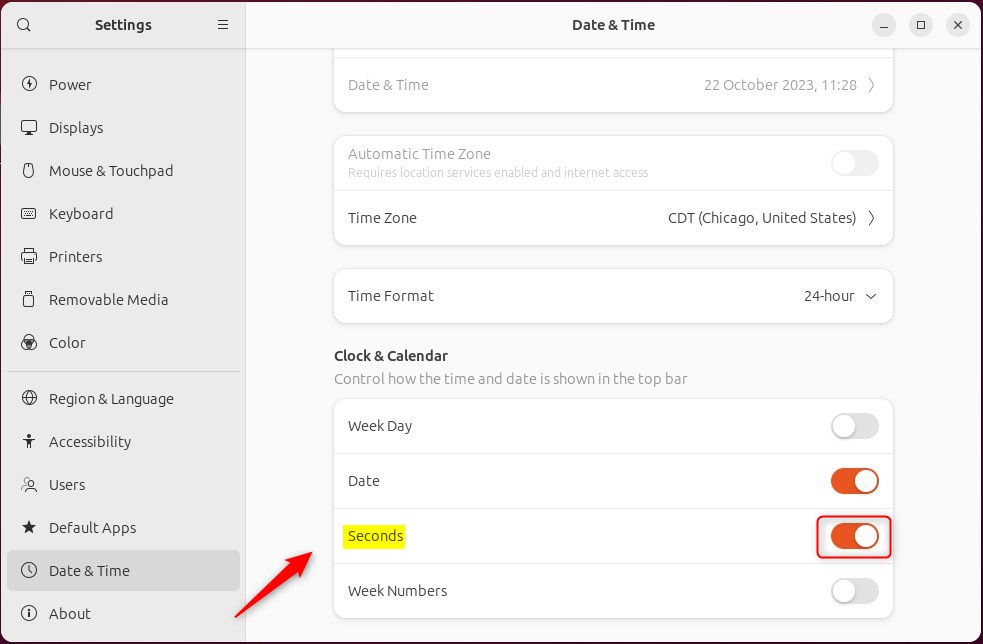
- Find the Seconds option in the Date & Time pane.
- Move the switch to the On position. The switch changes colour to show it is active.
If the option is still missing, GNOME Tweaks offers the same setting under its Top Bar page, which you can install from the Software app.
To undo the change, return to the same screen and move the switch back to Off. The clock goes back to hours and minutes straight away. This works the same on any edition of Ubuntu, and you don’t need to restart or log out in either direction.
Check the top panel. The clock now counts seconds, and the same time format shows in the calendar dropdown when you click the clock. If the clock still shows only hours and minutes, close the Settings window and look again. If that doesn't help, log out and back in.
That completes the process. Seconds will keep showing until you switch the option off again.
Conclusion: Showing seconds on the clock and calendar in Ubuntu is now a single switch in Settings, thanks to recent updates. You can turn it on or off at any time.
- Displaying seconds on the clock and calendar in Ubuntu Linux is now easier than ever, thanks to the latest updates. You only need the Settings app.
- The ability to toggle the display of seconds provides users with flexibility, catering to those who find it useful for specific tasks and those who prefer a simpler time display. Switching back takes one click.
- The new method simplifies the process for all users, eliminating the need for complex steps and making it more accessible, even for beginners. There is no terminal work, no extension to install and no restart.
Have a question about this guide?
Answered by AI from this guide. Good questions may be added to this page — please don't include personal details.
Did this guide fix your problem?

About the Author
Richard
Tech Writer, IT Professional
Richard is a writer at Geek Rewind who turns complex IT tasks into clear, step-by-step guides. He draws on years of hands-on experience in system administration and enterprise IT operations, focusing on Windows, Linux and WordPress: the problems people actually run into, and the fixes that work. His server and WordPress guides come from systems he runs himself. Richard builds and maintains the platform behind Geek Rewind, from its Ubuntu servers and Nginx configuration to its custom WordPress plugins. Many new tutorials start with readers' questions, and he's always glad to answer them in the comments.
No comments yet — be the first to share your thoughts!