How to Adjust Touchpad Scroll and Zoom Speed In Windows 11

- 11 steps
- Needs administrator rights
Touchpad scroll and zoom speed controls how far the screen moves when you swipe or pinch with two fingers. Accelerated scrolling makes scrolling faster the more you repeat the gesture. Both settings live in Settings Bluetooth & devices Touchpad.
Both settings apply to Precision touchpads (touchpads that use the touchpad driver built into Windows, not the maker’s own software). A driver is the small program that lets Windows control the hardware. Changing them does not need administrator rights.
Open Settings Bluetooth & devices Touchpad, then expand Scroll & zoom to adjust the scroll and zoom speed and turn accelerated scrolling on or off. Changes apply immediately and need no administrator rights. These options appear only on Precision touchpads and on Windows 11 builds with the latest updates, so check for updates first if you don’t see them.
Before you start
Before you start, check two conditions. They decide whether you see these settings, so check both before you spend time searching the Settings app.
Your touchpad must be a Precision touchpad
Your copy of 🪟 Windows 11 needs the update that adds them
Microsoft lists these settings in the release notes (the notes that describe what an update changes) for update KB5101684. If the Touchpad page does not show them, install the latest updates first. Open Settings Windows Update and select Check for updates.
Microsoft’s own description of the feature uses the wording “scroll and zoom speed” and “accelerated scrolling”. Labels on screen can differ slightly between Windows versions (Microsoft calls these builds), so match by meaning if the wording is a little different on your PC.
What the two settings do
The two settings look similar but behave differently. Knowing the difference helps you decide which one to change.
Scroll and zoom speed
This setting controls the starting speed of the gesture, the speed you get from a single swipe or pinch. It sets how far a page moves when you drag two fingers, and how quickly the view changes when you pinch. The speed stays the same no matter how many times you repeat the gesture.
Choose a slower baseline if long pages shoot past the spot you want. Choose a faster one if you swipe many times to reach the bottom of a document.
Accelerated scrolling
Accelerated scrolling speeds up the more you repeat the gesture. A single swipe moves the page at the baseline speed. Several swipes in a row move it faster each time.
This helps in long documents, web pages and spreadsheets. It can feel unpredictable in tasks that need precision, such as lining up a drawing or reading line by line. The setting is a switch, so you can turn it off if it gets in your way.
How these differ from other touchpad settings
Scroll and zoom speed is separate from cursor speed. Cursor speed controls how fast the pointer crosses the screen. Our guide to changing touchpad cursor speed in Windows 11 covers that setting.
It is also separate from touchpad sensitivity, which controls how readily the pad responds to touches and palm contact. See how to adjust touchpad sensitivity in Windows 11 if accidental taps are your problem rather than speed.
Adjust touchpad scroll and zoom speed and accelerated scrolling
These steps adjust your Windows 11 touchpad scroll speed and accelerated scrolling from the Touchpad page in Settings. The steps below take you from opening Settings to testing the result.
- Open Settings. Press Win+I, or right-click the Start button and choose Settings. The Settings window opens with a list of categories on the left.

Start Menu - Select Bluetooth & devices. It is in the left-hand list. The page shows your connected devices, such as Bluetooth devices, printers and mice.

Windows Settings menu highlighting the Bluetooth and devices option for printers - Select Touchpad. Scroll down the Bluetooth & devices page if you do not see it at first. The Touchpad page opens with the touchpad on/off switch at the top, followed by groups of options.
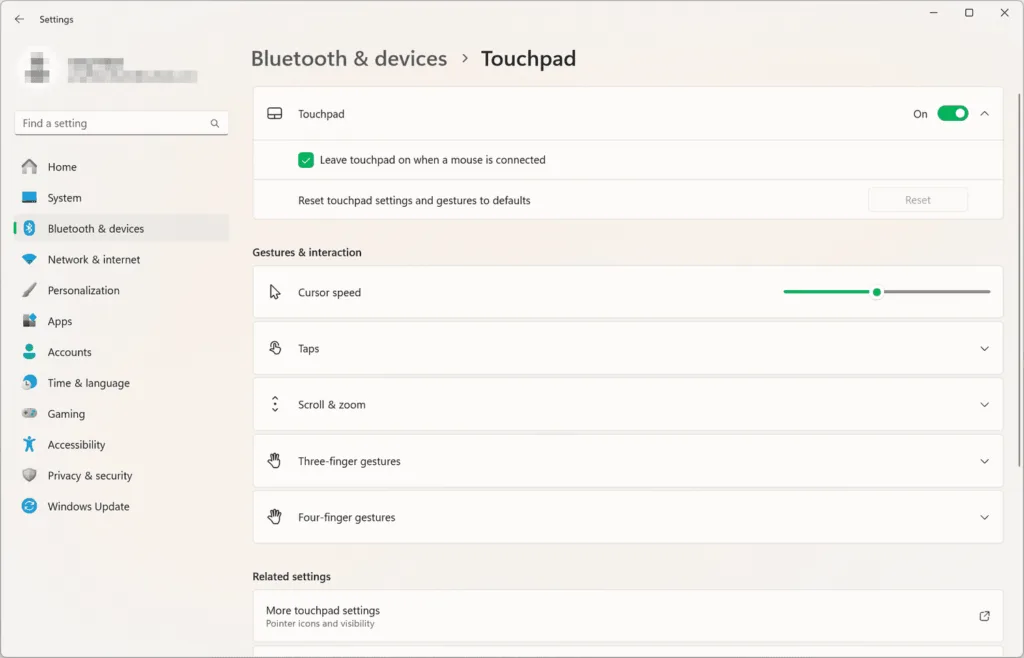
Settings › Bluetooth › Touchpad - Find the scroll and zoom options. Look for the section that holds scrolling and pinch-to-zoom settings, usually named Scroll & zoom. If it is collapsed, select it to expand it. Your build may group these options differently.
- Locate the scroll and zoom speed setting. It controls the baseline speed of scrolling and zooming. If you cannot see it, go to the “If the settings are missing” section below.
- Set the speed you want. Move the control toward slower or faster. Change it a small amount at first, so you can tell what the change did.
- Test the new speed. Open a long web page or document and drag two fingers up and down on the touchpad. Pinch in and out in a browser, photo or map to test zoom.
- Find the accelerated scrolling setting. It sits with the other scrolling options on the same page. It is a switch that makes scrolling speed up as you repeat the gesture.
- Turn accelerated scrolling on or off. Use the switch to match how you work. The change takes effect on the touchpad straight away, so you can test it immediately.
- Test scrolling again. Swipe several times in a row on a long page. With accelerated scrolling on, each repeat moves the page faster. With it off, every swipe moves at the same rate.
- Close Settings. Select the X in the top-right corner. Windows saves the changes as you make them, so there is no Apply or Save button to select.
If the speed still feels wrong, go back to the steps above and change one setting at a time. For a closer look at each option on its own, see our separate guides. They cover changing touchpad scroll speed, changing touchpad zoom speed and turning touchpad accelerated scrolling on or off.
Pick settings that suit how you work
No single speed suits everyone. A few starting points can save time while you tune the setting.
Change one setting at a time
If you change the baseline speed and accelerated scrolling together, you cannot tell which one caused the difference. Set the baseline speed first, with accelerated scrolling off. Then turn acceleration on and see whether you still want it.
Test in the apps you use most
Scrolling feels different in a web browser, a spreadsheet and a long document. Test in the app where speed bothers you most. Zoom feels different in a map, an image viewer and a browser, so test pinch-to-zoom in the app you zoom in most.
Turn acceleration off for precise work
Accelerated scrolling can overshoot when you want to stop at a particular line or cell. If you often miss your target, turn the setting off and raise the baseline speed instead. You get a quicker, predictable gesture without the speed-up.
Check that the gestures themselves are on
Speed settings only matter if the gestures work. If two-finger scrolling does nothing, follow our guide to enabling two-finger scrolling on your touchpad. If pinching does nothing, see how to turn pinch to zoom on or off.
If the page moves the wrong way when you swipe, the fix is the scrolling direction rather than the speed. Our guide to changing touchpad scrolling direction covers that.
If the settings are missing
Missing speed settings are the most common problem with this task. Work through the likely causes in this order.
The Touchpad page is empty or absent
If Bluetooth & devices has no Touchpad entry, Windows does not detect a touchpad. This happens on desktop PCs and on laptops with the touchpad disabled. Connect a laptop’s built-in touchpad by checking its on/off switch, if it has one.
The page shows few options
A short list of options often means the touchpad is not a Precision touchpad. These touchpads depend on the maker’s driver and software, and the speed controls live there. Look in Control Panel or the Start menu for an app from the touchpad maker.
Windows is out of date
The scroll and zoom speed setting and accelerated scrolling arrive through a Windows 11 update. Open Settings Windows Update, select Check for updates, install what appears and restart if Windows asks. Then open the Touchpad page again.
Features can reach PCs in stages, so the settings may not appear on every device the day an update installs. If you are fully up to date and the setting is still absent, there is no confirmed fix beyond these steps for this feature. If the setting is still missing after an update, check your touchpad maker’s website or contact Microsoft support.
The setting changed by itself
A touchpad driver reinstall can bring back default behaviour. If your speed changes after a driver update, open the Touchpad page and set it again.
Undo the change
To reverse a change, open Settings Bluetooth & devices Touchpad again. Move the scroll and zoom speed control back to where it was. Switch accelerated scrolling back to its earlier state.
If you do not remember the original value, move the control in small steps and test after each one. No administrator rights, restore point or backup is needed, because the changes are ordinary user settings.
What to do next
If your touchpad now scrolls and zooms at a pace you like, check the pointer next. Change the touchpad cursor speed if the pointer feels too slow or fast. If you also use a mouse, the mouse scroll speed setting is separate, so adjust it on its own.
Have a question about this guide?
Answered by AI from this guide. Good questions may be added to this page — please don't include personal details.
Did this guide fix your problem?

About the Author
Richard
Tech Writer, IT Professional
Richard is a writer at Geek Rewind who turns complex IT tasks into clear, step-by-step guides. He draws on years of hands-on experience in system administration and enterprise IT operations, focusing on Windows, Linux and WordPress: the problems people actually run into, and the fixes that work. His server and WordPress guides come from systems he runs himself. Richard builds and maintains the platform behind Geek Rewind, from its Ubuntu servers and Nginx configuration to its custom WordPress plugins. Many new tutorials start with readers' questions, and he's always glad to answer them in the comments.
No comments yet — be the first to share your thoughts!