How to Find Out How Many Cores Processor Your PC Has with Windows 11

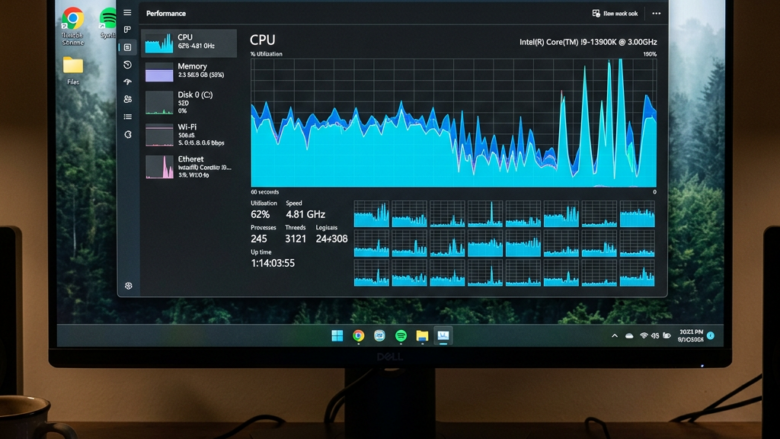
Your processor core count is the number of separate processing units inside your CPU. Each core can run its own work, so more cores let the PC run more programs at once. Windows 11 shows this number in Task Manager , so you can check whether your PC has 2, 4, 8 or more cores in a few clicks and without installing anything.
Processors with more cores handle heavy workloads such as video editing and PC games much faster, because the work is split across the cores. Knowing your count also helps when you check a program’s system requirements or think about an upgrade.
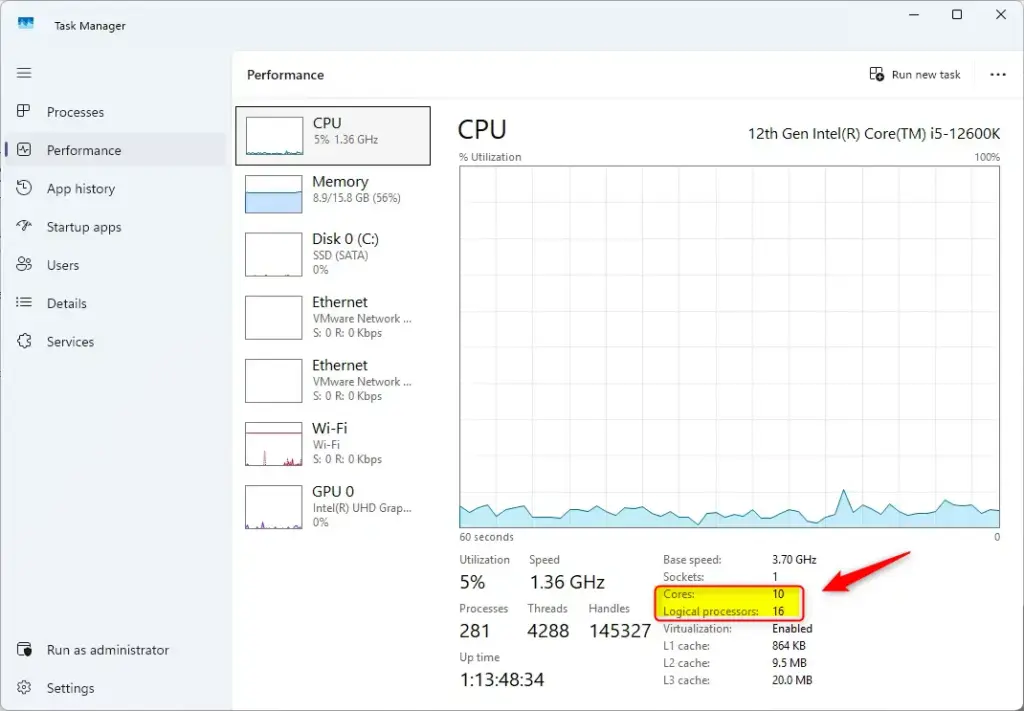
Open Task Manager by pressing Ctrl+Shift+Esc, click the Performance tab, and then select CPU. The number of Cores and Logical processors will be displayed on the right side.
Step 1Open Task Manager
The fastest way to reach Task Manager is the keyboard shortcut. Here is how to use it:
- Press Ctrl+Shift+Esc at the same time.
- Wait a moment. Task Manager opens right away in its own window, with no menu in between.
If Task Manager opens as a small window with only a list of apps, click More details at the bottom left. You need the full view to see the tabs used in the next steps.
If you prefer the mouse, or the shortcut does not work on your keyboard, use the Start button . Here is how:
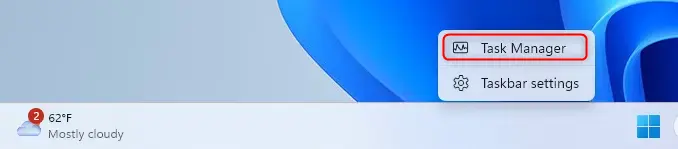
- Right-click the Start button on the taskbar .
- Select Task Manager from the pop-up menu.
- Check that Task Manager opens. If you see only a short list of apps, click More details at the bottom left.
Step 2Go to the Performance Tab
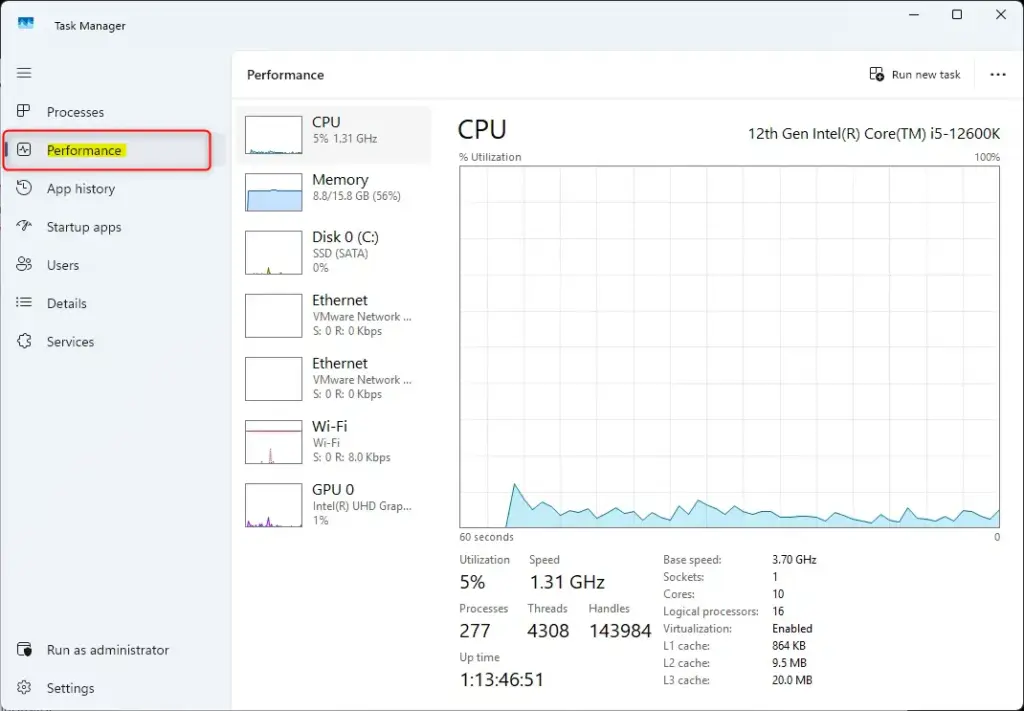
With Task Manager open, you see several tabs, such as Processes, Performance and App history. The core count is on the Performance tab.
- Click the Performance tab.
- Look at the window. You should now see a list of components on the left (CPU, Memory, Disk and others) with live graphs for each one.
In Windows 11, the tabs may appear as icons down the left side if the window is narrow. In that case, the Performance icon looks like a small activity graph. Widen the window or hover over the icons to see their names.
Step 3Select the CPU
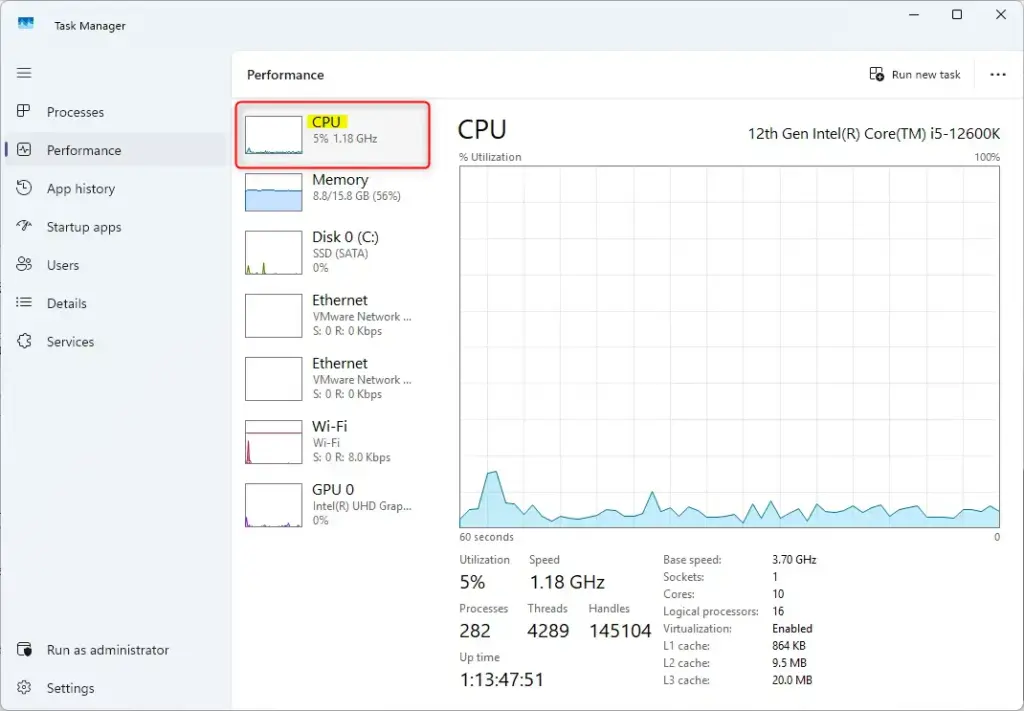
- Click CPU in the left sidebar of the Performance tab.
- Check the right side of the window. It should now show your processor’s name and model at the top, a live usage graph, and a block of statistics underneath.
If the CPU page does not appear, click CPU once more. It is normally the first item in the list and is selected by default.
Step 4Find Your Core and Logical Processor Count
The numbers you want are in the statistics block below the live CPU graph. Look at the bottom right area of the Performance tab in Task Manager . Windows shows your physical core count next to the label Cores, and your total thread count next to Logical processors.
If the window is small, you may need to enlarge it or scroll down to see these labels.
Find the two numbers in that block. Windows labels them clearly:
- Cores: This number shows how many physical processing units your CPU has. Each core can do tasks on its own.
- Logical processors: This number shows how many tasks (called "threads") your CPU can handle at once. Many newer CPUs can work on two tasks at the same time on one core, which makes it look to the operating system as if there are more processors. So the Logical processors number is often higher than the Cores number. For example, 8 cores with 16 logical processors is normal for a CPU with this feature. If both numbers are the same, your CPU does not run two threads per core.
Reference:
Summary
Task Manager gives you your PC's CPU core and logical processor count in a few seconds. Use these numbers to judge how well your PC will cope with intensive workloads such as video editing or gaming, and to spot upgrade opportunities. Nothing was changed on your system, so there is nothing to undo. Just close Task Manager when you are done.
Have a question about this guide?
Answered by AI from this guide. Good questions may be added to this page — please don't include personal details.
Did this guide fix your problem?

About the Author
Richard
Tech Writer, IT Professional
Richard is a writer at Geek Rewind who turns complex IT tasks into clear, step-by-step guides. He draws on years of hands-on experience in system administration and enterprise IT operations, focusing on Windows, Linux and WordPress: the problems people actually run into, and the fixes that work. His server and WordPress guides come from systems he runs himself. Richard builds and maintains the platform behind Geek Rewind, from its Ubuntu servers and Nginx configuration to its custom WordPress plugins. Many new tutorials start with readers' questions, and he's always glad to answer them in the comments.
… liked this!