How to Configure Startup Applications with Task Manager in Windows 11

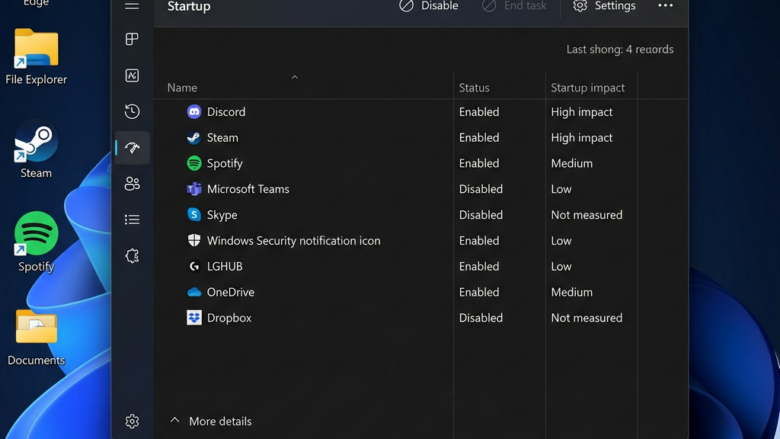
Startup applications are programs that run automatically every time Windows 11 turns on your PC. Too many of these background tasks slow down your boot time and waste memory.
Task Manager is the built-in Windows tool that lets you find and disable the programs you do not want running at startup. Stopping unneeded apps cuts down your start time and keeps your system running fast. It works on both Home and Pro editions, and you do not need to install anything.
Open Task Manager by pressing Ctrl+Shift+Esc, then click the Startup apps tab in the left sidebar. Right-click any app and select Disable to stop it from running when Windows starts. The app remains installed and can be re-enabled anytime.
Managing Startup Apps with Task Manager
Task Manager gives you control over background items so you can decide which apps run immediately. Each app that starts with Windows uses some memory and processor time, and some also read from your disk while the system is still loading. On an older PC or one with a hard drive, the difference after a clean-up is easy to notice.
It only stops the program from launching on its own at sign-in. You can still open it by hand whenever you need it, and you can turn it back on at any time.
Accessing Task Manager
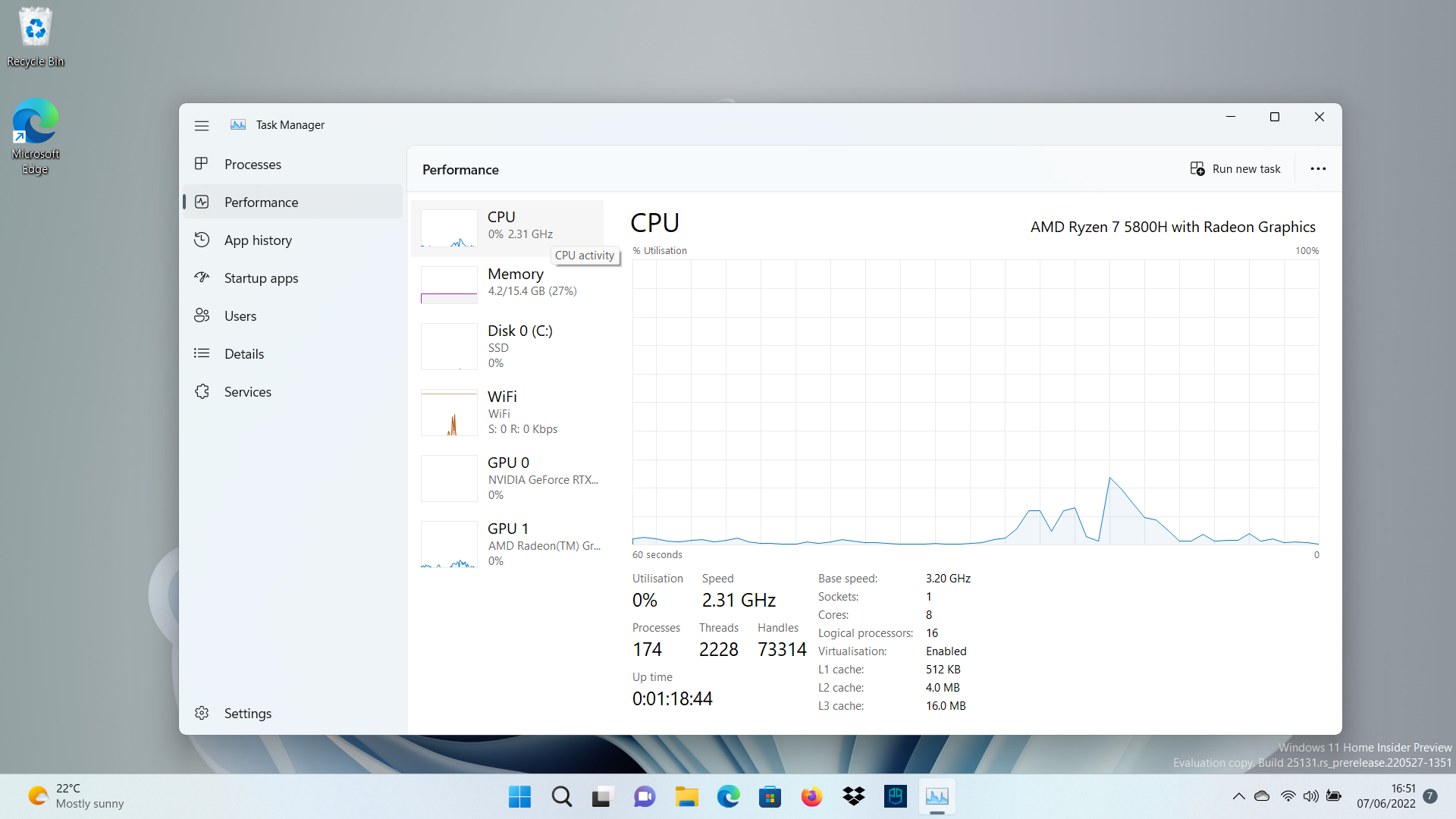
Task Manager opens in Windows 11 through several quick methods depending on your preference. The fastest way is pressing Ctrl+Shift+Esc on your keyboard. Alternatively, right-click the Start button at the bottom of your screen and select Task Manager from the menu, or type Task Manager into the Windows search bar . Use whichever you remember most easily. All three open the same window.
- Right-click the Start Button : Move your mouse to the Windows icon on the taskbar . Click the right mouse button. A menu will appear. Click Task Manager .
- Keyboard Shortcut: Press Ctrl+Shift+Esc all at the same time. Task Manager will open straight away.
- Search: Type “Task Manager ” into the Windows search bar (on the taskbar next to the Start button ). Click Task Manager when it appears in the results.
If Task Manager opens as a small window with only a list of apps, it is in compact view. The next section shows how to switch to the full view.
Navigating to Startup Apps
Expanded layouts reveal every available tab. Clicking the Startup apps tab displays the programs configured to launch automatically.
- If you see a small window with no sidebar, click More details at the bottom-left. The full Task Manager window now opens.
- Look at the left side of the window. If you only see icons, click the menu icon (three horizontal lines) at the top-left to show the names.
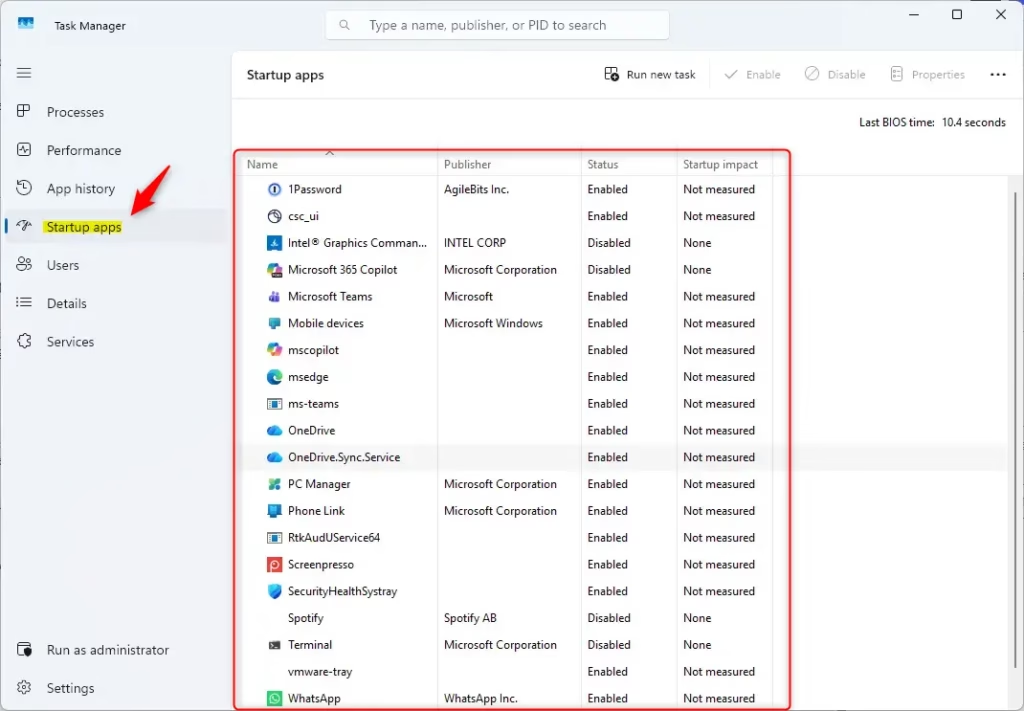
- Click Startup apps. The right side now shows a list of programs set to launch when you sign in.
On Windows 11, Startup apps is in the left sidebar. If you are using an older Windows 11 build or Windows 10, you may see a row of tabs across the top instead, and the tab is called Startup.
Understanding the Startup Apps List
Startup apps in Windows 11 Task Manager show every program configured to run automatically when your computer turns on. Each entry displays the app name, publisher, current status, and boot impact level. Reviewing these details helps you identify unnecessary programs that slow down your computer startup time.
Near the top of the page you may also see a Last BIOS time figure. That is how long your PC’s firmware took before Windows began loading. It is not affected by startup apps, so do not expect it to change after you disable anything.
Here is what each column means:
- App Name: The name of the program.
- Publisher: Who made the software. This helps identify trusted programs. A blank publisher is not always a warning sign, but it is a reason to check the entry before you change it.
- Status: Shows if the app is “Enabled” (starts with Windows) or “Disabled” (does not start automatically).
- Startup Impact: This is very helpful. Windows shows how much each app affects your startup time. You might see “None,” “Low,” “Medium,” or “High.” A “High” impact means the app significantly slows down your startup. You may also see “Not measured” for an app Windows has not yet timed, such as one you just installed. The figure builds up over a few restarts.
If a column is missing, right-click any column heading and tick the one you want. Sort by Startup impact to bring the heaviest apps to the top of the list.
Enabling or Disabling Apps
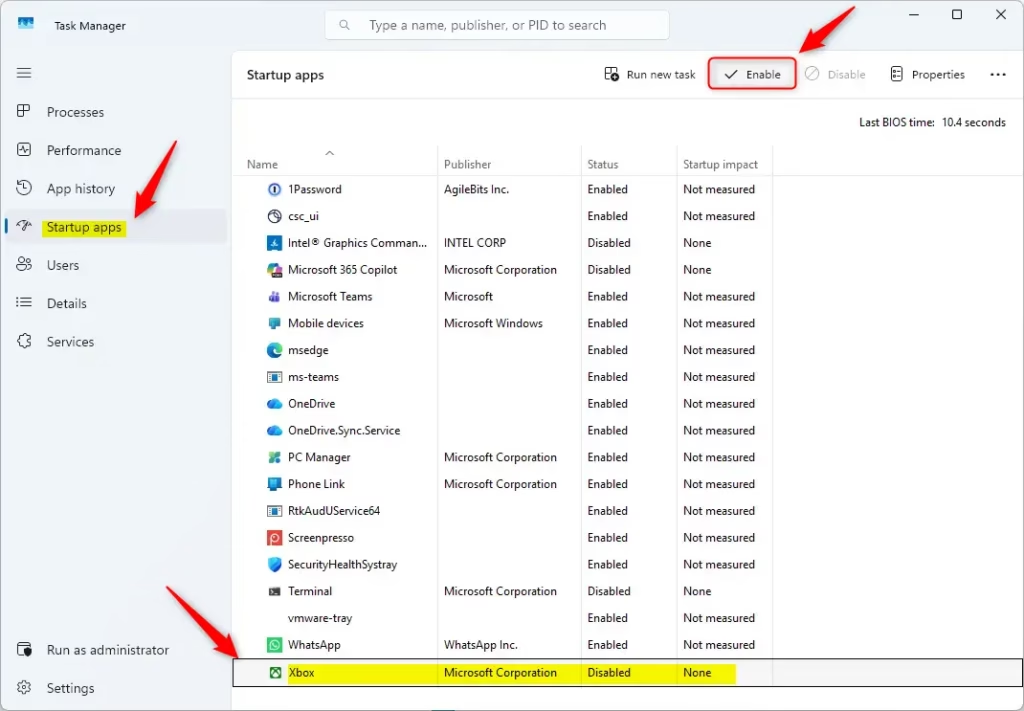
Disabling startup apps in Windows 11 stops unnecessary programs from running in the background when your PC boots up. Select the app name from your startup list and click the Disable button in the top-right or bottom-right corner of Task Manager to prevent it from launching automatically.
The button’s position depends on your version. In current Windows 11 it sits in the toolbar at the top of the Startup apps page. In older layouts it is at the bottom-right of the window. You can also right-click the app and choose Disable or Enable from the menu, which works the same everywhere.
- To stop an app from starting automatically:
- Click the app’s name in the list so it is highlighted.
- Click the Disable button. The status will change from “Enabled” to “Disabled.”
- To let an app start automatically: If you disabled an app before and want it to start with Windows again, select it. Then click the Enable button. Its status will change back to “Enabled.”
You do not need to restart to save the change. Windows applies it the next time you sign in or restart, so the app that is already running stays open until then. If the Disable button is greyed out, no app is selected. If it stays greyed out after you select one, close Task Manager and reopen it with Run as administrator from the search results.
Applications from computer makers or Microsoft may be essential for proper system function. When unsure about an application's purpose, users should leave it enabled or search online for the application's name before disabling.
As a rule of thumb, security software, touchpad and audio drivers, and your PC maker’s hardware utilities should stay enabled. Cloud storage clients, chat apps, game launchers and update helpers are usually safe to disable if you do not need them the moment you sign in.
Change one or two entries at a time, restart, and check that everything still works. If something breaks, come back to Startup apps and enable the entry again. That makes it easy to find which change caused the problem.
Reference:
Summary
Managing startup applications using Task Manager in Windows 11 can significantly speed up your computer's boot time. Disabling unneeded automated software preserves hardware capacity and reduces initial strain on the machine.
Check the list again every few months. New programs often add themselves to startup when you install them, and the list grows without you noticing.
Have a question about this guide?
Answered by AI from this guide. Good questions may be added to this page — please don't include personal details.
Did this guide fix your problem?

About the Author
Richard
Tech Writer, IT Professional
Richard is a writer at Geek Rewind who turns complex IT tasks into clear, step-by-step guides. He draws on years of hands-on experience in system administration and enterprise IT operations, focusing on Windows, Linux and WordPress: the problems people actually run into, and the fixes that work. His server and WordPress guides come from systems he runs himself. Richard builds and maintains the platform behind Geek Rewind, from its Ubuntu servers and Nginx configuration to its custom WordPress plugins. Many new tutorials start with readers' questions, and he's always glad to answer them in the comments.
No comments yet — be the first to share your thoughts!