How to Configure Startup Applications from Settings in Windows 11

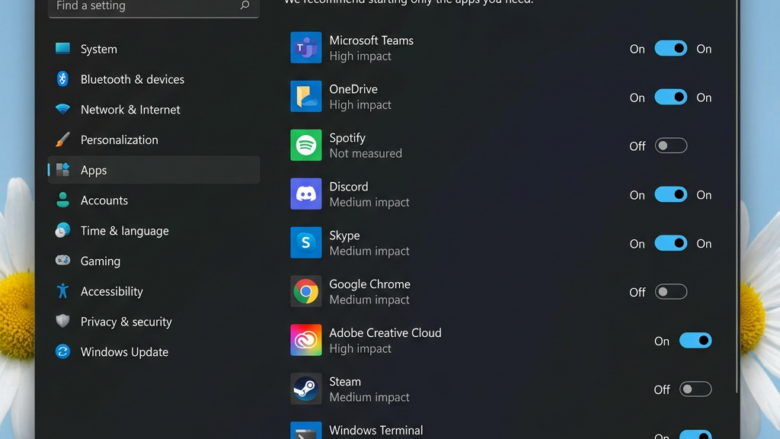
Startup applications in Windows 11 are programs that run automatically in the background the moment you sign in to your computer. Managing them stops unnecessary apps from slowing down your boot time and using up system memory.
You can control which apps launch at startup by opening Settings and going to Apps Startup. Turning off unwanted background programs helps your PC start faster and run better. The steps below apply to Windows 11 Home and Pro alike, and every change can be undone in the same place.
Open Settings , go to Apps Startup, then click the toggle switch next to any program to turn it off. The switch turns gray and your change takes effect at the next restart. You don’t need to uninstall the app—it won’t launch automatically anymore.
Manage Startup Programs in 🪟 Windows 11 Settings
It is the simplest place to do this, because each app gets a single on/off switch and Windows shows how much each one slows down your sign-in. Turning a switch off does not uninstall the program. It only stops the program from launching by itself.
Open Settings
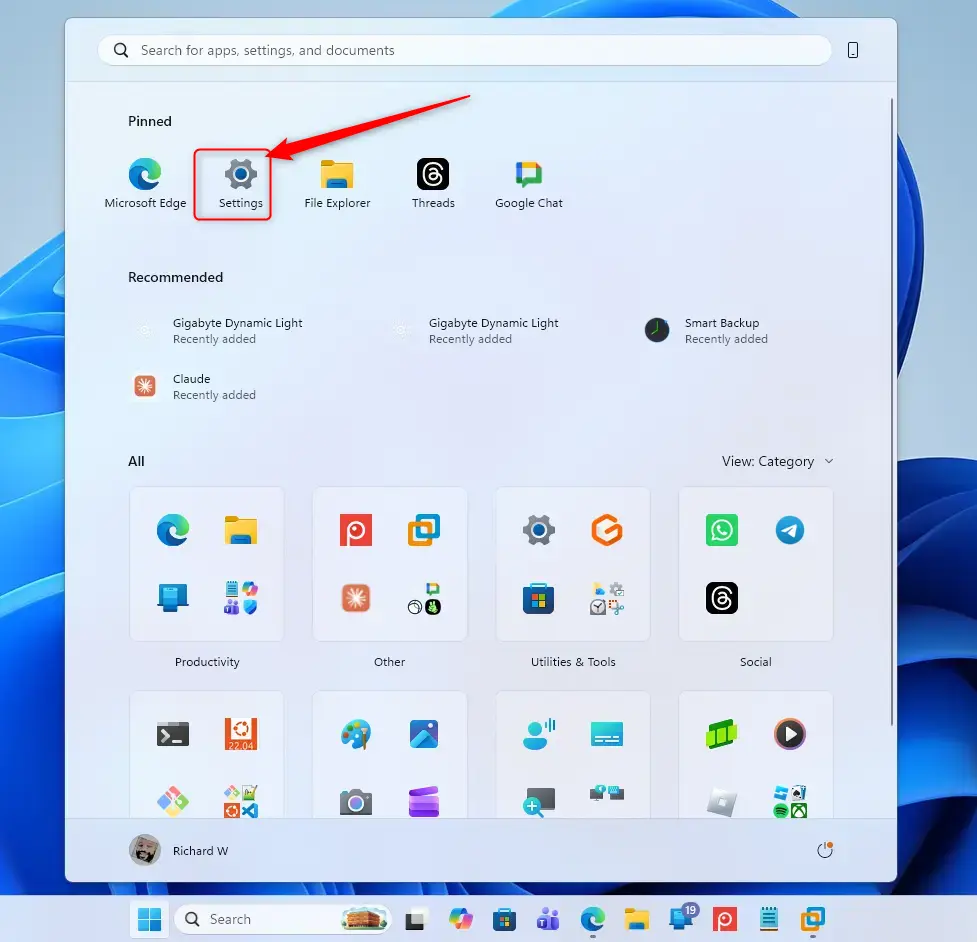
You can open the Settings app in either of two ways:
- Click the Start button on the taskbar , then click the Settings gear icon. If it is not pinned in the Start menu , type Settings in the search box and open it from the results.
- Or press Win+I on the keyboard to open it directly.
The Settings window should now be open, with a list of categories on the left.
Go to Apps
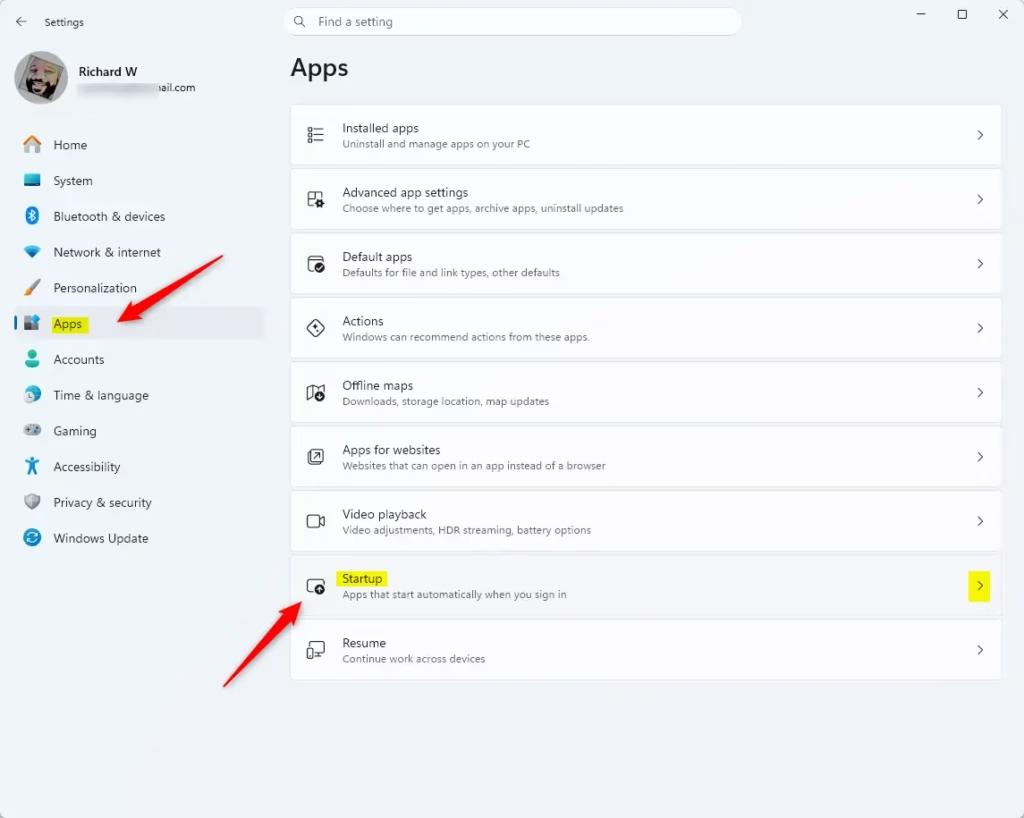
Different categories appear once the Settings window opens. Follow these steps to reach the startup list:
- In the left-hand list, click Apps. This section is dedicated to managing installed software, and the right-hand pane now shows options such as Installed apps and Default apps.
- Scroll down in the right-hand pane and click Startup.
Find the Startup Section
The Startup page opens with a list of every program set to run during boot. This is where you manage background resources and shorten boot times. Each row shows the app’s name and publisher, a status label, and an on/off switch. Most rows also show a startup impact rating such as Low, Medium or High. Pay attention to the High ones first, because they delay your desktop the most.
If the list is long, use the Sort by menu to order it by name, status or startup impact. The search box at the top lets you find a specific app by name.
Manage Your Startup Apps
Managing your Windows 11 startup apps helps your computer boot faster and keeps background software from slowing down your system. From the Startup page, turn off the switch next to any program you do not need running right when you turn on your PC. If you are unsure about an app, leave it on. Security software, audio drivers and touchpad utilities are usually worth keeping.
- To stop an app from starting automatically: Click the switch next to its name to turn it Off. The switch will usually turn gray to show it’s off, and the label beside it changes to Off.
- To let an app start automatically: If you turned off an app before and want it to start with Windows again, click its switch to turn it On. The switch will usually turn blue or another bright color.
Your change is saved as soon as you click the switch. You do not need to confirm it. It takes effect the next time you restart or sign in. Apps that are already running stay open until you close them. If a switch is greyed out or you cannot change it, your PC may be managed by an organization that controls startup items. Contact your administrator in that case.
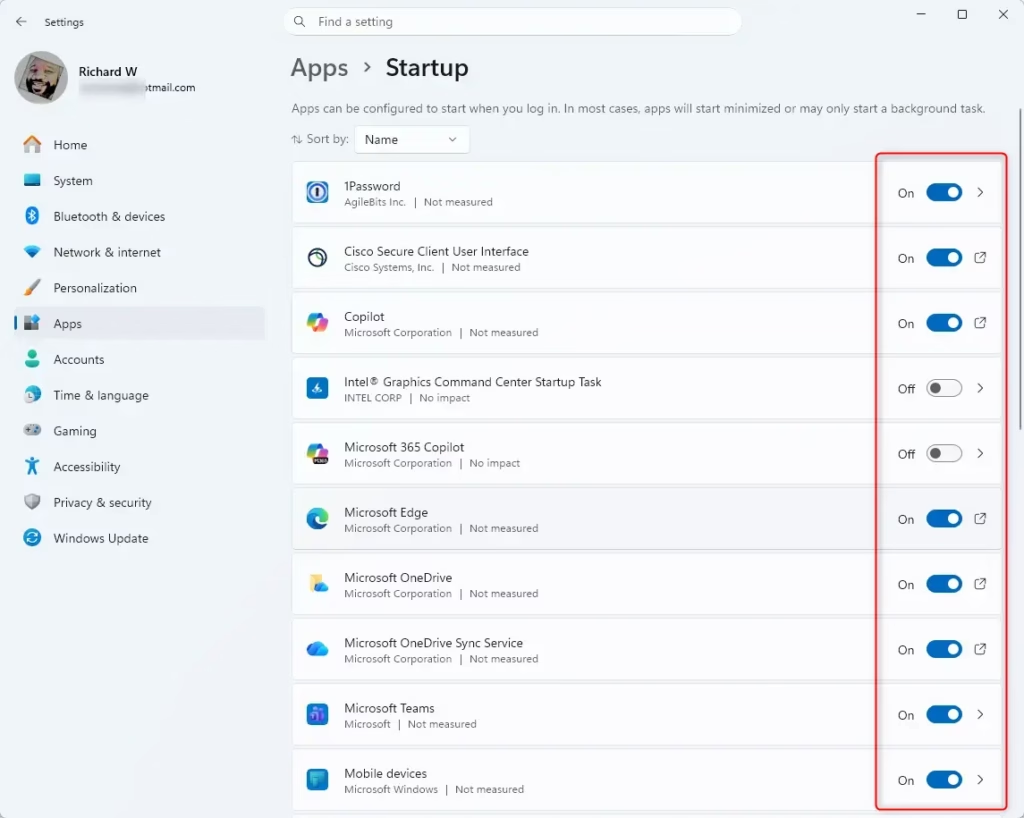
A small arrow occasionally appears beside specific apps. Expanding this arrow reveals additional configuration options, though standard applications rarely require these extra settings. Leave them alone unless you know what an option does.
What If Your App Isn't Listed?
Not every startup item shows up on this page. Missing entries in the startup list require alternative troubleshooting locations like Task Manager or File Explorer. Task Manager has its own Startup apps tab, which you can open by pressing Ctrl + Shift + Esc. Some programs also start from the Startup folder, which you can browse in File Explorer. If an app still launches after you switched it off here, check those two places.
Reference:
Summary
Disabling unnecessary Windows 11 startup apps speeds up your computer's boot time and frees up memory for the tasks you actually use. Stopping background programs from running automatically cuts down waiting times when you turn on your PC and keeps your desktop responsive, giving you better performance without needing any extra software.
Pruning startup tasks cuts down waiting times significantly. The desktop appears sooner, and applications launch without delay. System responsiveness improves because Windows 11 handles fewer concurrent background processes. Change a few apps at a time, restart, and see how the PC behaves. If something you need stops working, return to Settings Apps Startup and turn that app back on.
Have a question about this guide?
Answered by AI from this guide. Good questions may be added to this page — please don't include personal details.
Did this guide fix your problem?

About the Author
Richard
Tech Writer, IT Professional
Richard is a writer at Geek Rewind who turns complex IT tasks into clear, step-by-step guides. He draws on years of hands-on experience in system administration and enterprise IT operations, focusing on Windows, Linux and WordPress: the problems people actually run into, and the fixes that work. His server and WordPress guides come from systems he runs himself. Richard builds and maintains the platform behind Geek Rewind, from its Ubuntu servers and Nginx configuration to its custom WordPress plugins. Many new tutorials start with readers' questions, and he's always glad to answer them in the comments.
No comments yet — be the first to share your thoughts!