How to Check for Neural Processing Units in Windows 11

An NPU (Neural Processing Unit) is a specialized chip built to handle artificial intelligence workloads. Finding out whether your Windows 11 PC has one takes less than a minute, and you only need tools that are already built into Windows. Nothing here changes any settings, so you don’t need to restart or install anything.
Open Task Manager by pressing Ctrl+Shift+Esc, click the Performance tab, and look for an NPU entry in the hardware list on the left. If it appears, your PC has a Neural Processing Unit. If not, check Device Manager by pressing Win+R, typing devmgmt.msc, and looking for a Neural processors category.
What is an NPU?
An NPU is a dedicated co-processor for smart features such as voice dictation, image recognition and background blur on video calls. Instead of making your main processor do that work, Windows can hand it to the NPU.
Main processors (CPUs) and graphics cards (GPUs) handle standard computing loads. An NPU is built specifically for machine learning. That specialization gives you faster results and better power efficiency for AI features, which matters most on laptops running on battery.
They are found mostly in newer chip families, such as recent Intel Core Ultra, AMD Ryzen AI and Qualcomm Snapdragon X processors. An older PC is unlikely to have one.
Why Check for an NPU?
It also helps you judge what the system can do overall, for example before you buy AI-focused software or decide whether a PC fits the newer AI-capable class of Windows 11 machines. The check is the same on Windows 11 Home and Pro.
How to Check if Your PC Has an NPU Using Task Manager
Task Manager is the fastest way to check Windows 11 hardware. Open it, go to the Performance tab, and look for an NPU entry. If that entry is there, the PC has the specialized processor.
- Open Task Manager . Press
Ctrl + Shift + Escon your keyboard. Or you can click here to learn more about Task Manager . - Click the Performance tab. If Task Manager opens in its compact view, expand it first. Then look at the list of hardware on the left, which normally shows CPU, Memory, Disk, and so on.
- Look for an entry named NPU or something similar, such as NPU 0. If it’s there, your PC has a Neural Processing Unit. Click it and you will see its name and live details, including usage graphs.
Here’s an example of what the NPU section looks like in Task Manager :
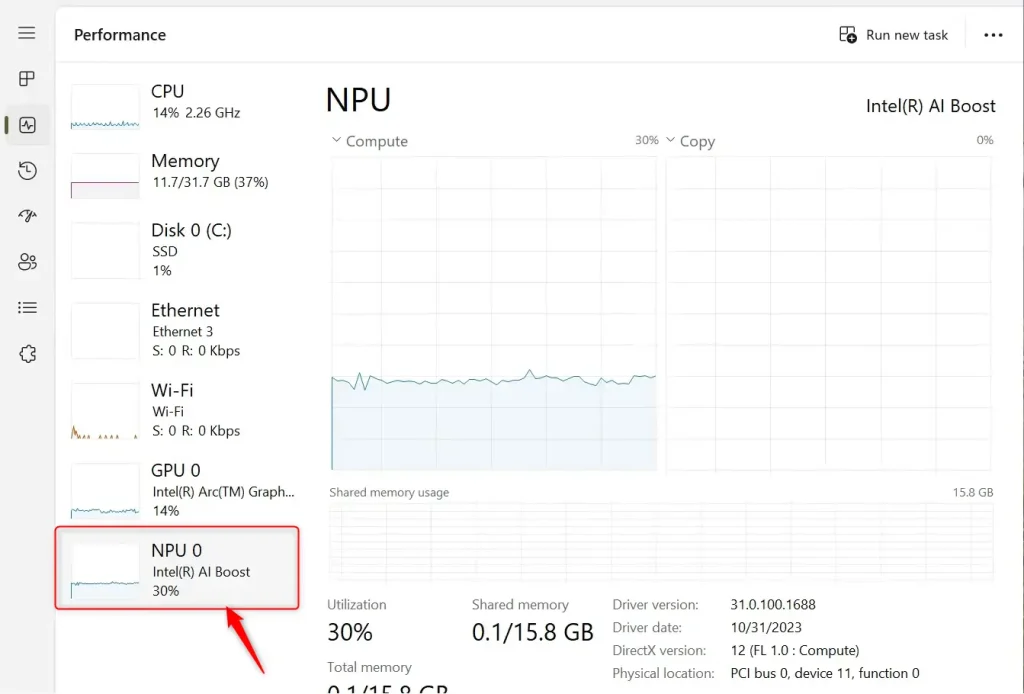
If you don’t see an NPU entry, that doesn’t always mean the chip is missing. Task Manager only shows NPU monitoring in newer builds of Windows 11, such as version 24H2, so an older build may hide it. Run Windows Update and check again. If it still doesn’t appear, try the Device Manager method below as a second opinion.
How to Check if Your PC Has an NPU Using Device Manager
Device Manager is a second way to check. It lists the hardware Windows has detected, and an NPU appears in its own category. This method is useful if Task Manager doesn’t show an NPU entry.
- Press
Windows key + Rto open the Run box. - Type
devmgmt.mscand pressEnterto open the Device Manager. The Device Manager window opens with a list of hardware categories. - Look for a category called Neural processors in the list. Categories are sorted alphabetically, so it sits near the middle of the list.
- Expand the category. If you see an entry under it, your PC has an NPU installed.
Here is how it might look in Device Manager:
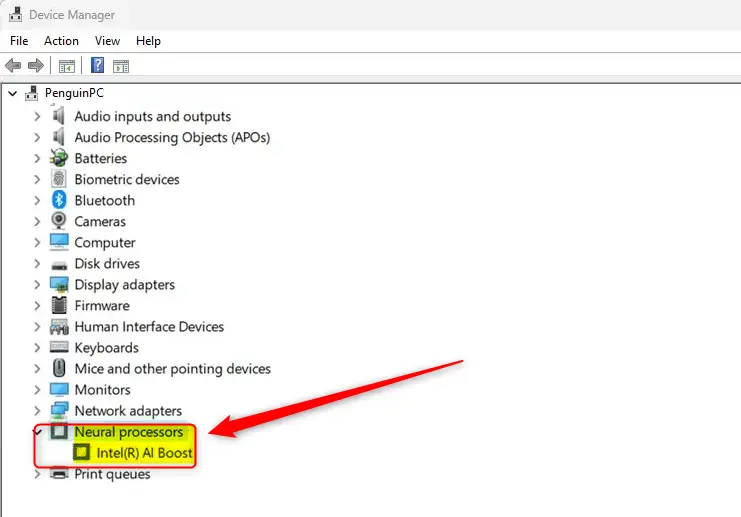
If the category is missing, the PC probably has no NPU, or the NPU's driver isn't installed yet. In that case, run Windows Update, and if the PC is a recent model, check the manufacturer's support page for chipset or NPU drivers. Look at Other devices too, because an NPU without a driver can show up there as an unknown device.
Summary
- Checking for an NPU tells you whether your PC can handle AI tasks faster and more efficiently.
- You can check for an NPU in Windows 11 using Task Manager or Device Manager. Task Manager is quicker, and Device Manager is a good backup.
- If your PC has an NPU, it can speed up smart tasks like voice commands and image recognition.
- A missing entry can mean an older Windows build or a missing driver, so update Windows before you conclude there's no NPU.
Confirming your hardware capabilities tells you what your machine can handle with modern workloads. Task Manager and Device Manager both give reliable answers. Dedicated AI silicon runs local AI models far better than older hardware that has to rely on the CPU or GPU alone.
Have a question about this guide?
Answered by AI from this guide. Good questions may be added to this page — please don't include personal details.
Did this guide fix your problem?

About the Author
Richard
Tech Writer, IT Professional
Richard is a writer at Geek Rewind who turns complex IT tasks into clear, step-by-step guides. He draws on years of hands-on experience in system administration and enterprise IT operations, focusing on Windows, Linux and WordPress: the problems people actually run into, and the fixes that work. His server and WordPress guides come from systems he runs himself. Richard builds and maintains the platform behind Geek Rewind, from its Ubuntu servers and Nginx configuration to its custom WordPress plugins. Many new tutorials start with readers' questions, and he's always glad to answer them in the comments.
No comments yet — be the first to share your thoughts!