Open BitLocker Settings in Windows 11

- 5 ways to do it
- Needs administrator rights
- Includes a restart or sign-out
BitLocker settings in Windows 11 sit in the BitLocker Drive Encryption window in Control Panel. BitLocker is the built-in feature that encrypts a drive so nobody can read its files without your password, PIN, or recovery key. The quickest way to reach the window is to press Start, type Manage BitLocker, and press Enter.
That route works on Windows 11 Pro, Enterprise, and Education. Windows 11 Home has no BitLocker Drive Encryption window, but it may offer a simpler page called Device encryption. Both are covered below, along with five other ways in and what to do when the entry is missing.
To open BitLocker settings in Windows 11, press Start, type Manage BitLocker, and press Enter. This opens the BitLocker Drive Encryption window in Control Panel on Windows 11 Pro, Enterprise, and Education. Windows 11 Home does not include that window and shows a Device encryption page instead.
Which 🪟 Windows 11 Editions Have BitLocker Settings?
Full BitLocker management is part of Windows 11 Pro, Enterprise, and Education. Windows 11 Home does not include the BitLocker Drive Encryption window. If you run Home, skip to the Device encryption section further down.
To check your edition, open Settings System About and read the Edition line under Windows specifications.
Two other things change what you see. The first is administrator rights. The second is the TPM.
- Administrator rights. Turning BitLocker on, off, or changing its protection needs an administrator account. A standard account can usually view the window, but the options ask for administrator credentials.
- A TPM (Trusted Platform Module, a security chip on the motherboard). Windows 11 requires TPM 2.0, so most PCs have one. If it is disabled in the firmware, BitLocker shows a message about the TPM when you try to turn it on for the system drive.
How to Open BitLocker Settings From Start Search
Start search is the quickest route. Press Start, type the name, and press Enter. These steps take you from the desktop to the BitLocker options for each drive.
- Click Start on the taskbar . You can also press the Win. The Start menu opens with the search box active.
- Type Manage BitLocker. The result appears under Best match, and it is labeled as a Control Panel item.
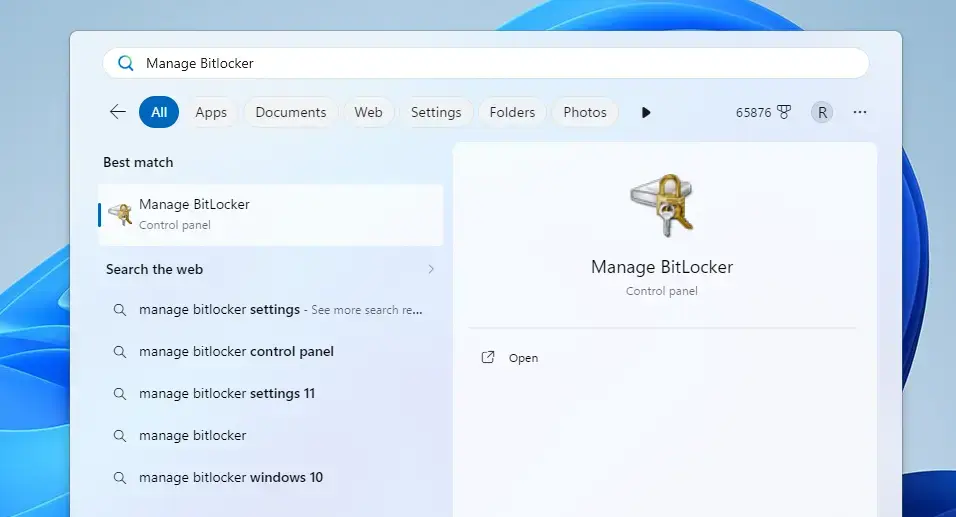
Start Menu - Select Manage BitLocker. The BitLocker Drive Encryption window opens. (Administrator rights may be needed.)
- Select Yes if a User Account Control prompt appears. If you are on a standard account, enter an administrator password when asked.
- Find your drive in the list. The window groups drives under Operating system drive, Fixed data drives, and Removable data drives – BitLocker To Go. Each drive shows a status such as BitLocker on or BitLocker off.
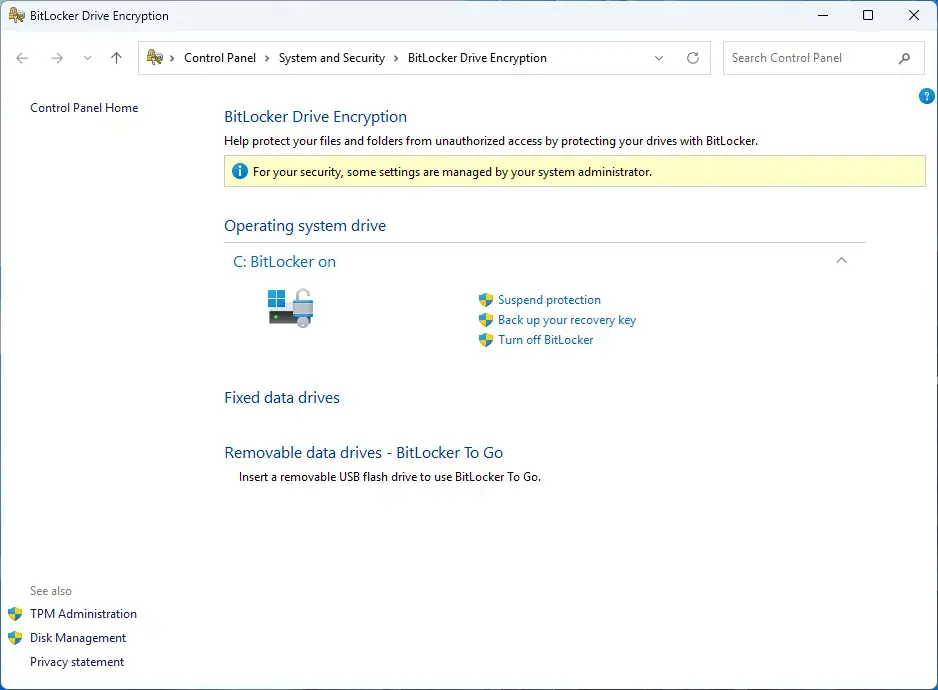
Control Panel > System and Security - Select the option you need next to the drive. The options depend on the drive type and state, and the sections below explain what each one does.
If the search returns nothing for “Manage BitLocker”, your edition is probably Windows 11 Home. See the section on missing BitLocker settings below.
Other Ways to Open BitLocker Settings
The methods below end in the same BitLocker Drive Encryption window, except the Settings app and Terminal methods, which show different views. Pick whichever fits how you work.
Method 1Open BitLocker From Control Panel
Control Panel takes more clicks. It does show where the page sits, though, so use it when search fails.
- Press Win+R. The Run dialog opens.

Run dialog - Type control and press Enter. Control Panel opens.
- Select System and Security. If Control Panel shows icons instead of categories, skip to the next step.
- Select BitLocker Drive Encryption. The window opens with every drive listed.
Control Panel > System and Security
The full path is Control Panel System and Security BitLocker Drive Encryption If the entry is not in the list, your edition does not include it.
Method 2Open BitLocker With a Run Command
A Run command opens the window in one step, which helps if you build shortcuts or support other users by phone.
- Press Win+R. The Run dialog opens.
- Type
control /name Microsoft.BitLockerDriveEncryptionand press Enter. - Select Yes if User Account Control asks. The BitLocker Drive Encryption window opens.
If nothing happens, use the Start search method instead. The command does not work on editions without BitLocker Drive Encryption.
Method 3Open BitLocker From File Explorer
Use this method when you want the options for one specific drive. It is handy for external drives and USB sticks.
- Press Win+E. File Explorer opens.
- Select This PC in the left pane. Your drives appear on the right.
- Right-click the drive you want to manage. A context menu opens.
- Select Show more options. Windows 11 hides the classic menu entries behind this item. You can also press Shift+F10 with the drive selected.
- Select Turn on BitLocker for a drive that is not encrypted, or Manage BitLocker for one that is. The matching BitLocker window opens.
A drive that is already encrypted shows a padlock icon in File Explorer. A gold padlock means the drive is currently locked.
Method 4Open Device Encryption in the Settings App
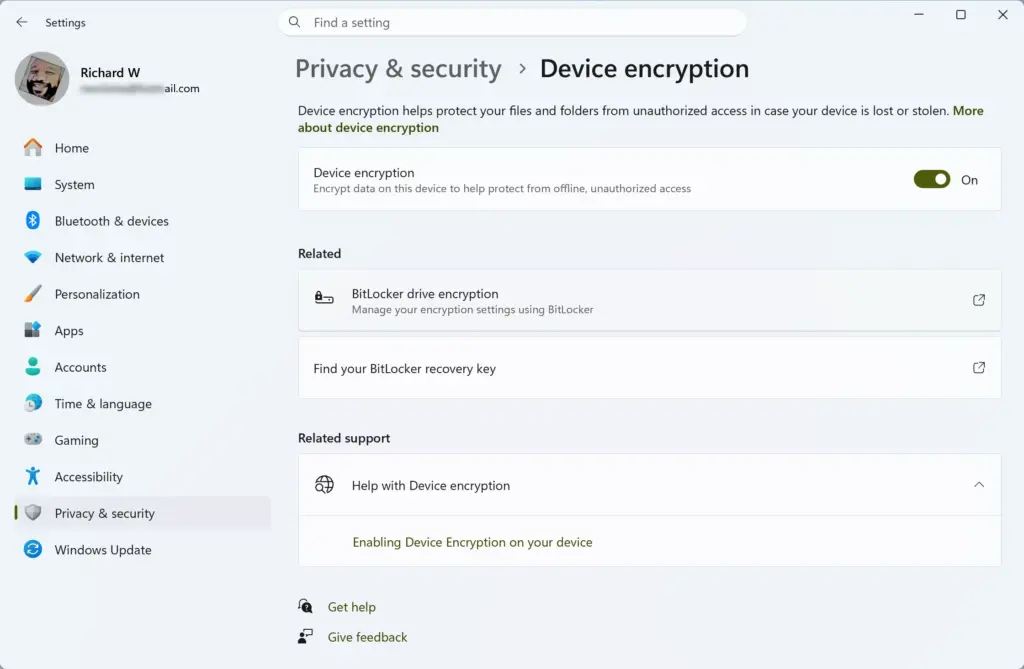
Device encryption is a simplified version of BitLocker for the system drive. It appears on supported PCs, including some running Windows 11 Home. It is not the full BitLocker window.
- Press Win+I. Settings opens.

Start Menu - Select Privacy & security in the left pane.

- Select Device encryption. The page shows a single toggle, either On or Off. (Administrator rights are needed to change it.)
Settings > Privacy & security > Device encryption
The path is Settings Privacy & security Device encryption If you do not see this entry, your PC does not meet the hardware requirements for device encryption. Windows only shows the page on PCs that support it.
Decryption takes a while, and you cannot speed it up. Device encryption usually needs a Microsoft account or a work or school account. Windows saves the recovery key to that account.
Method 5Check BitLocker Status From Terminal
The command line shows the state of each drive as plain text. It reads settings rather than changing them, and it works as a quick check on any edition that has BitLocker.
- Right-click Start. A menu opens.
- Select Terminal (Admin). (Administrator rights required.) Select Yes at the User Account Control prompt.
- Type
manage-bde -statusand press Enter. Windows lists every drive. - Read the Conversion Status and Protection Status lines for each drive. Fully Encrypted and Protection On mean the drive is encrypted and protected.
For a fuller walk-through of this view, see how to check BitLocker drive status on Windows 11.
What You Can Change in the BitLocker Drive Encryption Window
The links shown beside a drive change with its type and state. Here is what each one does, so you know which to pick before you click.
- Turn on BitLocker. Starts encryption on a drive that is currently BitLocker off. A setup window, called a wizard, asks how you want to unlock the drive and where to save the recovery key.
- Back up your recovery key. Saves the 48-digit recovery key (the code that opens the drive if your password or PIN fails) to a file, a printout, or your Microsoft account. Store a copy somewhere other than the encrypted PC. If you cannot find yours, read how to find your BitLocker recovery key in Windows 11.
- Suspend protection. Pauses BitLocker on the system drive without decrypting it. Use it before a firmware update. The guide to suspending and resuming BitLocker in Windows 11 covers it in detail.
- Change password. Appears for fixed and removable data drives that use a password. See how to change a BitLocker password in Windows 11.
- Remove password and Add smart card. Change how a data drive is opened. A drive needs at least one method, so Windows may ask you to add another before it removes the password.
- Turn off BitLocker. Decrypts the drive and removes protection. Turn this off only if you need to. The drive stays usable during decryption, but the process takes time on a large drive.
Encryption method and cipher strength (the rules that scramble the data, and how strong they are) are not listed in this window. To change those, follow the BitLocker encryption guide linked in the next-steps section.
Why BitLocker Settings Are Missing or Greyed Out
If the entry is missing or an option cannot be selected, the cause is nearly always one of the points below.
- You run Windows 11 Home. Home has no BitLocker Drive Encryption window. Check Settings Privacy & security Device encryption instead. If that page is also missing, the PC does not support it. Upgrading to Windows 11 Pro adds the full BitLocker window.
- You are on a standard account. Options may be greyed out or ask for an administrator password. Sign in with an administrator account and try again.
- The PC is managed by your organization. A work or school administrator may set BitLocker rules that override what you can change. If options stay unavailable, contact your IT department. A message that mentions your organization is the clue.
- The TPM is off or missing. On the system drive, BitLocker may show a message about the Trusted Platform Module. Check that the TPM is turned on in your PC's firmware settings (the low-level software that starts the computer, often called the BIOS or UEFI). The firmware menu varies by manufacturer.
- The drive is not a supported type. BitLocker works on internal and removable drives formatted with a Windows file system. It does not apply to some network or virtual drives.
A locked drive shows only a few options. Unlock it first, then return to the window. To unlock it, enter its password in File Explorer. To lock a data drive again later, follow how to lock a BitLocker drive in Windows 11.
Does Opening BitLocker Settings Change Anything?
No. Opening the window, or the Device encryption page, only displays the current state. Nothing changes until you select an option and confirm it in a wizard. You do not need to restart the PC to open or close these pages.
Some actions do need a restart later. Turning on BitLocker for the system drive usually runs a system check and asks you to restart. Encryption then continues in the background while you use the PC.
If you want a shortcut for the future, right-click the result for Manage BitLocker in Start search. Choose Pin to Start or Pin to taskbar, if those options appear on your version of Windows.
What to Do Next
Keep the copy somewhere other than this PC. A saved key is what gets you back into the drive after a hardware change or a failed password.
To change the cipher or encryption strength, read how to change BitLocker encryption in Windows 11. To stop BitLocker temporarily during an update, use pause and restart BitLocker on Windows 11.
Frequently asked questions
How to adjust power and sleep settings in 🪟 Windows 11?
Open Settings, then select System Power & battery Under Screen and sleep, use the drop-down menus for On battery power and When plugged in to choose how long the screen stays on and when the PC goes to sleep. Set either one to Never to turn that timer off.
How to adjust display settings in 🪟 Windows 11?
Open Settings, then select System Display. Use the Scale drop-down to change the size of text and apps, and the Display resolution menu to change how sharp things look. To adjust brightness, use the slider under Brightness and color. Changing resolution can make things look blurry or squished, so keep the recommended option if you're unsure.
How to backup system settings in 🪟 Windows 11?
Open Settings, select Accounts, then choose Windows backup. Turn on the switches for Desktop, Documents, and Pictures to sync those folders to OneDrive, and turn on Remember my apps and Remember my preferences to save those settings. This does not create a full system image.
Still have a question?
Answered by AI from this guide. Good questions may be added to this page — please don't include personal details.
Did this guide fix your problem?

About the Author
Richard
Tech Writer, IT Professional
Richard is a writer at Geek Rewind who turns complex IT tasks into clear, step-by-step guides. He draws on years of hands-on experience in system administration and enterprise IT operations, focusing on Windows, Linux and WordPress: the problems people actually run into, and the fixes that work. His server and WordPress guides come from systems he runs himself. Richard builds and maintains the platform behind Geek Rewind, from its Ubuntu servers and Nginx configuration to its custom WordPress plugins. Many new tutorials start with readers' questions, and he's always glad to answer them in the comments.
No comments yet — be the first to share your thoughts!