How to Change BitLocker Password in Windows 11

- 13 steps
- Needs administrator rights
Changing the BitLocker password in Windows 11 updates the unlock password for an encrypted drive. You can do it from File Explorer, the Control Panel, or Windows Terminal. BitLocker is the built-in encryption tool that locks a drive so your files stay unreadable if the PC is lost or stolen.
You need to know your current password before you can set a new one. The drive must also be unlocked when you start. Changing the password every few months is a sensible habit. Do it right away if you think someone else has seen it.
Two things to know first. The password option only exists for drives that unlock with a password, which usually means data drives and USB drives protected with BitLocker To Go. A system drive that unlocks with the TPM or a PIN has no password to change, so you would change the PIN instead. Also, full BitLocker management needs Windows 11 Pro, Enterprise, or Education. Windows 11 Home only has device encryption, which has no password option. Changing the password does not change your recovery key. It does not re-encrypt the drive, and you do not need to restart.
Open File Explorer, right-click the BitLocker-protected drive, select Show more options, then click Change BitLocker password. Enter your old password and your new password twice, then click Change password. The new password takes effect immediately on your next unlock.
How to Change Your BitLocker Password
There are three ways to change the password. All three give the same result, so pick whichever suits your workflow. File Explorer is the quickest, the Control Panel is the most traditional, and Windows Terminal suits scripting and remote work.
1Change Password Using File Explorer
- Open File Explorer. Click the folder icon on your taskbar or press Win+E on your keyboard. A File Explorer window opens. Select This PC in the left pane to see your drives.
- Find the drive that is protected by BitLocker. It has a lock icon. If the lock looks closed, double-click the drive and enter its password to unlock it first. The lock then appears open.
- Right-click that drive and choose Show more options. Then click Change BitLocker password. On Windows 11 the BitLocker commands sit in this classic menu, not in the short one that appears first. If you do not see the entry, the drive is probably still locked, or it does not use a password. Your edition may also not include BitLocker management.
- A BitLocker window opens. Type your old password in the first box. Then enter your new password in the next two boxes to confirm it. Use a long, unique password that you can remember, and make sure it is not one you use elsewhere.
- Click Change password to finish. A message tells you the password was changed. Use the new password the next time you unlock the drive. If you get an error instead, check that the old password is typed correctly and that the two new entries match.
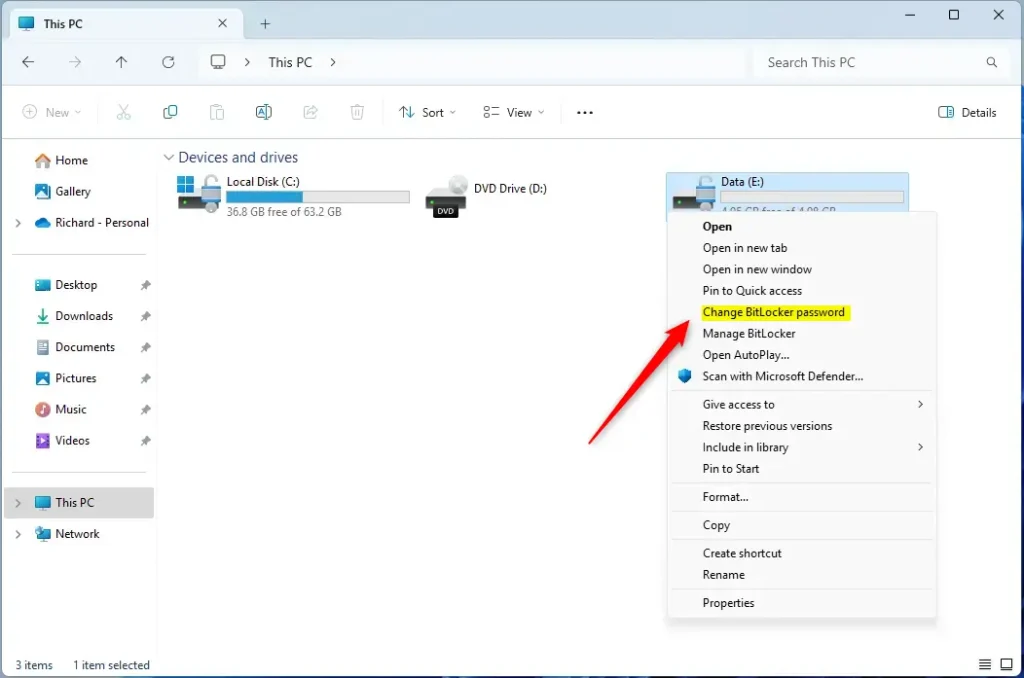
File Explorer is the fastest route. Right-click the encrypted drive, open the extra options menu, and pick the password command. You do not need to open Settings or a command prompt. The only requirements are an unlocked drive and your current password.
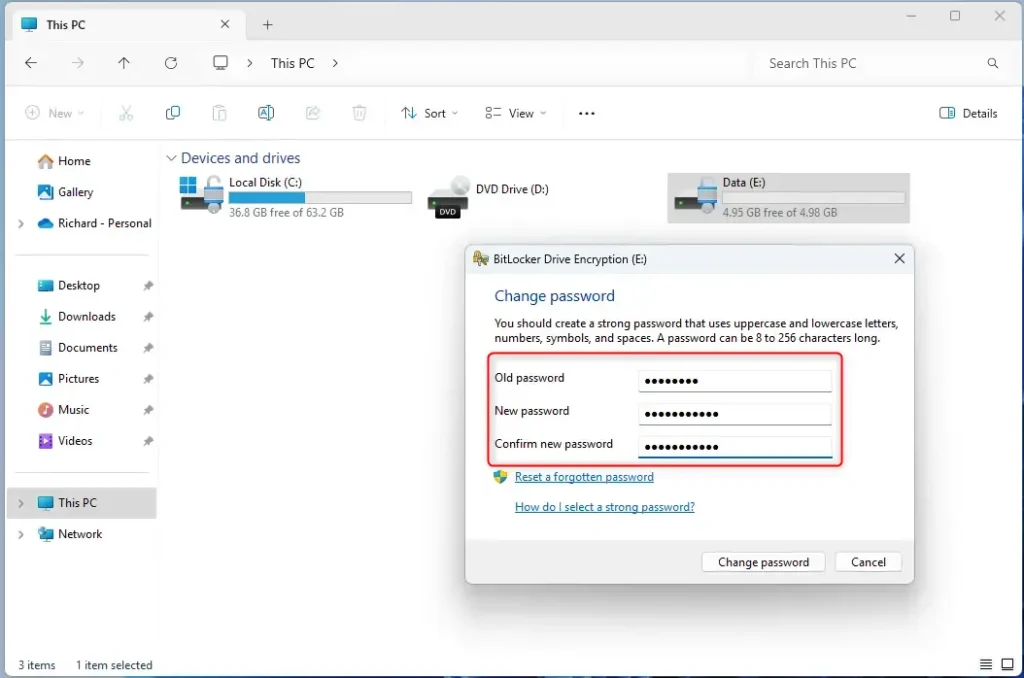
Use this method when you are already browsing your files and want a quick change. If the command is missing from the menu, try the Control Panel method below. It reaches the same BitLocker dialog by a different route.
2Change Password Using Control Panel
- Open Control Panel. Type “Control Panel” in the Start menu search and click the result. The Control Panel window opens.
- Go to System and Security BitLocker Drive Encryption. The page lists your drives and shows whether BitLocker is on for each one. If this page is missing or says BitLocker is unavailable, your Windows edition probably does not include it, as with Windows 11 Home.
- Find the drive you want to change the password for. Click the arrow to expand the drive if its options are hidden, then click Change password. If you do not see this link, the drive may be locked. Unlock it first with Unlock drive.
- Enter your old password. Then enter your new password twice. Click Change password to apply. A confirmation message appears when the change is done.
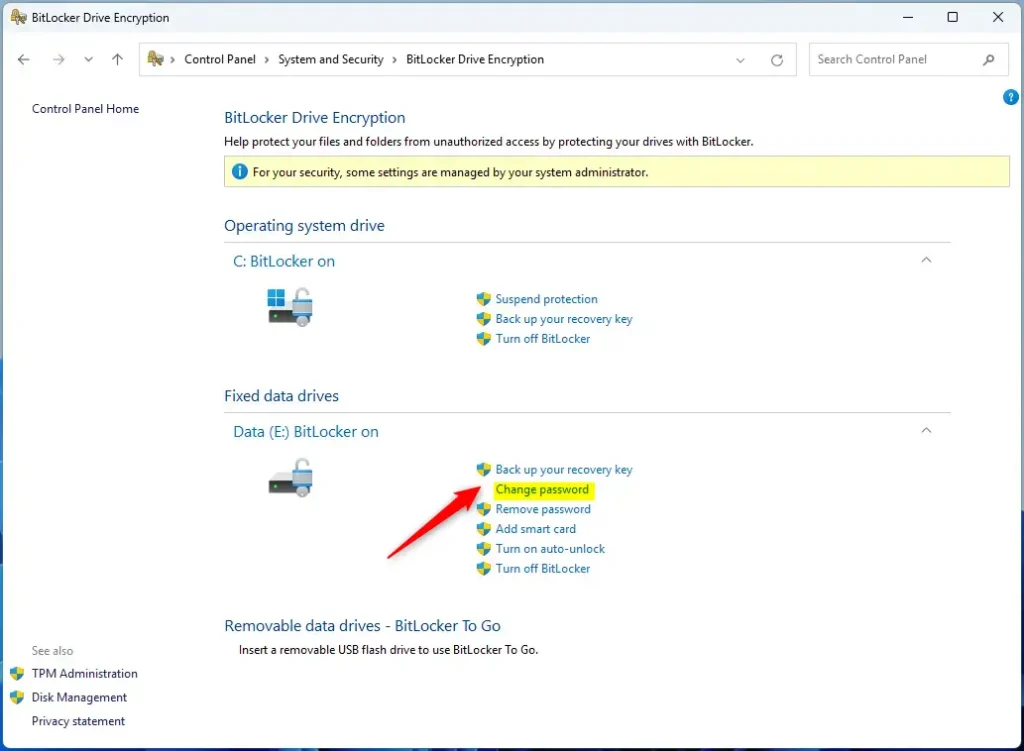
The Control Panel keeps all BitLocker drives on one page, which makes it easy to check which drives are encrypted before you change anything. It is also a good fallback when the File Explorer right-click menu does not respond or the BitLocker entries do not show up.
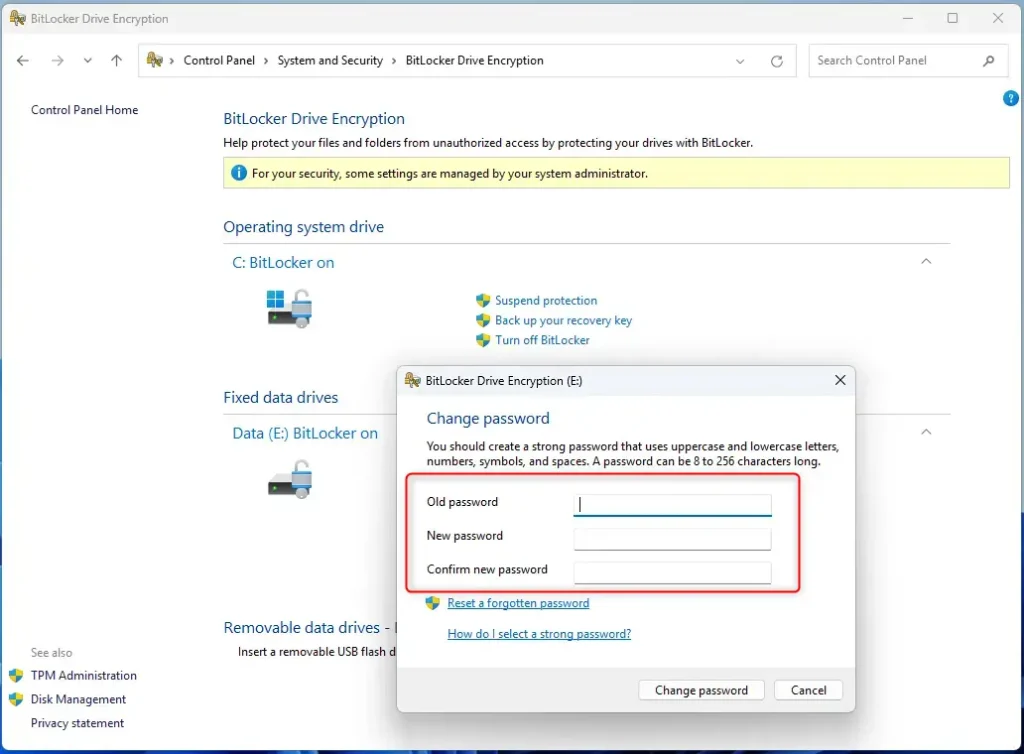
Microsoft still keeps BitLocker in the Control Panel, not in the Settings app, so this is the old interface and not a leftover. The steps are the same for each drive. Repeat them for every encrypted drive whose password you want to update.
3Change Password Using Windows Terminal
Windows Terminal lets you change the password with a single administrative command that includes your drive letter. This is useful if you prefer typing commands to clicking through menus. It also works over a remote session, where the graphical options may not be convenient.
- Open Windows Terminal as an administrator. Search for “Windows Terminal” in Start. Right-click it and select Run as administrator. Click Yes if User Account Control asks for permission. A terminal window opens with “Administrator” in its title.
- Type the following command and press Enter. Replace
E:with your drive letter:
manage-bde -changepassword E:
- When prompted, enter your old password. Then enter your new password twice. The characters do not show on screen as you type, which is normal.
- Press Enter to finish. The terminal prints a message that the password was changed. If it reports an error, make sure you opened the terminal as an administrator and that the drive is unlocked.
Summary
- Changing your BitLocker password helps keep your data safe, especially if you think the old one has been seen by someone else.
- You can change the password using File Explorer, Control Panel, or Windows Terminal. All three give the same result, and no restart is needed.
- Make sure your drive is unlocked before starting, and that it uses a password. Drives that unlock with a TPM or PIN have no password to change.
- Use a strong, unique password that you can remember. Keep your recovery key somewhere safe as well, because the password change does not replace it.
- Changing your password regularly gives extra protection. Every few months is a reasonable schedule.
You can change your BitLocker password using File Explorer, the Control Panel, or Windows Terminal, depending on which interface you prefer. A strong password on your encrypted drive prevents unauthorized access to your files if your computer is lost or stolen. Keep your recovery key safe, so you can still get in if you ever forget the new password.
Have a question about this guide?
Answered by AI from this guide. Good questions may be added to this page — please don't include personal details.
Did this guide fix your problem?

About the Author
Richard
Tech Writer, IT Professional
Richard is a writer at Geek Rewind who turns complex IT tasks into clear, step-by-step guides. He draws on years of hands-on experience in system administration and enterprise IT operations, focusing on Windows, Linux and WordPress: the problems people actually run into, and the fixes that work. His server and WordPress guides come from systems he runs himself. Richard builds and maintains the platform behind Geek Rewind, from its Ubuntu servers and Nginx configuration to its custom WordPress plugins. Many new tutorials start with readers' questions, and he's always glad to answer them in the comments.
No comments yet — be the first to share your thoughts!