How to Turn On or off Screen Rotation Lock In Windows 11

Rotation lock in Windows 11 stops your display from flipping between portrait and landscape whenever you move your device. Convertible laptops and Windows tablets use it to keep the screen steady while you hold them at awkward angles, for example when reading in bed or watching a video.
This guide covers four ways to switch it on or off: a keyboard shortcut, the Quick Settings panel, the Settings app and the Registry Editor. The first three take a few seconds and work on both Windows 11 Home and Pro. The registry method is for scripting or for cases where the other three fail.
Before you start: rotation lock only exists on devices with an orientation (accelerometer) sensor. A standard desktop PC or a laptop without that sensor will not show the option at all. That is normal and not a fault.
Press Win+O to toggle rotation lock on or off on supported devices. Alternatively, press Win+A to open Quick Settings, then click the Rotation lock button. On devices without a rotation sensor, this option will not appear.
Option 1Use the Keyboard Shortcut
The keyboard shortcut is the quickest way to toggle rotation lock. It is a good choice when you have a keyboard attached or paired and want to flip the setting without opening any menus.
Press these keys on your keyboard together (on supported devices the shortcut is Win+O):
Win + OWhat happens: Rotation lock turns on or off instantly. Windows may not show a confirmation, so open Quick Settings if you want to check the current state. The button is highlighted when the lock is on.
If nothing happens, the device probably has no rotation sensor, or it is in a mode where rotation is not available. See the note under the next method.
Option 2Use Quick Settings
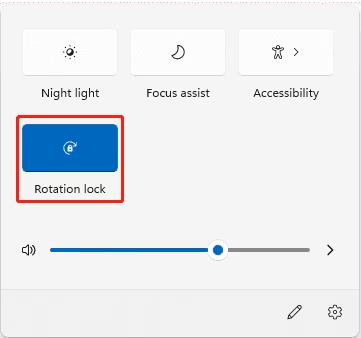
Quick Settings is the easiest visual method, and it lets you freeze the screen without digging through menus. Press Win + A to open the panel, or click the network, speaker and battery icons at the right end of the taskbar. Then click the rotation lock button to hold your screen in its current orientation.
Follow these steps:
- Press
Win + Ato open the Quick Settings panel. This is the same place where you toggle Wi-Fi and Bluetooth. - Look for the Rotation lock button and click or tap it to turn it on or off.
What happens: Rotation lock turns on or off right away. When it is on, the button is highlighted and the screen stays in whatever orientation it had when you clicked.
If you cannot find the button, click the pencil (Edit quick settings) icon at the bottom of the panel, choose Add, and look for Rotation lock in the list. Click Done when you finish. The button is only offered on devices that have a rotation sensor.
On laptops that fold or have removable keyboards (like Microsoft Surface), the option may only work in tablet mode. Detach the keyboard or fold the screen back, then check again.
Option 3Use the Settings App
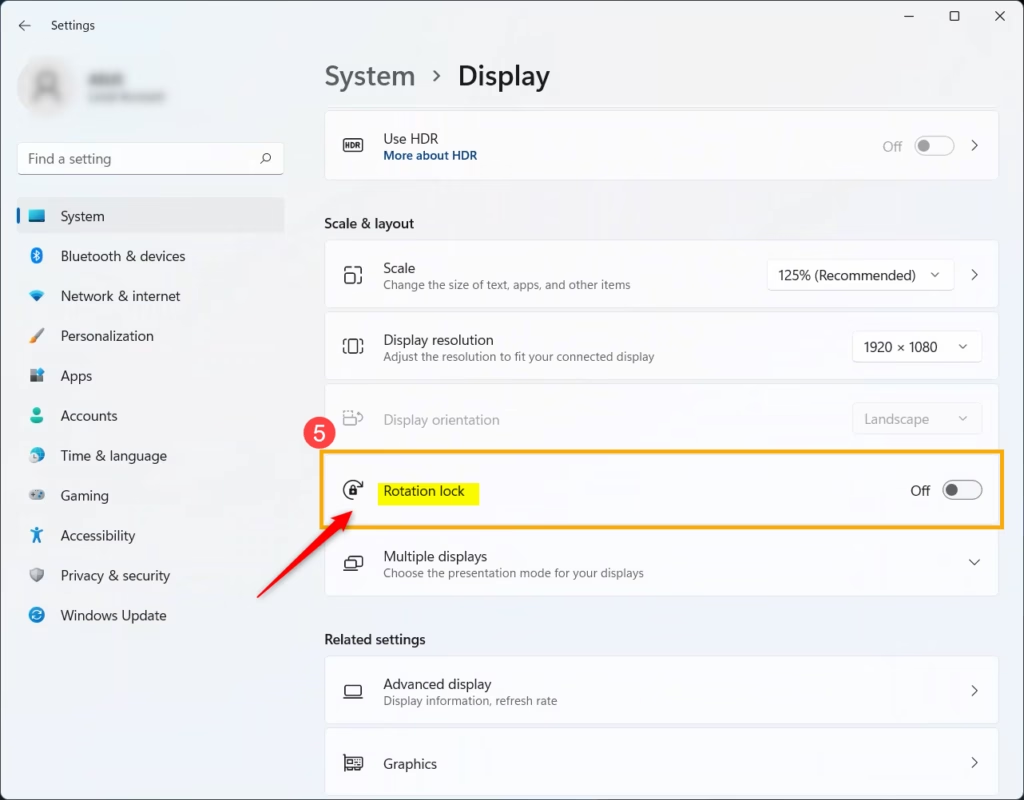
The Settings app is another reliable way to manage rotation lock. Press Win + I to open it, go to the System section, then open Display. The rotation switch is in that area, in the scale and layout options. Use this route if the Quick Settings button is missing or grayed out, or if you simply prefer to see the setting beside your other display options.
Follow these steps:
- Press
Win + Ito open Settings. - Click on System on the left menu.
- Select Display on the right.
- Scroll down to the Scale & layout section.
- Find the Rotation lock switch and turn it on or off.
What happens: The screen rotation setting changes immediately. You do not need to restart or sign out. To undo the change, go back to the same page and flip the switch again.
These conditions disable automatic rotation, so the lock has nothing to control. Switch to tablet mode or remove the keyboard and the option should become available. If you also see no Display orientation choices that match your hardware, check for a driver or firmware update from your device maker.
Click here to open Display settings directly

Option 4Change Rotation Lock Using Registry Editor (Advanced Users)
Advanced users can control rotation lock in the Registry Editor, the Windows database for core system settings. This method helps if the standard settings do not work, or if you need to script the change across several computers. It works the same on Home and Pro.
Be careful. Wrong registry entries can cause system problems. Before you edit anything, create a restore point or export the key you are about to change so you can put it back if something goes wrong.
Why use this? Registry changes let you control rotation lock at a deeper level than the buttons and switches above, and they can be applied by a script or deployment tool.
To turn ON Rotation Lock, use this code:
reg add "HKEY_CURRENT_USER\Software\Microsoft\Windows\CurrentVersion\AutoRotation" /v Enable /t REG_DWORD /d 0 /fTo turn OFF Rotation Lock (the default), use this code:
reg add "HKEY_CURRENT_USER\Software\Microsoft\Windows\CurrentVersion\AutoRotation" /v Enable /t REG_DWORD /d 1 /fWhat happens: Your rotation lock setting changes based on the value you enter. The change may not show up in Quick Settings straight away. If it does not, sign out and back in, or restart the PC, and then check the setting again.
Summary
- Automatic Rotation: Tablets and 2-in-1 devices can flip the screen automatically as you turn them.
- Rotation Lock: Lets you stop your screen from rotating if you want it to stay fixed.
Rotation lock controls whether your display flips automatically when you move a tablet or 2-in-1 device. Turning it on keeps the screen fixed in one orientation, so it does not turn sideways or upside down as you shift position. The list below helps you pick the best method for your device.
- Keyboard shortcut:
Win + O - Quick Settings:
Win + A - Settings app:
Win + I→ System Display - Registry Editor (for advanced users)
- Rotation Lock may be grayed out in laptop mode or if your device is connected to a keyboard.
- Administrator rights are needed to edit registry settings.
Pick whichever method suits you. The shortcut and Quick Settings are best for everyday use, Settings is the fallback, and the registry is for scripting. All four let you control how your screen rotates and set up your Windows 11 device the way you prefer.
Frequently asked questions
How to unlock screen rotation?
Turn off Rotation lock to unlock screen rotation in Windows 11. Press Win + O, or open Quick Settings from the taskbar and click the Rotation lock tile so it is no longer highlighted. The screen then flips between portrait and landscape as you move the device. If the option is missing, your device has no orientation sensor.
How to turn off rotation lock?
To turn off rotation lock, press Win + O on a supported device, or open Quick Settings from the taskbar and select the Rotation lock tile until it is no longer highlighted. The screen will rotate again when you change how you hold the device. If you do not see the option, your device lacks an orientation sensor.
How to lock screen rotation?
Turn on Rotation lock to keep the screen in its current orientation. Press Win + O, or open Quick Settings and select the Rotation lock tile so it is highlighted. The display then stays put when you tilt or turn the device. The lock does not change the orientation itself, so set the direction you want before you turn it on.
How to turn on screen rotation lock on 🪟 Windows 11?
Press Win + O to turn on Rotation lock in Windows 11. You can also open Quick Settings from the taskbar and select Rotation lock so its tile is highlighted. When it is on, the screen holds its current orientation even if you turn the device. If you do not see the option, your device has no orientation sensor.
How to stoip rotating screen on 🪟 Windows 11?
Turn on Rotation lock to stop the screen from rotating in Windows 11. Press Win + O, or open Quick Settings and select the Rotation lock tile until it is highlighted. The display then keeps its orientation when you move the device. If it still rotates, check the orientation setting under Settings System Display
How to prevent screen rotation to move icons?
Turn on Rotation lock so the screen stops changing orientation, which also keeps desktop icons from shifting. Press Win + O, or open Quick Settings and select the Rotation lock tile until it is highlighted. Icons often move when the display rotates, so a fixed orientation keeps them where you left them.
Still have a question?
Answered by AI from this guide. Good questions may be added to this page — please don't include personal details.
Did this guide fix your problem?

About the Author
Richard
Tech Writer, IT Professional
Richard is a writer at Geek Rewind who turns complex IT tasks into clear, step-by-step guides. He draws on years of hands-on experience in system administration and enterprise IT operations, focusing on Windows, Linux and WordPress: the problems people actually run into, and the fixes that work. His server and WordPress guides come from systems he runs himself. Richard builds and maintains the platform behind Geek Rewind, from its Ubuntu servers and Nginx configuration to its custom WordPress plugins. Many new tutorials start with readers' questions, and he's always glad to answer them in the comments.
No comments yet — be the first to share your thoughts!