How to Change Magnifier Reading Keys in Windows 11

- 20 steps
- Needs administrator rights
- Includes a restart or sign-out
Magnifier reading keys in Windows 11 are keyboard shortcuts that let you control screen magnification and text-to-speech reading aloud without touching your mouse. This tutorial shows how to change the modifier key that those reading shortcuts use.
Default shortcuts like the Windows logo key + Plus (+) start Magnifier right away. The reading shortcuts are separate, and you can change them to fit your workflow. If you only use a keyboard, or one hand is faster than the other, this is worth a few minutes.
Open Settings Accessibility Magnifier, scroll to the Reading shortcut section, click the Modifier key drop-down menu, and select your preferred key combination. Windows applies the change immediately.
What Is the Magnifier?
The Magnifier app acts like a digital magnifying glass. It makes part of your screen larger so you can read or see things more clearly. This helps if you have trouble with small text or fine detail.
Magnifier is built into every edition of Windows 11, Home and Pro alike, so you don’t need to install anything. To turn it on or off quickly, press the Windows logo key + Plus (+) to start it and the Win+Esc to close it.
Understanding the Default Shortcut Keys
The default Magnifier reading keys use Ctrl and Alt together with other keys to trigger speech commands. Knowing these defaults lets you use Magnifier’s read-aloud feature right away, with no changes to your settings.
One note on terms: Magnifier reads text aloud, but it is not a full screen reader. Windows 11’s full screen reader is Narrator, which has its own separate keys. The shortcuts in this article apply to Magnifier only.
Here are some common Magnifier reading shortcuts. Try them once before you change anything, so you know what you are replacing:
| Press this key | What it does |
| Windows key + Plus sign (+) | Turn Magnifier ON |
| Modifier key + Enter | Start, pause, or resume reading |
| Any key | Stop reading |
| Modifier key + Left mouse click | Read from mouse pointer location |
| Modifier key + H | Read previous sentence |
| Modifier key + K | Read next sentence |
How to Change Magnifier Reading Keys Using Settings
You can change the Magnifier reading keys in the Settings app. This lets you use a different modifier key, such as Caps Lock or Insert, instead of the default Ctrl and Alt combination. Many people find a single modifier key easier to reach than holding two keys at once.
Settings is the safer method, because you can’t break anything by picking from a list. Try it first, and only use the Registry if the option isn’t there.
Open the Settings app:
- Click the Start menu and select Settings. If it isn’t pinned, type “Settings” in the Start menu and press Enter.
- Or press Win+I on your keyboard. This is usually faster.
The Settings window should now be open, with a list of categories on the left.
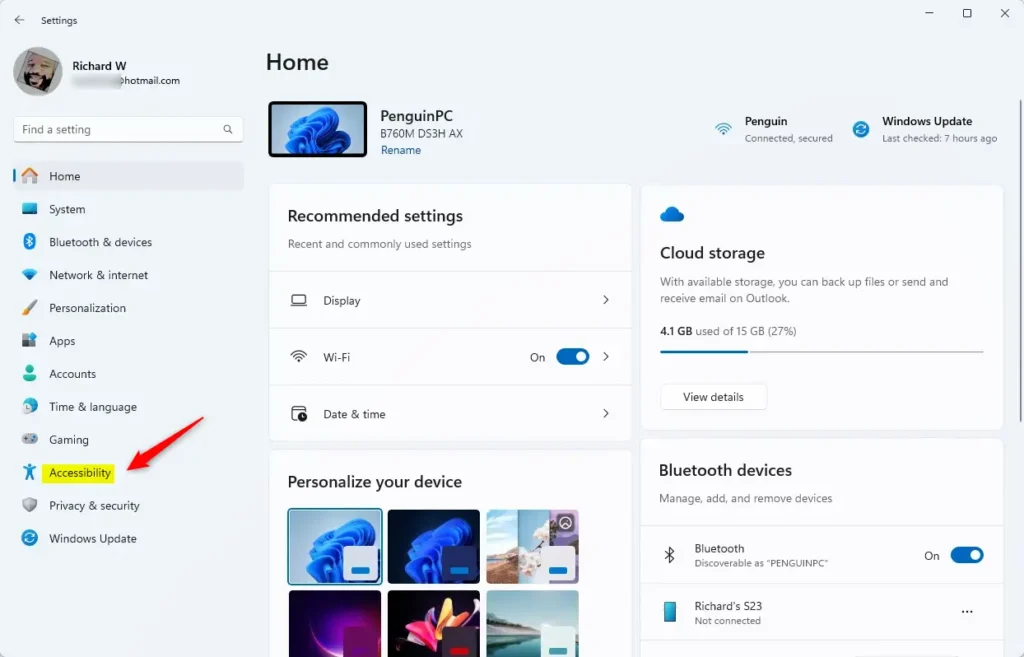
In Settings, click on Accessibility from the left menu.
The Accessibility page opens on the right, with groups such as Vision, Hearing and Interaction.
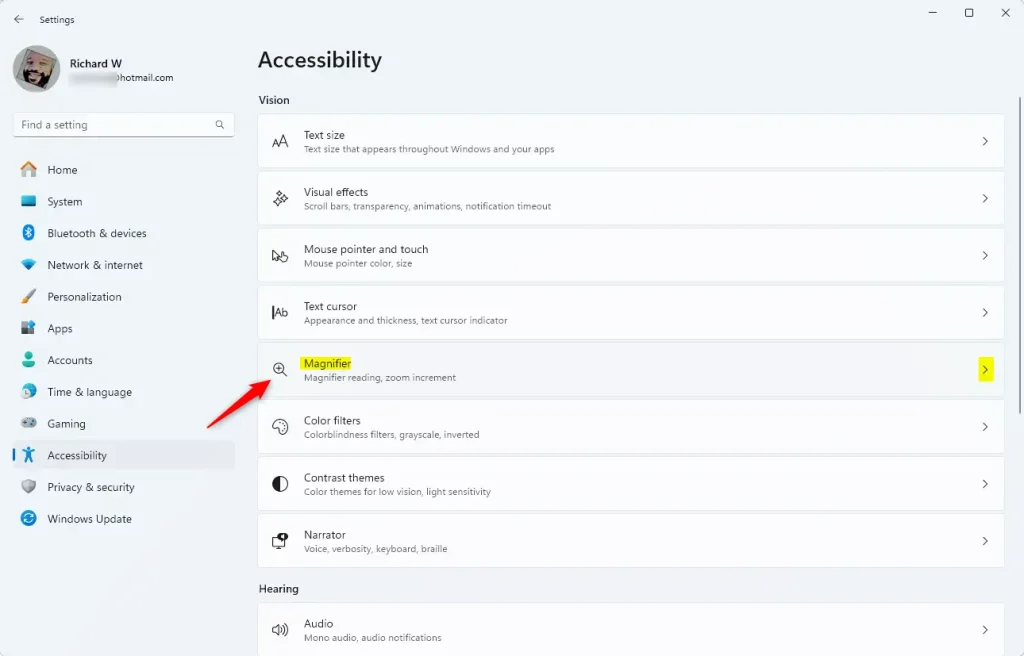
On the right side, find and click Magnifier to open its options.
Magnifier is listed under the Vision group. You should now see the Magnifier on/off switch and its other options.
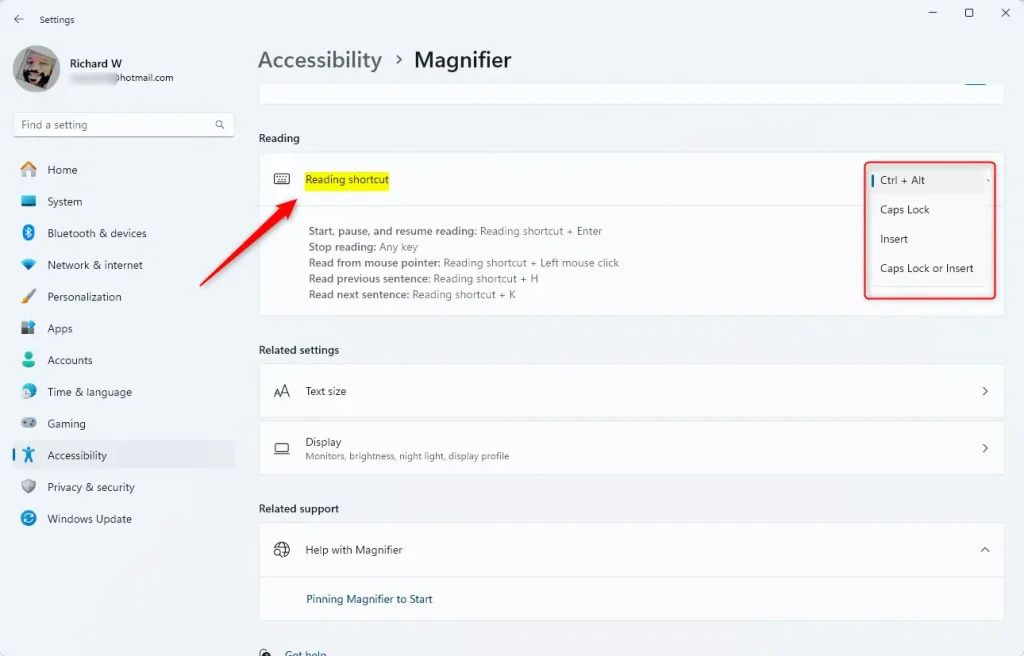
Look for the Reading shortcut section.
You may need to scroll down to find it. The exact layout and wording of Magnifier’s options can differ between Windows 11 versions. If you can’t find this section, update Windows through Windows Update and check again. If it still isn’t there, use the Registry method further down.
Click the drop-down menu under “Modifier key” and pick the key combination you want.
The menu closes and your choice is shown in the box. Windows applies it straight away, so you don’t need a separate Save button.
Close the Settings app when done.
Test the new reading shortcut with Magnifier running. To undo the change, go back to the same drop-down and select the original Ctrl + Alt combination.
Here are some screenshots to help you find these settings:
How to Change Magnifier Reading Keys Using the Registry (Advanced)
You can also change the reading keys with Registry Editor, which is a database of system settings. Use it when the Settings app doesn’t offer the option you need. The method means finding the right key in the Registry and setting a value directly.
Registry Editor works on both Windows 11 Home and Pro. You need an administrator account, and you will probably see a User Account Control prompt when you open it.
If the Settings app lacks the options you need, the Registry gives you more control over how the keys work.
For a quick Registry backup, open Registry Editor, click File, choose Export, select All under Export range, and save the file somewhere safe. To restore it later, double-click the saved .reg file. For a restore point, search for “Create a restore point” in the Start menu. If System Restore is turned off on your PC, you will need to turn it on first.
Here’s how to do it:
Open the Registry Editor:
- Press Win+R, type
regedit, and press Enter. Click Yes if User Account Control asks for permission.
The Registry Editor window opens, with a folder tree on the left.
- Press Win+R, type
Navigate to this folder path:
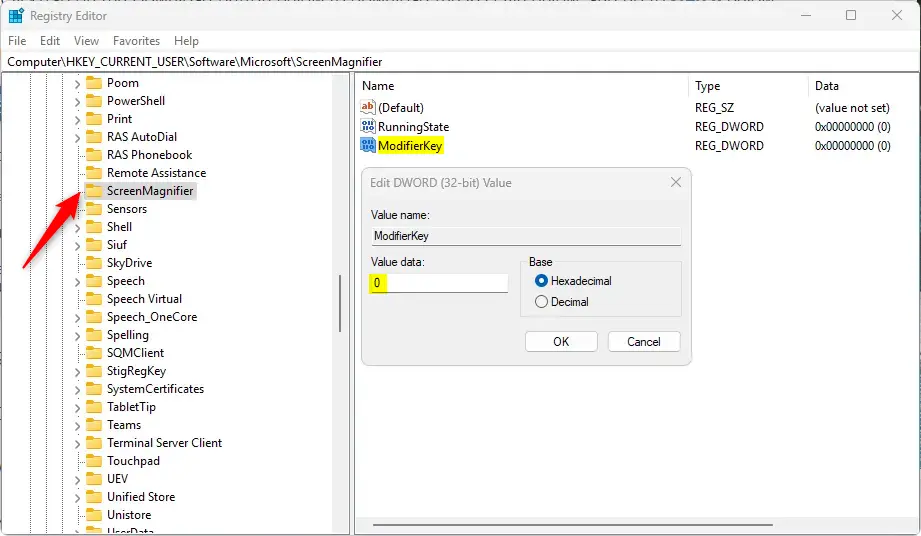
Computer\HKEY_CURRENT_USER\Software\Microsoft\ScreenMagnifierYou can expand the folders one by one in the left pane. You can also click the address bar at the top of the window, paste the path, and press Enter.
Right-click the ScreenMagnifier folder, select New DWORD (32-bit) Value.
A new entry appears in the right pane with its name highlighted for editing. If the ScreenMagnifier folder doesn’t exist, right-click its parent folder, choose New Key, and name it ScreenMagnifier. Then create the value inside it.
Name the new DWORD ModifierKey.
Type the name exactly as shown and press Enter. If you made a typo, right-click the entry and choose Rename.
Double-click ModifierKey and enter one of these values:
- 1 = Ctrl + Alt (default)
- 2 = Caps Lock
- 4 = Insert
- 6 = Caps Lock or Insert
Type the number into the Value data box. These small numbers are the same in decimal and hexadecimal, so the Base setting doesn’t matter here.
Click OK and close the Registry Editor.
The new number should now show in the Data column next to ModifierKey.
Restart your computer to apply the changes.
After you sign back in, start Magnifier and test the new reading shortcut. To undo the change, set ModifierKey back to 1, or right-click ModifierKey and choose Delete. You can also import the backup you made earlier.
Summary
- Windows Magnifier helps you see things more clearly on your screen.
- You can change the reading shortcut keys easily in the Settings app, under Accessibility Magnifier.
- If you want more options, you can edit the Registry. Just be careful when you do, and restart afterwards.
- The default modifier key is Ctrl + Alt, but you can switch it to Caps Lock or Insert.
- Always back up the Registry or create a restore point before making big changes.
- Changing these keys can make using Magnifier easier and more comfortable for you.
Windows Magnifier reading keys give you control over text-to-speech shortcuts. You can keep the default Ctrl and Alt combination or switch to keys like Caps Lock and Insert. Use the Settings app first, since it is the simplest and safest route. If the option isn’t available there, use the Registry Editor, with a backup in place and a restart when you finish.
Have a question about this guide?
Answered by AI from this guide. Good questions may be added to this page — please don't include personal details.
Did this guide fix your problem?

About the Author
Richard
Tech Writer, IT Professional
Richard is a writer at Geek Rewind who turns complex IT tasks into clear, step-by-step guides. He draws on years of hands-on experience in system administration and enterprise IT operations, focusing on Windows, Linux and WordPress: the problems people actually run into, and the fixes that work. His server and WordPress guides come from systems he runs himself. Richard builds and maintains the platform behind Geek Rewind, from its Ubuntu servers and Nginx configuration to its custom WordPress plugins. Many new tutorials start with readers' questions, and he's always glad to answer them in the comments.
No comments yet — be the first to share your thoughts!