Multiple Monitors in Windows 11: Setup, Layout and Mirroring

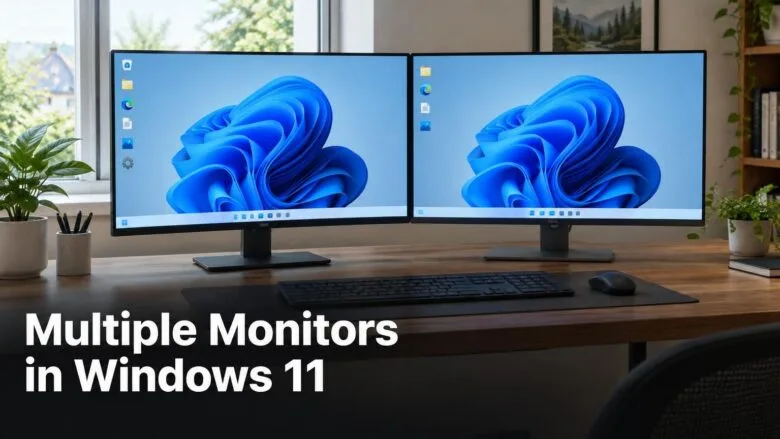
Multiple monitors in Windows 11 let you spread apps across two or more screens, or show the same picture on all of them. Windows manages each screen separately, with its own resolution, scale and taskbar, so a setting that suits one screen can look wrong on another. Most of the controls sit in Settings System Display, and the Win+P shortcut opens the quick menu for choosing how screens work together. The guides below take you through connecting a screen, choosing what it shows, arranging windows across screens, and projecting to a TV or another PC.
Connect a second screen and set it up
Start here if you have just plugged in a monitor and Windows has not yet shown it the way you expect. These guides cover the physical setup, finding each screen in Settings, and telling the screens apart so you can arrange them correctly. Setting the primary screen also belongs here, because it decides where the taskbar and new windows appear by default.
 How to Add Multiple Monitors in Windows 11 How to add multiple monitors to your Windows 11 PC: match the cable, press Windows + P, choose Extend. Includes fixes for a screen Windows misses.
 How to Setup External Monitors in Windows 11 Set up external monitors in Windows 11 with our step-by-step guide. Enhance your productivity by extending your display across multiple screens!
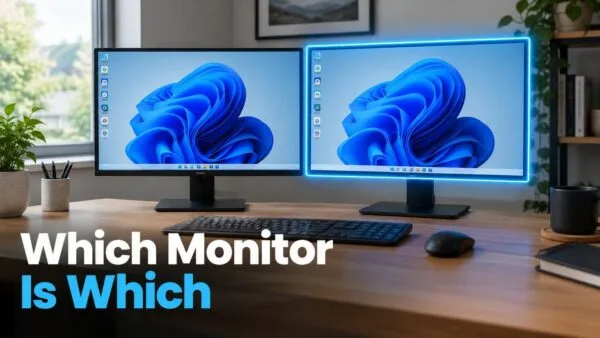 Identify Which Monitor Is Which in Windows 11 Display Settings Windows 11 numbers each monitor in Display settings, but the numbers don't match your desk. Use the Identify button to flash a number on each screen, then…
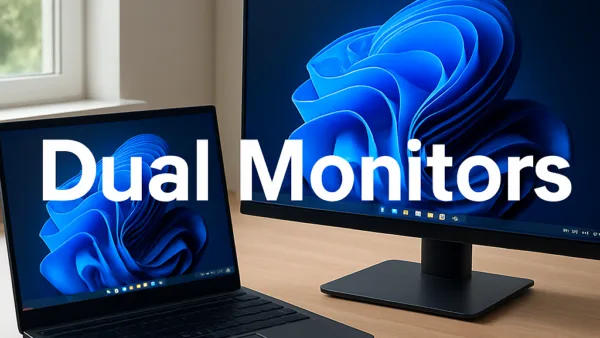 How to Configure Multiple Monitors Correctly in Windows 11 Display Settings Connect a second screen and stop your mouse cursor from getting stuck. Map physical monitor layouts correctly in Windows 11 display settings.
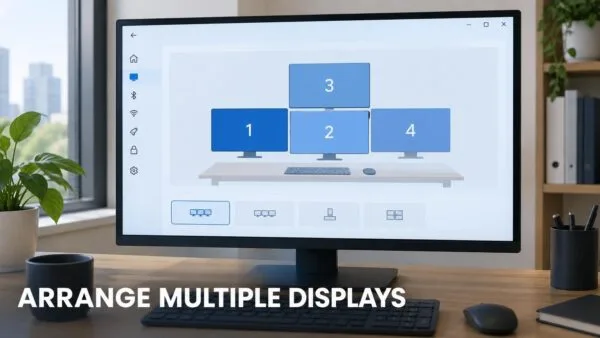 How to Arrange Multiple Displays in Windows 11 Display Settings Drag the numbered display boxes in Display Settings to match your monitor layout. Right-click the desktop, select Display settings, then arrange displays…
 How to Manage Primary and Secondary Display Arrangements in Windows 11 Desktop icons scattering across monitors? Set your main screen display in Settings > System > Display to fix alignment and resolution issues.
Show the same or different content on each screen
Once the screens are connected, you decide whether they show one shared picture or separate content. Mirroring copies the same image to every screen, while extending gives each screen its own part of the desktop. The background guides cover the case where you want a different wallpaper on each screen.
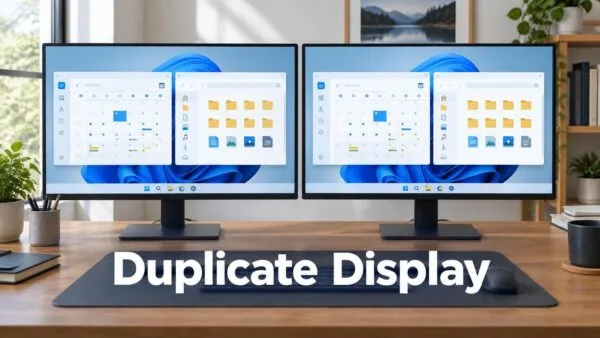 How to Duplicate or Mirror Your Display in Windows 11 Mirror your screen with Windows key + P or Settings. Works on Home and Pro editions of Windows 11 25H2 or 26H2, no restart needed.
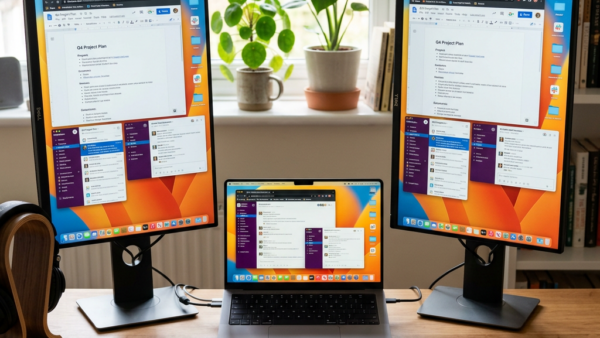 How to Choose a Display Mode on Your Windows 11 PC Master Windows 11 display modes! Learn to Duplicate, Extend, or use Second screen only for presentations & enhanced productivity. Unlock your multi-monitor…
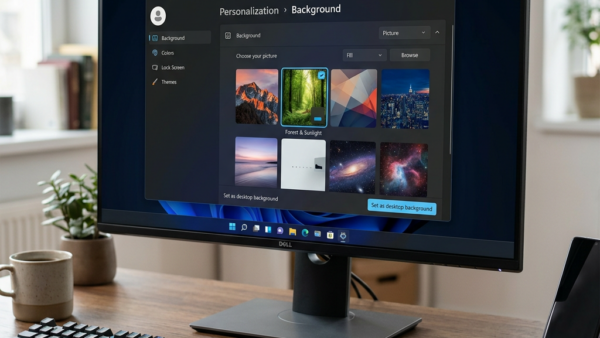 How to Use Different Backgrounds on Each Display or Desktop on Windows 11 Personalize your Windows 11 setup by learning how to use different backgrounds on each display or virtual desktop. Make your multi-monitor experience…
 How to Change Backgrounds on Each Monitor in Windows 11 Transform your workspace with different wallpapers in Windows 11! Discover how to set unique backgrounds on each monitor for a personalized experience.
Arrange windows and the taskbar across screens
These guides help when windows end up on the wrong screen, or when a screen disappears and takes its windows with it. They also cover taskbar behavior, moving the cursor between screens, and keeping content on one screen while you zoom in with Magnifier. Read them after your screens are set up, since they depend on the arrangement you chose.
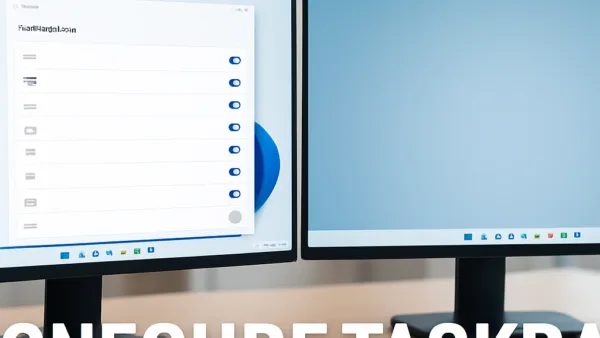 How to Configure Taskbar Behavior on Multiple Monitors in Windows 11 Configure taskbar on multiple monitors in Windows 11: extend your desktop, then toggle Show my taskbar on all displays in Settings > Personalization >…
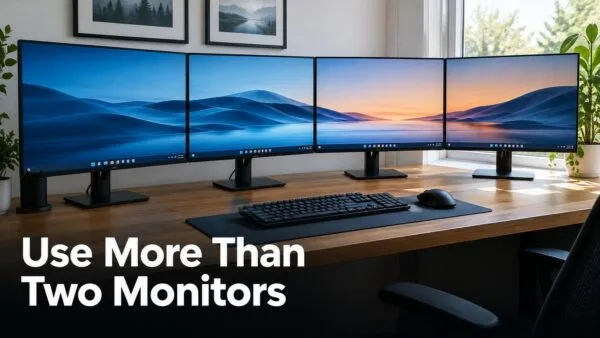 Use More Than Two Monitors Without Losing Windows in Windows 11 Connecting a third or fourth monitor depends on your graphics outputs, not Windows. Set up Extend these displays in Settings > System > Display, then fix a…
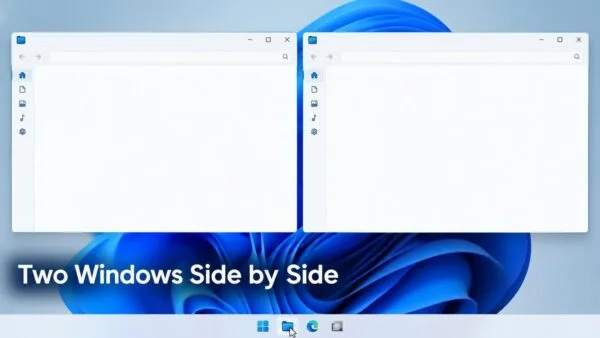 Open Two Windows of the Same App Side by Side in Windows 11 Open two windows of the same app side by side in Windows 11: Shift-click the taskbar icon, then use Windows + Left and Right arrow to snap them.
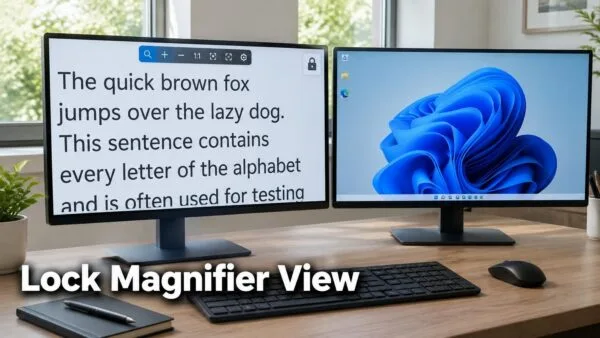 How to Lock the Magnifier View on One Screen in Windows 11 Magnifier view jumping to your other monitor? Lock it to one screen in Windows 11 with Ctrl + Windows + K. Needs an Insider preview build; stable releases…
 How to Turn On or off Minimize Windows When a Monitor Is Disconnected in Windows 11 Manage how Windows 11 handles your open programs when a monitor is disconnected.
 How to Enable or Disable Remembering Window Positions on Multiple Screens in Windows 11 Manage your Windows 11 multiple screens by turning on or off the feature that remembers window positions, keeping your workspace organized.
 How to Ease Cursor Movement Between Displays in Windows 11 Adjust cursor movement between displays on Windows 11 with the new feature in build 22557.
Send your screen to a TV or another PC
Use these guides when you want to show your screen on a device that is not plugged in with a cable, such as a TV or a second Windows PC. They cover the Projecting settings, the PIN that protects incoming connections, and the Windows Wireless Display app. Check the projecting settings on the receiving device as well, because both sides have to allow the connection.
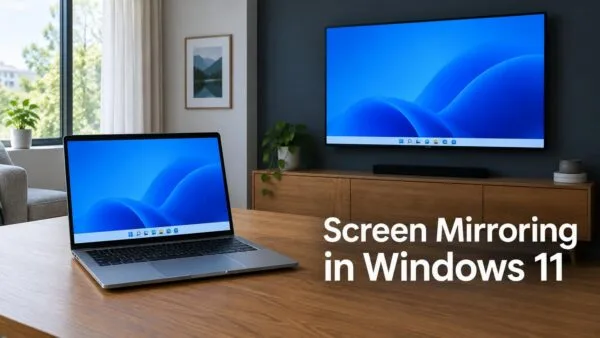 How to Use Screen Mirroring in Windows 11 Screen mirroring in Windows 11 starts with Windows + K, which opens the Cast pane. Covers Miracast checks with dxdiag, wireless TV and projector setup…
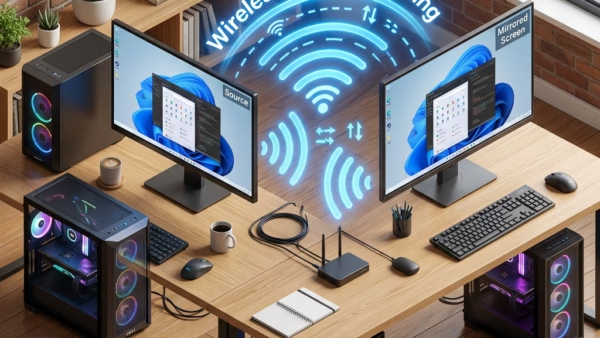 Share Your Screen Wirelessly: Casting to Another Windows PC Cast your Windows screen wirelessly to another PC using the built-in Connect app. Turn your second computer into a wireless display.
 How to Cast to an External Display from Windows 11 Cast your Windows 11 display to an external monitor or TV wirelessly using Miracast.
 How to Adjust Projecting Settings in Windows 11 Adjust projecting settings in Windows 11 to control how often devices can connect. Choose between 'First time only' or 'Every time' for seamless mirro...
 How to Enable or Disable PIN for Projecting in Windows 11 Control your Windows 11 PC's security by managing the 'Require PIN for projecting' setting. Enable or disable it to restrict device access.
 Enable Wireless Projection on Windows 11 Enable wireless projection on Windows 11. Control when your PC is discoverable for projection based on power source status with simple steps.
 How to Enable or Disable Projecting to This PC in Windows 11 Enable or disable Projecting to this PC in Windows 11. Follow simple steps to manage wireless display settings for seamless device mirroring.
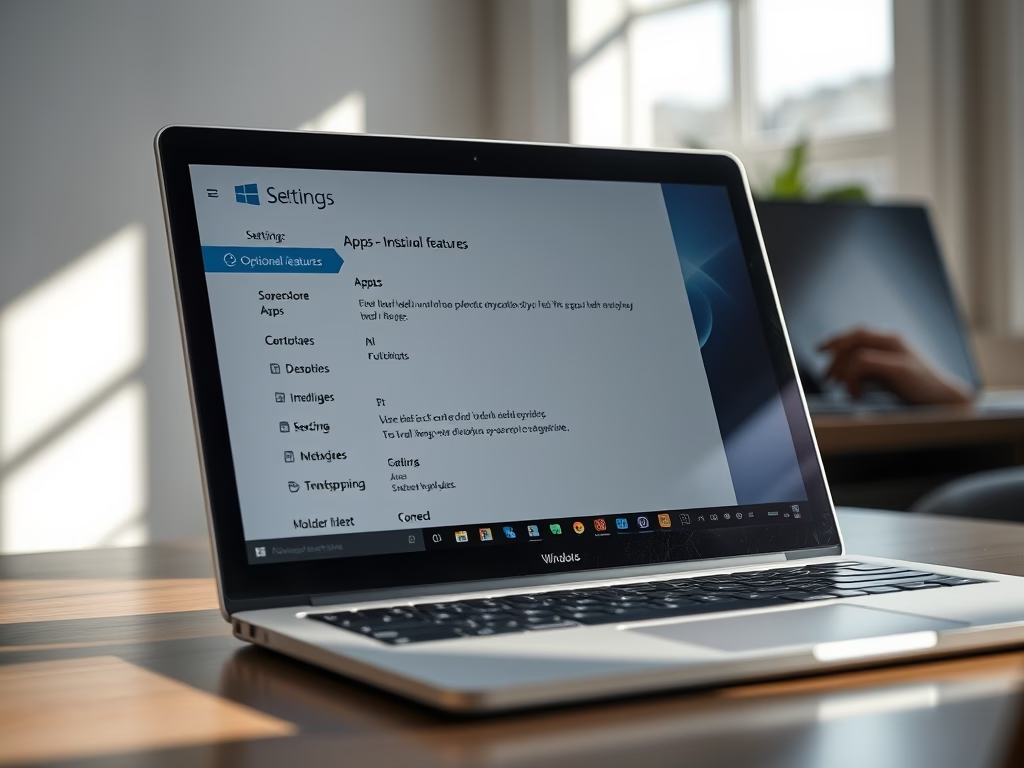 How to Install Windows Wireless Display App on Windows 11 Install the Windows Wireless Display app on Windows 11 to wirelessly project screens from various devices.
Have a question about this guide?
Answered by AI from this guide. Good questions may be added to this page — please don't include personal details.

About the Author
Richard
Tech Writer, IT Professional
Richard is a writer at Geek Rewind who turns complex IT tasks into clear, step-by-step guides. He draws on years of hands-on experience in system administration and enterprise IT operations, focusing on Windows, Linux and WordPress: the problems people actually run into, and the fixes that work. His server and WordPress guides come from systems he runs himself. Richard builds and maintains the platform behind Geek Rewind, from its Ubuntu servers and Nginx configuration to its custom WordPress plugins. Many new tutorials start with readers' questions, and he's always glad to answer them in the comments.
No comments yet — be the first to share your thoughts!