Use More Than Two Monitors Without Losing Windows in Windows 11

- 28 steps
- Needs administrator rights
- Includes a restart or sign-out
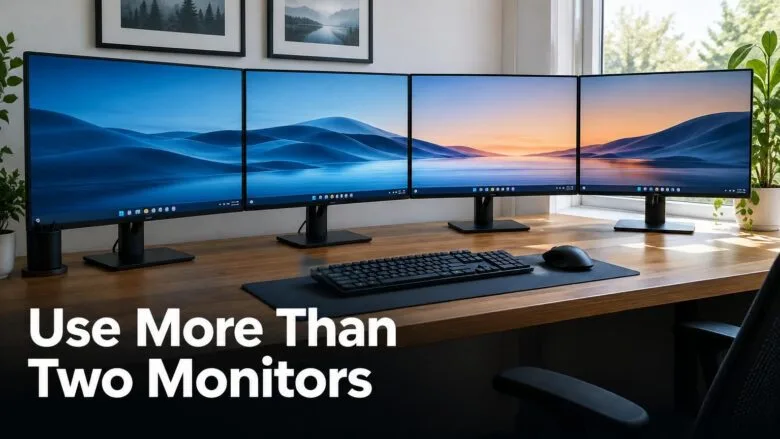
To connect more than two monitors in Windows 11, plug each display into its own video output on your PC or dock, then choose Extend these displays in Settings System Display. Extend means Windows treats every screen as one large desktop, so you can drag windows from one monitor to the next.
Newer versions of Windows 11, such as 23H2 and 24H2, also include two checkboxes under Multiple displays that stop windows from vanishing when a screen sleeps or unplugs. They are Remember window locations based on monitor connection and Minimize windows when a monitor is disconnected.
This post covers the hardware limits that decide whether a third or fourth screen works, the full setup steps, and how to bring back a window that has gone missing. For a general overview of display modes, see the guide to setting up and using multiple monitors with Windows 11.
To connect more than two monitors in Windows 11, plug each display into its own video output on your PC or dock, then open Settings System Display and choose Extend these displays. Your graphics card’s output count sets the limit, not Windows. Use a dock or DisplayPort daisy-chaining if your PC has too few ports.
What You Need Before You Connect More Than Two Monitors
Windows 11 has no built-in limit of two screens. The limit comes from your graphics hardware, your cables, and your dock. Spend a few minutes on this section first, because it explains most “my third monitor is black” problems.
Check How Many Outputs Your Graphics Hardware Supports
Look at the back of your PC for video ports: DisplayPort, HDMI, USB-C, DVI, or VGA. Each monitor normally needs its own port. The number of screens a graphics card can drive at once depends on the model, so check the maker’s specification page for the maximum number of simultaneous displays. This guide does not quote a number, because it varies by card and by integrated graphics generation.
On a laptop, the built-in screen counts as one display unless you close the lid. Check the laptop’s specification for how many external screens it supports. A USB-C or Thunderbolt port can carry video only if it supports DisplayPort output, which the port’s label or the manual confirms.
Choose the Right Cable, Dock, or Adapter
If your PC has fewer outputs than you need, you have four realistic options:
- A Thunderbolt or USB-C dock with two or more video outputs. The laptop port must support the number of displays the dock advertises.
- DisplayPort daisy-chaining. This means connecting one monitor to the next in a chain, using one cable from your PC. The chain uses Multi-Stream Transport (MST, a DisplayPort feature that sends several video signals down one cable). Your graphics output must support DisplayPort 1.2 or later, and each monitor except the last needs a DisplayPort out port. Some monitors require you to switch MST on in their on-screen menu.
- A USB display adapter. These use their own driver. Installing the driver requires an administrator account.
- A second graphics card in a desktop with a free slot.
Do not buy an HDMI splitter for this. A splitter copies one signal to several screens, so every monitor shows the same image. It cannot give you extra desktop space.
Connect More Than Two Monitors in 🪟 Windows 11
Follow these numbered steps to connect three or more monitors, line them up with your desk, and turn on the settings that keep your windows in place. None of them need administrator rights, unless you install a driver along the way.
- Count the free video outputs on your PC or dock. Make sure the total matches the number of monitors, and that each output supports the cable type you plan to use.
- Connect each monitor to its own output. Use a different port for every screen. If a cable feels loose, reseat it fully, because a half-seated cable is a common cause of a missing display.
- Turn on every monitor and select the correct input. Use the monitor’s on-screen menu to pick HDMI, DisplayPort, or USB-C to match the cable. The screens may flicker or stay black for a few seconds while Windows detects them.
- Press Win+I to open Settings. The Settings window opens.

Start Menu - Click System, then Display. The path is Settings System Display. A row of numbered rectangles appears at the top, one for each screen Windows detects.
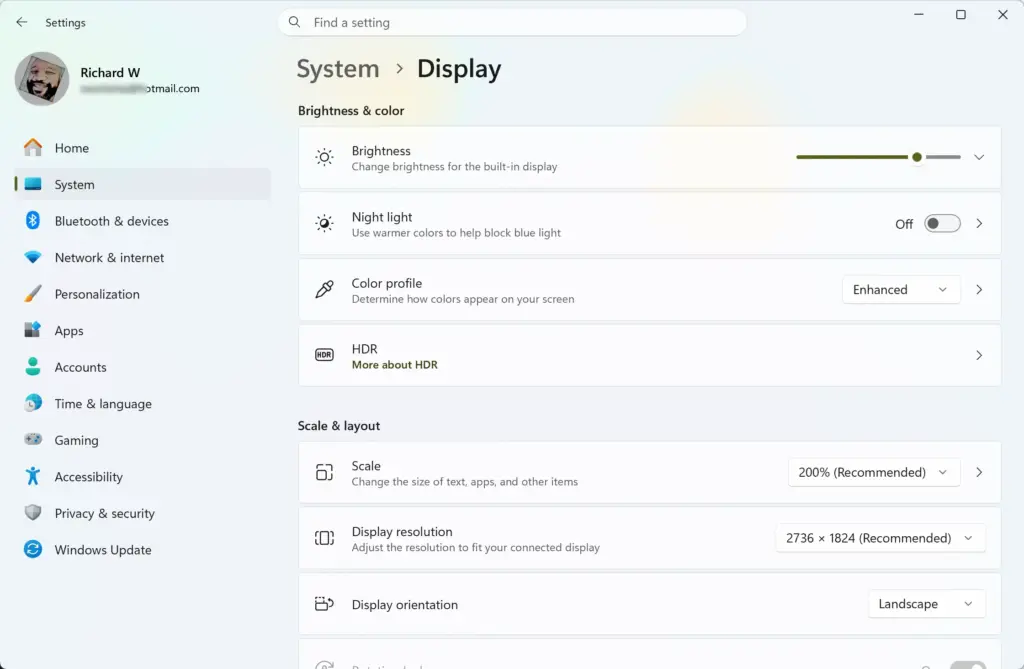
Settings › System › Display - Click Identify below the rectangles. A large number appears on each physical monitor, so you can match it to its rectangle. If you see fewer rectangles than monitors, go to the next step. If the counts match, skip it.
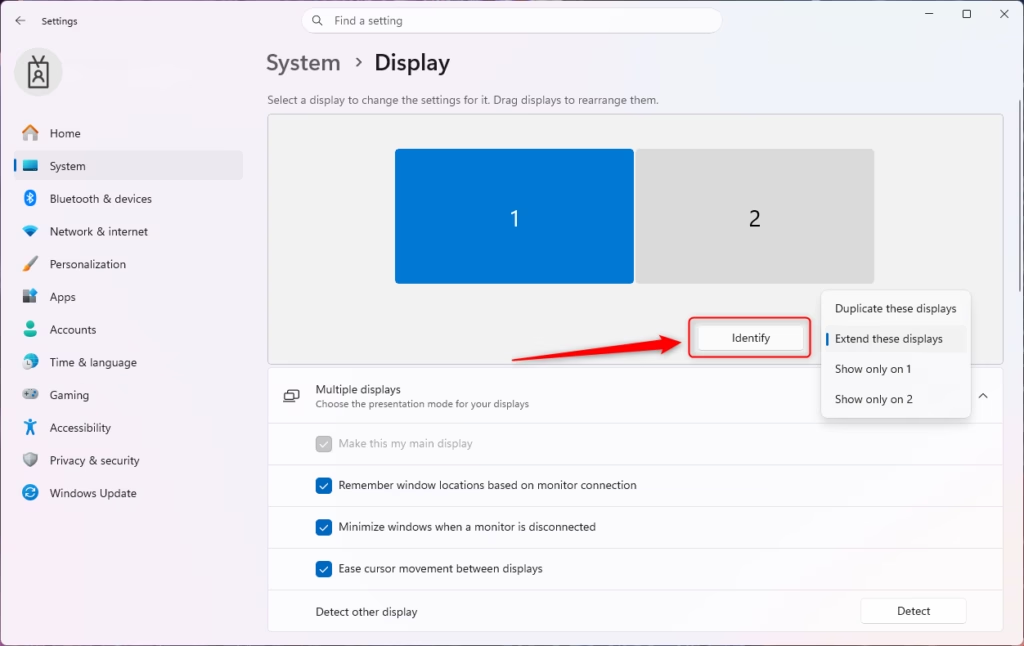
Windows 11 multiple displays identify screen numbers. - Expand Multiple displays and click Detect. This button asks Windows to look for screens it has not found. If the missing monitor still does not appear, see the troubleshooting section below.
- Select Extend these displays from the dropdown next to Multiple displays. Your desktop now spreads across all screens.
- Drag each numbered rectangle to match your real desk layout. Place them left, right, above, or below each other the same way the monitors sit. Windows uses this layout to decide where the mouse pointer crosses from one screen to the next.
- Click Apply after you arrange the rectangles. The screens may flicker briefly. Move your mouse across all monitors to confirm it travels in the right direction.
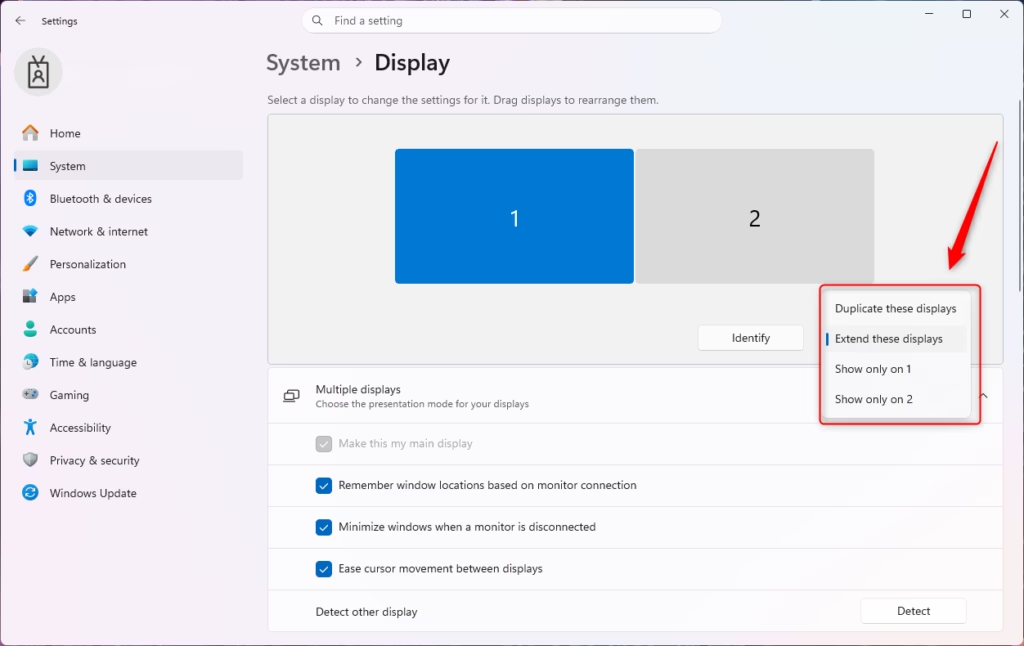
Windows 11 multiple displays project options for screen duplication. - Click the rectangle of the screen you want as your main one. The main display holds the Start button and the system clock by default.
- Tick Make this my main display. The checkbox is greyed out if that screen is already the main display, which is normal.
- Check Scale and Display resolution for each rectangle. Click each monitor in turn. Windows picks a recommended resolution and scale, and the label (Recommended) marks it. Keep it unless text is too small to read.
- Tick Remember window locations based on monitor connection under Multiple displays. This tells Windows to remember where your windows sit for a given set of connected monitors, and to put them back when the same set returns.
- Tick Minimize windows when a monitor is disconnected. Windows then minimizes windows from a lost screen instead of piling them onto the remaining screens. They return to their spots after the monitor reconnects.
- Open Settings Personalization Taskbar and expand Taskbar behaviors. This section controls how the taskbar appears on each screen.
- Tick Show my taskbar on all displays. A taskbar now appears on every monitor.
- Choose an option from When using multiple displays, show my taskbar apps on. All taskbars shows every open app on every screen. The other options show each app only on the taskbar where its window sits, which keeps each screen tidy.
- Drag a window to each monitor to test the layout. Then press Win+Shift+← arrow or Right arrow to move the active window to the neighbouring screen with the keyboard.
If you do not see the two window-memory checkboxes, confirm that Windows detects more than one display and run Windows Update. Older Windows 11 builds may not include them. Windows 11 Home and Windows 11 Pro handle multiple monitors the same way, so the edition is not the cause.
Stop 🪟 Windows 11 From Losing Windows When Monitors Change
A lost window almost always means Windows believed a monitor disappeared and moved or hid the window. Knowing the cause helps you prevent a repeat.
Why Windows Go Missing
Windows removes a screen from the desktop whenever the signal drops. Common triggers include these:
- A monitor going to sleep or being switched off. Some monitors, especially on DisplayPort, report themselves as disconnected when they power down.
- A dock being unplugged or losing power.
- A loose or damaged cable.
- A graphics driver update or reset.
- Closing a laptop lid while external screens are connected.
- Connecting through Remote Desktop, which changes the display setup for the session.
When a screen vanishes, Windows moves its windows to a remaining screen. With the two checkboxes from the steps above ticked, Windows minimizes those windows instead and puts them back after the screen returns. If an app saves its own window position, it may still reopen off-screen after a layout change.
The best fix is to remove the trigger. Turn off or lengthen the monitor’s power saving timer in its on-screen menu if it keeps dropping out. Use a firm cable connection. Keep the dock on a stable power source.
Bring a Lost Window Back
Use these steps when a window is open but you cannot see it. Try these fixes in order, starting with the one that changes the least.
- Click the app’s icon on the taskbar. If the window was minimized, it restores. Check every monitor.
- Press Win+Shift+← arrow or Right arrow. This moves the active window to the next monitor in that direction.
- Press Alt+Space, then M, then any arrow key. This starts keyboard move mode for the active window. Move the mouse or tap the arrow keys until the window comes into view, then press Enter or click to drop it. Use this when the window sits fully off-screen.
- Press Win+P and choose PC screen only. Windows pulls every window onto your main display. Press Win+P again and choose Extend, then drag windows back to where you want them. This resets your whole layout, so use it last.
For arranging apps neatly once they are back, see how to open two windows of the same app side by side in Windows 11.
Fix a Monitor That Windows Does Not Detect
When Windows shows two rectangles but you connected three or more monitors, work through these checks in order. Most of them take under a minute.
- Swap the cable and port for the missing monitor. Connect that monitor on its own to a known good port. If it works there, the original cable or port is at fault.
- Check the monitor’s input source in its on-screen menu. A monitor set to the wrong input shows “No signal” even when the cable is fine.
- Click Detect under Settings System Display > Multiple displays. Windows rescans for connected screens.
- Restart the PC with all monitors connected and powered on. Windows detects screens more reliably at startup than when you plug them in later.
- Open Settings Windows Update Advanced options Optional updates and look under Driver updates. Installing a driver needs an administrator account. If you prefer a manufacturer driver, download it from the NVIDIA, AMD, or Intel website for your exact graphics hardware.
The Windows 11 backup and recovery guide explains both. If the display problem began right after a Windows update and nothing above helps, a repair upgrade of Windows 11 (a reinstall that keeps your files and apps) fixes the system files.
If all checks pass and the third screen still stays blank, the cause is usually a hardware limit. Your graphics output, dock, or USB-C port may not support that many displays. The specification page for your model is the reliable source for this.
Why Options Are Missing or Greyed Out
Several display options change depending on how many screens Windows detects and how you are connected.
- Extend these displays is missing or the Win+P menu shows few choices. Windows sees only one display. Fix detection first.
- Make this my main display is greyed out. The Make this my main display option is greyed out because the selected screen is already your main display. Click a different numbered rectangle to make that screen the main one.
- Display settings look different inside Remote Desktop. A Remote Desktop session (a way to control your PC from another device) uses its own display setup. Change settings on the physical PC.
- Windows may resize windows when you move them between screens. The monitors use different Scale values. Set the same scale on each monitor, or accept the resize when screens differ in size and resolution.
How to Undo the Change
To return to a single screen, press Win+P and choose PC screen only. You can also open Settings System Display and set the Multiple displays dropdown to Show only on 1. The other monitors go dark, but they stay connected, so you can switch back to Extend these displays at any time.
To turn off the window-memory behaviour, clear the Remember window locations based on monitor connection and Minimize windows when a monitor is disconnected checkboxes in the same section. To stop showing the taskbar on every screen, clear Show my taskbar on all displays in Settings Personalization Taskbar.
What to Do Next
A graphics driver update or a Windows feature update can reshuffle your screen numbers and layout. If that happens, open Settings System Display, click Identify, and rearrange the rectangles again. Once the screens behave, learn to open two windows of the same app side by side to make use of the extra space.
Frequently asked questions
How to add multiple monitors to your 🪟 Windows 11 PC site:Microsoft.com?
To add multiple monitors to a Windows 11 PC, connect each screen to its own video port, then open Settings System Display. Choose Extend these displays from the Multiple displays list. Check that your graphics card or dock has enough ports for the number of screens you need, because that limit decides how many monitors work.
How to add multiple monitors to your 🪟 Windows 11 laptop?
To add monitors to a Windows 11 laptop, connect each external screen through a dock or a USB-C or HDMI adapter that supports multiple displays. Then open Settings System Display, select the external screen, and choose Extend these displays. Many laptops need a dock to run more than one external monitor, so check the laptop's specs first.
How to connect two monitors?
Plug one monitor into the video port on your PC and the second into another port, such as HDMI, DisplayPort, or USB-C. Then press Win+P and choose Extend. If the second screen stays blank, click Detect in Settings System Display. Windows then searches for connected screens.
How to identify two monitors 🪟 Windows 11?
Open Settings System Display, then click Identify. Windows shows a large number on each screen, so you can match each number to the right monitor. The numbers match the boxes in the layout diagram, so you can drag them to match how your monitors sit on your desk.
How to extend screen two monitors?
Press Win+P, then choose Extend. Your two screens then act as one wide desktop, so you can drag windows across the edge of one monitor onto the other. For exact control, open Settings System Display and choose Extend these displays from the Multiple displays list.
How to split screen between two monitors?
Windows cannot split one window across two monitors, so you split each monitor instead. Drag a window to the left or right edge of a screen, and Windows fills that half. Repeat on the other screen. Snap Layouts, opened by hovering over the Maximize button, offers more grid options.
Still have a question?
Answered by AI from this guide. Good questions may be added to this page — please don't include personal details.
Did this guide fix your problem?

About the Author
Richard
Tech Writer, IT Professional
Richard is a writer at Geek Rewind who turns complex IT tasks into clear, step-by-step guides. He draws on years of hands-on experience in system administration and enterprise IT operations, focusing on Windows, Linux and WordPress: the problems people actually run into, and the fixes that work. His server and WordPress guides come from systems he runs himself. Richard builds and maintains the platform behind Geek Rewind, from its Ubuntu servers and Nginx configuration to its custom WordPress plugins. Many new tutorials start with readers' questions, and he's always glad to answer them in the comments.
No comments yet — be the first to share your thoughts!