Repair Windows 11: Upgrade Without Losing Your Files

An in-place upgrade reinstalls Windows 11 over itself. Setup replaces the system files with fresh copies from the installation media and keeps your personal files, apps, and settings where they are. It’s the repair to try when sfc, DISM, and restarts haven’t fixed a broken system, and it’s far less work than a clean install.
Before you start, check three things:
- You need a Windows 11 ISO that matches your installed edition (Home or Pro) and language. If it doesn’t match, the option to keep your files and apps may be greyed out later.
- You need at least 20 GB of free space on your main drive.
- Windows must still start and let you sign in. Setup runs from inside the working desktop, so this method won’t help if you can’t reach it.
It’s still wise to copy anything irreplaceable to an external drive first. The process is designed to keep your data, but a power cut during an upgrade can cause real damage.
Perform an in-place upgrade using a Windows 11 ISO. Mount the ISO, run setup.exe, and select “Keep personal files and apps” when prompted to preserve your data. This process reinstalls Windows 11 while retaining your files and applications.
Steps to Repair 🪟 Windows 11 with an In-place Upgrade
The repair works by running setup.exe from a mounted Windows 11 ISO and choosing to keep your apps and data. First, get the PC ready so nothing interferes with the upgrade. Third-party security tools and BitLocker (the drive encryption feature) are the most common causes of failed or stuck upgrades.
- Turn off or uninstall any antivirus or security software you installed. Windows Security can stay on. Turn your own antivirus back on once the repair is finished.
- Turn off BitLocker encryption if it’s enabled. BitLocker is more often on than people expect, especially on newer laptops and on Pro editions, so check even if you never set it up yourself. Note your recovery key first in case you’re asked for it later.
- Download a full Windows 11 ISO file if you don’t have one. Pick the same language as your current Windows, and the same or a newer version than the one installed.
- Mount (open) the ISO file on your computer. If you’re on a laptop, plug in the charger and leave it connected for the whole process.
With your PC prepared, start the repair process:
1Open the 🪟 Windows 11 ISO file
- Open File Explorer and go to the folder where you saved the ISO file, usually Downloads.
- Double-click the ISO file to mount it as a virtual drive.
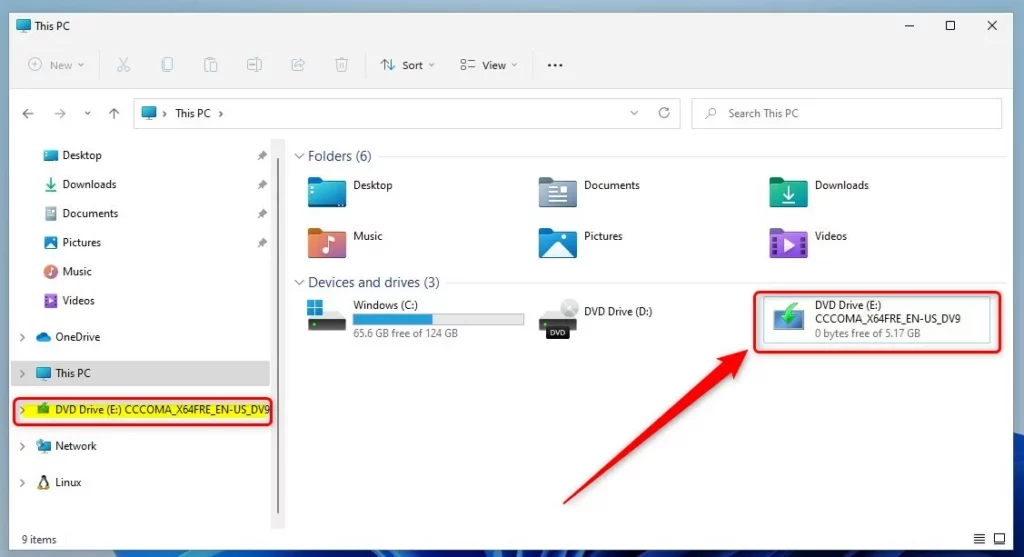
A new DVD drive with the Windows 11 label should now appear in the left pane of File Explorer . If double-clicking opens the ISO in another program, right-click it and choose Mount instead.
2Run the setup program
- Open the mounted drive and double-click setup.exe to launch the Windows installer.
- Click Yes when the User Account Control prompt appears. You need an administrator account to run Setup.
The Windows 11 Setup window should open after a short wait.
3Change update settings
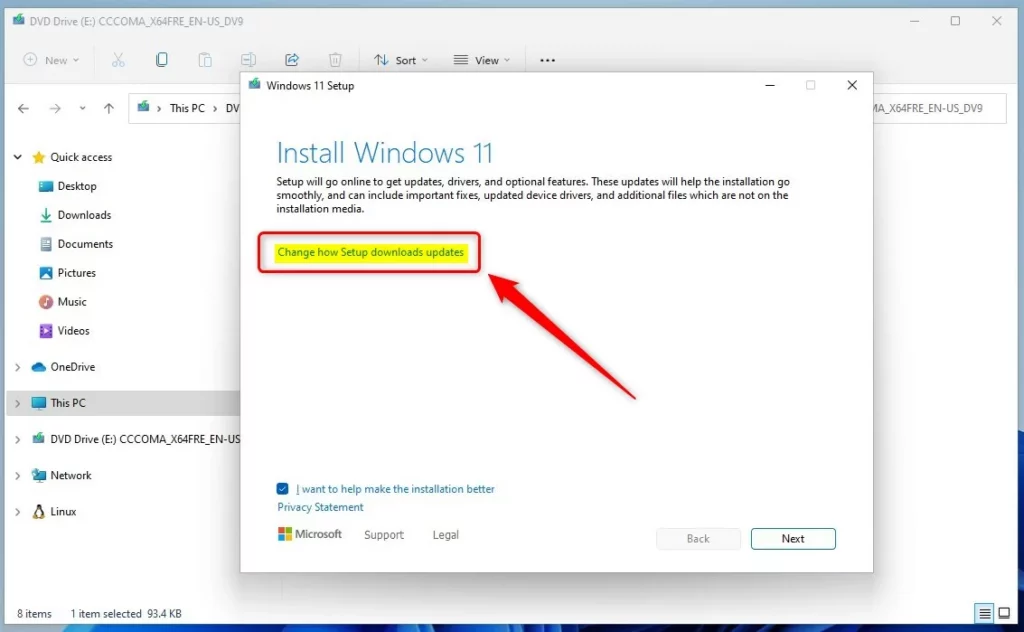
- On the opening setup screen, click the link labeled "Change how Setup downloads updates".
Don't click Next yet. You want to change this setting first.
4Choose Not right now for updates
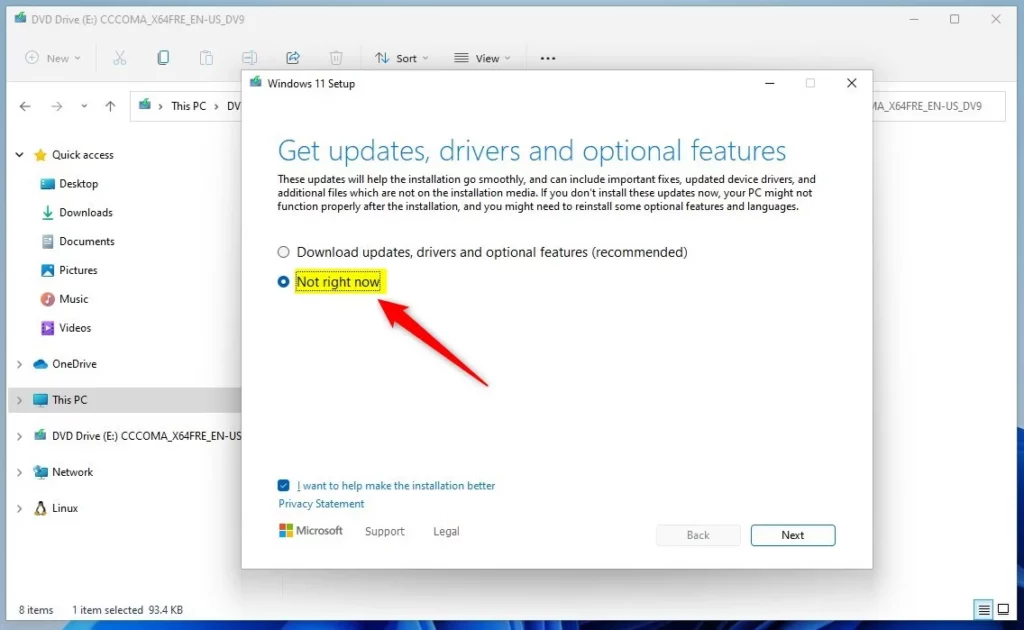
- Select Not right now, then click Next.
This stops the installer from downloading extra updates, drivers, or features during the repair. That keeps the process faster and more predictable. Run Windows Update once you're back on the desktop to catch up on anything missed.
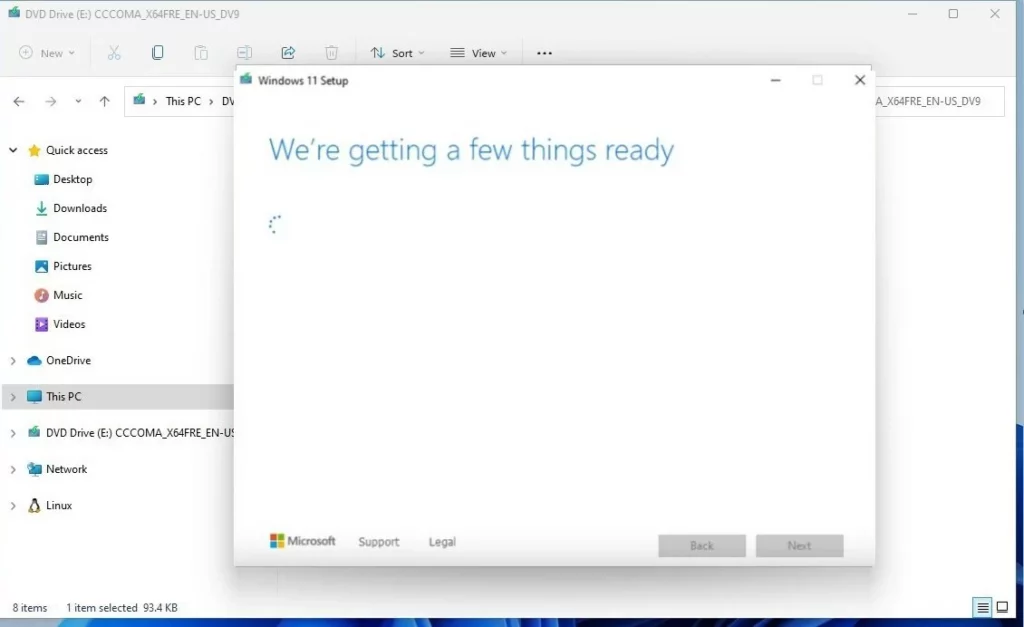
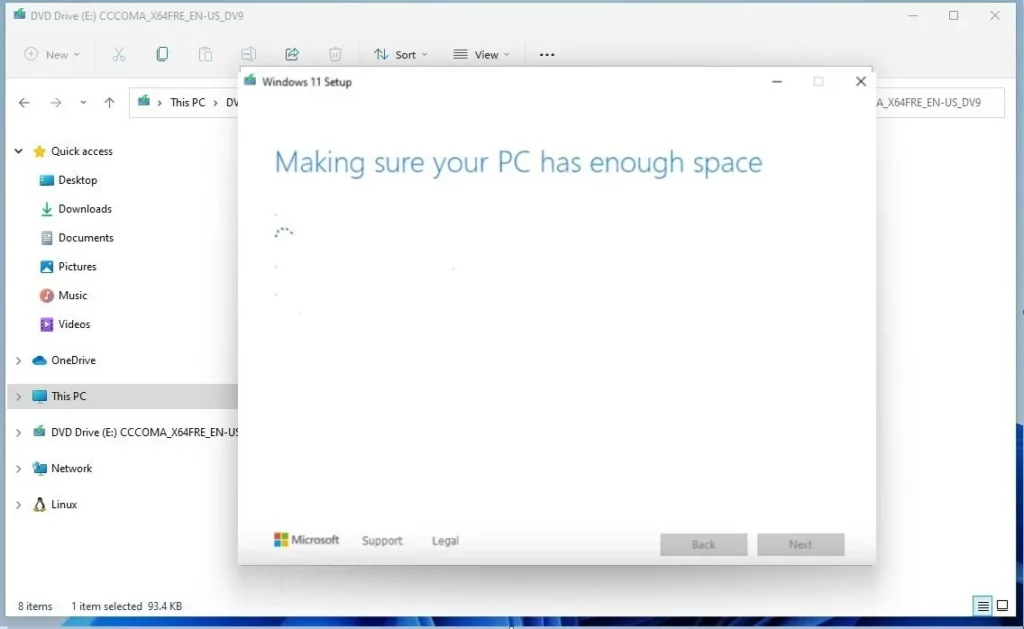
5Let Windows check your PC
Setup now checks your system automatically, including free storage and hardware requirements. This usually takes a minute or two. If it reports a problem, such as too little disk space, fix that first and run Setup again.
6Choose what to keep
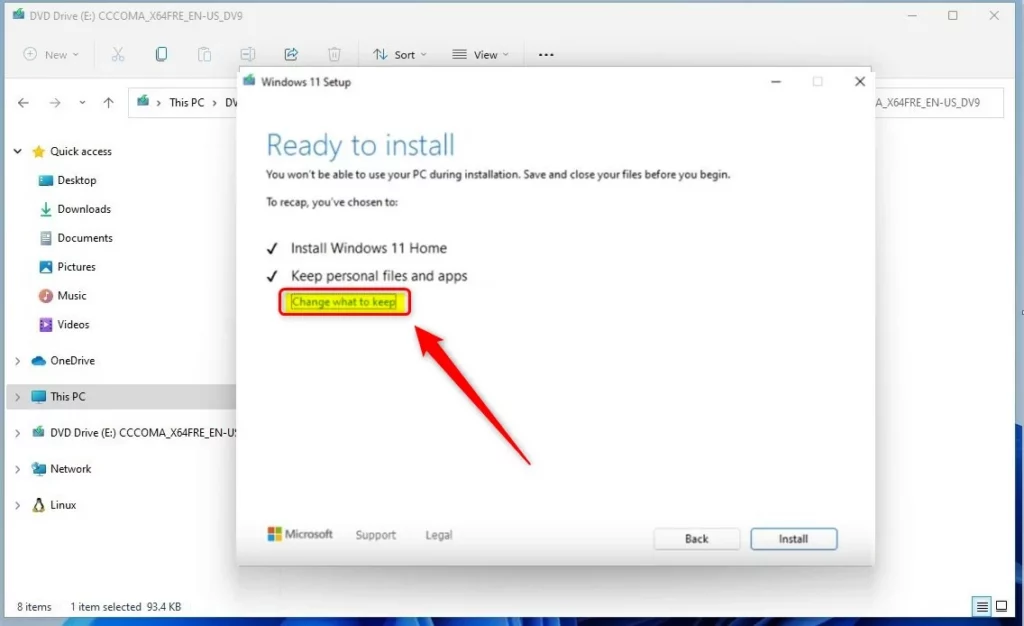
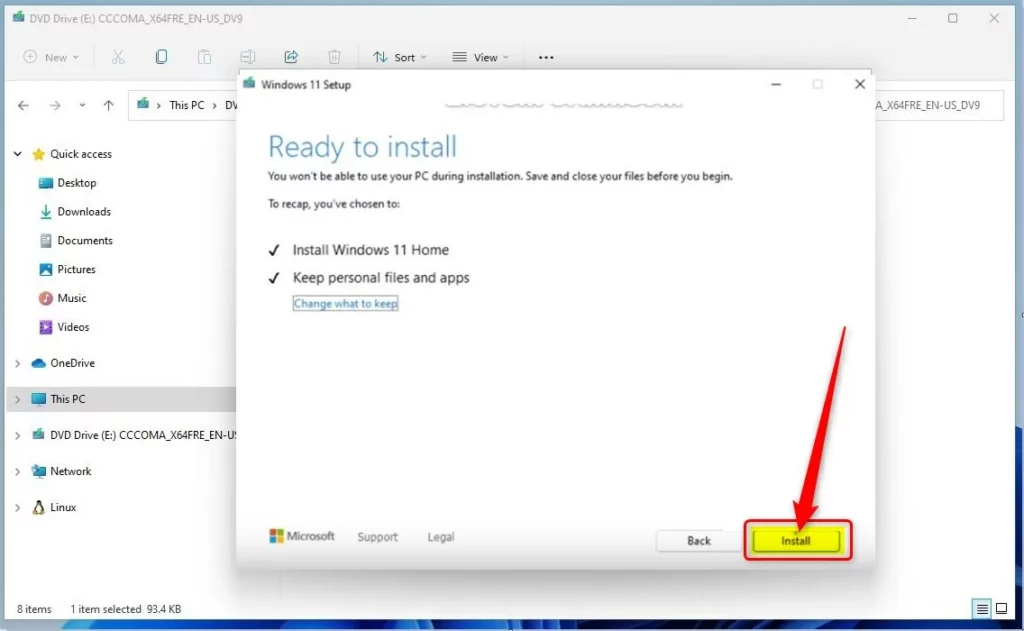
Setup may ask you to accept the license terms. When it reaches the Ready to install screen, check what it says it will keep before going on.
- Click Change what to keep on the Ready to install screen.
A screen with the keep options should open.
7Select Keep personal files and apps
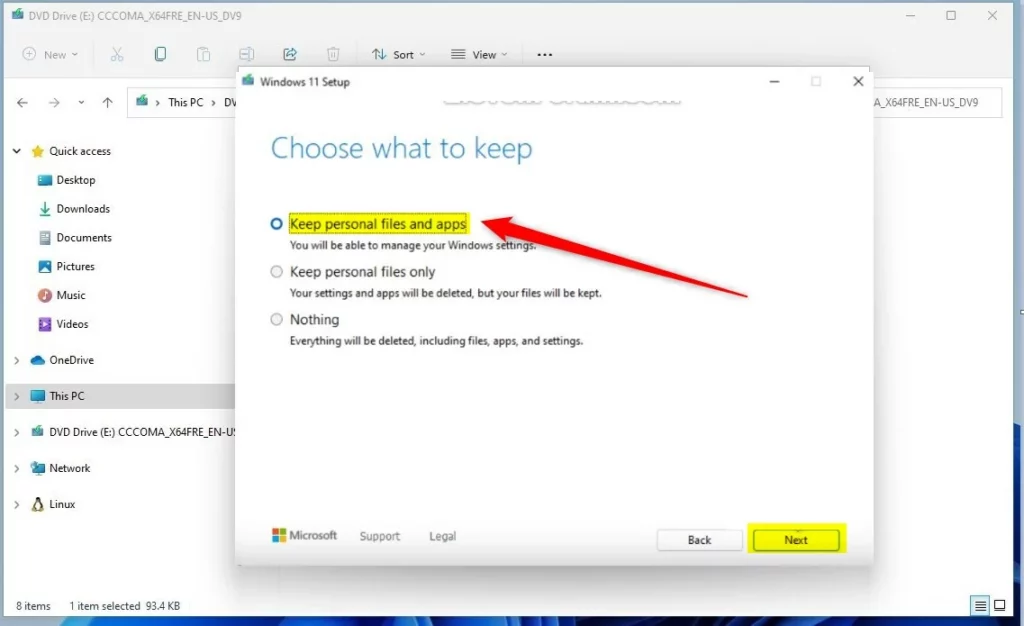
- Select Keep personal files and apps, then click Next.
This option keeps your documents, installed programs, and settings. If it's greyed out, the ISO probably doesn't match your system. Common causes are a different language, a different edition, or a build older than the one installed. Download a matching ISO and start again. Don't choose the other options as a workaround, because they remove your apps or your files.
8Start the upgrade
- Click the Install button to start the repair.
The screen switches to a full-screen progress display, and Setup begins copying files and replacing the system.
9Wait for the repair to finish
Windows now reinstalls itself while keeping your data. Your PC will restart several times, and the screen may go black or show a spinning circle for a while. That's normal. How long it takes depends on your hardware. A PC with an SSD may finish in under an hour, while an older hard drive can take much longer. Don't power off or unplug the PC during this time.

10Done!
When Setup finishes, sign in as usual. Your apps, files, and settings should all be there, and the problems caused by damaged system files should be gone. After you sign in, finish up:
- Turn your antivirus or security software back on, or reinstall it.
- Turn BitLocker back on if you had it enabled.
- Open Settings Windows Update and install any pending updates, since you told Setup not to download them.
- Test the problem that made you do the repair in the first place.
Summary
- This guide helps you repair Windows 11 without losing your files, apps, or settings.
- Doing an in-place upgrade is a safe way to fix Windows problems when nothing else works, as long as you use a matching ISO and keep the PC powered the whole time.
- If you have questions or want to share tips, feel free to leave a comment where you found this guide.
Was this guide helpful?

About the Author
Richard
Tech Writer, IT Professional
Richard is a writer at Geek Rewind who turns complex IT tasks into clear, step-by-step guides. He draws on years of hands-on experience in system administration and enterprise IT operations, focusing on Windows, Linux and WordPress: the problems people actually run into, and the fixes that work. His server and WordPress guides come from systems he runs himself. Richard builds and maintains the platform behind Geek Rewind, from its Ubuntu servers and Nginx configuration to its custom WordPress plugins. Many new tutorials start with readers' questions, and he's always glad to answer them in the comments.


No comments yet — be the first to share your thoughts!