How to Download Official Windows 11 ISO File from Microsoft

An official Windows 11 ISO file is a complete disc image of the operating system. You can use it to install, upgrade, or repair Windows on your computer. Microsoft offers this file for direct download on its website in a 64-bit version. It is roughly 5 GB, and newer releases can be larger, so check that you have enough free disk space before you start.
Keep the ISO saved on your hard drive and you can write it to a blank USB flash drive whenever you need it. That helps when you are building a new PC or fixing a broken system. You also skip the wait for automatic updates when the installer is already on hand.
Always download the ISO from Microsoft itself. Copies from third-party sites can be modified, and you cannot tell by looking at them. Below are four ways to get an ISO from Microsoft: the Media Creation Tool, a direct download, the Insider Preview page, and a Windows Server download.
Go to Microsoft’s Windows 11 download page, choose Windows 11 (multi-edition ISO) under Download Windows 11 Disk Image (ISO), pick your language, and click Download. Choose the 64-bit version for most PCs. The ISO is roughly 5 GB, so confirm you have enough free disk space first. The Media Creation Tool offers a second route.
Option 1Using the Media Creation Tool
The Media Creation Tool guides you through the setup and downloads the Windows 11 ISO directly from Microsoft. You download the official tool, run it on your PC, and tell it to save a disk image instead of writing to a USB drive. It runs on Windows 10 and Windows 11, and it needs an internet connection and enough free space for the file.
These steps save a Windows ISO file to your PC using the Media Creation Tool.
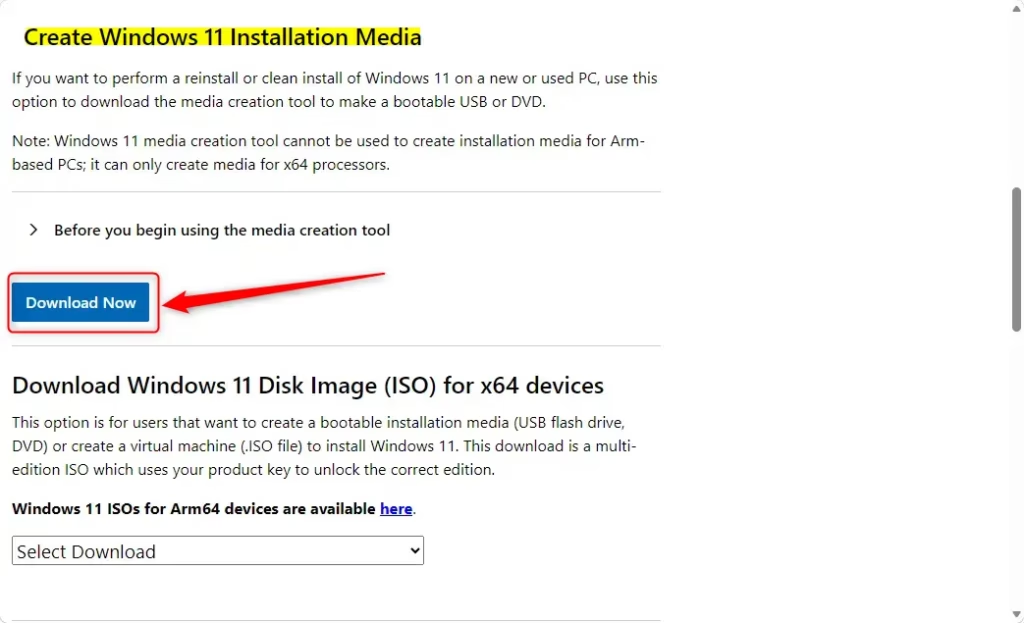
- Click Download Now under “Create Windows 11 Installation Media” on the Microsoft website. Download Your browser starts downloading a small file.
- Save the
mediacreationtool.exefile to your desktop. A desktop copy is easy to find and easy to delete when you are done. - Double-click the file to run it. Note: This requires admin privileges. If you are on a standard account, Windows will ask for an administrator password.
- Click Yes if a User Account Control prompt appears. The tool opens and shows the applicable notices and license terms.
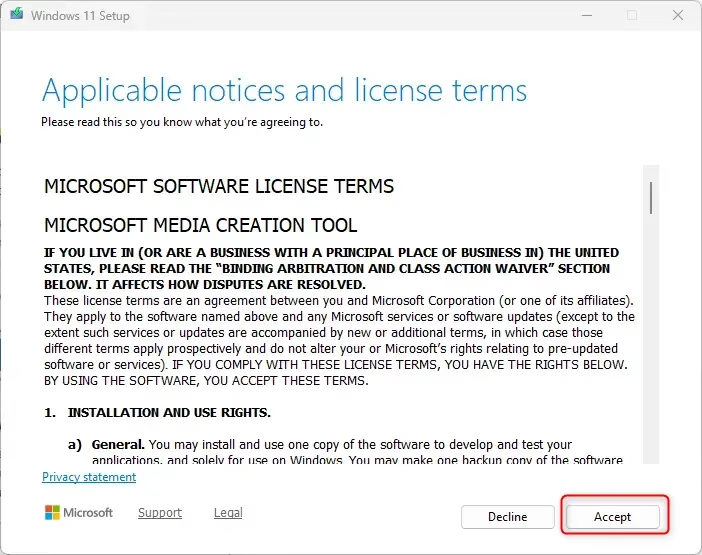
- Click Accept to agree to the license terms. The tool checks your PC for a moment, then shows the language and edition screen.
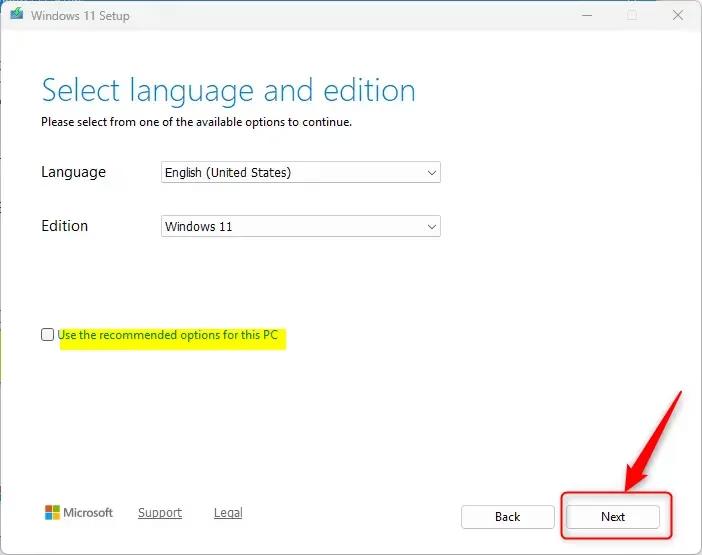
- Uncheck Use the recommended options for this PC. If you leave it ticked, the tool picks the language and edition of the PC you are using. That is wrong if you are making the ISO for a different computer.
- Pick your preferred Language and Edition, then click Next. The Windows 11 download is a single multi-edition image, so the edition choice mostly matches the default. Your license key decides which edition gets installed later.
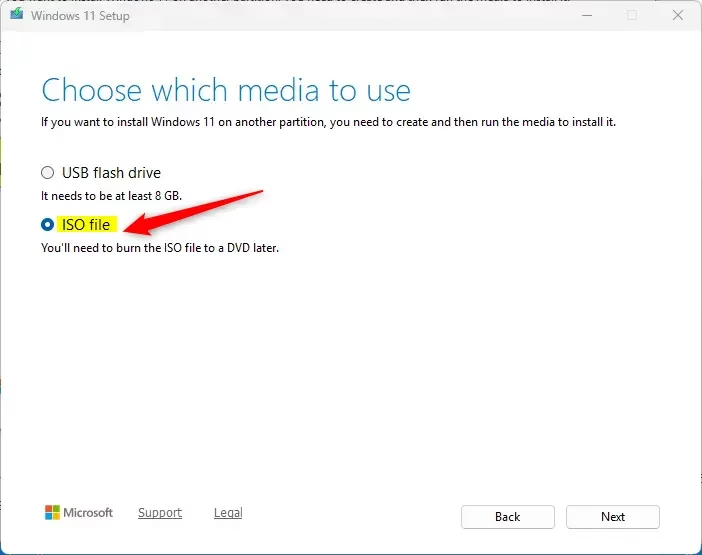
- Select ISO file and click Next. The other choice, USB flash drive, writes the installer straight to a drive instead of saving an image.
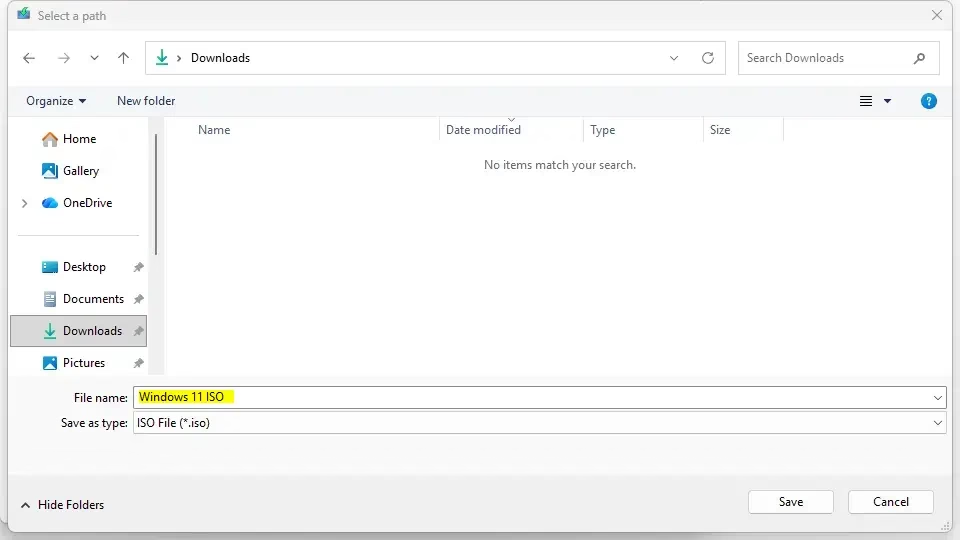
- Choose where to save the file and click Save. Pick a drive with plenty of free space. A folder such as Downloads or Documents is fine.
- Wait for the download to finish. A progress screen shows the percentage, and the tool then checks the download. This can take a while on a slow connection. You can keep using the PC in the meantime, but do not close the tool.
- Click the link to open the folder, confirm your new ISO file is there, then click Finish. If the tool stops with an error, run it again. It restarts the download.
Option 2Direct ISO Download
You open the official download page, pick your language, and the disk image comes straight to your computer. It also works from any browser, including on a PC that cannot run the Media Creation Tool.
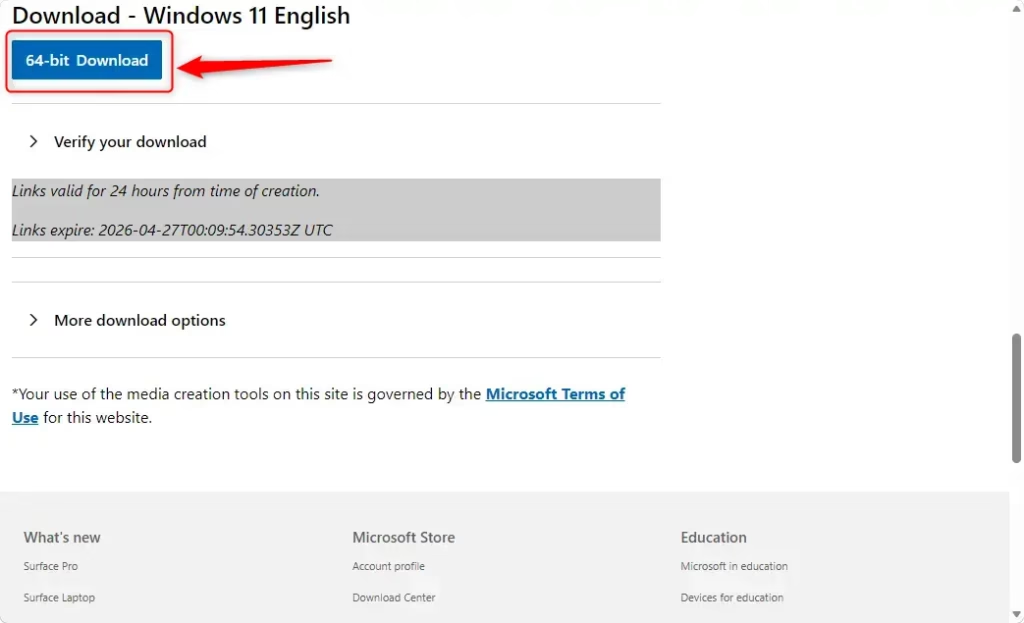
The download link Microsoft generates for you is only valid for 24 hours. If it expires, go back to the page and generate a new one.
These steps download the ISO straight from Microsoft’s download page.
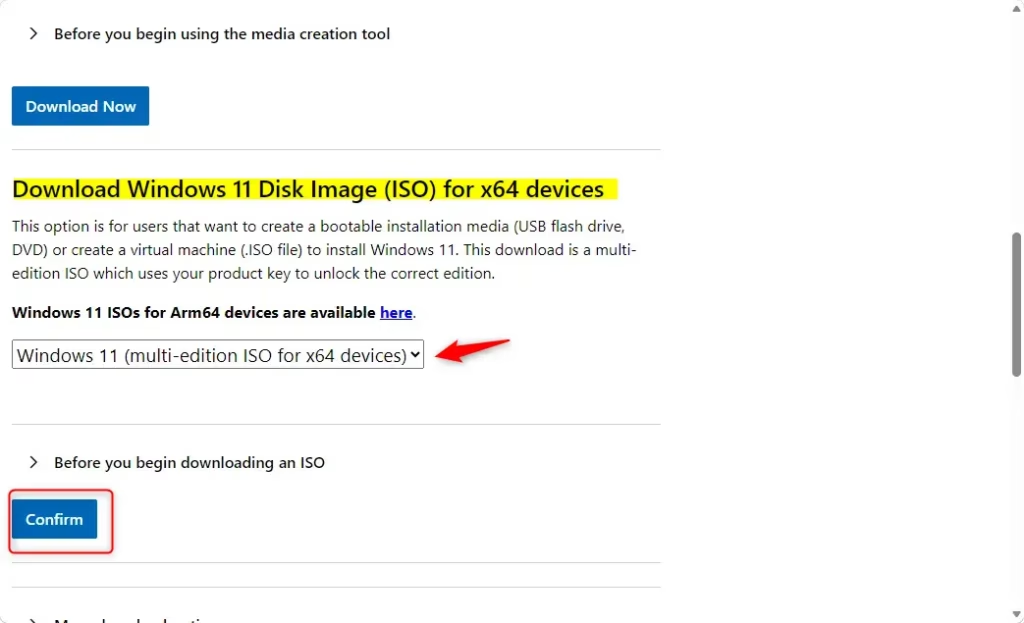
- Select the version from the drop-down menu and click Download Now. A language selector appears below.
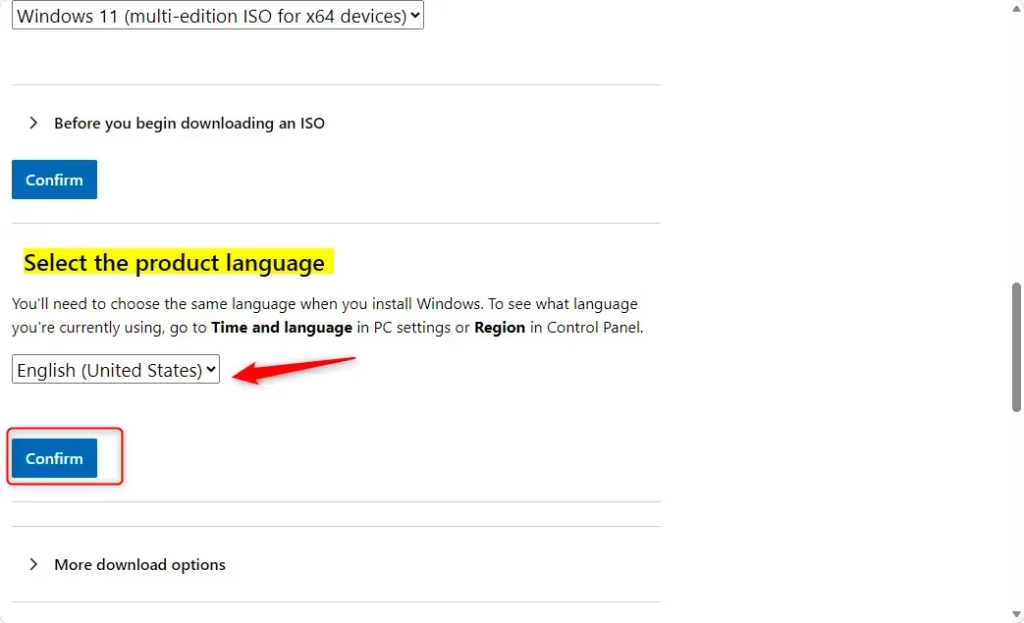
- Choose your language and click Confirm. Microsoft prepares your download link, which takes a few seconds.
- Click the Download button. Your browser asks where to save the file, or starts the download in your default folder.
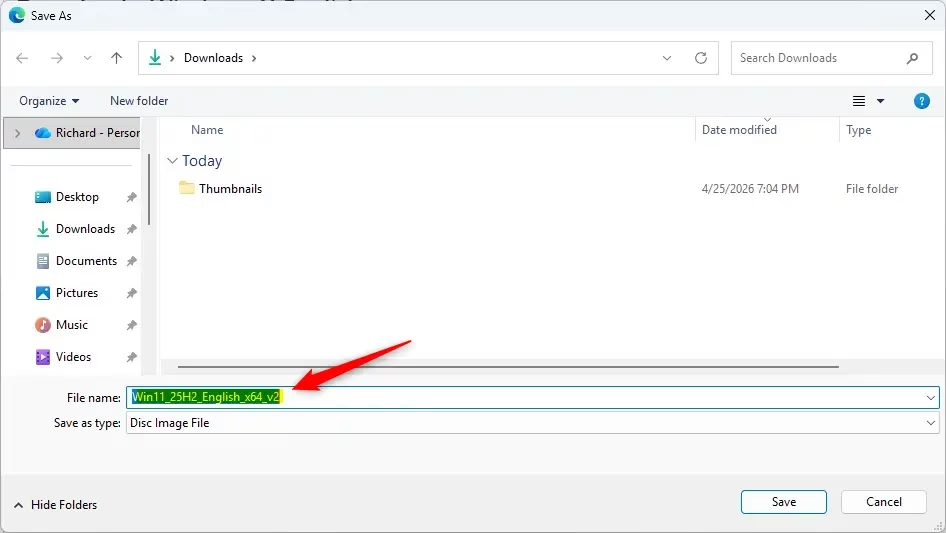
- Select where to save the file and click Save. When the download completes, check the file size. A much smaller file than expected usually means the download was interrupted, so download it again.
Option 3🪟 Windows 11 Insider Preview
The Windows 11 Insider Preview ISO lets you test upcoming features before they release to everyone else. You sign in with your Microsoft account on the Insider page, pick a build channel, and download the pre-release disk image file. Your account must be registered with the Windows Insider Program, or the download page will not let you in.
Install them on a spare PC or in a virtual machine, not on the computer you rely on every day.
These steps download an Insider Preview ISO for the channel you choose.
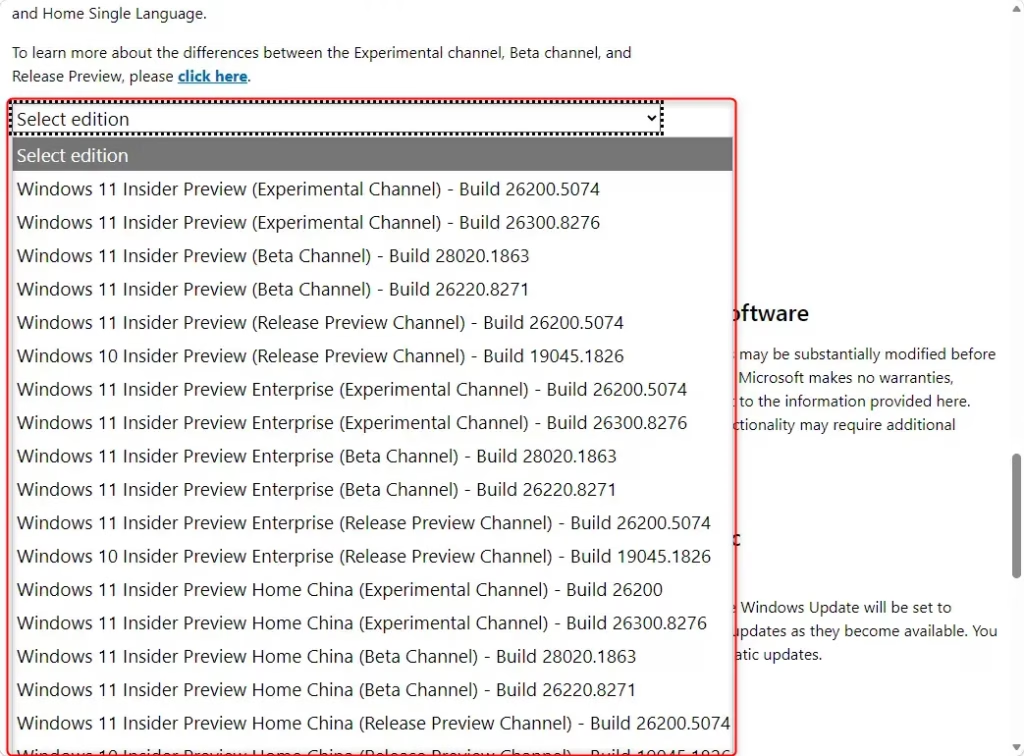
- Visit the Download site. Sign in with your Microsoft account if asked.
- Choose the Insider Preview channel and click Confirm. The options are Canary, Dev, Beta, and Release Preview. Release Preview is the most stable of the four. Canary is the least stable and gets the newest changes.
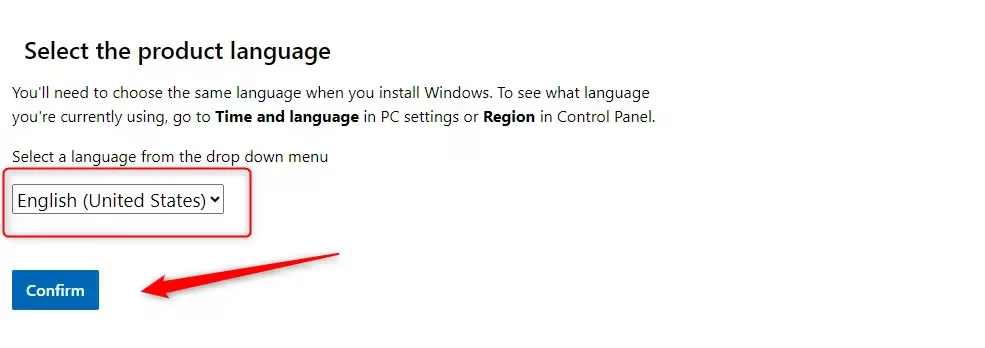
- Select your language and click Confirm. The page then shows a download button.
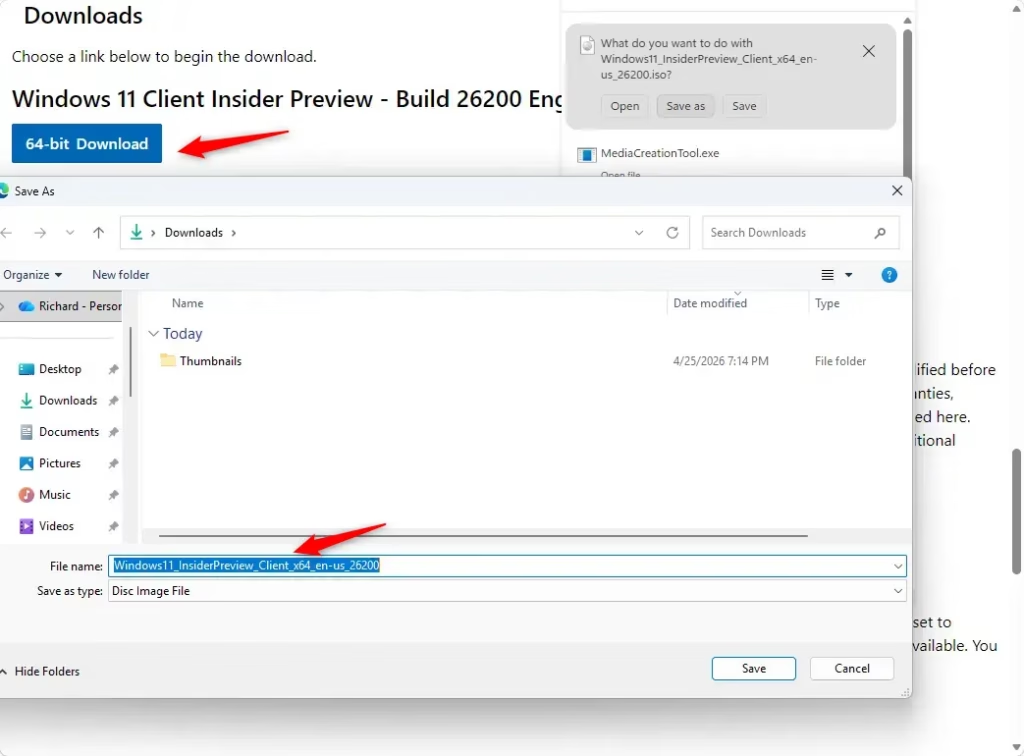
- Click the 64-bit Download button. Your browser starts the download or asks where to save the file.
- Select your save location and click Save. As with the standard ISO, the link expires after a period, so download it soon after you generate it.

Option 4Windows Server Insider
If you need a Windows Server ISO instead, the steps are similar. Server images are usually trial (evaluation) copies meant for testing, so check the download page for the terms of the version you pick.
These steps download a Windows Server ISO from Microsoft.
- Go to the Download site. Use the official page so you get an unmodified image.
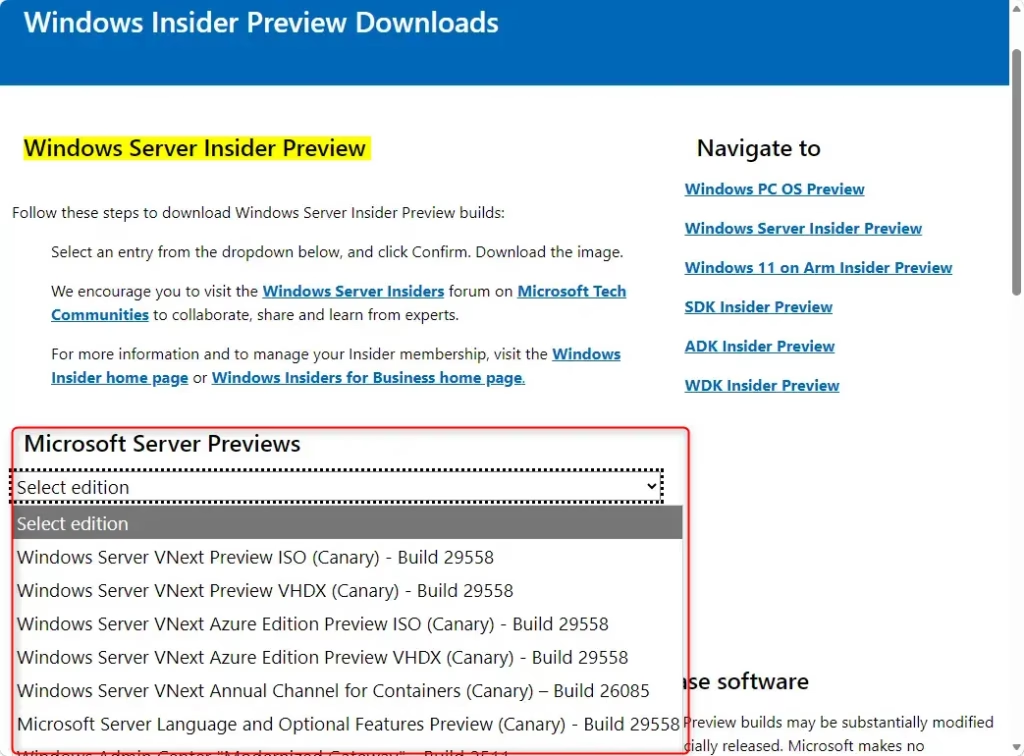
- Select the Windows Server version and click Confirm. Read the terms shown for that version, since most are evaluation copies.
- Select your language and click Confirm. The page then shows a download button.
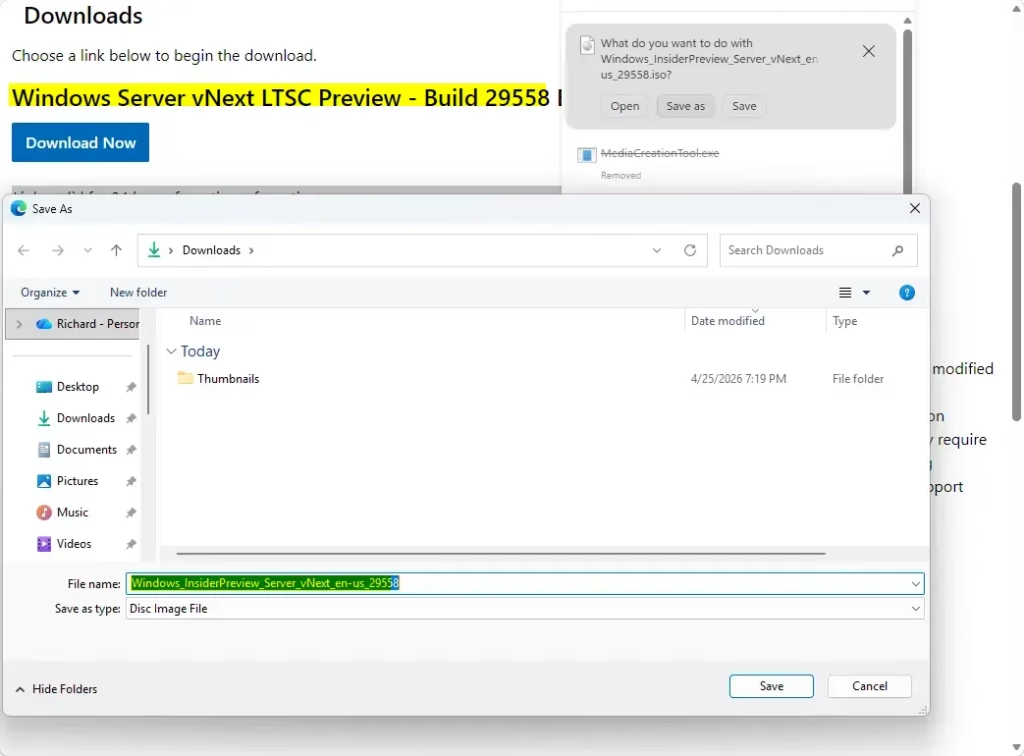
- Click Download Now. Your browser starts the download or asks where to save the file.
- Select your save location and click Save. Server ISOs are large, so allow time for the download to finish.
Option 5Using UUP Dump
Summary
Downloading an official Windows 11 ISO file gives you a dependable way to install or reinstall Windows. Whether you use the Media Creation Tool or download the ISO directly, choosing the right version for your PC is the key step. Pick 64-bit for most computers and ARM64 only for ARM devices. Once the file is saved, you can double-click it in File Explorer to open its contents, or write it to a USB drive to boot a PC from it.
Have a question about this guide?
Answered by AI from this guide. Good questions may be added to this page — please don't include personal details.
Did this guide fix your problem?

About the Author
Richard
Tech Writer, IT Professional
Richard is a writer at Geek Rewind who turns complex IT tasks into clear, step-by-step guides. He draws on years of hands-on experience in system administration and enterprise IT operations, focusing on Windows, Linux and WordPress: the problems people actually run into, and the fixes that work. His server and WordPress guides come from systems he runs himself. Richard builds and maintains the platform behind Geek Rewind, from its Ubuntu servers and Nginx configuration to its custom WordPress plugins. Many new tutorials start with readers' questions, and he's always glad to answer them in the comments.
No comments yet — be the first to share your thoughts!