Open Two Windows of the Same App Side by Side in Windows 11

- 14 steps
- Needs administrator rights
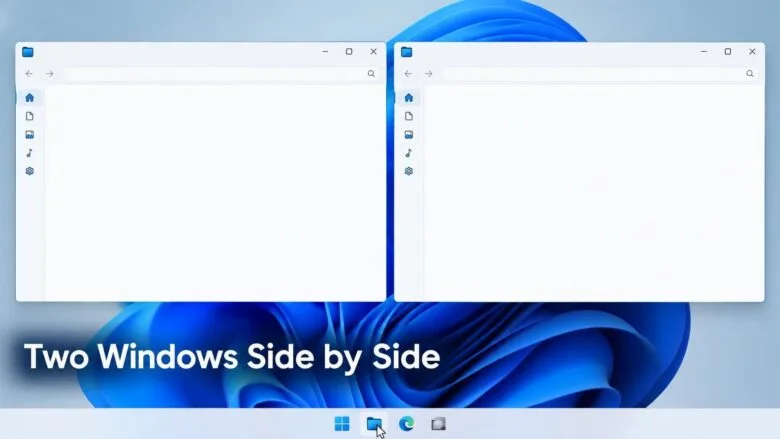
Opening two windows of the same app side by side in Windows 11 takes one Shift-click on the taskbar icon and two snap shortcuts. Snapping means locking a window to one half of the screen, and Windows 11 does it with Win+← arrow and Win+→ arrow.
This works with File Explorer, Microsoft Edge, Notepad, Windows Terminal and most other apps. The steps below use the taskbar. A later section covers apps that ignore the Shift-click and need an in-app command.
Hold Shift and click the app’s taskbar icon to open a second window of that app in Windows 11. Then press Win+→ arrow to snap the new window to the right half of the screen, and click the first window’s thumbnail in Snap Assist to fill the left half. Apps that ignore Shift-click need an in-app New window command instead.
Before you start
No step in this article needs administrator rights. The steps are the same on Windows 11 Home, Pro, Enterprise and Education, and nothing requires a restart.
If the shortcuts do nothing, check that the Snap windows setting is turned on. The steps are in Fix problems with snapping and second windows, further down this page.
Open two windows of the same app side by side in 🪟 Windows 11
These steps open two windows of the same app and place them side by side, using the taskbar and the snap keyboard shortcuts.
- Open the app you want to use twice. Wait until its window appears and its icon shows on the taskbar at the bottom of the screen.
- Hold Shift and click the app’s taskbar icon. A second, blank window of the app opens on top of the first. If nothing opens, go to the “Other ways to open a second window” section below.
- Press Win+→ arrow. The second window snaps to the right half of the screen. The left half shows Snap Assist, a strip of thumbnails of your other open windows.
- Click the first window’s thumbnail in the left half. It fills the left side, and both windows now sit side by side.
- Drag the vertical divider between the windows to change their widths. Both windows resize together, so one grows as the other shrinks.
- Click inside either window to work in it. The window you click becomes active, and its title bar looks slightly brighter than the other.
If the Snap Assist panel (the row of thumbnails for your other windows) does not appear in step 3, the thumbnails may be switched off, or the other window may be minimized. Press Win+← arrow on the first window to snap it to the left half yourself.
Other ways to open a second window of the same app
The Shift-click is the fastest method, but it does not suit every app. The options below cover the common cases.
From the taskbar
A middle-click does the same job as Shift plus a left-click. Click the taskbar icon with the middle mouse button (the wheel). If you cannot use a mouse, add a keyboard route here: [Verification Required: keyboard route for opening a new taskbar window should be confirmed]. A new window opens, and the original stays where it was.
You can also right-click the taskbar icon to open its jump list, the small menu of recent items and actions. Click the app’s own name near the bottom of the list, such as Microsoft Edge or Notepad. That opens a new window. Some apps label this entry New window instead.
On a laptop, a right-click is usually a two-finger tap on the touchpad. If it does not respond, see how to turn on the two-finger press and hold gesture in Windows 11.
If you keep your taskbar at the top or side of the screen, the same clicks apply. Moving it changes where the jump list opens, not how it works. The steps are in how to change the taskbar position to top or side in Windows 11.
From inside the app
Many apps have their own shortcut for a new window. Press it while the app is active.
- File ExplorerPress Ctrl+N to open another window at the same folder. Win+E opens a new window from anywhere.
- Microsoft Edge and Google ChromePress Ctrl+N for a new window. You can also drag a tab out of the tab bar to turn it into its own window.
- NotepadIn current Windows 11 builds, Notepad opens files in tabs. Press Ctrl+Shift+N to open a separate window instead.
- Windows TerminalPress Ctrl+Shift+N for a new terminal window.
- Word and ExcelOpen the View tab and select New Window. This opens a second window on the same document, so you can compare two parts of a long file. Opening two different files also gives you two windows.
Shortcuts vary between apps and app versions. If a shortcut does nothing, check the app’s File or main menu for a new-window command.
Apps that only allow one window
Some apps run a single window, and no Windows setting changes that. Task Manager is one example. If an app ignores every method above, check whether it offers a separate window or pop-out option in its own menus. If it does not, Windows cannot open a second copy of that app, and you will need to use a different program.
Snap the windows with snap layouts instead of the keyboard
Snap layouts let you pick an arrangement with the mouse. They also offer three-window and four-window grids, which help when you want more than two windows of the same app.
- Open two windows of the same app, using any method from the sections above.
- Hover over the Maximize button in the first window’s title bar. After a moment, a grid of layout icons appears. Pressing Win+Z opens the same grid.
- Click the left zone in the two-window layout. The window fills that zone.
- Click the second window in the thumbnails that appear. It takes the remaining zone.
On a smaller or lower-resolution screen, you will see fewer layouts. That is normal. A narrow display may offer only the two-window options, so a missing three-column grid does not mean the feature is broken.
Windows 11 also remembers snapped windows as a group. Hover over the taskbar icon of one of them and you see the group, so you can bring both back at once after switching to another app.
Fix problems with snapping and second windows
The windows do not snap
Snap windows may be turned off. This setting controls the shortcuts, the drag-to-edge behavior (dragging a window to the side of the screen to snap it) and the layout grid.
- Open Settings. Press Win+I.

Start Menu - Select System, then select Multitasking.
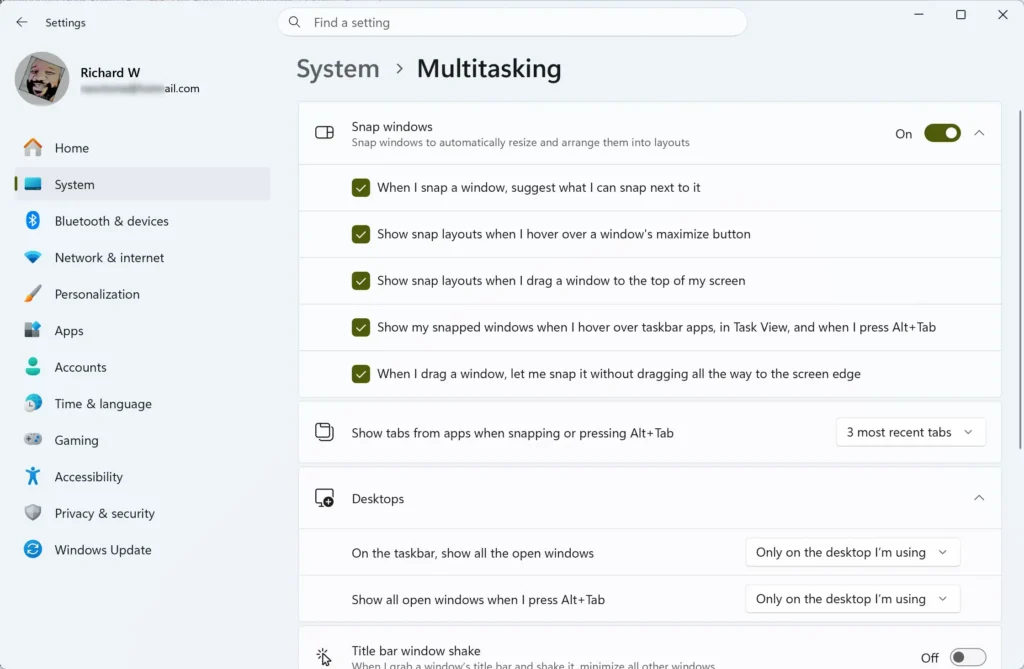
- Turn on the Snap windows toggle. The related options expand underneath it.
- Turn on the option that shows snap layouts when you hover over the maximize button, if you want the grid from the previous section.
Labels under Snap windows differ between Windows 11 versions. Find the option that turns snapping on and switch it on. Return to the app and press Win+← arrow to test the result.
The second window opens but covers the first
This is normal. A new window opens on top of the old one at a similar size. Snap it with Win+→ arrow, or drag its title bar to the right edge of the screen until a translucent outline appears, and release.
One window snaps but the other will not fit
Some apps refuse to shrink below a set minimum width, so they will not fill half the screen. If the app refuses to shrink to half the screen, Windows may place it at a different size or leave the other window with less room. Use a wider screen or an external monitor, or close any side panels in the app to reduce its minimum width.
You need more room on the screen
Two half-width windows leave less space for content. Close panels you do not need. In Photos, for example, you can hide the sidebar, as shown in how to toggle the sidebar in the OneDrive Photos app in Windows 11.
Side panes that stay open, such as Copilot, also take up space on the screen. If the Copilot pane is open beside your windows, you can narrow it by following how to resize the Windows 11 Copilot side pane.
Scrolling the wrong window
By default, Windows scrolls the window under your pointer, even if it is not the active one. If scrolling jumps to the wrong window, check Settings Bluetooth & devices Mouse, and look for the setting that scrolls inactive windows when you hover over them. On a touchpad, review how to enable two-finger scrolling on your touchpad in Windows 11.
Use two monitors instead
Undo the layout
To undo the layout, start with the window you want to remove. Closing it with the Close button (the X) takes it out of the layout. The other window stays snapped at its half-width. To return it to full size, click its Maximize button or press Win+↑ arrow.
To restore a snapped window to its previous floating size, press Win+↓ arrow once. Press it a second time to minimize the window.
To stop Windows from snapping at all, turn off the Snap windows toggle in Settings System Multitasking. Existing windows stay where they are, and you can still drag and resize them by hand.
What to do next
Once two windows sit side by side, try the same steps with a third window using a three-zone layout from the Win+Z grid. If you work across two screens, learn the Windows + Shift + arrow shortcut so you can move windows between monitors without the mouse. If the taskbar gets crowded with duplicate icons, hover over an icon to see all its open windows as thumbnails and click the one you want.
Have a question about this guide?
Answered by AI from this guide. Good questions may be added to this page — please don't include personal details.
Did this guide fix your problem?

About the Author
Richard
Tech Writer, IT Professional
Richard is a writer at Geek Rewind who turns complex IT tasks into clear, step-by-step guides. He draws on years of hands-on experience in system administration and enterprise IT operations, focusing on Windows, Linux and WordPress: the problems people actually run into, and the fixes that work. His server and WordPress guides come from systems he runs himself. Richard builds and maintains the platform behind Geek Rewind, from its Ubuntu servers and Nginx configuration to its custom WordPress plugins. Many new tutorials start with readers' questions, and he's always glad to answer them in the comments.
No comments yet — be the first to share your thoughts!