How to Turn On or off Minimize Windows When a Monitor Is Disconnected in Windows 11

- 10 steps
- Needs administrator rights
- Includes a restart or sign-out
Minimize windows when a monitor is disconnected is a Windows 11 display feature that moves open apps off a screen that is no longer there, so they do not get lost. Windows 11 turns it on by default, so your windows are handled for you when you unplug an extra monitor.
You can turn the feature off in your display settings if you want your apps to stay put when you disconnect a second screen. If you switch between a laptop screen and an external monitor a lot, turning it off stops Windows from hiding your windows every time the display setup changes. You can turn it back on at any time.
Open Settings System Display, scroll down to Multiple displays, then check or uncheck the box labeled Minimize windows when a monitor is disconnected. The change takes effect immediately without restarting.
Why Does Windows Do This?
When you disconnect a monitor, Windows 11 has two choices. It can minimize the windows that were on that screen, or it can move them to the primary display so they stay visible. With this setting on, which is the default, Windows minimizes them. You can change that preference, and the change applies to your user account.
What Happens When You Change This Setting?
With the feature turned off, windows no longer vanish into the taskbar when a screen disappears. Windows moves them to the main screen instead, so you can keep working without hunting for your apps. Turn the feature on again if you prefer to have those windows minimized.
How to Change This Setting Using Windows Settings
- Press the Win+I on your keyboard. The Settings window opens.
- Look at the left side. Click System.
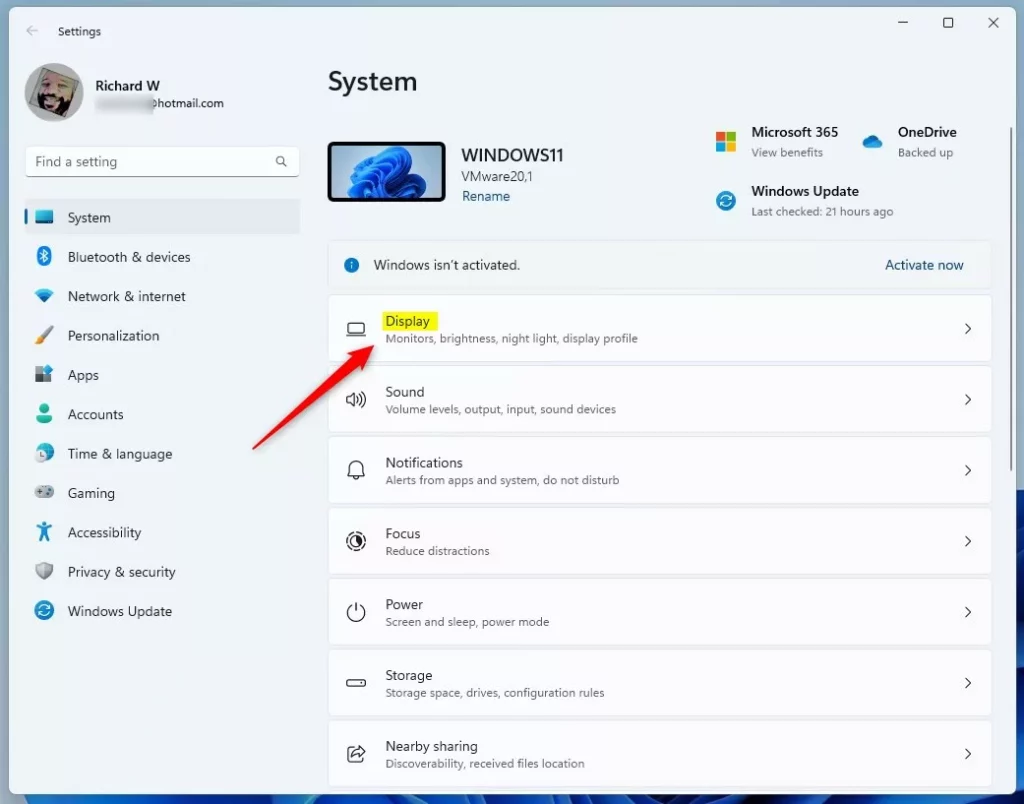
- On the right side, click Display.
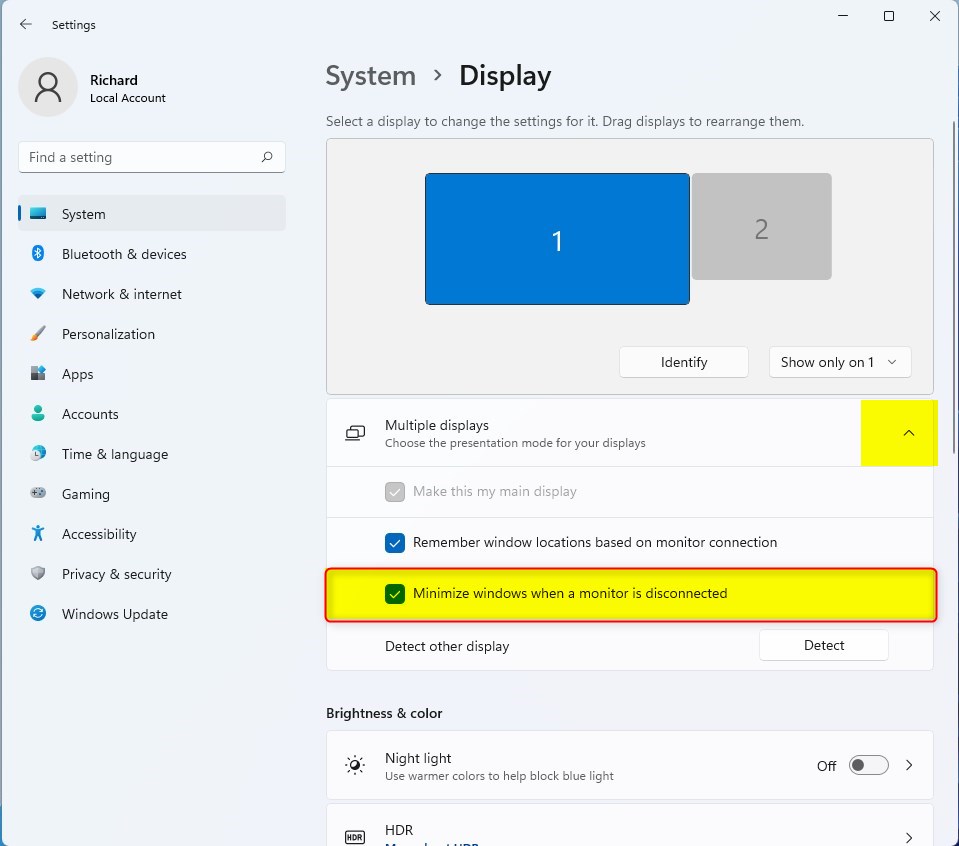
- Scroll down and find Multiple displays. Click it to open more options.
- Look for the option called Minimize windows when a monitor is disconnected.
- Check the box to turn it on. Uncheck the box to turn it off.
The Settings app is the simplest way to change this. It works the same on Windows 11 Home and Pro, and you do not need administrator rights. Follow these steps:
- Open Settings System Display. The display options for your screens appear.
- Scroll down and click Multiple displays to expand the section.
- Find the checkbox Minimize windows when a monitor is disconnected.
- Tick the box to turn the feature on, or clear it to turn the feature off.
If you do not see the option, scroll further down the Display page or connect a second monitor and check again, because some setups only show these options when more than one screen is attached. To undo the change, go back to the same checkbox and set it the way it was.
Windows Display Settings tile
Windows 11 minimize windows on disconnected monitor
How to Change This Setting Using the Registry (Advanced Users Only)
To Turn ON Minimize Windows (This Is the Default):
reg add "HKEY_CURRENT_USER\Control Panel\Desktop" /v MonitorRemovalRecalcBehavior /t REG_DWORD /d 2 /fTo Turn OFF Minimize Windows (Keep Windows on Main Screen):
reg add "HKEY_CURRENT_USER\Control Panel\Desktop" /v MonitorRemovalRecalcBehavior /t REG_DWORD /d 2 /fTo run these commands, create a new text file, paste the code into it, and save the file with a .reg extension. Double-clicking the saved file applies the changes to the Registry. Windows asks you to confirm, and you may see a User Account Control prompt, so click Yes when it appears. If the setting does not seem to change, sign out and back in, or restart the PC. Then open Settings System Display to check that the checkbox matches what you chose.
Summary
- You can control what happens to your windows when you unplug a monitor.
- By default, Windows hides windows on the disconnected monitor.
- You can turn off this feature. Then Windows will move those windows to your main screen instead.
- Change this setting in Windows Settings. It takes just a few clicks.
- Advanced users can also edit the Registry using commands.
- Try both settings. See which one works better for you.
In short, the Minimize windows when a monitor is disconnected setting decides whether your open apps are minimized or moved to your main screen when you unplug an extra display. Windows minimizes them by default. You can change this in the Settings app, which is the easier route, or by editing the Registry. Either way, you can switch back whenever you like.
Have a question about this guide?
Answered by AI from this guide. Good questions may be added to this page — please don't include personal details.
Did this guide fix your problem?

About the Author
Richard
Tech Writer, IT Professional
Richard is a writer at Geek Rewind who turns complex IT tasks into clear, step-by-step guides. He draws on years of hands-on experience in system administration and enterprise IT operations, focusing on Windows, Linux and WordPress: the problems people actually run into, and the fixes that work. His server and WordPress guides come from systems he runs himself. Richard builds and maintains the platform behind Geek Rewind, from its Ubuntu servers and Nginx configuration to its custom WordPress plugins. Many new tutorials start with readers' questions, and he's always glad to answer them in the comments.
No comments yet — be the first to share your thoughts!