How to Enable or Disable Remembering Window Positions on Multiple Screens in Windows 11

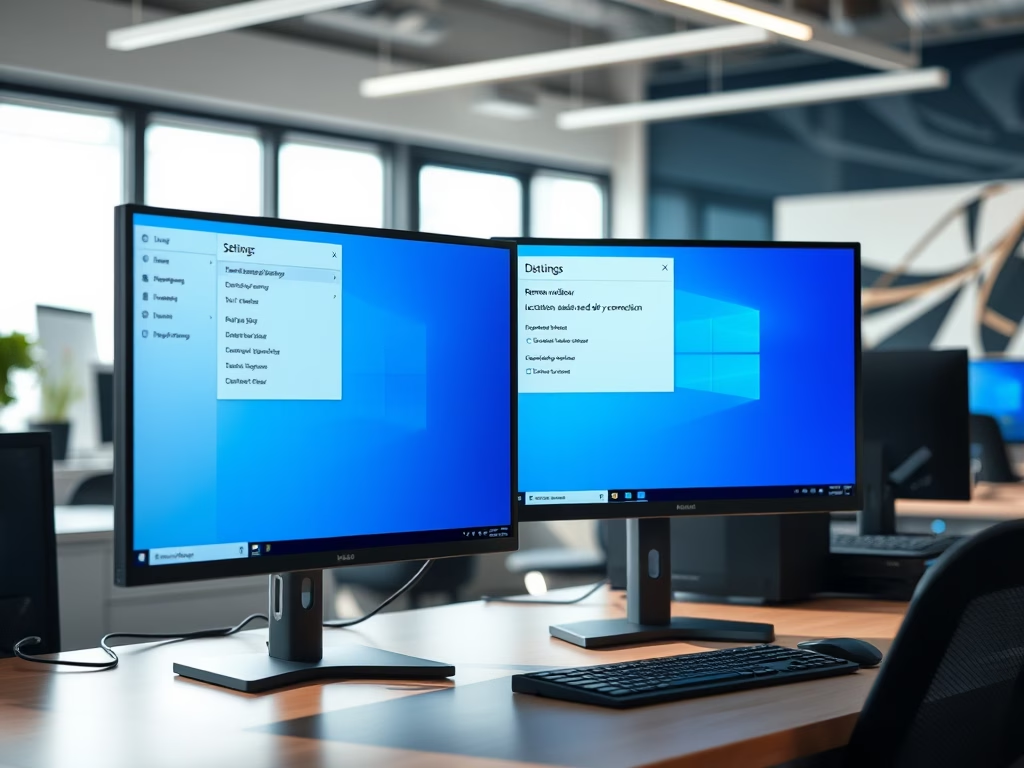
Remembering window positions on multiple screens is a display feature in Windows 11. It saves your app layout for each monitor setup, so windows return to the right screens when you disconnect and reconnect displays. With it on, apps don’t pile up on your primary screen every time you undock your laptop or plug into an external monitor.
The quickest way to change it is Settings System Display Multiple displays This works the same in Windows 11 Home and Pro. The sections below also cover a command-line method for people who prefer it.
Open Settings System Display Multiple displays and check Remember window locations based on monitor connection to turn it on, or uncheck to turn it off. The change takes effect immediately without restarting your PC.
How to Enable or Disable Remembering Window Positions Using Settings
The Settings app is the easiest way to turn this feature on or off. It stops apps from jumping around when you disconnect or switch off an extra monitor. The change takes effect straight away, with no restart.
- Press Win+I to open Settings .
- Click System in the left menu.
- Select Display on the right side. You should now see your monitors and the display options.
- Scroll down until you see Multiple displays.
- Click the arrow next to it to expand the options.
- Find the option Remember window locations based on monitor connection.
- Check the box to turn the feature on. Uncheck it to turn it off.
- Close Settings when you’re done.
If you can’t find Multiple displays, Windows probably sees only one screen. Check the cable and that the second monitor is powered on and set to the right input. Then click Detect in the same Display page if it appears. The section shows up once Windows detects more than one display.
To undo the change, come back to the same checkbox and switch it back. Nothing else is altered.
Click here to open Display Settings directly

Windows Display Settings tile
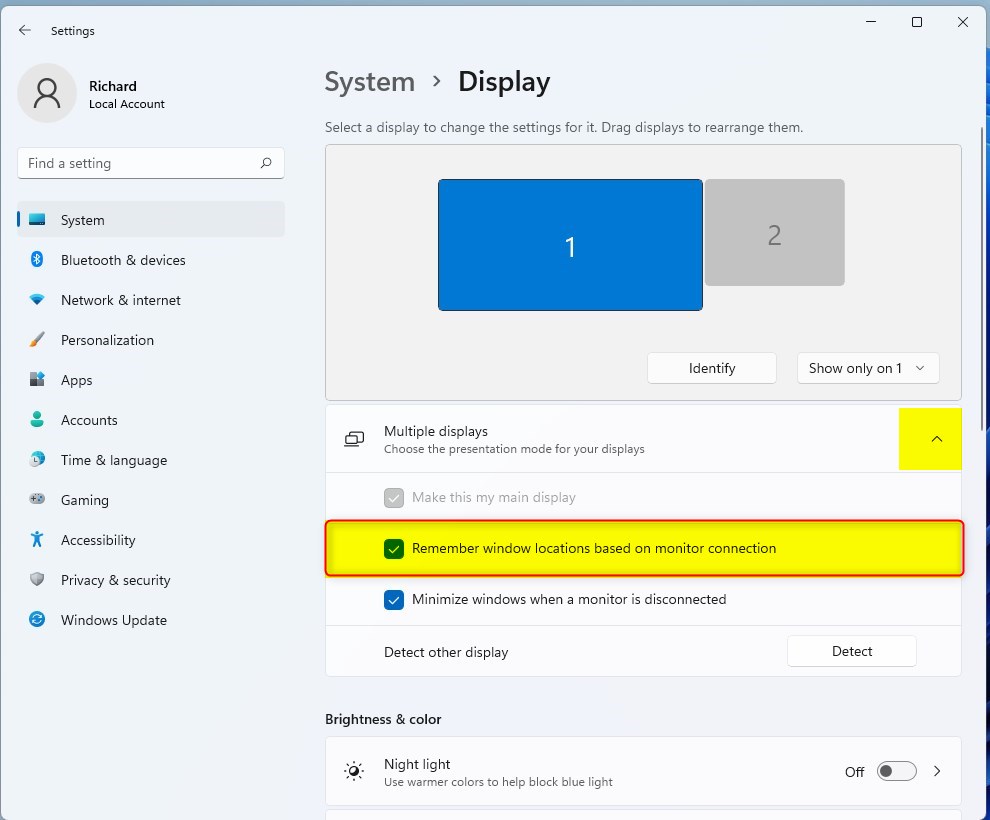
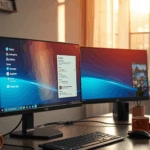
Windows 11 remembers window locations based on monitor
How to Enable or Disable Remembering Window Positions Using the Registry (Advanced)
Back up the Registry before you start, so you can restore it if something goes wrong. In Registry Editor you can do this with File Export. Creating a restore point first is also a good idea. 🚨 Administrator privileges are mandatory to execute this method.
If you only want to flip the setting, use the Settings method above. It does the same job with no risk to the Registry.
To Enable (This is the default setting):
You can also use Command Prompt to change this setting. Advanced users often prefer this text-based approach, which requires an elevated terminal window and a precise command. Typos matter here, so copy the command exactly as shown.
To open an elevated Command Prompt:
- Click Start and type cmd.
- Right-click Command Prompt in the results and select Run as administrator.
- Click Yes if User Account Control asks for permission. A Command Prompt window titled Administrator should now be open.
reg add "HKEY_CURRENT_USER\Control Panel\Desktop" /v RestorePreviousStateRecalcBehavior /t REG_DWORD /d 0 /fTo Disable:
Disabling the feature requires the elevated Command Prompt from above. Run this specific command in that window:
reg add "HKEY_CURRENT_USER\Control Panel\Desktop" /v RestorePreviousStateRecalcBehavior /t REG_DWORD /d 1 /fCheck that the window reports success and shows no error. If it says access is denied, the window isn't elevated, so close it and reopen it with Run as administrator.
Restart the PC to apply the updated Registry keys. If you want the feature back later, the simplest way is to tick the checkbox again in Settings System Display Multiple displays
Summary
Windows 11 multiple screens settings let you control whether your computer remembers where open apps were placed on each monitor. Turning this feature on saves you time by putting windows back on the correct screen every time you plug in an extra display. You can change this behavior at any time using the Settings app.- Windows 11 can remember where you last placed your windows on different monitors.
- You can turn this feature on or off using Settings. This is the easiest way.
- You can also change this setting using the Registry if you're comfortable with advanced settings.
- This feature helps keep your workspace organized when you connect or disconnect monitors.
- Adjusting this setting lets you customize how your windows behave across multiple screens.
- For more help, check out Microsoft Support's guide on using multiple monitors.
Was this guide helpful?

About the Author
Richard
Tech Writer, IT Professional
Richard is a writer at Geek Rewind who turns complex IT tasks into clear, step-by-step guides. He draws on years of hands-on experience in system administration and enterprise IT operations, focusing on Windows, Linux and WordPress: the problems people actually run into, and the fixes that work. His server and WordPress guides come from systems he runs himself. Richard builds and maintains the platform behind Geek Rewind, from its Ubuntu servers and Nginx configuration to its custom WordPress plugins. Many new tutorials start with readers' questions, and he's always glad to answer them in the comments.

No comments yet — be the first to share your thoughts!