How to Adjust Projecting Settings in Windows 11


Projecting settings in Windows 11 control how you mirror a phone, tablet, or another computer’s screen onto your PC display. The PC works as a wireless display, so you can share photos, run a presentation, or watch a video without extra cables.
Wireless projection needs a PC that supports Miracast (a standard for streaming video wirelessly) and an active Wi-Fi connection. In the system settings you can control how the PC handles incoming requests. You can block random devices, or have the PC ask for permission each time a new device tries to connect.
Open Settings (Win+I), go to System Projecting to this PC, and use the Ask to project to this PC dropdown to choose “First time only” or “Every time a connection is requested”. The change applies immediately, with no Save button and no restart needed.
How to change when to ask to project to this PC in 🪟 Windows 11
The projecting options decide whether, and how often, your computer asks for permission before another device can connect to its screen. You set them in the Settings app . Depending on how often you share your screen, the PC can ask only the first time a device connects, ask on every connection, or not accept projection at all.
The steps below show how to adjust them. You don’t need to restart the PC, and you can change the setting back at any time.
- Press the Win+I to open the Settings app. You can also click Start ==> Settings. The main configuration panel opens, as shown in the image below.

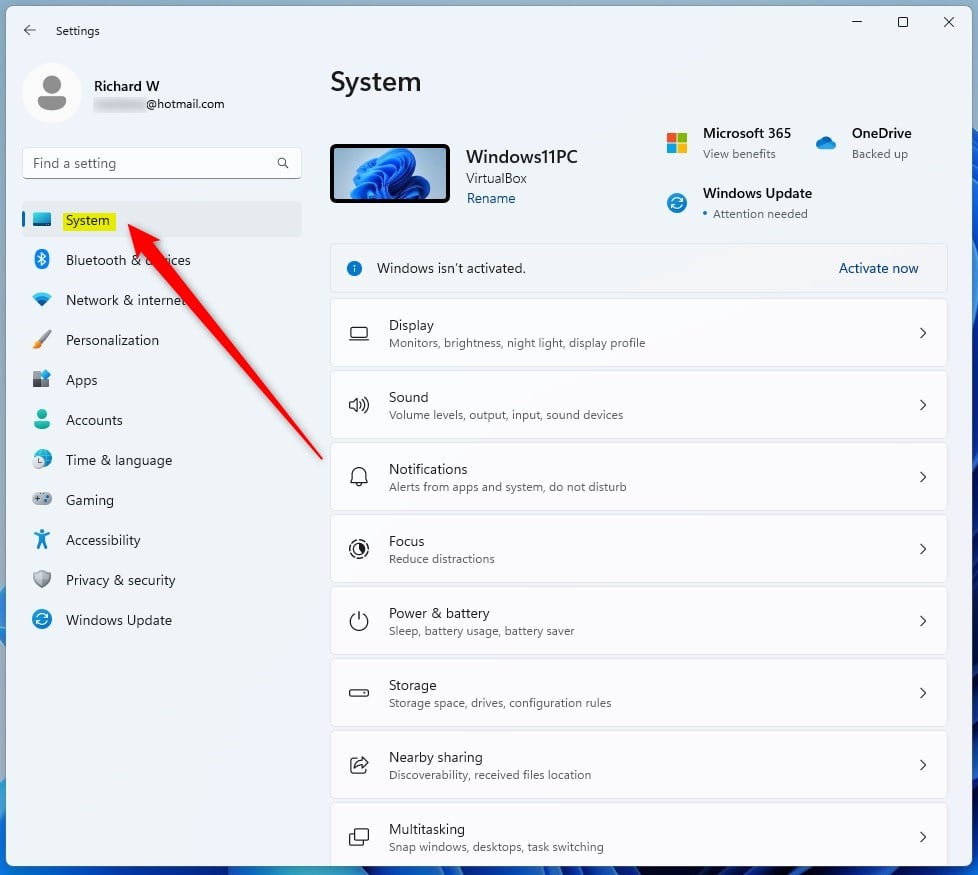
- In the Settings window, click System in the left pane. The System options appear on the right, similar to the image below.
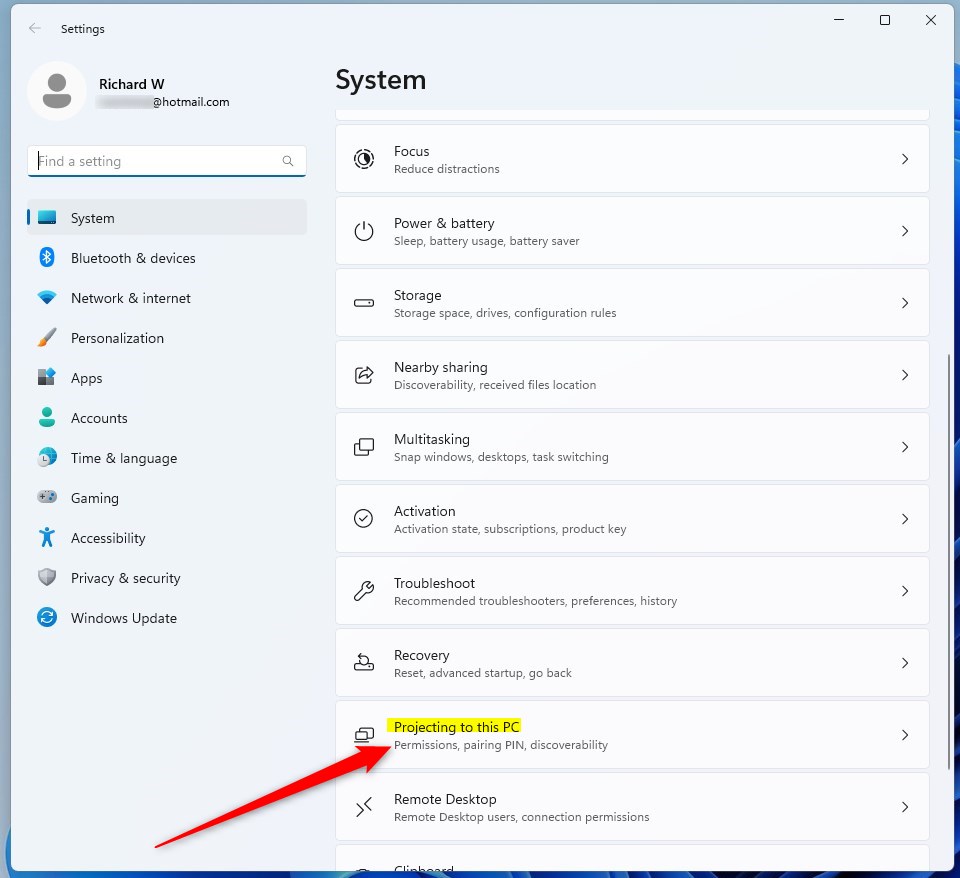
- On the right, scroll down and select Projecting to this PC. The page for this setting opens.
Go to Settings System Optional features and install it from there. The options are also unavailable on PCs whose hardware or Wi-Fi driver doesn’t support Miracast.
- On the Projecting to this PC page, find Ask to project to this PC and open its dropdown list.
- Choose one of the two options:
- First time only: Windows asks for approval the first time a device connects. Later connections from that device go through without a prompt. This suits devices you use often, such as your own phone.
- Every time a connection is requested: Windows asks for approval on every connection attempt. This is the safer choice in an office or on a shared network.
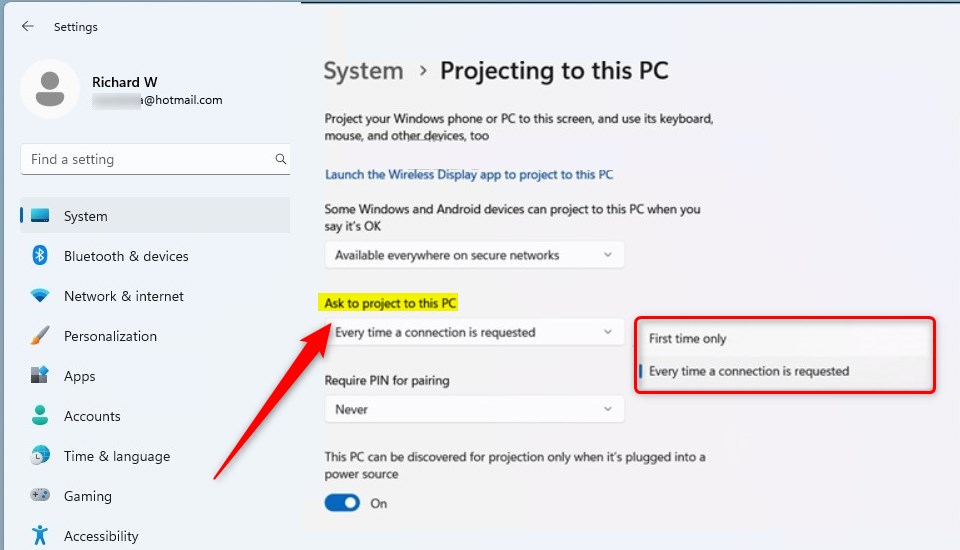
Whichever option you pick applies whenever a device wants to project to Windows. It takes effect immediately for any incoming connection request, so there is no Save button and no restart.
The same page has a dropdown above this one that controls whether other devices can project to the PC at all. If it is set to Always Off, no device can connect, so the prompt setting makes no difference. To undo your change, reopen the page and select the other option from the same dropdown.
That should do it!
- Windows 11 lets you control how often it prompts before projecting to the PC. You can choose between "First time only" and "Every time a connection is requested".
- You can change this at any time in the System settings, and the new choice applies right away.
- If this guide helped you customize Windows 11, or you have feedback or extra tips, share them in the comment section below.
Have a question about this guide?
Answered by AI from this guide. Good questions may be added to this page — please don't include personal details.
Did this guide fix your problem?

About the Author
Richard
Tech Writer, IT Professional
Richard is a writer at Geek Rewind who turns complex IT tasks into clear, step-by-step guides. He draws on years of hands-on experience in system administration and enterprise IT operations, focusing on Windows, Linux and WordPress: the problems people actually run into, and the fixes that work. His server and WordPress guides come from systems he runs himself. Richard builds and maintains the platform behind Geek Rewind, from its Ubuntu servers and Nginx configuration to its custom WordPress plugins. Many new tutorials start with readers' questions, and he's always glad to answer them in the comments.
No comments yet — be the first to share your thoughts!