How to Use Magnifier with Separate Zoom for Each Monitor in Windows 11

- 9 steps
- Needs administrator rights
Magnifier in Windows 11 is getting independent zoom levels for each monitor, a change Microsoft expects to deliver with the November 2026 security update. Until that update installs, Magnifier cannot keep a different zoom level on each screen. Microsoft has announced a separate zoom for each monitor. Here is who it affects and how to prepare for it.
The feature is announced, not shipped. Microsoft has not yet published the exact on-screen labels for it, so this post names only the menus Microsoft has confirmed and says where the details are still open.
Magnifier does not yet support a separate zoom level for each monitor in Windows 11. Microsoft has announced per-monitor zoom and expects it in the November 2026 security update, so it is not available today. Until then, Windows + Plus sign (+) turns Magnifier on, and Win+Esc turns it off.
What Microsoft has announced for Magnifier
Microsoft’s post, Windows news you can use: October 2026, lists three new Magnifier options. They are a contrast theme toggle, independent zoom levels for each monitor, and viewport locking.
A viewport is the part of the screen Magnifier shows enlarged. Locking it keeps that view fixed in place instead of following your pointer. Microsoft’s documentation describes the use case: reference material stays magnified on one screen while you work on another.
Microsoft’s documentation also says each display keeps its own zoom level. It adds that contrast themes (preset color combinations that make text stand out more) are one click away in a redesigned Magnifier. It places these options under Settings Accessibility. It also mentions more precise zoom controls in Magnifier.
What the per-monitor zoom changes
Today you set one zoom level and Magnifier applies it to the screen you are working on. With the new option, each monitor remembers its own level. You could run one screen at a high zoom for reading and leave the second close to normal size for tools, chat or video.
Microsoft has not said whether a single shared zoom level will stay available as a choice. Check the Magnifier settings page after the update arrives.
When it arrives and who it affects
Microsoft’s announcement points to the November 2026 security update. That date is an expectation, not a guarantee. Release timing can slip, and updates often reach PCs in stages.
The change matters to anyone who uses Magnifier on two or more monitors. That includes people with low vision who work across several screens and people who present or teach with a second display. It also includes anyone who keeps documents or reference pages open beside their main work.
If you manage PCs for others, the change reaches users through a regular security update. That means it can appear on PCs you manage without any extra setup from you. Plan to tell affected users where to find the new option.
How Magnifier works on multiple monitors today
Before the update, you control Magnifier from one place and the zoom level is shared. If you want a closer look at how that works now, read how to change the Magnifier zoom level in Windows 11.
If Magnifier is not running yet, enable or disable Magnifier in Windows 11 covers every way to start it. The keyboard shortcut Windows + Plus sign (+) turns it on and zooms in. Win+Esc turns it off.
A workaround you can use now
If you need this today, Magnifier can already hold one screen’s view still. How to lock the Magnifier view on one screen in Windows 11 covers it. This is not the same as a separate zoom for each monitor, but it covers part of the same need while you wait.
Get ready before the update arrives
These checks take a few minutes and make the new option easier to find and test later.
- Confirm both monitors are detected. Open Settings System Display. You should see each monitor as a numbered box. Select Identify to show the number on each physical screen.
- Note your current zoom level. Open Settings Accessibility Magnifier and write down the zoom setting you use today. This gives you a baseline to compare against after the update.
- Learn the shortcuts. Windows + Plus sign (+) zooms in, Windows + Minus sign (-) zooms out, and Win+Esc closes Magnifier. These work with or without the new feature.
- Check your update source. On a work or school PC, your IT team (the people who manage company computers) may control updates. Ask your administrator when the November 2026 security update is scheduled.
Set a separate zoom for each monitor once the update installs
These steps show you where to find the separate zoom setting for each monitor in Windows 11 Magnifier. Microsoft has confirmed the Settings Accessibility location but has not published the exact label of the per-monitor option, so the steps describe what to look for instead of naming a button.
- Open Settings. Press Win+I to open it directly.
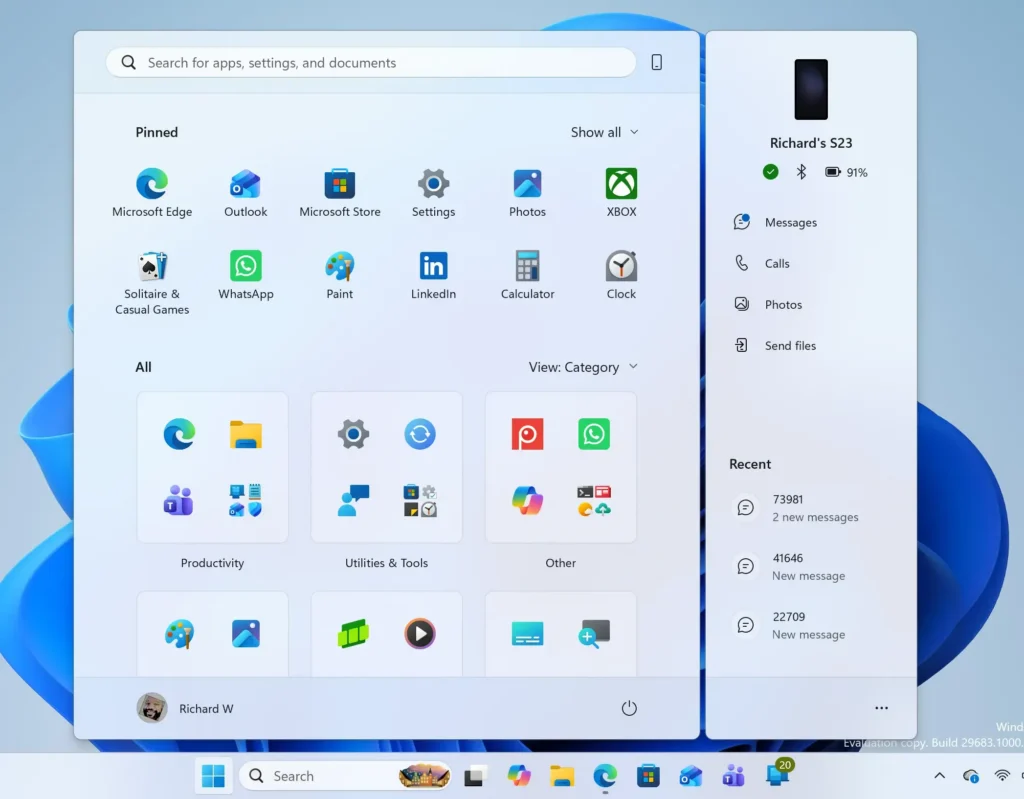
Start Menu - Select Windows Update. It sits at the bottom of the left-hand list.
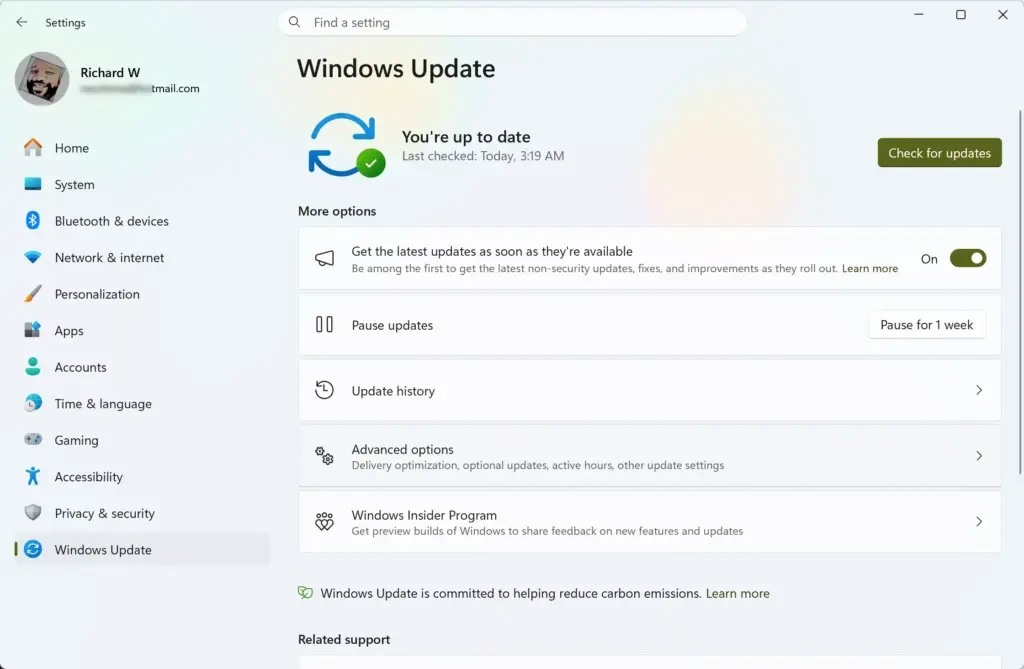
Settings › Windows Update - Select Check for updates. Windows searches for the November 2026 security update and any others waiting.
- Install the update and restart if asked. On a managed PC, installing updates may need an administrator account, or your IT team may push the update for you.
- Open Settings again, then select Accessibility. This is the location Microsoft names for the new Magnifier options.
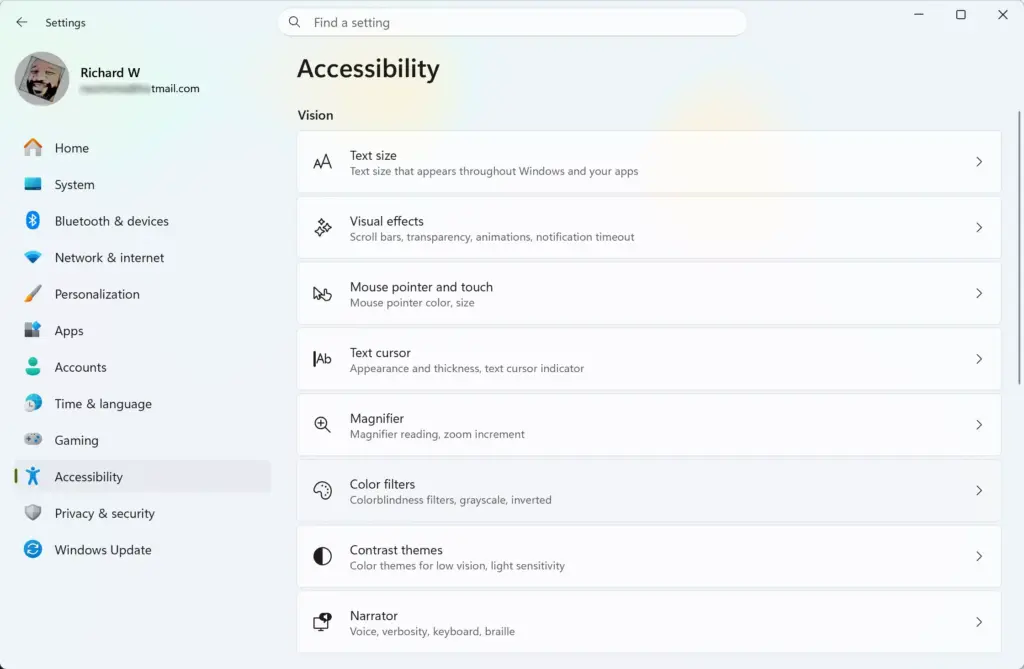
Settings › Accessibility - Select Magnifier. The Magnifier page opens with its on/off toggle and zoom settings.
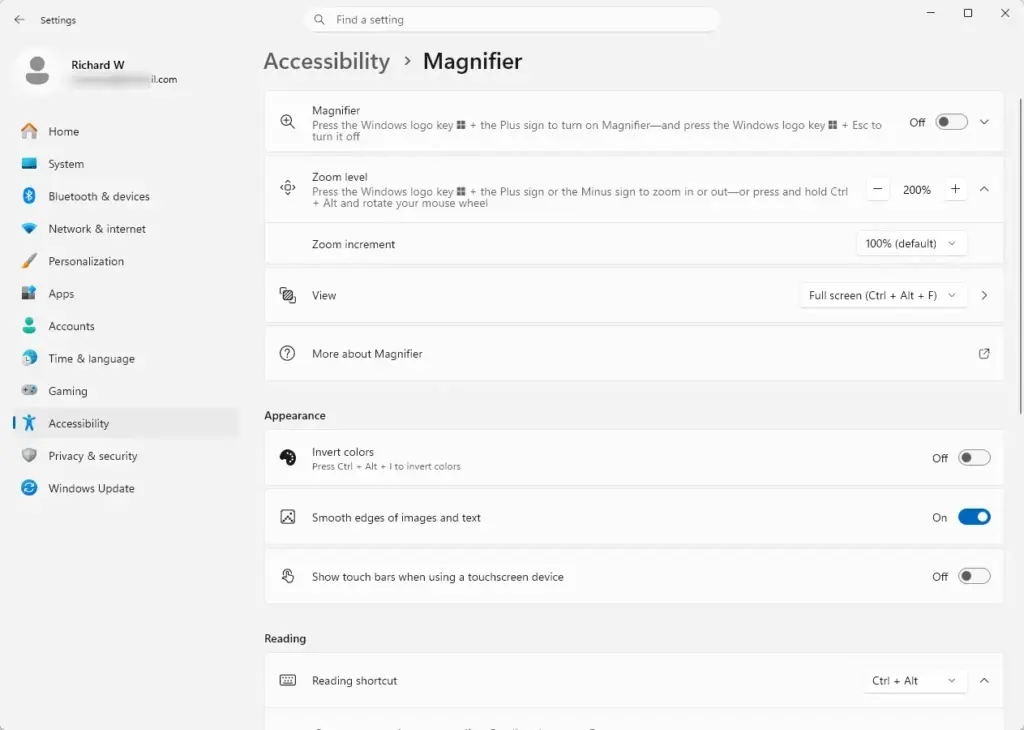
Settings › Accessibility › Magnifier - Look for a zoom option that applies to each monitor. Microsoft says each screen can keep its own zoom level, so expect a control that lets you set the level per display. Its exact name and position can change while the update rolls out.
- Set the zoom level for the first monitor. Then set a different level for the second monitor. Confirm each screen shows its own magnification.
- Turn Magnifier on and move the pointer between screens. Each monitor should stay at the level you set for it.
If both screens still change together, the update may not be installed yet, or the option may sit in a different place from the one described here. Check the next section.
Related options in the same update
The same update adds a contrast theme toggle. It is separate from color inversion, which flips the colors on screen. For inversion, see how to invert screen colors in Windows 11 Magnifier.
If you use the lens view, how to change the Magnifier lens size in Windows 11 explains how to resize it. Whether lens size works per monitor is not stated in Microsoft’s announcement.
If the per-monitor option is missing
Start with the update. The feature is expected with the November 2026 security update, so a PC that has not installed it will not show the option. Go back to Settings Windows Update and select Check for updates.
If the update is installed but the option is not there, wait. Updates often roll out in stages, so your PC may get the option later than others. Restarting the PC is also worth a try, because settings pages sometimes refresh only after a restart.
Check that you have more than one monitor. With one screen, per-monitor zoom does not apply, so Windows may not show the option at all. Confirm in Settings System Display that both screens appear.
How to undo the change
Microsoft has not published an undo step for per-monitor zoom. The safest approach is to set both monitors to the same zoom level you noted earlier. If you want Magnifier off entirely, press Win+Esc.
Other Magnifier settings worth checking
A separate zoom for each monitor is one part of a good multi-screen setup. A few other settings affect how comfortable Magnifier is to use.
If you read a lot of text on screen, smooth edges for images and text in Magnifier controls how sharp enlarged text looks. If you read with keyboard commands, how to change Magnifier reading keys shows how to change the keys.
The same Microsoft announcement also covers Narrator math support. Narrator is the built-in screen reader, which reads text aloud. Math support reads and navigates math equations in supported Microsoft 365 apps and supported web content in Microsoft Edge. It is a separate feature from Magnifier and needs no setup in this post.
What to do next
After the November 2026 security update installs, open Settings Accessibility Magnifier and check for the per-monitor zoom option. If it is not there yet, keep Windows Update running and check again after the next restart. In the meantime, lock the Magnifier view on one screen to keep reference material magnified while you work on the other monitor. Microsoft may adjust names and placement as the feature rolls out, so confirm what you see on screen against this post.
Have a question about this guide?
Answered by AI from this guide. Good questions may be added to this page — please don't include personal details.
Did this guide fix your problem?

About the Author
Richard
Tech Writer, IT Professional
Richard is a writer at Geek Rewind who turns complex IT tasks into clear, step-by-step guides. He draws on years of hands-on experience in system administration and enterprise IT operations, focusing on Windows, Linux and WordPress: the problems people actually run into, and the fixes that work. His server and WordPress guides come from systems he runs himself. Richard builds and maintains the platform behind Geek Rewind, from its Ubuntu servers and Nginx configuration to its custom WordPress plugins. Many new tutorials start with readers' questions, and he's always glad to answer them in the comments.
No comments yet — be the first to share your thoughts!