How to Hide Your Mobile Screen on Windows 11


Hiding your phone screen on Windows 11 turns your mobile display black while the device stays connected to your computer. The feature lives in the Phone Link app, which connects an Android phone or iPhone to your PC so you can read texts, see notifications and open mobile apps. With black screen mode on, your private chats and photos stay hidden from coworkers when you share your computer screen in a meeting.
It works the same on Windows 11 Home and Pro. You don’t need to restart the PC, and you can turn it off again at any time.
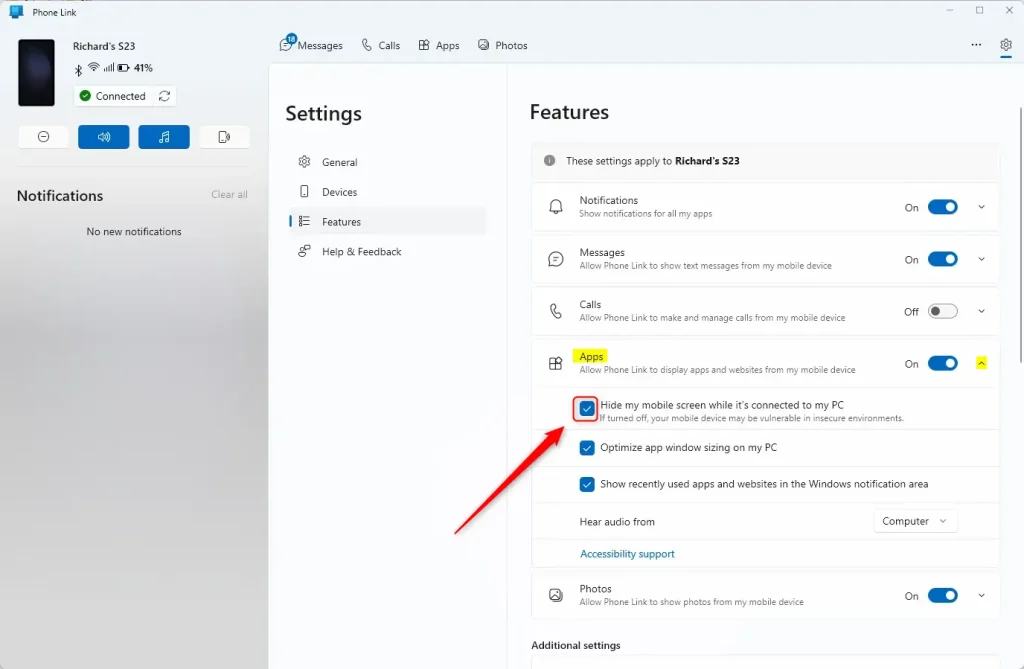
Open the Phone Link app, go to Settings Features Apps, and check the box for “Hide my mobile screen while it’s connected to my PC.” This will turn your phone’s display black while you use it through your computer.
How to hide your mobile screen
You hide your mobile screen by turning on a privacy setting inside Phone Link. Once it is on, people near you can’t see your phone screen while it is connected to your computer. In short, you open the app settings, go to the Features tab and turn on the option that hides your mobile screen. Your private messages and personal data then stay out of view.
Before you start, make sure your phone is already paired with Phone Link. If it isn’t, the settings you need may be limited or missing.
- Open the Phone Link app on your computer. The Phone Link window should appear and show your connected phone.
- If your phone is already connected, click the Settings button (the gear icon) in the top right corner. The Settings panel opens inside the app window.
- Select the Features tab. You should now see a list of options for what Phone Link can do with your phone.
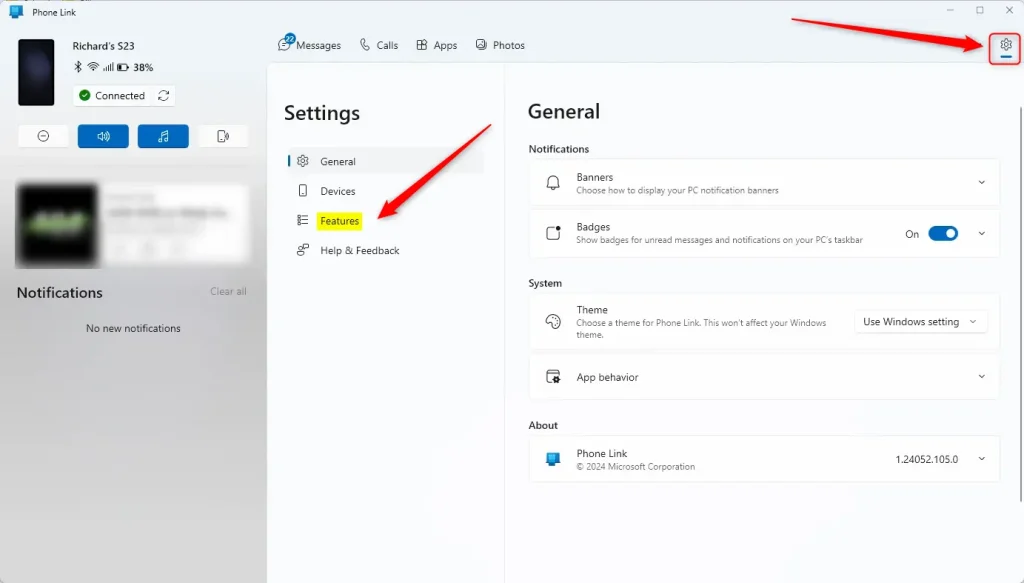
The setting is called “Hide my mobile screen while it’s connected to my PC”. It keeps sensitive data away from prying eyes. Here is how to find it and turn it on:
- On the Features tab, look at the right side of the window and find the Apps section.
- Click Apps to open its configuration panel.
- Check the box next to Hide my mobile screen while it’s connected to my PC.
The blackout feature is now active. Your phone display stays black while it is connected to the PC.
If you can’t see the option, check that your phone is connected and that the Apps feature is available for it. The Apps feature is mainly an Android feature, and iPhone connections in Phone Link offer fewer options.
To make your screen visible again, go back to the same place and uncheck the same box. The change applies without restarting anything.
Close the settings window to finish. There is no Save or Apply button, because Phone Link saves your changes automatically. If you want to be sure, reopen Settings Features Apps and check that the box still shows your choice.
Summary
Hiding your phone display keeps sensitive notifications and private content away from other people during screen-sharing sessions or when you work in a public place. It's a good habit to turn it on before a meeting starts, not after you notice something personal on screen. Turn it off again when you want to see your phone on the PC.
Have a question about this guide?
Answered by AI from this guide. Good questions may be added to this page — please don't include personal details.
Did this guide fix your problem?

About the Author
Richard
Tech Writer, IT Professional
Richard is a writer at Geek Rewind who turns complex IT tasks into clear, step-by-step guides. He draws on years of hands-on experience in system administration and enterprise IT operations, focusing on Windows, Linux and WordPress: the problems people actually run into, and the fixes that work. His server and WordPress guides come from systems he runs himself. Richard builds and maintains the platform behind Geek Rewind, from its Ubuntu servers and Nginx configuration to its custom WordPress plugins. Many new tutorials start with readers' questions, and he's always glad to answer them in the comments.
No comments yet — be the first to share your thoughts!