How to Sync Android Wallpaper in Phone Link on Windows 11


Wallpaper sync in Phone Link brings your Android background directly into the Phone Link app window on your Windows 11 PC with a frosted, blurred effect. Phone Link is a built-in Windows tool that connects your phone to your computer so you can check texts, view photos, and open mobile apps without picking up your device.
Recent versions of Phone Link handle this feature automatically, but you need to turn on transparency effects in your Windows 11 personalization settings to make the blurred background show up.
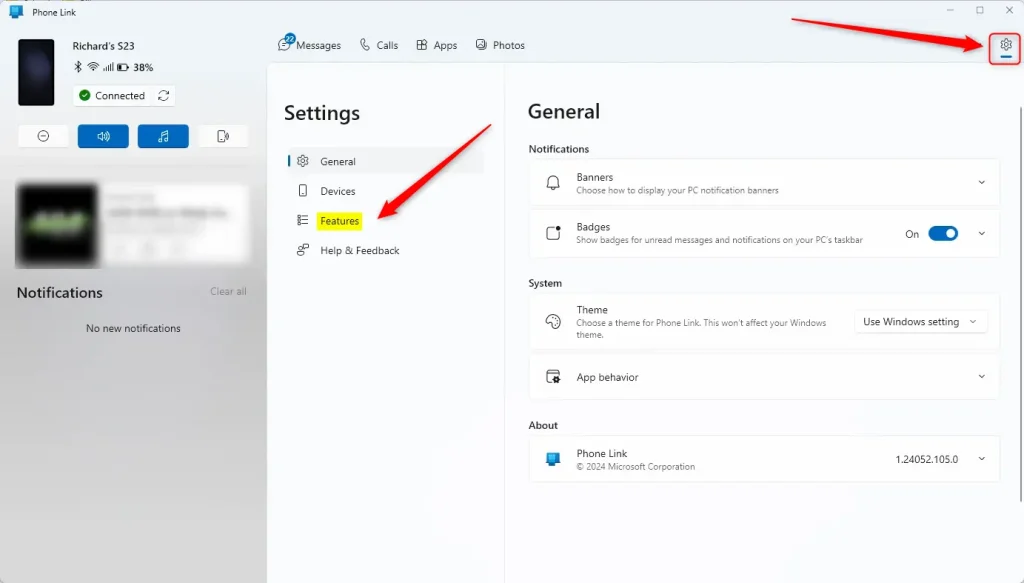
Open the Phone Link app, go to Settings , select the Features tab, and toggle the Wallpaper option to On. This will display your phone’s current wallpaper as the background for your Phone Link window.
Enable or disable making app background the same as the Android device’s wallpaper
To sync Android wallpaper Windows 11 in the Phone Link app, open Settings within the app, go to the Features tab, and turn the wallpaper option on or off. This setting matches the background of your open phone screen on your computer to the picture set on your phone.
Here’s how to do it.
First, open the Phone Link app.
Then, choose to add your phone. If your phone is already linked, click the Settings gear icon in the top right corner. Then, select the Features tab.
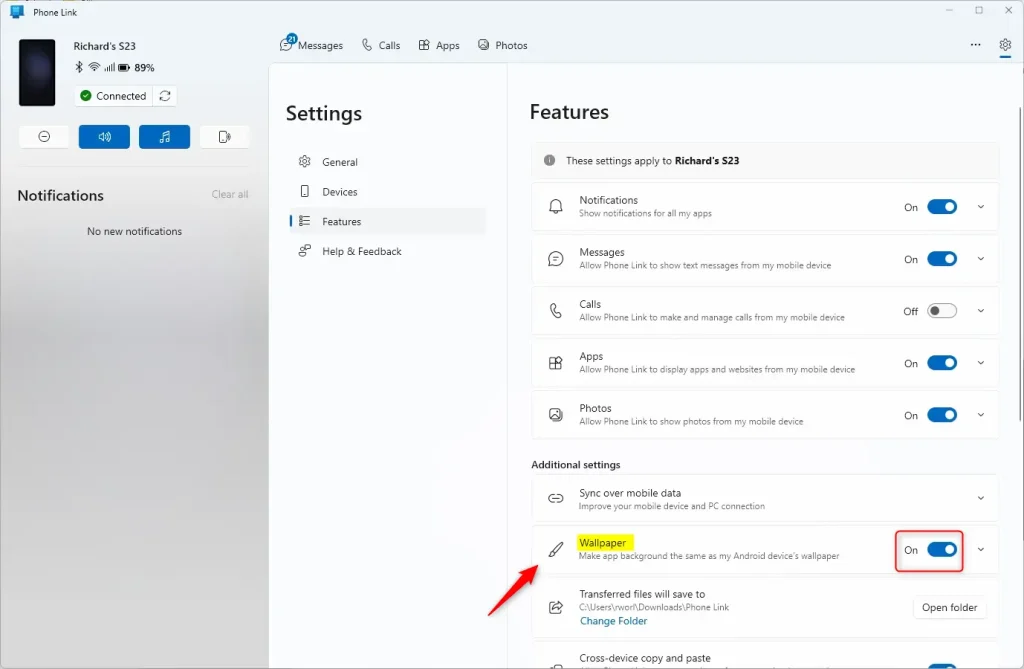
Scroll down on the right side to find the Additional settings section. Next, select the "Wallpaper" tile and toggle the switch button to the On or Off position to enable or disable this feature.
Exit the settings page when you are done.
That should do it!
Conclusion
The Phone Link app lets you sync Android wallpaper Windows 11 features to match your computer screen with your phone. You can turn this option on for a matched look across your devices or turn it off to keep your default computer background, giving you control over your desktop style.
Was this guide helpful?

About the Author
Richard
Tech Writer, IT Professional
Richard is a writer at Geek Rewind who turns complex IT tasks into clear, step-by-step guides. He draws on years of hands-on experience in system administration and enterprise IT operations, focusing on Windows, Linux and WordPress: the problems people actually run into, and the fixes that work. His server and WordPress guides come from systems he runs himself. Richard builds and maintains the platform behind Geek Rewind, from its Ubuntu servers and Nginx configuration to its custom WordPress plugins. Many new tutorials start with readers' questions, and he's always glad to answer them in the comments.


No comments yet — be the first to share your thoughts!