How to Enable or Disable Memory Compression in Windows 11

Memory compression in Windows 11 shrinks idle data sitting in your RAM (random access memory) so there is more free space for active apps and games. It is built in and runs automatically in the background on systems with 4GB or more of RAM. That keeps your PC responsive during heavy multitasking.
You can turn memory compression on or off yourself using Windows PowerShell. This is worth trying if your computer has performance problems and you want to see whether the setting makes a difference. The steps below work the same on Windows 11 Home and Pro.
You can enable or disable memory compression in Windows 11 using PowerShell. Open Windows Terminal as administrator and run Set-MMAgent -MemoryCompression $true to enable, or Set-MMAgent -MemoryCompression $false to disable. Restart your computer after running the command.
Why use memory compression?
Memory compression helps your PC run more apps at once by shrinking data stored in memory. Windows compresses pages it is not using right now and keeps them in RAM in a smaller form. When an app needs that data again, Windows unpacks it. This is much faster than reading the same data back from your drive.
What happens when done?
When memory compression is on, Windows packs unused data into smaller spaces. This lowers physical RAM usage and helps your system run several apps smoothly.
When it is off, Windows stops packing data. That frees up a little processing power. But once RAM fills up, Windows has to rely more heavily on your storage drive, and that can cause slowdowns when your computer is busy. The effect is most noticeable on PCs with little RAM or a slow drive.
How to check your current status
Checking your memory compression status in Windows 11 takes a few seconds, and you can use either of two tools:
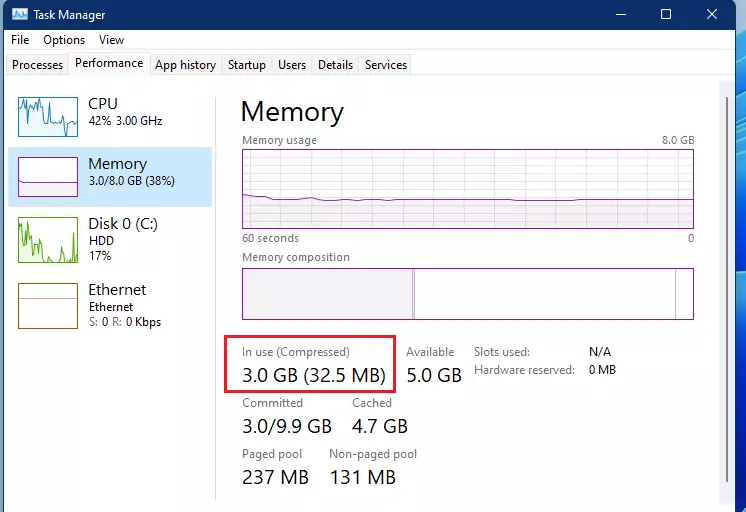
- Task Manager shows how much compressed data is in use right now, on the Memory section of the Performance tab. This tells you what is happening at the moment.
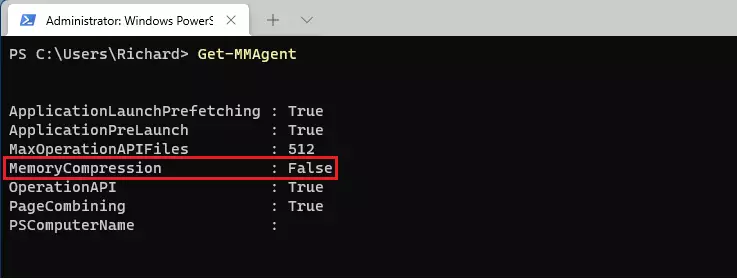
- PowerShell shows whether the feature is turned on. Run the Get-MMAgent command and read the memory compression line in the result.
Check the status before you change anything, so you know what you are starting from.
PowerShell gives you a direct answer about memory compression status in Windows 11. Follow these steps:
- Right-click the Start button and choose Terminal (Admin). Windows Terminal opens as an administrator.
- If a User Account Control prompt appears, click Yes.
- Select the PowerShell tab. On most Windows 11 PCs it is the default tab.
- Type Get-MMAgent and press Enter. You should now see a list of memory management settings.
- Find the MemoryCompression line. True means memory compression is on. False means it is off.
You turn memory compression on with a command in Windows Terminal. If the status shows False, meaning the feature is off, use the steps below.
- Open Windows Terminal as an administrator (right-click Start and choose Terminal (Admin)).
- Select the PowerShell tab.
- Type the command to enable memory compression, shown below.
To repeat the steps in short: if the status shows False, you can turn memory compression on. Open Windows Terminal as administrator and make sure you are in the PowerShell tab. Enter the command below. If you get an access or permission error, the terminal is not running as administrator. Close it and reopen it with Terminal (Admin).
Set-MMAgent -MemoryCompression $true
After the command runs, close the terminal and restart your computer to save the changes. The setting does not take full effect until the restart. After you sign back in, you can run Get-MMAgent again to confirm the status now reads True.
How to disable memory compression
You need to be signed in with an administrator account, or be able to enter administrator credentials at the prompt. A standard account will not be able to change this setting.
To turn this feature off, follow these steps:
- Open Windows Terminal as administrator as an administrator.
- Select the PowerShell tab.
- Enter the command shown below and press Enter.
- Close the terminal and restart your PC so the change applies.
Afterward, run Get-MMAgent again to check that the status shows False. If you later want it back, use the enable command from the earlier section.
Set-MMAgent -MemoryCompression $false
Performance, SysMain, and RAM Latency
Memory compression in Windows 11 uses a small amount of your processor’s power to shrink and unshrink data. On a modern CPU this usually has no significant impact on performance. In most cases the time saved by avoiding reads from the drive outweighs the extra CPU work.
Troubleshooting Performance Degradation
Revert the setting if your computer feels slower after the change. Follow these steps:
- Open PowerShell as an administrator.
- Enter
Set-MMAgent -MemoryCompression $trueand press Enter. - Restart your PC.
If the problems continue, memory compression is probably not the cause. Open Task Manager and look at the Processes tab. Sort by memory to see whether one app is using too much of it. Closing or updating that app often helps more than changing this setting.
Summary
Memory compression is a key feature in Windows 11. It helps your PC run smoother by shrinking data in your RAM. For most people, leaving it enabled gives the best speed. Turn it off only if you have a specific reason, and check the result with Task Manager so you can undo the change if it does not help.
Have a question about this guide?
Answered by AI from this guide. Good questions may be added to this page — please don't include personal details.
Did this guide fix your problem?

About the Author
Richard
Tech Writer, IT Professional
Richard is a writer at Geek Rewind who turns complex IT tasks into clear, step-by-step guides. He draws on years of hands-on experience in system administration and enterprise IT operations, focusing on Windows, Linux and WordPress: the problems people actually run into, and the fixes that work. His server and WordPress guides come from systems he runs himself. Richard builds and maintains the platform behind Geek Rewind, from its Ubuntu servers and Nginx configuration to its custom WordPress plugins. Many new tutorials start with readers' questions, and he's always glad to answer them in the comments.
No comments yet — be the first to share your thoughts!