How to Disable Logout on Ubuntu Desktop


- 11 steps
- Needs administrator rights
- Includes a restart or sign-out
Disabling the log out button on Ubuntu Desktop removes the “Log Out” option from the system menu, so nobody ends the session by accident. This helps on shared computers running Ubuntu 22.04 LTS or later with the GNOME desktop, which is the default desktop on those releases.
The button is controlled by a hidden GNOME setting, and you can change it from the Terminal or from a graphical editor. The change usually shows up right away. If the Log Out entry is still in the menu, restart the computer or log out and back in, then check again.
Open the Terminal with Ctrl+Alt+T and run gsettings set org.gnome.desktop.lockdown disable-log-out true. The Log Out option disappears from the system menu on Ubuntu 22.04 LTS or later with GNOME, for your user account only, usually without a restart. To bring it back, run gsettings reset org.gnome.desktop.lockdown disable-log-out.
Prevent users from logging out of Ubuntu
The quickest way to hide the button is a single command in the Terminal. Once it is set, other people using the machine can’t end your active session from the system menu by accident.
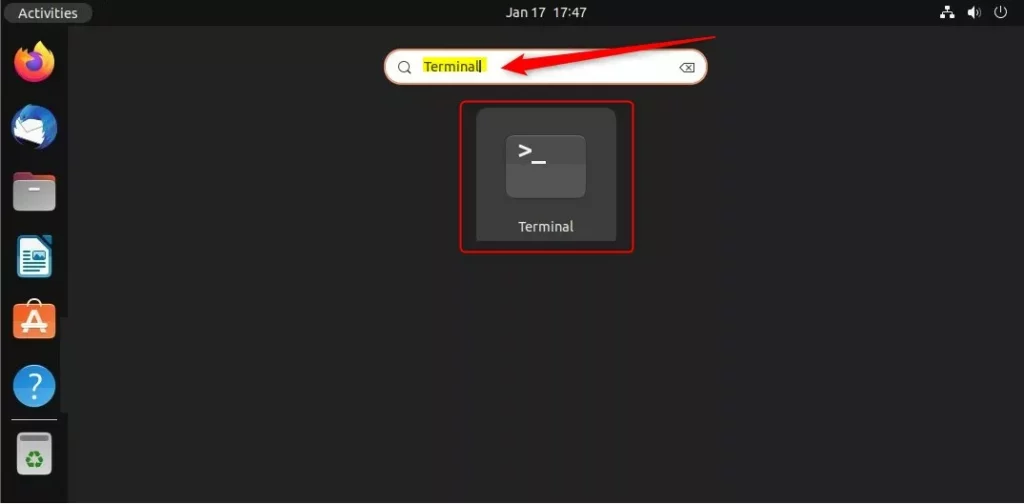
- Press Ctrl+Alt+T to open the Terminal. You can also search for Terminal in the Activities overview. A window with a command prompt should appear.
- Type or paste the command shown in the next block and press Enter. You don’t need
sudo, because the setting applies only to your own user account. - If the command prints nothing, it worked. This is normal for this kind of command.
gsettings set org.gnome.desktop.lockdown disable-log-out true
To get the Log Out button back, run the restore command from the block below in the Terminal. It returns the setting to its default value, and the Log Out option becomes visible again in the system menu on Ubuntu Desktop.
- Open the Terminal with Ctrl+Alt+T.
- Run the command shown below.
- Open the system menu at the top right and check that Log Out is listed again. If it isn’t, restart the computer and check once more.
gsettings reset org.gnome.desktop.lockdown disable-log-out
Disable or enable the Log out command using the Dconf Editor
It shows the same settings as a browsable tree with switches and text fields, so you can turn them on and off without typing commands.
Dconf Editor is not installed by default on Ubuntu. The next section covers the install.
Security Disclaimer: Please note that this is only a UI-level restriction. It is not a robust system-level security measure and will not stop someone who knows how to use the command line.
This method needs a one-time installation step first. Open the Terminal and run the command in the block below. It updates the package list and then installs the software, so it needs an internet connection and your password, since it uses administrator rights. Nothing shows as you type the password, which is normal.
sudo apt install dconf-editor
Installing from the package repositories remains the most reliable way to get the tool. When the command finishes and the prompt returns, open Dconf Editor from the app list.
- Open Activities and click Show Applications, or just start typing Dconf Editor.
- Click the Dconf Editor icon. A warning screen may appear first; click I’ll be careful to continue.
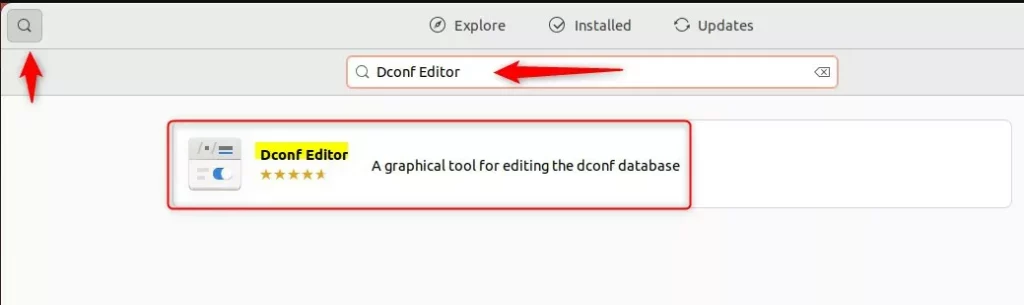
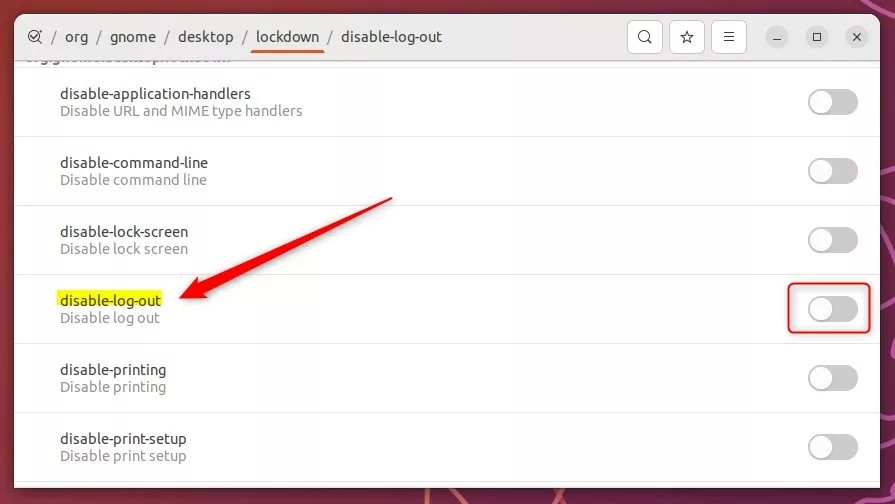
Next, find the disable-log-out setting, which controls whether the system lets users end their sessions. Use the search icon or the path bar at the top of the window and go to the path shown below:
org -> gnome -> desktop -> lockdown
- Find the disable-log-out entry in the list.
- If the value looks greyed out, turn off Use default value first. Dconf Editor won't let you edit a value while that switch is on.
- Click the toggle switch next to disable-log-out to hide the option. The switch should now show as on.
To undo it, switch the toggle off again, or turn Use default value back on.
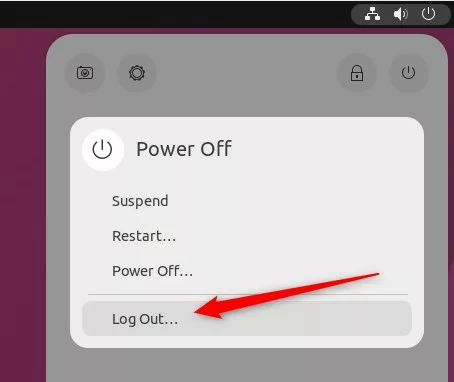
The change should take effect straight away, with no restart. Open the system menu at the top right of the screen and look for the Log Out entry. If it is gone, the setting worked. If it is still there, restart the computer and check again.
Have a question about this guide?
Answered by AI from this guide. Good questions may be added to this page — please don't include personal details.
Did this guide fix your problem?

About the Author
Richard
Tech Writer, IT Professional
Richard is a writer at Geek Rewind who turns complex IT tasks into clear, step-by-step guides. He draws on years of hands-on experience in system administration and enterprise IT operations, focusing on Windows, Linux and WordPress: the problems people actually run into, and the fixes that work. His server and WordPress guides come from systems he runs himself. Richard builds and maintains the platform behind Geek Rewind, from its Ubuntu servers and Nginx configuration to its custom WordPress plugins. Many new tutorials start with readers' questions, and he's always glad to answer them in the comments.
No comments yet — be the first to share your thoughts!