How to Change Currency Format in Windows 11

Currency format in Windows 11 controls how money symbols, thousands separators and decimal points appear on your PC. It is part of the regional format, so it affects apps that follow Windows settings , such as Calculator, Excel and many desktop programs. For example, it decides whether you see $1,234.56 or €1.234,56. This tutorial shows where to change it, what you should see at each step, and how to undo it.
The short version: open Settings, go to Time & language, choose Language & region, and change the regional format. The change applies to your user account straight away, and you do not need admin rights.
Open Settings , click Time & language, select Language & region, then pick your country from the Regional format drop-down. The currency symbol and separators update automatically to match that region. Changes save with no restart needed.
How to Change Currency Format in 🪟 Windows 11
To change the currency format in Windows 11, open the Settings app, go to Time & language, and choose Language & region. Under Regional format, you pick the country format you want, and the currency symbol and number layout follow it. This changes how money looks in your apps without changing your Windows display language.
The steps below are written for current builds of Windows 11. Labels can differ slightly on older releases, and I note where that matters.
- Open Windows Settings : Click the Start menu (the Windows icon on the taskbar ) and select Settings. Or press the Win+I to open Settings directly. You should see the Settings window with a list of categories on the left.
- In the Settings window, click Time & language in the left menu. The right pane now shows date, time, language and region options.
- Click Language & region on the right side. This page lists your display language, preferred languages and the region settings you need for the next steps.
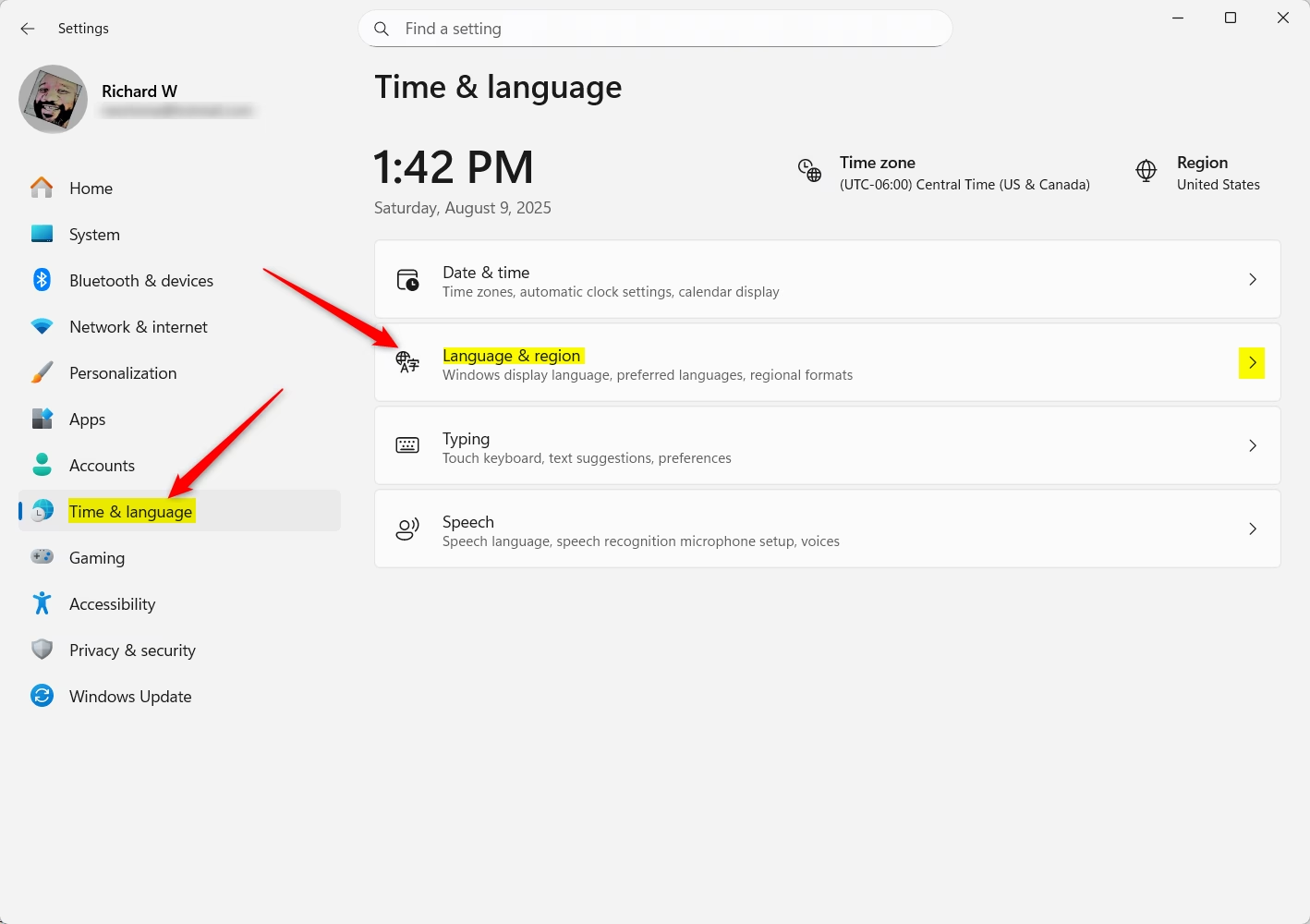
Windows 11 Settings: Time & language and Language & region
- Under Language & region, scroll down to the Region area and find the Regional format entry. Click it to expand it. You should see the current format (for example, English (United States)) and a drop-down list, plus extra options for calendar, date and time formats.
- Next, click Currency format to see your currency options. If you do not see an entry with that name, don't worry. Windows 11 builds differ here. On many of them the currency symbol simply follows the regional format you choose in the drop-down, and the Change formats button covers the date and time layouts. Pick the regional format that matches the country whose currency style you want.
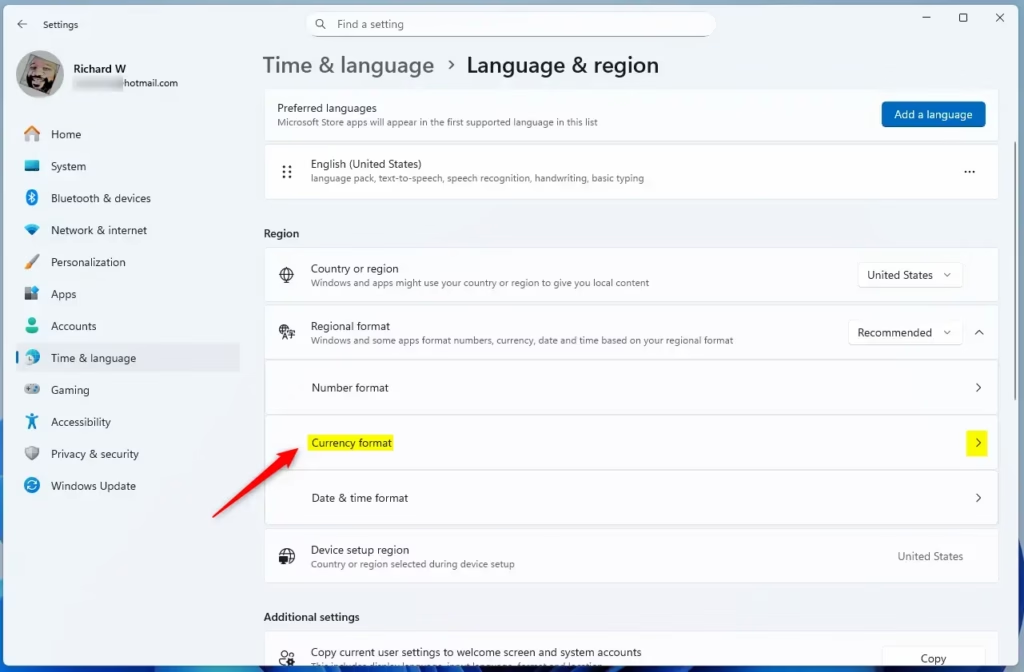
Click on 'Currency format' to select your preferred currency
- From the drop-down menus, pick the currency symbol and format you want to use (for example, $, £ or €). Choose the one for your country, because the symbol, the thousands separator and the decimal mark usually change together. The current choice is shown in the box, so you can see it update as soon as you select a new one.
- When you're done, close Settings. Your changes save automatically, and there is no Apply or OK button to press. A restart is not needed. However, apps that were already open may keep showing the old format until you close and reopen them. If one still looks wrong, sign out of Windows and back in.
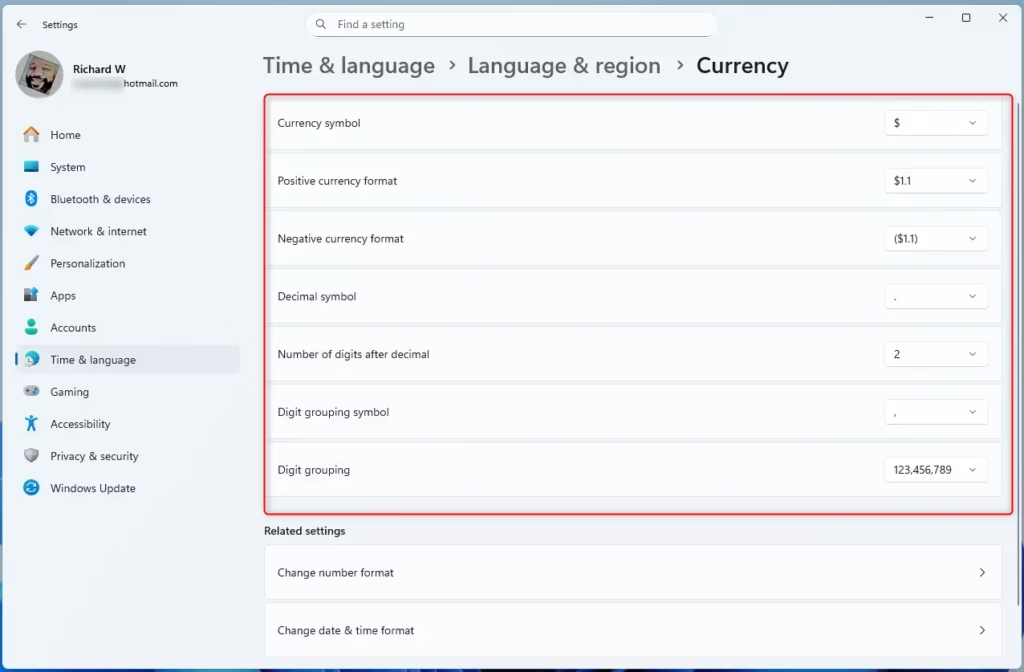
Choose the currency format from the available drop-down menus
Your computer will now display monetary amounts using the newly selected format. To check, open Calculator or a spreadsheet that uses currency cells and look at how a number such as 1234.56 is shown.
A few things worth knowing:
- This changes only how amounts look. It does not convert money from one currency to another.
- Some apps and websites ignore the Windows setting. Prices in the Microsoft Store, for example, can depend on the country or region of your account and your Country or region setting rather than on the regional format.
- To undo the change, go back to Time & language Language & region and select your original regional format again.
- If you need to set only the symbol or separators and the Settings app does not offer them, the classic Control Panel Region dialog has an Additional settings button with a Currency tab for finer control.
Summary
- Changing currency format in Windows 11 is easy using the Settings app, under Time & language Language & region.
- The Regional format controls how money and numbers look on your PC.
- You can pick your preferred currency symbol and format from a simple drop-down menu.
- Setting the correct currency format helps apps show money amounts correctly, though some apps may need a restart to pick it up.
- Following these steps makes sure your computer matches your local money style, and you can switch back at any time.
Changing the currency format in Windows 11 takes just a few clicks through the Regional format settings on your PC. This setting updates how money and numbers look in your programs, so your computer matches your local currency style and monetary amounts display the way you expect. If an app does not pick up the change, close and reopen it, or sign out and back in.
How to Change System Locale in Windows 11
Have a question about this guide?
Answered by AI from this guide. Good questions may be added to this page — please don't include personal details.
Did this guide fix your problem?

About the Author
Richard
Tech Writer, IT Professional
Richard is a writer at Geek Rewind who turns complex IT tasks into clear, step-by-step guides. He draws on years of hands-on experience in system administration and enterprise IT operations, focusing on Windows, Linux and WordPress: the problems people actually run into, and the fixes that work. His server and WordPress guides come from systems he runs himself. Richard builds and maintains the platform behind Geek Rewind, from its Ubuntu servers and Nginx configuration to its custom WordPress plugins. Many new tutorials start with readers' questions, and he's always glad to answer them in the comments.
No comments yet — be the first to share your thoughts!