How to Open Windows Terminal Automatically When You Start Windows 11

You can make Windows Terminal open on its own each time you sign in to Windows 11. The app has a setting for this, so you don’t need to build a shortcut yourself. Windows Terminal puts Command Prompt, PowerShell, and the Windows Subsystem for Linux (WSL) into one window with tabs.
If you use command-line tools every day, this saves a few clicks. Your desktop loads and the terminal is already waiting for you.
Open Windows Terminal, press Ctrl +, to access Settings, click the Startup tab, toggle Launch on machine startup to On, then click Save. Windows Terminal opens automatically every time you sign in.
What is Windows Terminal?
Windows Terminal is Microsoft’s tabbed command-line app. It is included in current Windows 11 builds (22H2 and later). On an older Windows 11 build, you can install it for free from the Microsoft Store. It runs Command Prompt, PowerShell, and WSL distributions side by side, each in its own tab or pane. You can also change color schemes and set up your own keyboard shortcuts.
You can change the colors, set the window size it opens at, and choose which command tool opens by default. That default matters here, because it is the tool you will see every time the terminal starts with Windows. The guides below cover these settings in more detail.
Why Open Windows Terminal Automatically?
If you open Windows Terminal several times a day, starting it automatically saves you a search, a click, and a few seconds every time you boot up. It also means your tabs and default shell are ready as soon as you reach the desktop. The setting works the same on Windows 11 Home and Pro.
How to Make Windows Terminal Open When You Sign In
When you turn it on, Windows launches the app every time you sign in to your account. You only need to change one switch, and you can reverse it just as easily. No restart is needed to turn it on. The change takes effect the next time you sign in or restart.
- Open Windows Terminal: Click the Start menu button (the Windows icon on the bottom left). Type
Terminalin the search box. Click Windows Terminal to open it. A window with a tab for your default shell, usually PowerShell, should appear.
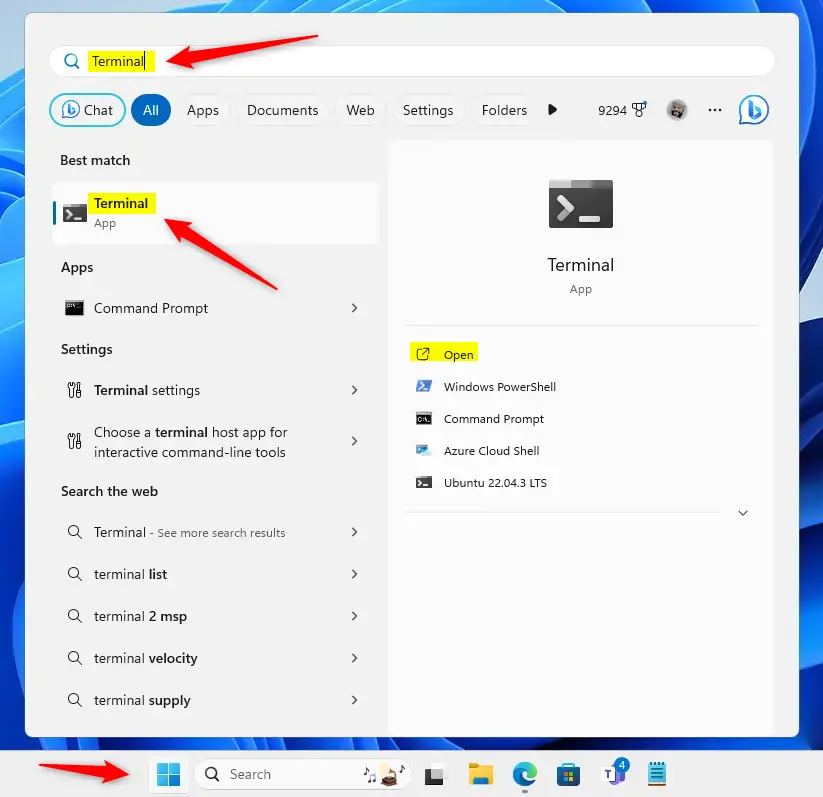
Open the Windows Terminal app - Open Terminal Settings: Click the small down arrow icon at the top of the Terminal window, next to the plus sign for new tabs. Then choose Settings. You can also press
Ctrl + ,(comma) on your keyboard. The Settings page opens in a new tab inside the Terminal window, not in the Windows Settings app.
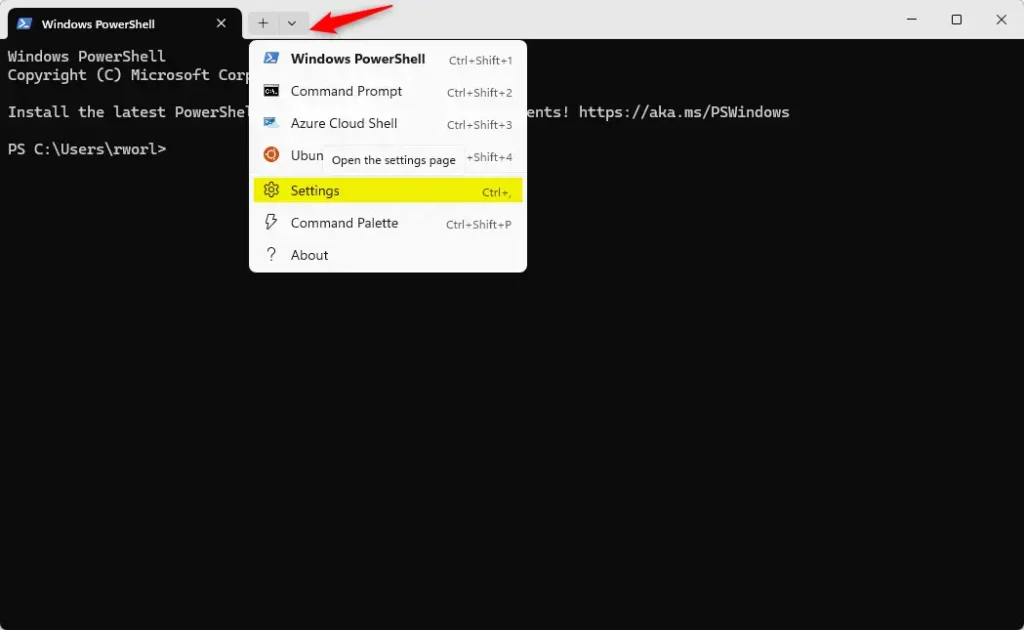
Windows Terminal Settings - Go to the Startup tab: In the Settings window, click on the Startup tab on the left side. If you don't see a Startup tab, your Terminal is probably out of date. Update Windows Terminal from the Microsoft Store and try again.
- Turn on "Launch on machine startup": Find the option called Launch on machine startup. Click the toggle switch to turn it On. The switch should now read On. If the toggle is greyed out or switches itself back off, check Settings Apps Startup in Windows. Make sure Windows Terminal is not blocked there, and note that a work or school policy can also prevent startup apps from running.
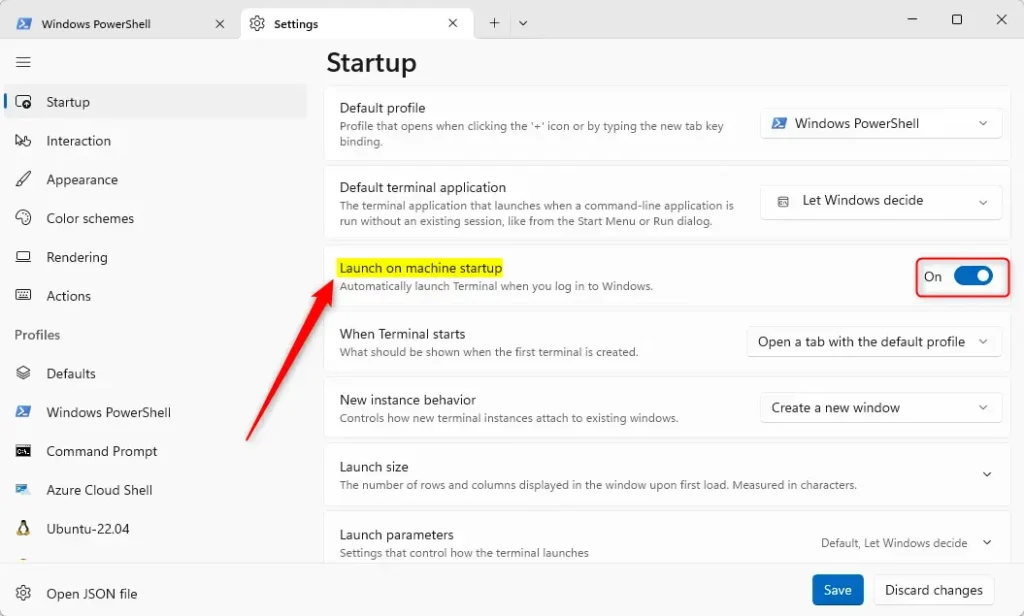
Toggle launch on startup - Save your changes: Click the Save button at the bottom right. Then close the Settings window. To test it, sign out and sign back in, or restart the PC. Windows Terminal should open on its own once the desktop loads.
That's it. Every time you sign in, Windows Terminal opens for you automatically, using your default profile and your usual settings. To stop this, go back to the Startup tab and turn Launch on machine startup to Off, then click Save. You can also switch it off under Settings Apps Startup in Windows.
Summary
- Opening Windows Terminal automatically saves time if you use it often.
- It makes sure your favorite Terminal settings are always ready when you log in.
- The steps are easy to follow and can be turned off anytime if you change your mind.
If you use command-line tools every day, having Windows Terminal open at sign-in gets your workspace ready before you touch the mouse. The setup takes less than a minute and applies on every sign-in. To undo it, turn off Launch on machine startup in the Terminal settings, or switch Windows Terminal off in Settings Apps Startup
Was this guide helpful?

About the Author
Richard
Tech Writer, IT Professional
Richard is a writer at Geek Rewind who turns complex IT tasks into clear, step-by-step guides. He draws on years of hands-on experience in system administration and enterprise IT operations, focusing on Windows, Linux and WordPress: the problems people actually run into, and the fixes that work. His server and WordPress guides come from systems he runs himself. Richard builds and maintains the platform behind Geek Rewind, from its Ubuntu servers and Nginx configuration to its custom WordPress plugins. Many new tutorials start with readers' questions, and he's always glad to answer them in the comments.


[…] the Terminal app on your device as administrator. Then run the command below to turn the lock screen on or off in […]